
Are you ready to launch your website but feeling stuck on how to link your domain to your web hosting? You’re not alone.
This crucial step can seem like a daunting task, yet it’s the bridge that brings your online presence to life. Imagine your domain as your home address and your web hosting as the actual house; without connecting the two, your visitors will never find you.
In this guide, you’ll discover how to seamlessly link your domain to your web hosting, ensuring your site is live and accessible to the world. With clear steps and expert tips, you’ll gain the confidence and know-how to get your website up and running in no time. Let’s demystify the process and turn your digital dream into reality. Keep reading to unlock the secrets of a successful domain-hosting connection.
Credit: www.godaddy.com
Choosing The Right Domain And Hosting
Connecting your domain to web hosting involves updating DNS settings. Begin by logging into your domain registrar account. Enter the name servers provided by your hosting service. This ensures your website appears online correctly.
Domain Name Selection
A good domain name is easy to remember. It should be short and simple. Avoid using numbers or special characters. Keep it relevant to your website’s purpose. Check if the name is available. Use a domain registrar to find and buy it. Popular choices include .com, .net, and .org. They are trusted by users. Unique names stand out. They help your site grow.
Types Of Hosting Services
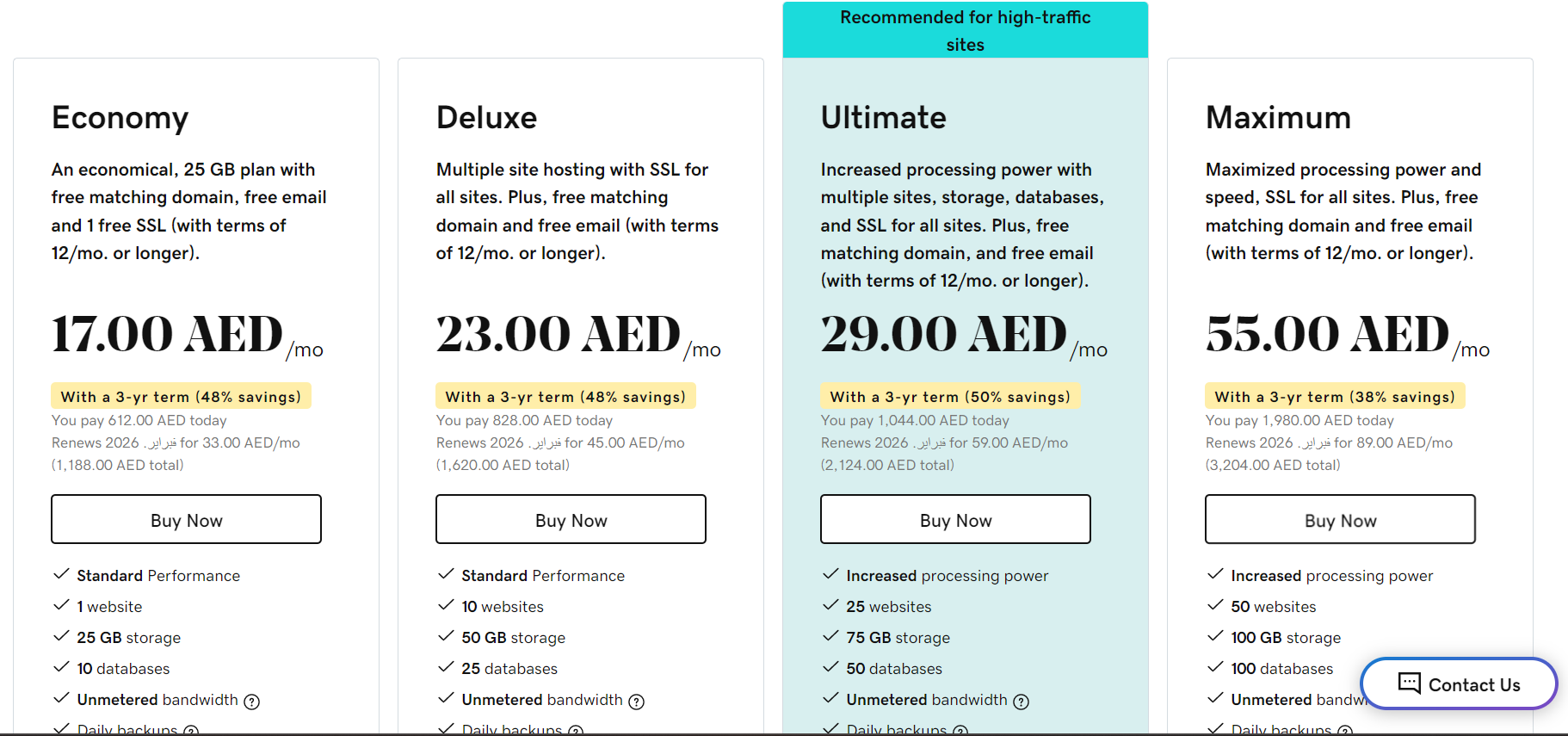
Shared hosting is cheap and beginner-friendly. Many users share one server. VPS hosting offers more control. It costs more but is faster. Dedicated hosting gives a whole server to you. It’s best for large sites. Cloud hosting is flexible. It handles traffic well. Choose based on your needs and budget.
Credit: www.godaddy.com
Accessing Domain And Hosting Accounts
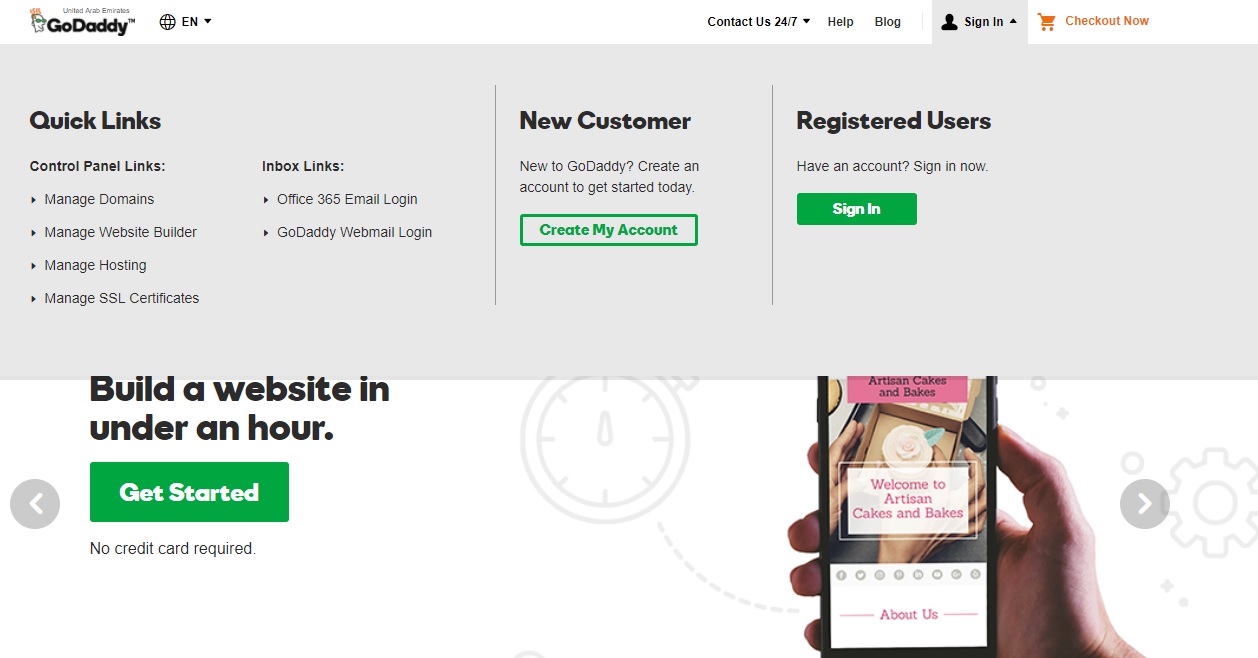
First, visit your domain registrar’s website. Find the login button at the top. Enter your username and password. Click the login button to access your account. Inside, look for the domain settings. You need these to link your domain.
Go to your web hosting provider’s website. Locate the login area. Use your hosting account details to sign in. Once logged in, find the control panel. The control panel helps manage your website. You will find tools to link your domain here.
Updating Dns Settings
First, log into your domain registrar account. Find the section for DNS settings. It might be called DNS management or Domain settings. Look for options to manage DNS. This is where you’ll make changes.
In the DNS management area, find nameservers. There will be two or more fields. These fields hold current nameserver addresses. Replace them with your web host’s nameserver addresses. This links your domain to your hosting. Changes might take some time to update. Wait patiently and check later.
Linking Domain With Hosting
First, log into your hosting account. Look for the domain section. Click “Add Domain” or “Domain Manager”. Enter your domain name. Check for spelling errors. Confirm your entry. Wait for the system to process. This may take a few minutes.
Go to your domain registrar. Find the DNS settings. Update the name servers. Use the name servers from your hosting account. Save the changes. DNS changes can take time. Sometimes a few hours. Check the connection later. Use online tools to verify. Ensure the domain points correctly.
Testing Domain Connection
Online tools help check if your domain is linked. DNS Checker shows if your domain is set worldwide. Ping tools tell if the server responds. Traceroute tools show the path data takes to reach your site. These tools are easy. Just enter your domain name. Then, see the results. This helps find issues quickly.
Sometimes, domains do not link right. Check DNS settings first. Make sure they match your host. Clear browser cache if changes do not show. Restart your router to refresh the connection. Contact your host if problems stay. They can help fix tricky issues.
Ensuring Security And Performance
Linking your domain to web hosting ensures both security and performance. Start by accessing your domain registrar account. Then, update the DNS settings to point to your hosting provider’s servers. This step integrates your domain with your hosting account, enhancing website speed and safety.
Enabling Ssl Certificates
SSL certificates make websites safe. They protect user information. This is very important for online safety. SSL helps keep data private. Websites with SSL show a padlock icon. This tells users the site is secure. Search engines like SSL too. They prefer secure websites. This helps in better search rankings. Installing an SSL is easy. Most hosting providers offer it for free. Make sure to enable SSL for your domain. It builds trust with visitors. Secure websites are important today.
Optimizing Loading Speed
Fast websites are better for everyone. Slow sites lose visitors. Loading speed affects user experience. It also affects search rankings. Keep your website light and fast. Use optimized images. Compress files to reduce size. Enable browser caching. This helps pages load quickly. Minimize the use of heavy scripts. Use a content delivery network (CDN). It speeds up content delivery. Check your website speed regularly. Many tools can help with this. Fast websites keep visitors happy.
Maintaining Domain And Hosting
Keeping regular backups of your website is very important. It helps you protect your data. If something goes wrong, you can get your data back. Backups should be done weekly or monthly. It depends on how often you update your site. Always store backups in a safe place. Preferably, use cloud storage. This keeps your data secure.
Domains and hosting need renewal. Each comes with an expiry date. Missing renewal can cause your website to go offline. Always check expiry dates regularly. Set reminders to renew on time. This helps avoid problems. Keeping track ensures your site stays live.

Credit: www.askdesign.biz
Frequently Asked Questions
How To Connect A Domain To Web Hosting?
To connect a domain to web hosting, update your domain’s DNS settings. Enter your hosting provider’s nameservers in the domain registrar’s settings. Ensure settings save correctly for propagation. Check connection by visiting your domain in a browser. Your website should load from the hosting server, confirming a successful connection.
How Do I Link My Domain To Another Website?
To link your domain to another website, update the domain’s DNS settings. Set the domain’s A record to the website’s IP address or use a CNAME pointing to the website’s URL. Check with your domain registrar for specific instructions.
How Do I Connect My Domain To Web Com?
Log into your Web. com account, select “Domains,” then click “Manage. ” Choose “DNS Management” and enter your domain details. Save changes to connect your domain. Follow Web. com’s specific instructions for further setup.
How Do I Point My Domain To Another Hosting Provider?
Log in to your domain registrar’s account. Update DNS settings by entering the new hosting provider’s nameservers. Save changes. Allow up to 48 hours for DNS propagation. Contact your hosting provider for specific nameserver details if needed.
Conclusion
Linking your domain to web hosting is simple. You just need patience. Follow the steps outlined in this guide. Make sure your domain settings are correct. Check your DNS settings regularly. They can affect your website’s performance. Always keep your web hosting details handy.
Troubleshooting is easier with them. This process connects your domain and hosting. Once done, your website is live. Visitors can access it from anywhere. Remember, every website starts here. Take your time and double-check everything. Your online presence begins with this step.
Enjoy sharing your content with the world!


