
Imagine having a shiny new domain name that perfectly captures your brand or idea. It’s exciting, right?
But now, you might be wondering how to get that domain linked to your web hosting. Don’t worry; you’re not alone. Many people find this step a bit tricky. But it’s crucial because without linking your domain to hosting, your website can’t go live and be accessible to the world.
Think of your domain name as the address to your house. Without it being connected to the actual house (your web hosting), visitors can’t find you. It’s a step that holds the key to unlocking your online presence. By the end of this article, you’ll have the confidence and know-how to connect your domain name to your web hosting effortlessly. You’ll learn simple steps that ensure your website is up and running smoothly. So, let’s dive in and get your website one step closer to being visible to everyone!
Choosing The Right Domain Name
Picking the right domain name is important. It should be short and easy to remember. Avoid using numbers or special characters. A good domain name tells what your website is about. Think of keywords related to your site. This helps with search engines.
Check if the domain name is available. Many names are already taken. Use a domain checker tool online. It shows if your chosen name is free. Try different names if needed. Make sure to choose a name that you like.
Finding out if a domain name is available is simple. Use a domain registration site. Type your desired name. The site will tell if it is free. If not, it suggests similar names. Pick one you like the most.
Once you find an available name, act fast. Someone else might grab it. Register the name quickly. This keeps it safe for you. Always double-check spelling before buying.
Credit: www.namecheap.com
Selecting A Web Hosting Provider
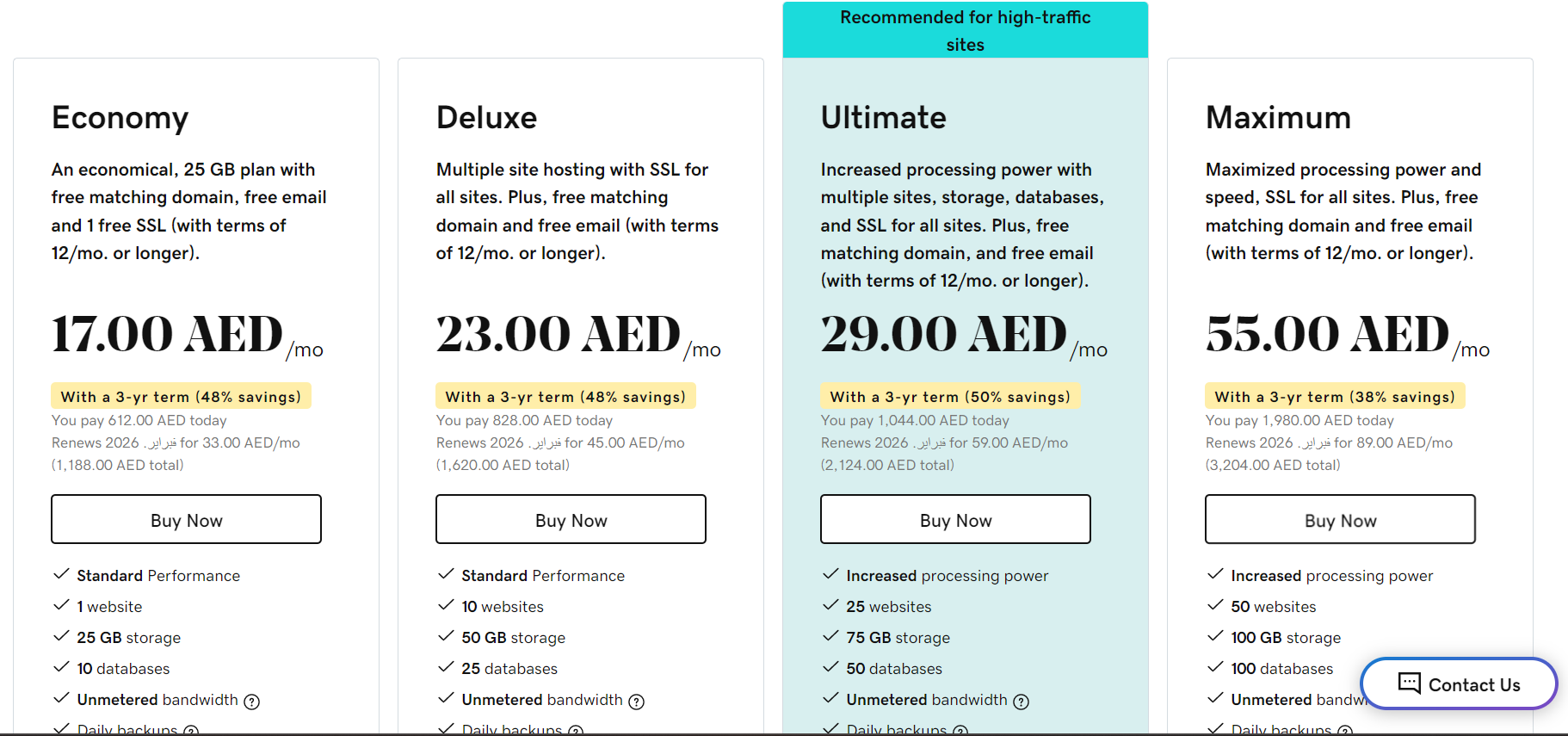
Web hosting comes in different types. Shared hosting is like sharing a room. It’s cheap and good for small sites. VPS hosting gives more space. It’s like having your own room. Dedicated hosting is having the whole house. It’s fast and powerful. Cloud hosting uses many computers. It’s safe and reliable.
Choose a provider with good uptime. Your site stays online longer. Customer support helps solve problems fast. Security features keep your site safe from hackers. Look for easy-to-use control panels. They make managing your site simple. Backup options protect your data. Check the bandwidth and storage. Ensure they meet your needs.
Accessing Dns Settings
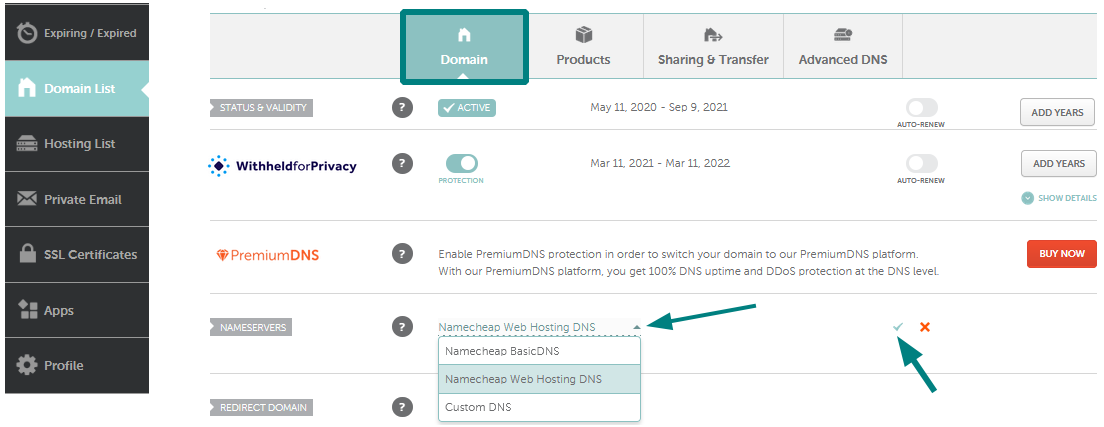
First, log into your domain provider account. Look for the section called “DNS” or “Domain Settings”. This is where you can manage your DNS records. Check the menu on the side or the top. It should be easy to find.
Sometimes it’s under “Manage Domains”. Click it to access your DNS settings. Make sure you’re looking at the right domain if you have many. It’s important to be on the correct page.
DNS records are like a map. They tell browsers where to find your website. There are different types of records.
The A record points to your server’s IP address. The CNAME record is used for subdomains. Always make sure these records are correct.
If you make changes, it can take time to update. This is called propagation. It can take up to 48 hours. Be patient and check back later.
Updating Name Servers
First, log in to your domain registrar account. Check the domain settings or DNS management page. Here, you will find the current name servers. They are usually a set of two or more addresses. Write them down or keep them in view.
Visit your web hosting account. Look for the section that shows the hosting name servers. Copy these new name server addresses. Go back to your domain registrar account. Replace the old name servers with the new ones. This connects your domain to your hosting account. Changes can take some time to update.
Verifying Domain Connection
Online tools help check if your domain links correctly. Tools like DNS Checker or Whois Lookup are popular. They show if your domain points to the right server. Enter your domain name and click search. Results appear quickly. They show if the domain and hosting are linked. This is important for website visibility.
Testing if your website is accessible is crucial. Use a web browser for this. Type your domain in the address bar. Does your website load? If yes, it works fine. If not, check the connection again. WebPageTest or Pingdom Tools are helpful. They test loading speed and server response. Ensure everything loads smoothly.
Credit: www.godaddy.com
Troubleshooting Common Issues
DNS changes take time to update. This is called DNS propagation. It usually takes 24 to 48 hours. Your website might not be visible during this time. Patience is key. Check your settings again if it takes longer. Using online tools helps track DNS changes. This ensures everything is on track. Keep checking until your site is live.
Sometimes DNS settings are not right. This causes problems. Double-check your DNS records. Make sure they match the hosting details. Wrong settings mean the site won’t load. Use your hosting provider’s instructions. They guide you to set DNS correctly. Always save changes and wait a bit. Check your site after adjusting settings. It should work fine if done right.

Credit: www.crazydomains.com
Frequently Asked Questions
How To Connect Domain Name With Web Hosting?
To connect a domain with web hosting, update the domain’s DNS settings. Point the nameservers to your hosting provider’s servers. Access your domain registrar’s control panel, locate DNS settings, and enter the provided nameservers. Changes might take up to 48 hours to propagate globally.
How Do I Link A Website To A Domain?
Link a website to a domain by updating the DNS settings. Access your domain registrar account. Enter the website’s IP address in the DNS records. Save changes to connect the domain to the website. Changes may take up to 48 hours to propagate.
How Do I Point My Domain To Another Hosting Provider?
Log in to your domain registrar account. Find the DNS settings. Update the nameservers to your new hosting provider’s. Save changes. It may take up to 48 hours for DNS propagation.
How Do I Connect My Domain To Web Com?
Access your Web. com account and navigate to the “Domain” section. Select “Connect Domain” and follow the prompts. Enter your domain name, update DNS settings as instructed, and verify the connection. Ensure your domain’s DNS records match Web. com’s requirements for a successful connection.
Conclusion
Connecting your domain to web hosting is straightforward. First, choose a reliable host. Then, access your domain settings. Update nameservers to match your hosting. Wait for propagation. Usually, it takes a few hours. Now, your website is live! Remember, support is available if needed.
With persistence, you can manage your website smoothly. Keep exploring new tools. Enhance your online presence with confidence. Always backup your data regularly. Stay informed about updates. Your domain and hosting are the foundation. Build wisely, and success will follow.
Enjoy your journey into the digital world!


