

Are you ready to get your website online but feeling stuck on how to connect your domain and hosting with GoDaddy? You’re not alone.
Linking your domain to your hosting is a crucial step that can seem confusing at first. But once you know the simple steps, it’s easy to do—and it sets the foundation for your website’s success. In this guide, you’ll discover exactly how to link your GoDaddy domain and hosting quickly and without hassle.
By the end, you’ll have the confidence to make your website live and start reaching your audience. Let’s dive in and make your online presence happen!
Choose The Right Domain And Hosting
Choosing the right domain and hosting is the first step to build a website. These two elements work together to make your site visible online. A good domain name and a reliable hosting plan help your website run smoothly.
This section explains how to pick the best domain and hosting for your needs. Follow these tips to start your online journey with confidence.
Selecting A Domain Name
Pick a domain name that is short and easy to remember. Avoid using numbers or special characters. Choose a name that reflects your brand or business. Make sure it is simple to spell. Check if the domain name is available using GoDaddy’s search tool. Register your domain for at least one year to protect your site.
Picking A Hosting Plan
Choose a hosting plan that matches your website’s needs. Shared hosting is budget-friendly for small sites. For more speed and control, consider VPS or dedicated hosting. Look for plans with good uptime and fast loading speed. Check if the plan includes customer support and easy setup. Make sure the hosting plan supports your website platform, like WordPress.
Credit: www.godaddy.com
Access Your Godaddy Account
Accessing your GoDaddy account is the first step to link your domain and hosting. This step ensures you control both services in one place. It helps you manage settings easily and quickly.
Follow simple steps to log in and find your domain settings. The process is straightforward and user-friendly. Let’s start with logging in.
Logging In
Go to the GoDaddy website. Click on the “Sign In” button at the top right corner. Enter your username or customer number. Then type your password. Click “Sign In” to access your account dashboard.
Use a strong password to keep your account safe. If you forgot your password, use the “Forgot Password” link to reset it.
Navigating To Domain Settings
After logging in, find the “My Products” section. Here, you will see all your domains and hosting plans.
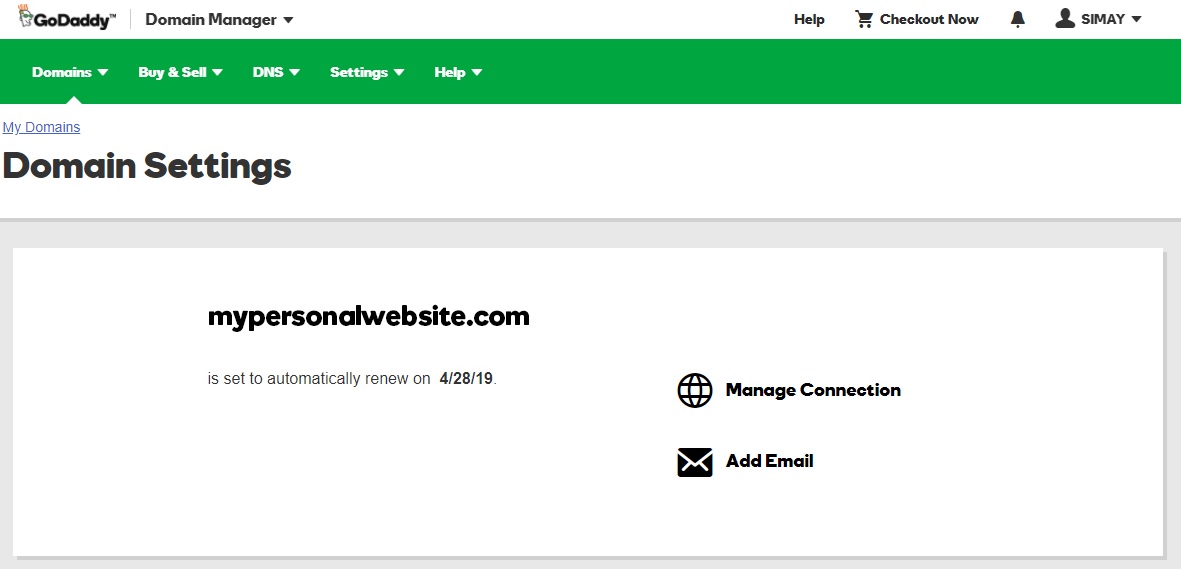
Look for the domain you want to link. Click the “Manage” button next to it. This opens the domain settings page.
In domain settings, you can update DNS records and other important details. These settings connect your domain to your hosting service.
Find Your Hosting Details
Finding your hosting details is the first step to link your domain and hosting on GoDaddy. These details help connect your website to the right server. Without them, your site won’t work properly. Let’s explore how to find this information quickly.
Locating Server Information
Start by logging into your GoDaddy account. Go to the “My Products” page. Find your hosting plan listed there. Click on “Manage” next to your hosting service. Here, you will see the server details like IP address and server name. Write these down. You will need them to link your domain.
Understanding Dns Settings
DNS settings control where your domain points on the internet. On GoDaddy, these settings are in the “DNS Management” section. Look for records called “A Record” or “Nameservers.” The A Record should point to your hosting server IP. Nameservers link the domain to hosting servers directly. Make sure these details match your hosting information to connect correctly.

Credit: www.askdesign.biz
Update Domain Dns Records
Updating your domain’s DNS records is a key step in linking your domain and hosting at GoDaddy. DNS records tell the internet where to find your website and services. Proper updates ensure your site works correctly and loads fast. This part covers the basics of changing nameservers and adding A records.
Changing Nameservers
Nameservers direct your domain to your hosting provider. Changing them tells GoDaddy to use your hosting company’s servers. Log in to your GoDaddy account and go to the Domain Settings page. Find the Nameservers section and select “Change.” Enter the nameservers provided by your hosting company. Save the changes. Nameserver updates can take a few hours to fully work.
Adding A Records
A Records link your domain to an IP address. This tells browsers where your website files live. In your GoDaddy account, open the DNS Management page for your domain. Look for the A Record section. Add a new A Record with the IP address from your hosting provider. Use “@” for the host name to apply it to your root domain. Save the record. This step helps your domain connect directly to your hosting server.
Verify Domain And Hosting Connection
Verifying the connection between your domain and hosting is a key step after linking them on GoDaddy. This ensures your website will load correctly for visitors. Checking the connection early avoids downtime and errors.
Verification involves confirming that the domain points to the correct hosting server. This process can take some time due to DNS changes. Patience and simple checks help confirm everything works as expected.
Checking Propagation Status
Propagation means updating domain details across the internet. It can take from a few minutes to 48 hours. Use online tools like DNSChecker to see if your domain points to your hosting IP worldwide. Enter your domain name, select DNS record type, and check results. If most locations show your hosting IP, propagation is complete. Refresh your browser or clear cache to see changes live.
Troubleshooting Common Issues
Sometimes, the domain may not connect properly to hosting. Common issues include incorrect DNS records or delays in propagation. Double-check your nameservers in GoDaddy’s domain settings. Ensure they match the hosting provider’s instructions. Clear your browser cache and try different devices or networks. If problems persist, contact GoDaddy support for help. Simple steps fix most connection issues quickly.
Manage Website Files And Email
Managing your website files and email is key after linking your domain and hosting on GoDaddy. It helps keep your website live and your communication smooth. Proper file management ensures your website shows the right content. Setting up email correctly lets you send and receive messages with your domain name.
Uploading Website Content
Start by logging into your GoDaddy hosting account. Access the file manager or use an FTP client. Upload your website files to the public_html folder. This folder is where your website’s main files live. Make sure your homepage is named index.html or index.php. Check that all images and scripts are in the right folders. Uploading files correctly makes your website visible online.
Configuring Email Settings
Go to your GoDaddy account’s email section. Choose to create a new email address with your domain. Enter the desired email name and set a strong password. Configure your email client or use GoDaddy’s webmail to check messages. Update MX records if needed to ensure proper email delivery. Correct email setup helps you send and receive domain-based emails without issues.

Credit: www.youtube.com
Frequently Asked Questions
How Do I Connect My Godaddy Domain To Hosting?
To link your GoDaddy domain to hosting, update the domain’s nameservers to those of your hosting provider. Log in to GoDaddy, access domain settings, and replace default nameservers with hosting ones. This directs your domain to load your hosting content correctly.
Can I Use Godaddy Domain With External Hosting?
Yes, you can use a GoDaddy domain with any external hosting. Change the domain’s DNS records or nameservers to point to your hosting provider. This setup allows your domain to work seamlessly with non-GoDaddy hosting services.
How Long Does Godaddy Domain Linking Take?
Linking a GoDaddy domain to hosting usually takes 24 to 48 hours. DNS propagation time varies globally. During this period, your website may be temporarily inaccessible. After propagation, your domain will fully connect to your hosting server.
What Dns Records Are Needed For Godaddy Hosting?
For GoDaddy hosting, you typically need to set A records pointing to your server IP. Additionally, CNAME and MX records may be required for subdomains and email services. Proper DNS setup ensures your website and emails function correctly.
Conclusion
Linking your domain to GoDaddy hosting is a simple process. Follow the steps carefully for a smooth connection. Check your settings to avoid common errors. Your website will become live once linked correctly. Stay patient if changes take time to show.
This setup helps your site reach visitors easily. Keep your login details safe for future updates. Feel confident managing your domain and hosting now.


