
Do you ever wonder which PHP version your WordPress site is running? Knowing your PHP version is more important than you might think.
It affects your site’s speed, security, and overall performance. If you’re not sure how to check this, don’t worry—you’re not alone. Many WordPress users find themselves in the same boat. Imagine having the power to optimize your site just by understanding a simple version number.
This isn’t just about tech jargon; it’s about giving your website the strength it deserves. Discover how easy it is to find out what PHP version you’re using and unlock the potential to enhance your WordPress site. Ready to take control? Keep reading to learn how!
Credit: www.youtube.com
Checking Php Version In WordPress Dashboard
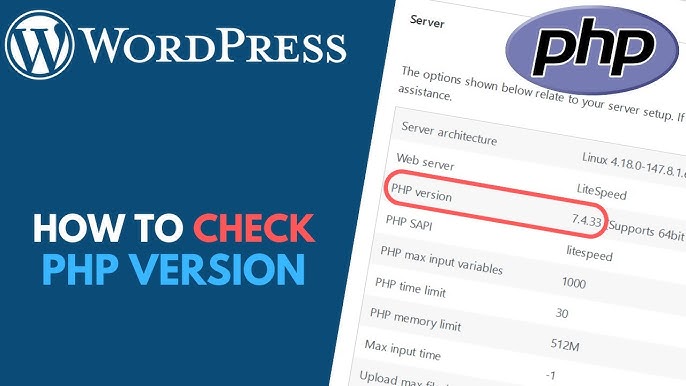
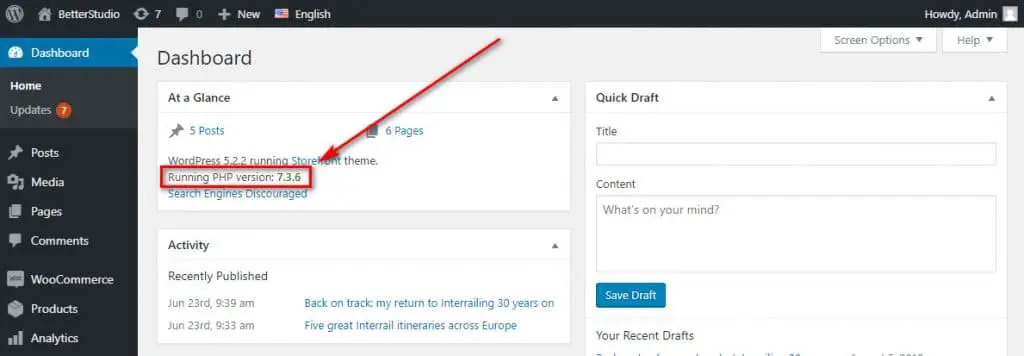
Log in to your WordPress dashboard. Find the Tools menu on the left. Click on it. Choose Site Health from the list. Wait for the page to load. Scroll down a bit. Look for the Info tab at the top. Click on it. This reveals system details. Find the Server section. Check the PHP version there. It shows the version number.
Knowing the PHP version helps. It makes your site safer. It also improves speed. Update PHP if needed. Ensure plugins work well. Keep WordPress running smoothly. Always check for updates. A newer PHP version is better. It offers new features. It fixes old issues. Stay updated for best results.
Using A Plugin To Identify Php Version
Discovering your WordPress PHP version is easy with a plugin. Install it, and find your PHP version quickly. This helps ensure compatibility and optimal site performance.
Recommended Plugins
Some plugins can help you find your PHP version. PHP Compatibility Checker is popular. It checks if your site works with newer PHP versions. WP-ServerInfo is another choice. It shows PHP version and server info. Display PHP Version plugin is simple. It shows PHP version in your admin area. Each plugin has its own features. Choose the one that fits your needs. Plugins make checking PHP version easy.
Steps To Use Plugins
Install the plugin from the WordPress dashboard. Activate it after installation. Go to the plugin settings. Look for PHP version details. Follow the instructions given by the plugin. Some plugins show the PHP version on the dashboard. Others may need extra steps. Check the plugin guide for help. Plugins make PHP version checking simple. You can find your PHP version easily.
Accessing Php Version Via Hosting Control Panel
Most hosting platforms provide an easy way to find your PHP version. You can check it via the hosting control panel. cPanel is popular. Log into cPanel, then find the PHP section. There, you can see the PHP version.
Another platform is Plesk. Log into your Plesk dashboard. Look for the PHP settings. Here, you will see which PHP version is in use.
Some hosts use DirectAdmin. Access the DirectAdmin panel. Click on the PHP settings. It will show your PHP version too.
These platforms make it easy to check PHP details. Just follow these steps, and you’ll know your PHP version quickly.
Credit: wedevs.com
Verifying Php Version Via Ftp
Discovering your WordPress PHP version is simple through FTP. Locate and open the ‘phpinfo. php’ file. This reveals your PHP version details quickly.
Connecting To Your Site
First, you need to connect to your site using FTP. Use a program like FileZilla. Enter your host, username, and password. Your host is usually your website address. Once logged in, you will see your site files. Find the folder named public_html. This is where your main site files are stored. Navigate through these files. Look for any PHP files you may need.
Creating A Php Info File
Create a new file using Notepad or TextEdit. Name it info.php. Type this code: php phpinfo(); ?. Save the file. Upload it to your public_html folder. Use FTP to upload. After uploading, open your browser. Type yourwebsite.com/info.php. It will show your PHP version. This file will help you verify the PHP version. Delete the file after checking. Keeping it may pose a security risk.
Updating Php For WordPress
Updating PHP can make your website faster and more secure. Newer versions fix old problems. They also bring new features. Better speed can help your site load quickly. This keeps visitors happy. Secure sites protect against hackers. It’s important to keep your site safe. Updating also makes sure plugins work well. Older PHP may cause problems. So, keeping PHP up to date is a smart move. It helps your site run better.
First, make a backup of your site. This saves your data. Next, check your current PHP version. You can find this in your hosting panel. Then, update WordPress and plugins. This avoids errors. After that, go to your hosting panel. Look for the PHP settings. Change the version to the latest one. Finally, test your site. Ensure everything works fine. If issues come, contact support for help.
Troubleshooting Php Version Issues
Many users face errors due to outdated PHP versions. A common issue is compatibility with themes and plugins. Some plugins need the latest PHP version. This can cause a website crash. Another problem is slow site speed. This happens with old PHP versions. Users may also see security warnings. Older versions have more vulnerabilities.
Updating PHP can solve many issues. First, check your current PHP version. Go to your WordPress dashboard. Click on “Tools”, then “Site Health”. Look for the “Info” tab. Updating is easy. Contact your hosting provider for help. They can update PHP for you. Always backup your site before updates. This keeps your data safe.
Importance Of Keeping Php Updated
Keeping PHP updated is very important. It makes your website faster and more secure. New versions fix bugs and add new features. If PHP is old, your site may have problems. It can even stop working. Hackers like old PHP versions. They can find ways to attack them. Updates make it harder for them.
New PHP helps plugins and themes work better. Old PHP might cause errors or crashes. Many web hosts ask for the latest PHP. It keeps sites safe and working well. Updating PHP is like giving your website a strong shield. Make sure to check PHP versions often. This keeps your site in top shape.
Credit: betterstudio.com
Frequently Asked Questions
How Can I Find My Php Version In WordPress?
To find your PHP version in WordPress, access your hosting account’s control panel. Navigate to the PHP settings section. Alternatively, use a plugin like “Display PHP Version” to check directly from the WordPress dashboard. Keeping your PHP version updated ensures optimal site performance and security.
Is My WordPress Php Version Up To Date?
To check if your PHP version is up to date, compare it with the latest version on PHP’s official site. WordPress typically recommends using the latest PHP version for better security and performance. Regularly updating ensures compatibility with new themes and plugins.
Why Is Knowing My Php Version Important?
Knowing your PHP version is crucial for WordPress site performance and security. PHP updates bring enhanced features, bug fixes, and improved security. Running the latest PHP version ensures compatibility with modern plugins and themes, keeping your website efficient and secure.
Can I Update My Php Version In WordPress?
Yes, you can update your PHP version through your hosting provider’s control panel. Most hosts offer an easy way to switch PHP versions. Always back up your website before updating. Test your site for compatibility to ensure everything functions smoothly after the update.
Conclusion
Finding your PHP version in WordPress is simple. First, check your dashboard. It’s quick and straightforward. Remember, PHP impacts site performance. Keeping it updated ensures security and speed. Regular checks help maintain optimal functionality. Don’t skip this step. It’s crucial for a smooth website experience.
Always prioritize safety and efficiency. Stay informed about your site’s technical aspects. This knowledge empowers you. It also enhances your site management skills. Better understanding leads to better control. So, take the time. Ensure your PHP version is up-to-date. Your website will thank you for it.


