
Have you ever stumbled upon a WordPress site that took your breath away? Perhaps its design was sleek, the layout was seamless, and the overall aesthetic was just perfect.
You found yourself thinking, “I need to know what theme this is!” You’re not alone. Many of us have been captivated by a beautifully designed WordPress site and wanted to uncover the mystery behind its theme. Knowing the theme can save you hours of browsing and can be your first step toward creating a site that’s just as stunning.
You’ll discover easy and effective ways to identify the WordPress theme name, so you can bring your own web vision to life. Stick around, because the solution is simpler than you think, and it might just change the way you look at websites forever.
Identifying WordPress Themes
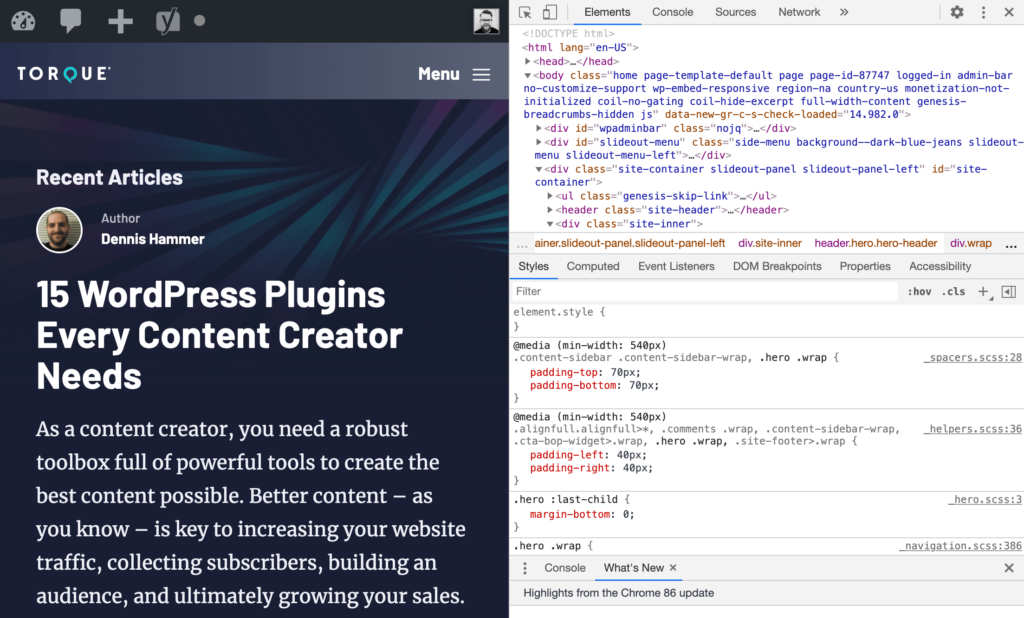
Open the website you like. Right-click on the page. Choose “Inspect” or “View Page Source.” Look for the style.css file. This file often shows the theme name. It is usually in the wp-content/themes folder. The theme name is at the top of the file. Sometimes, the theme name is in the comments. Read carefully to find it.
Many websites help find WordPress themes. Enter the website URL in the tool. The tool scans the site. It reveals the theme name in seconds. These tools save time. They are easy to use and fast. Some popular detectors are WPThemeDetector and WhatTheme. Try them for quick results.
Browser extensions help find themes too. Install them from the browser store. Open the website with the extension. Click the extension icon. It shows the theme name instantly. Extensions like Wappalyzer are popular. They work well with many browsers. Easy and quick for theme detection.
Credit: torquemag.io
Manual Methods
Open the website in a browser. Right-click and choose “Inspect” or “View Page Source”. Look for style.css in the code. This file often contains the theme name. Check the top lines for details. You might see Theme Name. That’s the theme you seek.
Access the website’s files via FTP or hosting panel. Go to the wp-content/themes folder. Each folder here is a theme. Open a folder to find style.css. Look at its contents. The theme name is usually at the start. This tells you which theme is in use.
Using WordPress Dashboard
Log in to your WordPress dashboard. Find the Appearance section on the left menu. Click on it. You will see the Themes option. Click on it. A list of installed themes will appear. The current theme is usually at the top. Click on the theme details to know more. The name of the theme is clearly displayed. You can also see other details like version and author.
You can see all themes you have installed. They are under the Appearance section. Compare themes by clicking on their details. Look for the name, version, and author. This helps you identify each theme. The active theme has a label. It says Active. Know which theme is running now. You can switch themes easily. Just click Activate. But ensure the theme suits your needs before activating it.

Credit: basicwp.com
Tools And Resources
WordPress theme detection tools help you find the theme name. These tools are easy to use. Just enter the website URL. The tool shows the theme name. Some tools also give other details. Like plugins used on the site. This information is useful. It helps in website design. WPThemeDetector and WhatTheme are popular tools. They are free to use. They work fast and give accurate results. With these tools, you can explore website themes.
Developer tools in browsers help find theme names. Open the website you like. Right-click and choose “Inspect”. A panel will open. Look for the “Sources” tab. Find the style.css file. This file has theme details. Check for the Theme Name. It is listed there. This method is handy. It does not need extra tools. Just a browser with developer tools.
Troubleshooting Challenges
Handling Custom Themes can be tricky. Custom themes might not show their names. Developers often change theme names. This hides the original identity. To find the theme name, use browser tools. Inspect the page’s source code. Look for style.css in the code. The theme name might be there. Some sites offer theme detectors. These tools scan the site for theme info. Custom themes need extra care. Always check the source carefully.
Dealing with Child Themes adds another layer. Child themes inherit from parent themes. They might not show their names easily. Check the functions.php file. This file might hold clues. Use browser tools here too. Inspect the code for theme info. Child themes depend on parent themes. Knowing both helps in troubleshooting. Theme detectors might help with child themes. But manual checks are often best. Always ensure you understand the structure.

Credit: www.wpbeginner.com
Frequently Asked Questions
How Can I Find A WordPress Theme Name?
You can find the WordPress theme name by inspecting the website’s source code. Right-click on the page, select “View Page Source,” and search for “wp-content/themes/”. The folder name following this path usually reveals the theme name. Alternatively, use online tools like WPThemeDetector.
Is It Possible To Identify A WordPress Theme?
Yes, identifying a WordPress theme is possible. By examining the website’s source code, you can locate the theme name. Use browser developer tools or online theme detection services. These methods help you quickly find the active theme on a WordPress website.
Are There Tools To Detect WordPress Themes?
Yes, several online tools can detect WordPress themes. Tools like WPThemeDetector and What WordPress Theme Is That can identify active themes. Simply enter the website URL, and these tools will provide detailed theme information. They are easy to use and effective.
Why Should I Know The WordPress Theme Name?
Knowing the WordPress theme name helps in customization or replication. It allows you to explore theme features, updates, and compatibility. Identifying the theme can also help in troubleshooting issues or enhancing design. It is beneficial for developers and designers.
Conclusion
Finding a WordPress theme name is now simpler. Use online tools to identify themes quickly. Explore page sources for details. Theme detectors help pinpoint exact names. Check theme files for relevant information. Asking website owners can work too. These methods are easy and effective.
No need to be a tech expert. Anyone can do it. Understanding your theme helps in customization. Makes your website unique. Try these tips today. Improve your WordPress skills. Enjoy creating your site. Happy blogging!


