
Have you ever found yourself tangled in the web of WordPress themes, unsure about which version you’re using? You’re not alone.
Knowing the version of your WordPress theme is crucial. It ensures compatibility with plugins, keeps your site secure, and helps you stay updated with the latest features. But how can you easily find this information without feeling overwhelmed? Don’t worry; this guide is crafted just for you.
By the end of this article, you will confidently identify your theme version and understand why it’s so important. Ready to unlock the secrets of your WordPress theme? Let’s dive in!
Identifying Theme Version In The Dashboard
Log into your WordPress Dashboard first. On the left side, find the Appearance tab. Click on it. A drop-down menu will appear. Choose Themes from the list. This shows all your installed themes.
After selecting Themes, a list appears. Find your active theme. Click on the Theme Details button. A pop-up window opens. It shows the theme name. Look for the Version number. It is usually listed under the theme’s name. This is how you know the theme version.

Credit: wordpress.org
Checking Theme Version In Code Files
Discover the theme version by exploring the style. css file in your WordPress theme folder. Look for the “Version” line near the top of the file to identify the current version. This simple check helps ensure compatibility and updates.
Navigating To Theme Files
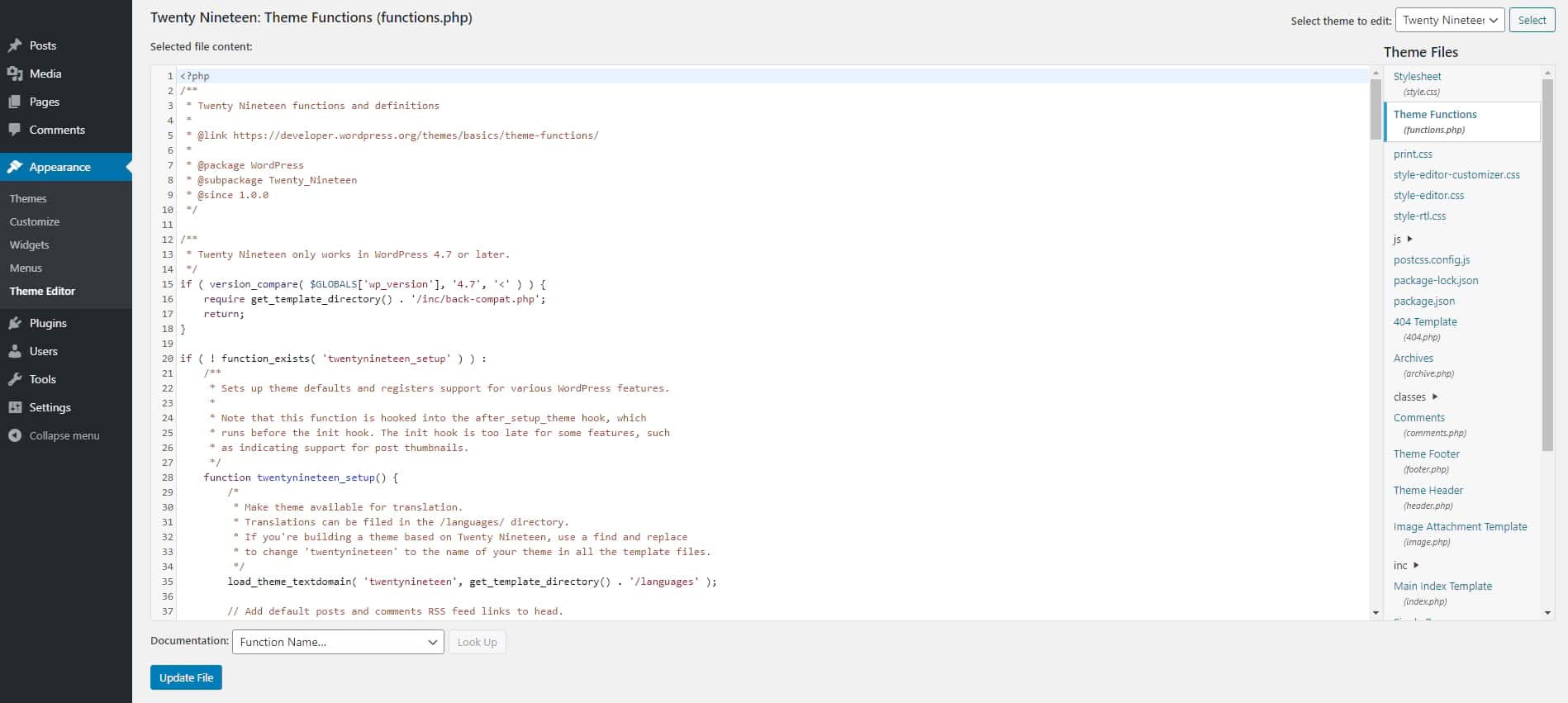
First, open your WordPress dashboard. Go to Appearance then click on Theme Editor. A new page will open. On the right side, you will see a list of files. These are your theme files. Click on the file named style.css. This file contains important information about your theme.
Finding Version In Style.css
Look inside the style.css file. The top of the file will have details. You will see words like Theme Name and Version. The number next to Version is your theme’s version. It’s usually a few numbers with dots. For example, it might look like 1.0.2. Remember to not change anything here.
Using Theme Check Plugins
Discovering the version of your WordPress theme becomes effortless with theme check plugins. These tools display detailed theme information, including version numbers. Stay informed and ensure compatibility by utilizing these plugins to verify theme details regularly.
Popular Plugins For Theme Information
Choosing the right plugin is important. Theme Check plugin is very popular. It shows theme details easily. WP Theme Detector is another good plugin. It helps find theme version quickly. What WordPress Theme is That plugin is also useful. It provides theme info in seconds. These plugins are simple and effective.
Steps To Install And Use
Open your WordPress dashboard. Go to the Plugins menu. Click Add New. Search for your chosen plugin name. Click Install Now. Wait for installation. Activate the plugin once installed. Go to the plugin settings. Find your theme details there. It shows the theme name and version. Follow these steps for any plugin.
Credit: kinsta.com
Version Information From Developers
Visit the developer’s website for theme details. Most developers list theme versions there. Look for a section titled “Theme Information” or “Changelog”. These sections often show version numbers. Keep an eye on the latest updates. This helps you know if you have the newest version.
Send an email to the theme’s support team. Ask about the current version. Support teams usually reply quickly. They can tell you if you need an update. Make sure to provide your theme name when asking. This helps them find the correct information fast.
Tracking Theme Updates
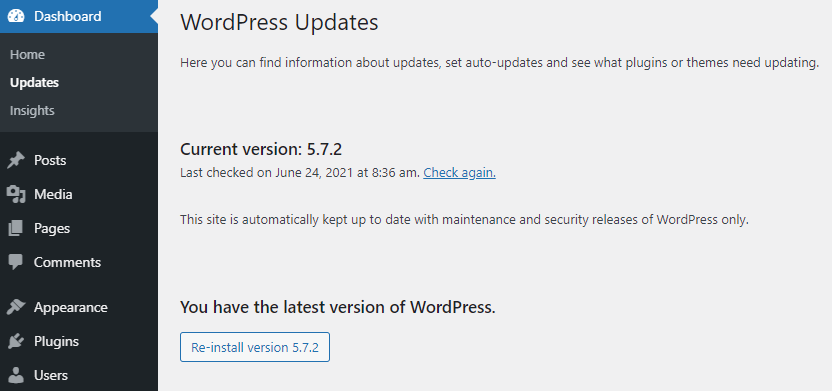
WordPress often sends update notifications. Check your dashboard for these alerts. They usually appear at the top. Click them to see details. You might find new features listed. Each update shows the version number. Always keep your theme updated. It improves security. It adds new tools. It fixes old problems. You can set automatic updates. This makes it easier. Always backup before updating. It’s safe to do so.
Change logs tell you what changed. They list new features. They show fixed bugs. They help you understand updates. Visit the theme’s site for change logs. Look for the version number in logs. Compare old and new versions. See what’s improved. Change logs are helpful. They keep you informed. They help plan updates. Always read them carefully.
Credit: www.hostinger.com
Frequently Asked Questions
How Do I Find My WordPress Theme Version?
To find your WordPress theme version, go to your WordPress dashboard. Navigate to ‘Appearance’ > ‘Themes’, and click on your active theme. The version number is displayed in the theme details. Alternatively, you can find it in the style. css file of your theme directory.
Why Is Knowing My WordPress Theme Version Important?
Knowing your WordPress theme version is crucial for maintenance and updates. It helps ensure compatibility with plugins and WordPress updates. Staying informed about your theme version helps in troubleshooting issues and maintaining security. Always ensure you’re using the latest version for optimal performance.
Can I Update My WordPress Theme Safely?
Yes, updating your WordPress theme is safe if done correctly. Always back up your site before updating. Check the update notes for compatibility issues. Use a child theme to preserve customizations. Regular updates improve security, performance, and features. Always test updates on a staging site first.
What If I Can’t Find The Theme Version?
If you can’t find the theme version, check the theme’s style. css file. Look for the “Version” line at the top. Alternatively, visit the theme’s official website or support page. They often provide version details and update logs. Contacting the theme developer can also provide the information you need.
Conclusion
Finding your WordPress theme version is crucial for smooth updates. Knowing it helps maintain compatibility with plugins and security patches. These steps ensure you keep your website running efficiently. Check your theme regularly for new updates. Updates often include improved features and security fixes.
Always back up your site before making changes. This protects against potential issues during updates. Keeping your WordPress theme current is key to optimal performance. It also helps provide a better user experience for visitors. Stay informed, and keep your website safe and efficient.


