
Ready to launch your own website but not sure how to start? Installing WordPress is the first crucial step to building a powerful, flexible site that you control.
Whether you’re creating a blog, an online store, or a portfolio, WordPress makes it simple. In this guide, you’ll learn exactly how to install WordPress—step by step—using easy methods that save you time and headaches. By the end, you’ll have your site set up and ready for customization, so you can focus on what matters most: sharing your content with the world.
Let’s dive in and get your WordPress site up and running fast!
Choosing Hosting And Domain
Choosing the right hosting and domain is the first step in creating a successful WordPress site. Your hosting affects site speed, security, and uptime. The domain name is your website’s address on the internet. Both choices impact your site’s growth and visitor experience.
Selecting A Reliable Host
Pick a host known for fast loading times and strong security. Check if they offer 24/7 support and easy WordPress installation. Look for features like daily backups, SSL certificates, and uptime guarantees. Avoid hosts with frequent downtime or slow servers. A reliable host keeps your site running smoothly and safely.
Registering A Domain Name
Choose a domain that matches your site’s purpose and is easy to remember. Keep it short, simple, and free of confusing characters. Use a domain registrar with a good reputation and clear pricing. Register your domain for at least one year to protect ownership. A strong domain name helps visitors find your site quickly and builds trust.
One-click WordPress Installation
One-click WordPress installation simplifies setting up your website. It removes complex steps and saves time. This method uses automated tools provided by hosting services. Even beginners can launch a site without technical knowledge.
Follow these clear steps to install WordPress quickly and easily. The process covers accessing your hosting dashboard, using auto installer tools, setting site details, and completing installation.
Accessing Hosting Dashboard
Start by logging into your hosting account. Use the credentials from your hosting provider. Find the hosting dashboard, where you manage your website settings. This area holds all necessary tools for installation.
Using Auto Installer Tools
Look for the auto installer or WordPress installer tool in the dashboard. Common tools include Softaculous, Fantastico, or Installatron. Click on the WordPress icon to begin the setup. The tool guides you through each step automatically.
Setting Site Details
Enter your website name and description. Choose a username and strong password for your WordPress admin. Provide your email address for important notifications. Select your preferred language and site settings. These details personalize your new WordPress site.
Completing Installation
Review all entered information carefully. Click the install button to start the process. The installer creates the database and uploads WordPress files. After a few moments, the installation finishes. You receive a confirmation message with your login URL.
Manual WordPress Installation
Manual WordPress installation lets you set up your site with full control. This method suits those who want to customize or use special server settings. It involves downloading WordPress files, uploading them to your server, creating a database, configuring settings, and running the installer script. Each step is simple and straightforward.
Downloading WordPress Files
Start by visiting the official WordPress website. Download the latest WordPress version as a ZIP file. Save it on your computer for easy access. This file contains all the core files needed for your website.
Uploading Files To Server
Use an FTP client like FileZilla to upload the WordPress files. Connect to your hosting server with your FTP credentials. Upload the extracted WordPress folder contents to your server’s root directory. This folder is usually called public_html or www.
Creating A Database
Log into your hosting control panel, such as cPanel. Find the “MySQL Databases” section. Create a new database and give it a name. Then, create a new database user and set a strong password. Assign the user to the database with full privileges.
Configuring Wp-config.php
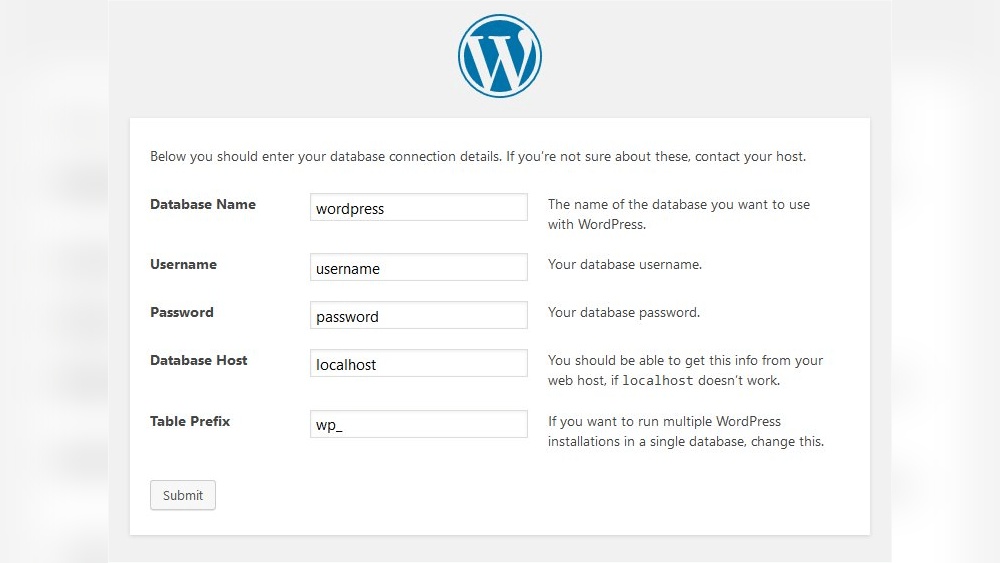
Locate the wp-config-sample.php file in your WordPress files. Rename it to wp-config.php. Open the file in a text editor. Enter your database name, username, and password in the specified fields. Save the changes and upload the file back to the server.
Running The Installer Script
Open your web browser and go to your domain name. WordPress will start the installation process automatically. Fill out the site title, admin username, and password. Provide a valid email address for recovery. Click “Install WordPress” to complete the setup.

Credit: learn.wordpress.org
Installing WordPress Locally
Installing WordPress locally lets you build and test your website on your own computer. It is a safe way to experiment without affecting a live site. This method is perfect for learning WordPress or developing new features.
The local setup mimics a web server on your machine. It requires a local server environment, WordPress files, and a database. Follow these steps to get your local WordPress site running smoothly.
Setting Up Local Server
First, install a local server like XAMPP, WAMP, or MAMP. These tools create a web server environment on your PC. Download and run the installer for your chosen software. After installation, start the Apache and MySQL services to activate the server.
Moving WordPress Files
Download the latest WordPress package from the official site. Extract the files to the local server’s root folder. For XAMPP, this folder is usually htdocs. Create a new folder inside htdocs for your site’s files. Move the extracted WordPress files there.
Configuring Local Database
Open your browser and go to http://localhost/phpmyadmin. This opens the database management tool. Click “Databases” and create a new one for WordPress. Use a simple name, like wordpress_local. Remember this name for the installation step.
Accessing Local Site
Go to http://localhost/yourfoldername in your browser. The WordPress setup wizard will start. Enter the database name, username (root by default), and leave the password blank. Complete the form with your site details. Click “Install WordPress” to finish.
Initial WordPress Setup
After installing WordPress, the next step is the initial setup. This process helps you prepare your site for visitors. You will log into the dashboard, adjust settings, and pick a design. Each step is simple and important.
Logging Into Dashboard
To start, go to your website’s login page. Usually, it is yourdomain.com/wp-admin. Enter your username and password. After logging in, you will see the WordPress dashboard. This is where you control your entire website.
The dashboard shows menus on the left. You can manage posts, pages, and settings here. Spend some time exploring the dashboard. It helps you understand how WordPress works.
Adjusting General Settings
Go to the “Settings” menu in the dashboard. Click on “General” to change basic site details. You can set your site title and tagline here. These appear in the browser tab and search results.
Check your email address in this section. WordPress uses it to send notifications. Set your timezone and date format next. This makes sure your site shows correct time and date.
Choosing A Theme
The theme controls how your site looks. Go to “Appearance” and then “Themes” to browse options. Choose a theme that fits your site’s style and purpose. Many themes are free and easy to install.
Click “Activate” to apply the theme. You can customize colors, fonts, and layout after activation. A good theme makes your site attractive and easy to use.
Credit: help.one.com
Essential Plugin Installation
Essential plugin installation is a key step after setting up WordPress. Plugins add features and improve your site’s functionality. Choosing and installing the right plugins creates a better user experience. It also helps manage your website efficiently.
Selecting Must-have Plugins
Start by picking plugins that fit your site’s needs. Every website needs security, SEO, and backup tools. Popular choices include a security plugin to block threats. An SEO plugin helps improve search engine ranking. A backup plugin saves your site data automatically. Avoid installing too many plugins as it may slow down your site. Focus on quality over quantity.
Installing And Activating Plugins
Go to your WordPress dashboard and click on “Plugins.” Then select “Add New” to search for plugins. Use the search bar to find the plugin you want. Click “Install Now” to begin the installation. After installation, click “Activate” to enable the plugin on your site. Make sure to configure plugin settings for best results. Keep plugins updated to maintain security and performance.
Creating Key Website Pages
Creating key website pages is an essential step after installing WordPress. These pages form the foundation of your site and provide visitors with important information. Clear and simple pages help users understand your site’s purpose and make navigation easy.
Focus on building pages that introduce your site, explain what you offer, and provide a way to contact you. These pages improve user experience and boost your site’s credibility. Let’s explore how to add these important pages in WordPress.
Adding Home And About Pages
The Home page is the first thing visitors see. It should welcome users and highlight your main content. To create it, go to your WordPress dashboard, click on “Pages,” then “Add New.” Name it “Home.”
Use simple text and images that describe your website’s purpose. Add sections like latest posts or services if relevant. After creating the Home page, set it as your front page under “Settings” > “Reading.”
The About page tells visitors who you are. It builds trust and shares your story. Create it like any other page and write clearly about your mission, background, and values. Keep it short and engaging.
Setting Up Contact Page
The Contact page allows visitors to reach out easily. It should include a form, email address, or phone number. Many themes have built-in contact form options or you can use plugins like Contact Form 7.
To add a Contact page, create a new page and title it “Contact.” Insert a form or your contact details. Make sure the form is simple to fill out. Test it to confirm messages are delivered correctly.
Provide multiple contact methods for convenience. This page improves communication and builds connections with your audience.
Credit: www.themeum.com
Publishing Your First Post
Publishing your first post on WordPress is an exciting step. It brings your website to life and shares your ideas with the world. This process is simple and user-friendly, designed for beginners and experts alike. Follow the steps below to create and publish your first blog post quickly.
Writing Content
Start by logging into your WordPress dashboard. Navigate to the “Posts” section and click “Add New.” Here, you can enter your post title and write your content in the editor. Use short paragraphs and clear sentences to keep readers engaged. Add headings, lists, or images to make the post more attractive. Keep your language simple and direct for better understanding.
Using Categories And Tags
Categories and tags help organize your posts. Categories group similar topics, while tags describe details of the post. Choose a category that fits your post’s main idea. Add tags that highlight key points or keywords. This organization helps visitors find related content easily and improves your site’s SEO.
Previewing And Publishing
Before publishing, use the “Preview” button to see how your post looks on your site. Check for errors, formatting, and readability. Make any needed changes in the editor. When satisfied, click the “Publish” button. Your post is now live for everyone to read. You can always edit it later if needed.
Frequently Asked Questions
How To Install WordPress For Free?
Download WordPress from wordpress. org. Upload files to your web host via FTP. Create a database in hosting control panel. Run the WordPress installer by visiting your domain. Follow setup prompts to complete the free installation.
How To Manually Install WordPress?
Download WordPress from wordpress. org. Upload files to your server via FTP. Create a MySQL database. Edit wp-config. php with database details. Run the installation script by visiting your domain. Complete setup by entering site and admin info. Access your dashboard to start customizing.
How To Use WordPress For The First Time?
Purchase hosting and a domain. Use your host’s one-click installer to install WordPress. Log in to your dashboard at yourdomain. com/wp-admin. Choose and customize a theme. Install essential plugins. Create key pages and publish your first post to start your site.
How Do I Install WordPress To My Domain?
Log in to your hosting account and find the one-click WordPress installer. Select your domain, enter site details, then click “Install. ” After installation, access your dashboard at yourdomain. com/wp-admin using your credentials.
Conclusion
Installing WordPress is simple and quick with the right steps. Choose the method that fits your needs best. Follow each step carefully to avoid errors. Once installed, you can start customizing your site immediately. Regular updates keep your site safe and running smoothly.
Enjoy building your website and sharing your content with the world.


