
Are you ready to give your WordPress site a stunning makeover? Installing a new theme can transform the look and feel of your website in an instant.
But what if you could also get sample content to see exactly how your new theme will look in action? Imagine having a fully functional site up and running in no time, without the hassle of manually adding content. Sounds enticing, right?
In this guide, you’ll discover the simple, step-by-step process to install WordPress themes complete with sample content. Whether you’re a seasoned pro or a complete beginner, you’ll find these tips easy to follow and incredibly useful. So, are you ready to take your website to the next level? Let’s dive in and get started!
Credit: xpeedstudio.com
Choosing The Right Theme
Think about your website’s goal. Do you want to share stories? Show art? Sell items? Each need can have a different theme. A blog theme is different from a shop theme. Write down what you need. This list will help you choose better.
Check out the WordPress theme store. There are many choices. Free themes and paid themes. Read reviews. See how many people use them. Look for themes that match your list. Pick a few and compare them.
Make sure the theme works with your plugins. Some themes don’t play nice with certain tools. Check the theme’s page. It will tell you what it works with. Also, make sure it looks good on phones and tablets. You want everyone to see your site well.
Preparing For Installation
Always back up your site before changes. Use a plugin or manual method. This keeps your data safe. Problems can happen during installation. Backups are like a safety net. They help you restore your site. Keep backups in a safe place. You can use cloud storage or an external drive.
A child theme keeps your changes safe. It uses the parent theme’s features. But allows custom edits. Create a new folder in the themes directory. Add a style.css file to this folder. Link it to the parent theme. This way, updates won’t erase your changes. It’s a smart way to manage customizations.
Installing The Theme
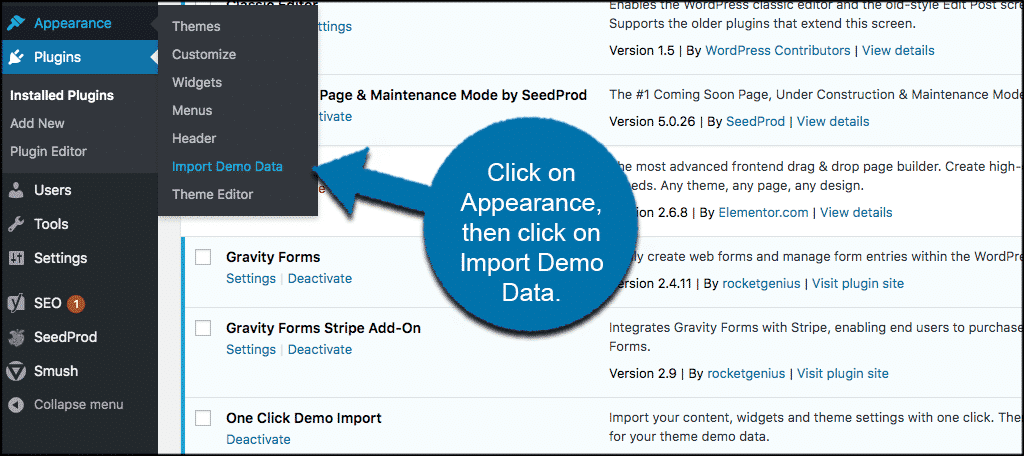
First, open the WordPress Dashboard. Click on Appearance. Choose Themes from the menu. Press Add New. Search for the theme you want. Press Install next to the theme. Wait for the installation to finish. Click Activate to use the theme. You can now add sample content. This helps you see how your site will look. Go to Theme Options. Look for Import Demo Content. Click it to add sample data. Check your site to see changes.
Open your FTP Client. Connect to your website server. Navigate to wp-content/themes. Upload the theme folder here. Go back to the WordPress Dashboard. Click on Appearance. Find the new theme. Click Activate. To add sample content, find Theme Options. Look for Import Demo Content. Click to add data. Check your site now.
Importing Sample Content
Themes often come with sample content files. These files help you set up your site. They are usually named .xml files. Look in the theme’s main folder. Sometimes, they are in a ‘demo content’ folder. Check the theme’s documentation too. It might tell you where to find these files.
Go to your WordPress dashboard. Find the ‘Tools’ menu on the left. Click on ‘Import’. You might see many import options. Choose the WordPress option. You might need to install the importer plugin. Once installed, click ‘Run Importer’. Now, upload the .xml file from your theme. Follow the steps to finish importing. Your sample content will now show up on your site.
Customizing Your Theme
Installing WordPress themes with sample content is straightforward. First, choose a theme that matches your style. Then, import the sample content to see how it looks. This helps in understanding the layout and design better, making customization easier. Enjoy exploring different themes to find the perfect fit.
Adjusting Theme Settings
Explore the settings panel to find options. Change the site title and tagline. Adjust color schemes to match your style. Choose font types for better readability. Ensure the layout fits your content. Select a header image that stands out. Set the menu to show main pages. Enable or disable sidebar widgets. Add a footer note for extra info. Save changes to see them live.
Personalizing Design Elements
Upload a custom logo that represents you. Set a background image for depth. Choose button colors for action prompts. Modify spacing for clean design. Add social media links to connect. Change border styles for sections. Use custom CSS for unique tweaks. Preview changes before going live. Personalization creates a unique site.
Credit: www.greengeeks.com
Troubleshooting Common Issues
Sometimes, themes don’t install correctly. This can be frustrating. First, check your internet connection. A slow connection may cause problems. Next, ensure you have the right file format. WordPress uses .zip files. A different format will not work. If the problem continues, try disabling plugins. Some plugins interfere with theme installation.
Sample content might not import well. First, check the file size. Large files can fail. Try importing smaller pieces. Also, verify you have enough server memory. Low memory can cause import errors. Adjusting your PHP settings may help. Contact your web host if unsure. Lastly, ensure your WordPress and theme are up to date. Updates can fix many issues.
Optimizing For Performance
Discover simple steps to install WordPress themes with sample content effortlessly. Enhance your website’s look by selecting a theme and importing its demo content. This approach provides a professional design quickly, ensuring an engaging user experience.
Enhancing Speed
A fast website keeps visitors happy. Begin by choosing a lightweight theme. Avoid themes with too many features. These can slow down your site. Use a caching plugin. It stores data for quick access. Minify CSS and JavaScript files. This reduces their size. Smaller files load faster. Compress images before uploading. Large images slow down loading times. Use a Content Delivery Network (CDN). It delivers content quickly to users. A CDN uses multiple servers worldwide. This helps speed up access to your site. Regularly update plugins and themes. Updates improve performance and fix bugs. Disable plugins you don’t use. Unused plugins can slow down your site.
Improving Seo
SEO makes your site visible. Choose a theme with clean code. Clean code helps search engines understand your content. Use keywords wisely in titles and headings. Keywords help search engines find your site. Write unique meta descriptions. They show up in search results. Use alt tags for images. Alt tags describe images to search engines. Create a sitemap. A sitemap helps search engines index your site. Regularly update your content. Fresh content improves search rankings. Link to other pages on your site. Internal links help search engines explore your site. Use mobile-friendly themes. Mobile-friendly sites rank better in search results.
Credit: www.bluehost.com
Frequently Asked Questions
How Do I Install A WordPress Theme?
To install a WordPress theme, log in to your dashboard. Navigate to ‘Appearance’ and click ‘Themes’. Select ‘Add New’, search for a theme, and click ‘Install’. Once installed, click ‘Activate’. This process applies to both free themes from the WordPress repository and premium themes uploaded via ‘Upload Theme’.
Can I Use Sample Content With Themes?
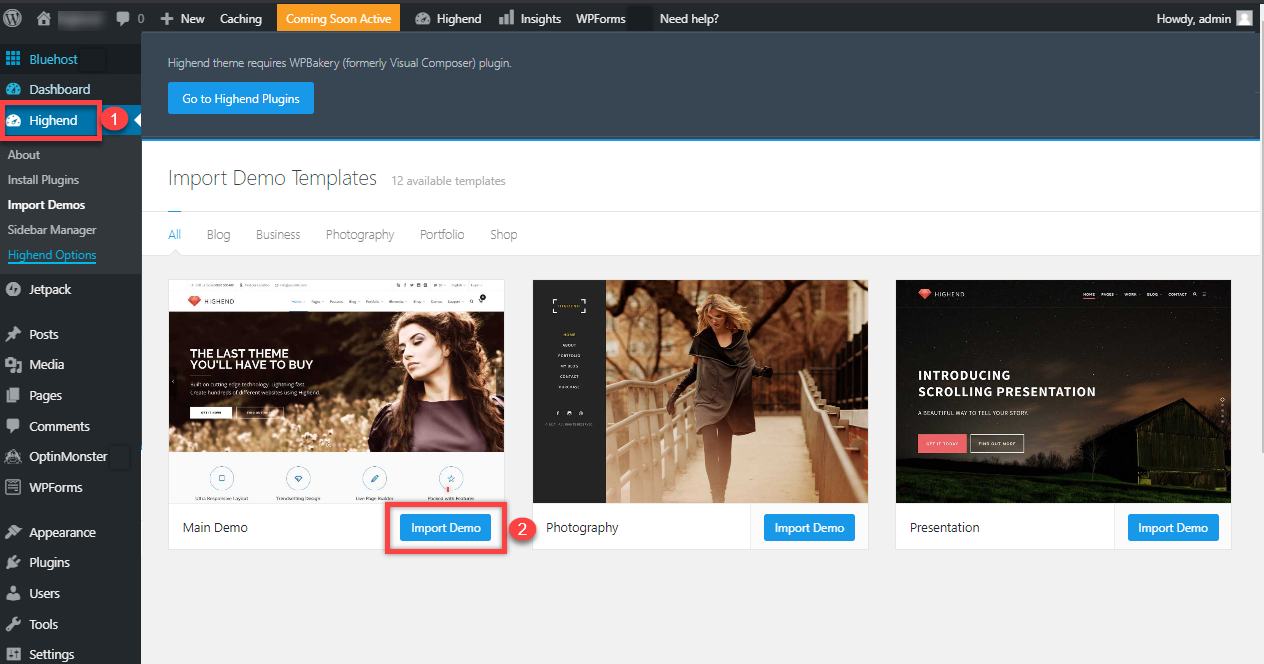
Yes, most themes offer sample content for setup. Import sample content via the theme’s demo importer tool. This helps replicate the theme’s demo look. Check the theme documentation for specific instructions. Using sample content is beneficial for understanding theme layout and design.
How Do I Import Demo Content In WordPress?
To import demo content, first install the theme. Then, navigate to the theme’s demo importer tool, usually under ‘Appearance’. Follow the prompts to import the demo content. Ensure all required plugins are installed. This will help replicate the theme’s demo site layout and design.
Is It Safe To Install WordPress Themes?
Yes, it’s safe to install themes from reputable sources. Always download themes from the WordPress repository or trusted developers. Check user reviews and ratings. Ensure themes are updated regularly for security. Avoid using pirated or nulled themes, as they may contain malicious code.
Conclusion
WordPress themes are easy to install with sample content. Follow each step. Ensure theme compatibility with your site. This helps avoid errors. Explore various themes. Choose one that fits your style. You can customize it later. Sample content shows the theme’s potential.
It guides your layout choices. Practice makes it easier. Soon, you’ll create beautiful sites. Enjoy the process. Share your creation with friends. Building websites should be fun. Start simple. Grow your skills over time. Your journey with WordPress themes begins now.
Happy designing!


