
Are you ready to give your WordPress site a fresh look with a new theme? Installing WordPress themes via FTP might sound complicated, but it’s surprisingly straightforward when you know the steps.
Imagine the thrill of transforming your website’s appearance with just a few clicks. This method not only offers you greater control but also bypasses common issues related to theme installation through the dashboard. You’ll discover how to effortlessly upload and activate themes without the usual headaches.
Dive into this guide to unlock the secrets of FTP installation, ensuring your site stands out and functions smoothly. Ready to master this essential skill? Let’s get started!
Understanding Ftp And Its Importance
FTP stands for File Transfer Protocol. It helps move files from your computer to a server. This is important for website work. FTP lets you upload files easily. You can change files too. Many people use FTP for WordPress sites. It makes updating themes simple. You don’t need to log into WordPress directly.
Using FTP, you have more control. You can fix problems faster. If a theme breaks, FTP helps fix it quickly. FTP works with many tools. FileZilla is a popular choice. It’s free and easy to use. With FTP, you see all site files. This helps in managing your site better.

Credit: docs.presscustomizr.com
Preparing For Installation
Choose a theme that fits your website’s purpose. Think about the design. Look for a theme that loads fast. Check if it works on phones and tablets. Read reviews from other users. Make sure the theme gets updates. This keeps it secure and bug-free.
Start by finding good FTP client software. Popular choices include FileZilla and Cyberduck. These tools help you move files. Install the software on your computer. Open the FTP client. Enter your website’s FTP details. These include the host, username, and password. Connect to your web server. Now you are ready to upload the theme.
Accessing Your Website Via Ftp
Gathering FTP Credentials is the first step. You need a few details. Your FTP host, username, and password are crucial. These are often provided by your hosting service. Check your email or hosting account. You will find them there.
Connecting to Your Server needs an FTP client. A popular choice is FileZilla. Download and install it. Open FileZilla. Enter your credentials. Use the quickconnect button to link to your server. Soon, you’ll see your website files. Now, you can upload themes to your site.
Credit: helpcenter.qodeinteractive.com
Uploading The Theme Files
First, open your FTP client. Log into your website’s server. Next, find the folder named public_html or www. Inside, locate a folder called wp-content. This is where WordPress keeps all its data. Open the themes folder within wp-content. You can see all the themes here. Remember this location. You will need it soon.
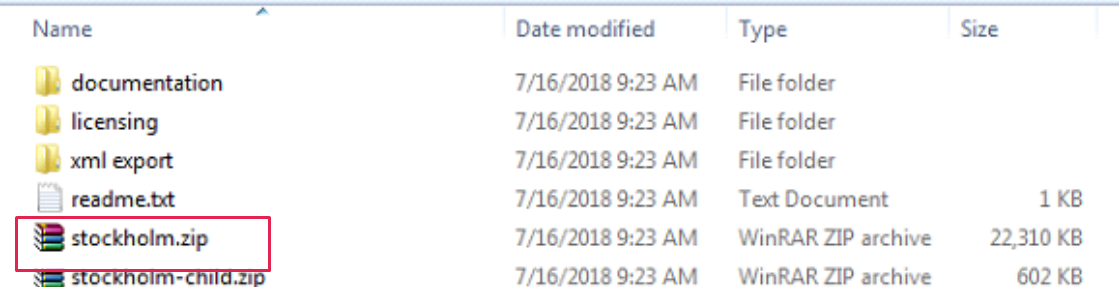
Download your theme’s zip file to your computer. Unzip it to get the theme folder. Go back to your FTP client. Open the themes folder you found earlier. Drag and drop the unzipped theme folder here. This uploads your theme to WordPress. Wait for the transfer to complete. Once done, check your WordPress dashboard. Your new theme should be ready to use. If not, try again. Ensure all files are in the right folder.
Activating The New Theme
Accessing the WordPress Admin Panel is simple. Start by logging into your WordPress account. Enter your username and password. Once logged in, find the dashboard. It’s the main control area. Look for “Appearance” on the left menu. Click on “Themes” under it. All installed themes will show up. Your new theme will appear here after upload.
Switching to the New Theme is easy. In the “Themes” section, find your new theme. Hover over it with your mouse. Click the “Activate” button. Your site will now use the new theme. Check the front end to see changes. Make sure everything looks good. Sometimes, minor adjustments are needed. Customize your theme if required. Use the “Customize” option under “Appearance”. This helps in making your site unique.
Troubleshooting Common Issues
Easily install WordPress themes via FTP by connecting to your server with an FTP client. Upload the theme files directly to the ‘wp-content/themes’ directory. Refresh your WordPress dashboard to activate the new theme, ensuring a seamless setup.
Handling Connection Errors
Connection errors can be frustrating. Check if your internet is stable. Ensure the FTP details are correct. Incorrect username or password can block access. Also, verify the FTP port number. It should usually be 21. Sometimes, firewalls may block connections. Disable it temporarily to test. Consider checking the FTP client settings. They should match the server requirements. If errors persist, contact your hosting provider for help.
Fixing Theme Compatibility Problems
Themes might not always work smoothly. Ensure the theme is compatible with your WordPress version. Updating WordPress can resolve many issues. Also, deactivate plugins that might conflict. Reactivate them one by one to find the culprit. Sometimes, themes require specific PHP versions. Check the theme’s documentation for details. If problems remain, contact the theme developer for assistance. They can provide specific solutions.
Best Practices For Theme Management
Regular Updates keep your WordPress site safe. Always check for new updates. They fix bugs and improve security. Updated themes give a better user experience. They help your website run fast. Outdated themes can have security holes. Hackers can exploit these holes. So, updating is very important.
Maintenance ensures your site stays healthy. Clean up old files and plugins. They can slow down your site. Regular maintenance helps your site load quickly. It also makes it easy to use for visitors. A well-maintained site ranks better in search engines.
Backing Up Your Website
Backing up protects your data. It is like making a copy of your site. Use a backup plugin for this task. Store backups in a safe place. If your site breaks, you can restore it. Backups save you from starting over. They are a safety net for your website.

Credit: visualmodo.com
Frequently Asked Questions
How Do I Upload A WordPress Theme Via Ftp?
To upload a WordPress theme via FTP, first connect to your server using an FTP client. Navigate to the `/wp-content/themes/` directory. Upload the unzipped theme folder there. Once uploaded, go to your WordPress dashboard, click on “Appearance,” then “Themes,” and activate your new theme.
Why Use Ftp To Install WordPress Themes?
Using FTP to install WordPress themes offers more control and can bypass certain upload restrictions. It’s particularly useful for large theme files. FTP is also beneficial when you encounter errors with the WordPress dashboard. This method ensures a manual, secure, and reliable theme installation process.
What Tools Do I Need For Ftp Installation?
You need an FTP client like FileZilla to install a WordPress theme via FTP. Additionally, you need your server’s FTP credentials, which include the host, username, and password. These credentials are usually provided by your hosting provider. Ensure your theme files are unzipped before uploading.
Can I Uninstall Themes Via Ftp?
Yes, you can uninstall themes via FTP. Connect to your server using an FTP client and navigate to the `/wp-content/themes/` directory. Find the theme folder you want to remove and delete it. This action will uninstall the theme from your WordPress site without affecting other installed themes.
Conclusion
Installing WordPress themes via FTP is straightforward. First, gather your files. Open your FTP client and connect to your server. Navigate to the WordPress themes folder. Upload your theme files there. Activate your theme in the WordPress dashboard. Always check for compatibility and updates.
This process might seem technical at first. But with practice, it becomes easier. Remember, a good theme enhances your site’s appearance. It also boosts functionality. With these steps, you can confidently install themes. Keep experimenting with different themes for better results.
Happy blogging!


