
Imagine you’ve found the perfect WordPress theme for your website, but there’s one small hiccup—you don’t have a ZIP file to upload it. You might feel stuck, but don’t worry!
You can still install your theme without the ZIP file, and it’s easier than you think. You’ll discover simple, step-by-step methods to get your theme up and running smoothly. You’ll gain the confidence to tackle this task and make your website look exactly how you envision it.
By the end of this guide, you’ll have all the knowledge you need to install your WordPress theme without a hitch. Let’s dive in and unlock the secrets to enhancing your site without needing that elusive ZIP file.
Prerequisites
Make sure you have admin access to your WordPress site. You need this to install themes. Login to your WordPress dashboard. It’s the place where you control your site. If you don’t have access, ask someone who does.
Check if you have the theme files ready. They should be in folders. You usually get them from the theme’s website. Make sure they’re not in a zip format. You need to upload these files one by one.
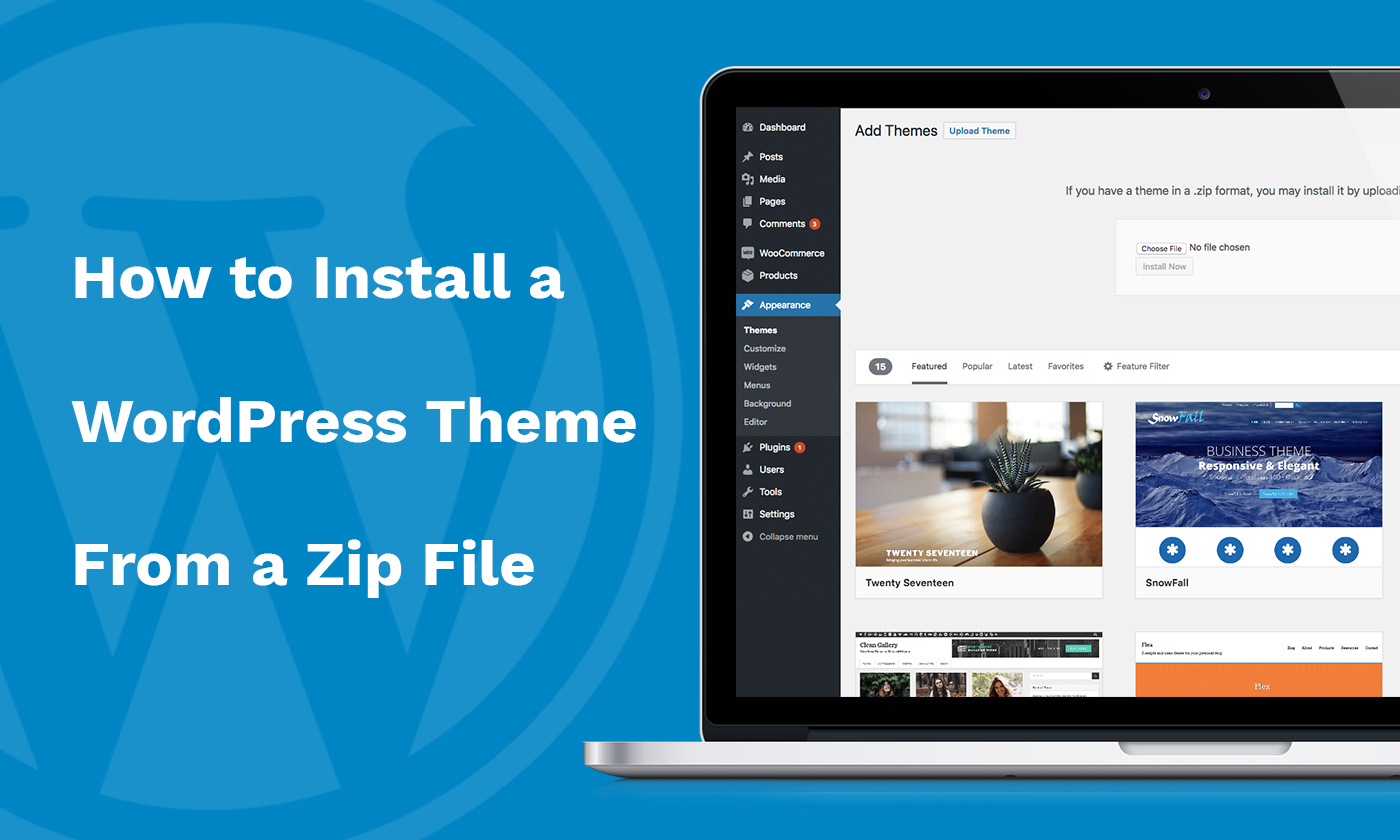
Credit: flexithemes.com
Using Ftp
Installing a WordPress theme without a zip file is possible through FTP. Connect to your server using an FTP client like FileZilla. Navigate to the WordPress themes folder and upload the unzipped theme files. Make sure to activate the theme in your WordPress dashboard to complete the process.
Connect To Server
First, you need an FTP client. Tools like FileZilla are popular. Open the FTP client. Enter your server’s IP, username, and password. Click connect. Wait for the connection to establish. You will see your server files.
Upload Theme Files
Locate the wp-content folder. Find the themes folder inside it. Drag and drop the theme files there. Make sure all files are copied. Check the folders are complete. This may take a few minutes.
Activate Theme
Go to your WordPress dashboard. Click on Appearance, then Themes. Find your theme in the list. Click Activate. Your theme is now live. Check your site to see changes.
Using Cpanel File Manager
Open your cPanel account. Find and click on the File Manager. It’s usually under the “Files” section. Navigate to the public_html folder. This is where your website files are. Inside, look for the wp-content/themes folder. This is the home of all your WordPress themes.
In the themes folder, click on Upload. Choose the theme files from your computer. Make sure they are not zipped. Once uploaded, select the files. Click on Extract to unpack the files. Your theme is now in the right place.
Go to your WordPress Dashboard. Click on Appearance and then Themes. You will see your new theme listed. Click on Activate to use it. Your website will now display the new theme.
Using Ssh
First, open your terminal or SSH client. Type in the command to connect to your server. Use the format: ssh user@yourserver. Replace “user” and “yourserver” with your details. Enter your password when asked. Now, you are inside your server.
Upload theme files to your server. You can use FTP or SCP for this. Place the theme folder in the wp-content/themes directory. Make sure all files are in the right place. Double-check the directory path. You want everything correct.
Now, it’s time to activate the theme. Use the WP-CLI command: wp theme activate your-theme-name. Replace “your-theme-name” with your theme’s folder name. This command activates your theme on the website. Refresh your site to see changes. You’re done!
Troubleshooting
Installing a WordPress theme without a zip file involves accessing the theme directory via FTP. Navigate to your WordPress installation folder, then upload the theme folder directly to “wp-content/themes. ” Refresh the WordPress admin panel to see the new theme available for activation.
Common Errors
Errors can happen during theme installation. File permissions may cause issues. Check if files have correct permissions. WordPress needs access to the theme files. Sometimes, files are not writable. This stops the installation. Ensure your files have read and write permissions.
Use your hosting panel to check permissions. Find the folder where themes are stored. Right-click to see properties. Look for a permissions tab. Set permissions to 755 for folders. Set permissions to 644 for files. This allows WordPress to access them.
Another error may be incorrect file paths. Ensure the file path is correct. File paths should lead to the theme folder. If paths are wrong, WordPress cannot find the theme files.

Credit: www.youtube.com
Best Practices
Always make sure to backup your site before making changes. This step is crucial. It protects your data from any mistakes. Use tools like UpdraftPlus or BackupBuddy. Store backups in a safe place. You can use cloud storage. Google Drive or Dropbox works well. With a backup, you can restore your site easily. Don’t skip this step. It saves time and stress later.
Ensure your themes are always up-to-date. Updates fix bugs and improve security. They also add new features. To update, go to your WordPress dashboard. Click on ‘Updates’. Check for theme updates regularly. Set reminders if needed. Keeping themes updated enhances site performance. It also protects against hackers. Your site will run smoothly.

Credit: www.youtube.com
Frequently Asked Questions
Can I Install A WordPress Theme Without A Zip File?
Yes, you can install a WordPress theme without a zip file. Use FTP or the WordPress theme directory directly. Ensure the theme folder is uploaded to the `/wp-content/themes/` directory. Activate it via the WordPress admin panel under Appearance > Themes.
What Are Alternative Methods To Install Themes?
You can use FTP or the WordPress theme directory. FTP allows manual file uploads to the theme folder. The theme directory lets you search and install directly from WordPress admin. Both methods work without a zip file.
How Do I Use Ftp To Install A Theme?
To install via FTP, connect to your server using an FTP client. Navigate to `/wp-content/themes/` and upload the theme folder. Ensure all files are correctly placed. After uploading, activate the theme in the WordPress admin panel under Appearance > Themes.
Is It Safe To Install Themes Manually?
Yes, it’s safe if done correctly. Ensure the theme files are complete and from a trusted source. Check for compatibility with your WordPress version. Proper file placement and activation are crucial for security and functionality.
Conclusion
Installing a WordPress theme without a zip file is simple. Follow the steps carefully. First, access your WordPress dashboard. Navigate to Appearance and then Themes. Click on Add New. Use the search bar to find your desired theme. Click Install and then Activate.
Remember to customize your theme for a personal touch. Themes play a vital role in your site’s appearance. Choose wisely to reflect your brand’s identity. This method saves time and effort. No need for additional software. Now, enjoy your newly designed website.
Happy blogging and good luck!


