
Are you looking to spice up your website without diving into the complexities of WordPress itself? You’re in the right place.
Knowing how to install a WordPress theme without using WordPress might seem like an impossible task, but it’s not. This guide will walk you through the steps, giving you the power to transform your website effortlessly. Imagine having the flexibility to change your site’s appearance and functionality without the hassle.
Sounds tempting, right? Stay with us as we reveal simple, straightforward methods that will save you time and enhance your site. Don’t miss out on these valuable insights that could be the game-changer for your online presence.

Credit: thebootstrapthemes.com
Choosing The Right WordPress Theme
Themes come in different styles. Some are free. Others cost money. Free themes are simple. Paid themes have more features. Themes can be for blogs, e-commerce, or portfolios. Each type suits different needs. Choosing the right one is important. Themes change how your site looks. They can make it beautiful or professional.
Think about the purpose of your site. Do you want a blog? Or an online store? Look for themes with good reviews. Check if they get updates. Updated themes are secure. Look at the design. Is it easy to use? Check if it works on phones. Mobile-friendly themes are better. Test the speed. Fast themes help users stay. Choose a theme that fits your needs.
Credit: www.hostpapa.com
Downloading The Theme Files
Theme files are like the clothes for your website. You can find them on the internet. Many websites offer free and paid themes. Popular sites include ThemeForest and WordPress.org. Choose a theme you like. Check if it fits your website style. Download the theme files to your computer. They usually come in a .zip file. Keep these files safe.
ThemeForest is a popular choice. It offers many designs. WordPress.org is great for free themes. Always check user reviews. Make sure the theme has good ratings. Avoid themes with low ratings. This ensures quality.
Check if the theme works with your WordPress version. Look at the theme details. Ensure it supports the latest WordPress. Older themes may not work well. This can cause problems. Always use updated themes. They are safer and better.
Using Ftp To Upload Theme
First, download an FTP client like FileZilla. Install it on your computer. Open the software and look for the connection option. You need to enter your FTP server details. This includes host, username, and password. Check with your hosting provider for these details.
Enter the FTP details into the client. Click on “Connect” to access your server. You might see folders like “public_html” or “www.” These folders hold your website files. Make sure you find the correct folder for your theme.
Locate the theme folder on your computer. It should be a zipped file. Unzip it to see all files. Drag and drop the theme files into the server folder. Wait for the files to upload completely. Refresh your server folder to see them. Your theme is now uploaded.
Accessing Your Hosting Control Panel
Start by logging into your hosting account. Look for the control panel link. Control panel helps manage website files. It is important for theme installation.
Navigating To File Manager
Once inside the control panel, find File Manager. It is usually listed under website tools. File Manager allows viewing and editing website files. Click to open it.
Locating The WordPress Directory
Inside File Manager, look for public_html folder. This folder contains your website files. Find the WordPress folder. It is often named ‘wp-content’. Inside, find ‘themes’ folder. This is where you upload themes.
Manual Installation Via File Manager
First, find the theme file on your computer. It is a zip file. Right-click on the file and choose Extract. This will create a folder with many files inside. These files are needed for the theme to work. Keep this folder open and ready.
Go to your web hosting account. Find the File Manager option and open it. Look for the folder named wp-content. Inside, there is another folder called themes. Open the themes folder. Drag the extracted theme folder into the themes folder. This puts the theme files in the right place. Your theme is now ready to use.
Activating The Theme In WordPress
Installing a WordPress theme without using WordPress can be done through FTP. First, download the theme to your computer. Then, connect to your website via FTP, upload the theme folder to the ‘wp-content/themes’ directory, and activate it from your WordPress dashboard.
Logging Into WordPress Dashboard
First, you need to log into the WordPress dashboard. Use your username and password. This is your WordPress control center. From here, you can manage your site.
Navigating To Themes Section
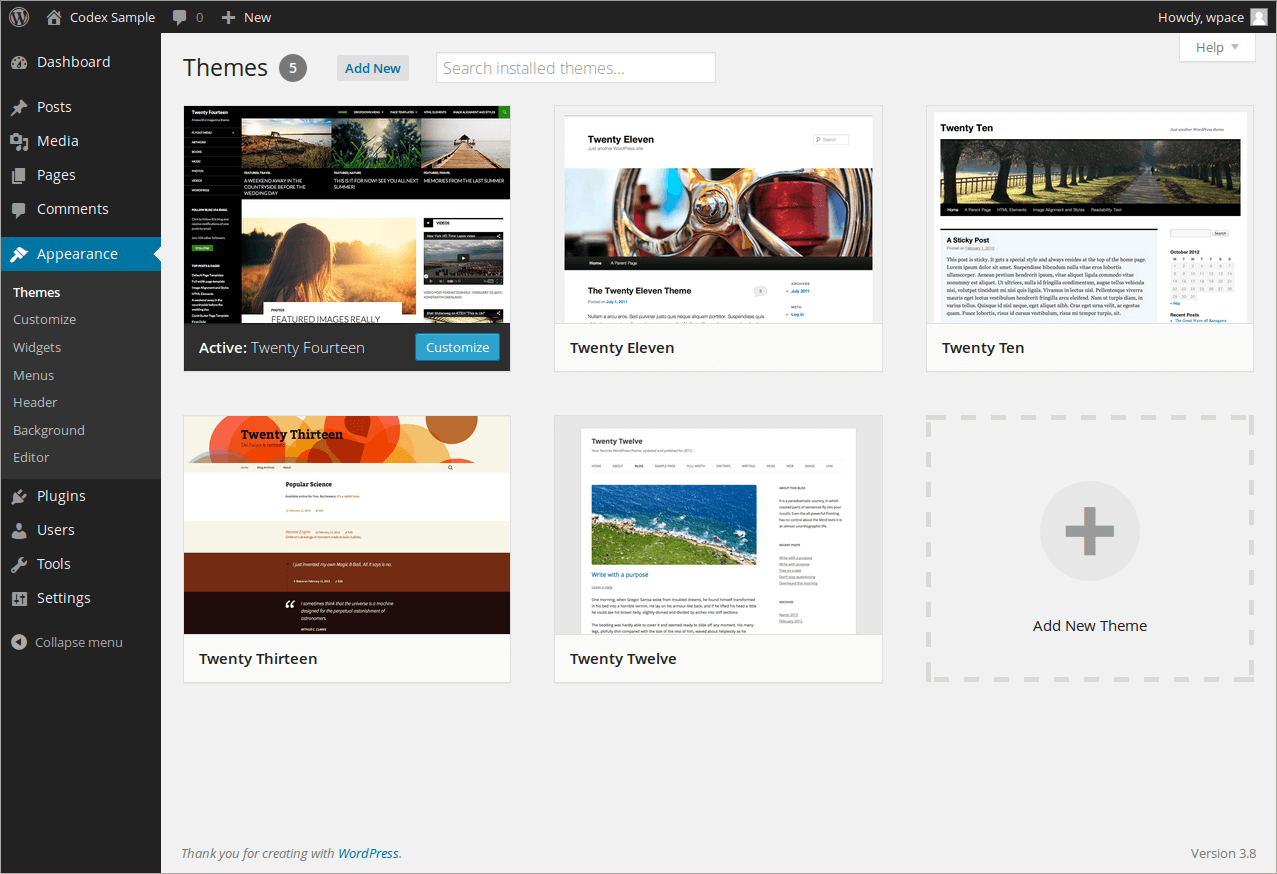
Once logged in, find the Appearance menu. It’s on the left side. Click on it. Then choose “Themes”. This is where all your themes live.
Activating Your New Theme
Look for the theme you want. Click on the “Activate” button. Your new theme is now live. Check your site to see the changes.
Troubleshooting Common Issues
Themes may sometimes clash with plugins. This can break your website. Deactivate all plugins first. Then reactivate them one by one. Check the site after each activation. This helps find the troublemaker plugin. If the site crashes, you found the conflict. Choose another theme or plugin. Some plugins need special themes. Read their guides carefully. Contact support if issues persist. They can offer solutions. Fixing theme conflicts requires patience. Follow each step to avoid errors.
Not all themes work with every version. Check compatibility before installing. Look at your WordPress version. Some themes need the latest update. Others work with older versions. Always read the theme’s details. Update WordPress for better compatibility. This helps themes run smoothly. A theme may look great but not function well. This is often due to compatibility issues. Pick themes that are tested with your version. This reduces errors and improves performance.
Customizing Your New Theme
WordPress Customizer is a great tool. It helps you change your theme. You can change colors and fonts. Add a logo to your site. You see changes live. Make your site look unique. Simple steps guide you through.
Widgets and menus are important. They help with site navigation. Add a menu to guide visitors. Use widgets for extra features. You can add a search bar. Or show recent posts. Easy drag and drop method. Make your site user-friendly.

Credit: www.elegantthemes.com
Frequently Asked Questions
Can I Install A WordPress Theme Offline?
Yes, you can. Download the theme’s zip file to your computer. Extract it using file management software. Transfer the extracted files to your server’s theme directory via FTP. Activate the theme through the WordPress dashboard.
How To Manually Upload WordPress Theme Files?
First, download your theme’s zip file. Extract it using a software tool. Access your server using FTP. Upload the theme folder to wp-content/themes. Log in to your WordPress dashboard. Navigate to Appearance > Themes and activate the uploaded theme.
Is Ftp Necessary For Theme Installation?
FTP is useful for manual uploads. It allows direct access to your server files. Use it to upload and activate themes. FTP ensures themes are correctly placed in the server’s directory. It’s essential for advanced installations.
Can Themes Be Installed Without WordPress Access?
Yes, via FTP. Download theme files to your computer. Use FTP to upload files to your server. Place them in the wp-content/themes directory. Activate the theme through WordPress dashboard after gaining access.
Conclusion
Installing a WordPress theme manually can seem challenging. But it’s doable with patience and practice. Follow each step closely. Ensure you have the correct theme files ready. Use FTP or hosting file manager for uploads. Check your theme’s compatibility with your WordPress version.
Activate your new theme and customize it to suit your needs. This method empowers you with greater control over your site. With practice, it becomes easier. Soon, you’ll be able to manage your themes effortlessly. Enjoy the creative freedom this process offers.
Keep exploring and learning.


