
Imagine having a stunning website that captures attention and keeps visitors engaged. The secret often lies in your choice of WordPress theme.
But installing a new theme can seem daunting, especially if you’re not a tech wizard. Fear not! You’re about to discover how easy it is to transform your website’s look and feel with just a few clicks. This guide will walk you through each step, ensuring you understand the process and feel confident as you enhance your site.
Ready to turn your website into a visual masterpiece? Let’s dive in and get started!
Credit: docs.presscustomizr.com
Choosing The Right Theme
Free themes are easy on the wallet. They offer basic features for beginners. Premium themes give more options. They have fancy designs and extra tools. These themes can be costly. Decide what your website needs first. Free themes are good for learning. Premium themes are best for big plans.
Think about your website’s purpose. Is it a blog, store, or portfolio? Blog sites might need simple themes. Online stores need themes with shopping features. Portfolios need themes that show off photos. Pick a theme that matches your site’s goals. This helps visitors enjoy your site.
Check if the theme works with WordPress. Some themes need special plugins. Plugins add cool features to themes. Make sure your theme supports these plugins. Read theme reviews to know if they work well. Good reviews mean happy users. Bad reviews mean problems. Choose themes with high ratings.
Preparing For Installation
Always create a backup of your website. It keeps your data safe. Use plugins like UpdraftPlus or BackWPup. These plugins are easy to use. They save your site data in one place. This ensures that nothing is lost during changes.
Check if your WordPress is the latest version. Go to the dashboard. Look for updates. Click on update if needed. New versions fix bugs and add features. It makes your site run better. It keeps it secure from threats.
A child theme keeps your changes safe. It allows theme updates without losing edits. First, create a child theme folder. Use a plain text editor. Add a style.css file. This file links to the parent theme. Next, add a functions.php file. It helps load the parent theme’s style. Now, activate the child theme from your dashboard.
Installing Themes Via WordPress Dashboard
Access the WordPress dashboard to install themes easily on your website. Navigate to ‘Appearance’ and click ‘Themes’ to explore options. Choose your desired theme and click ‘Install,’ then activate it to enhance your site’s appearance.
Accessing The Themes Section
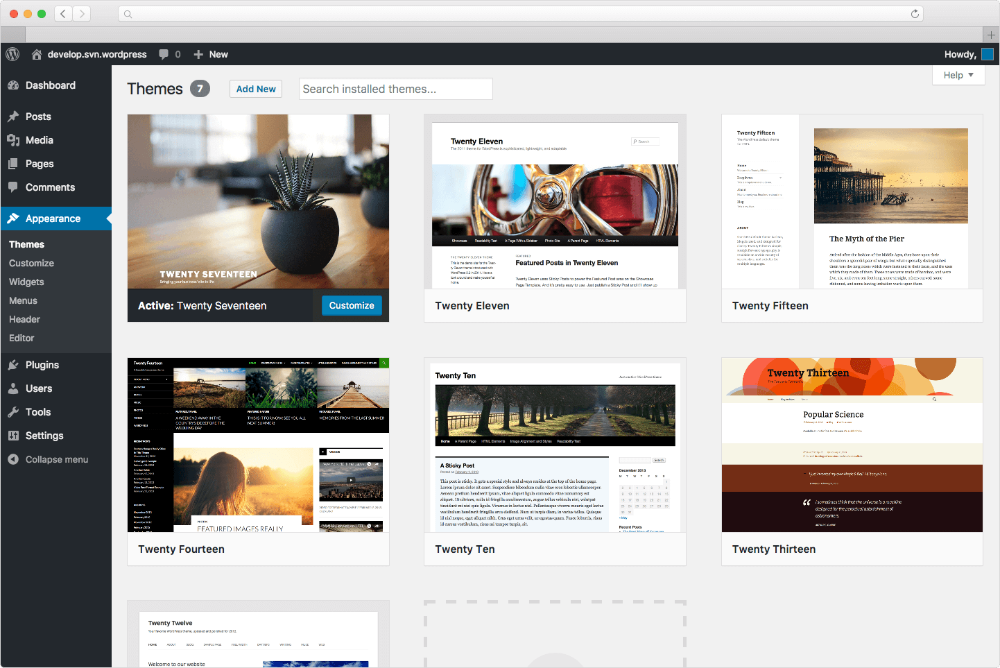
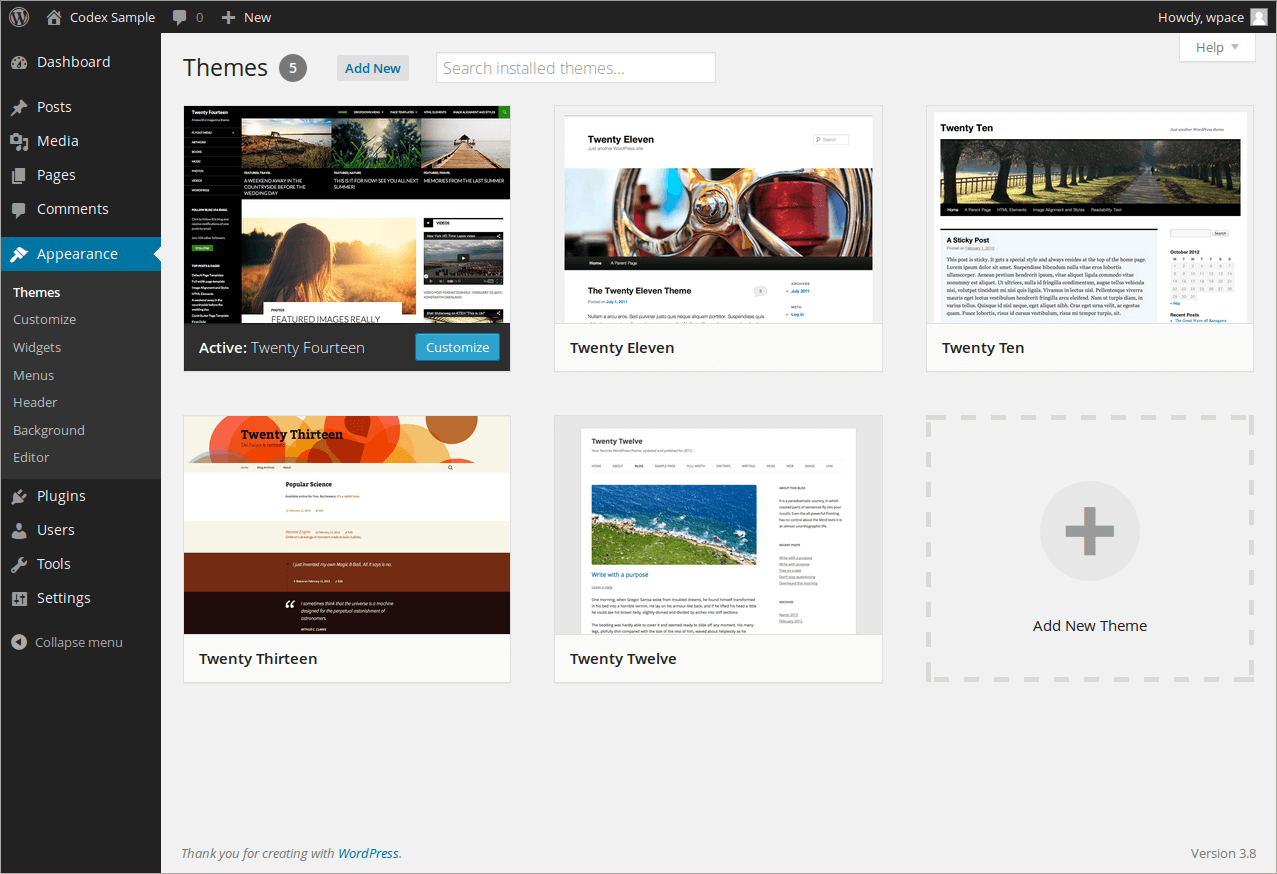
First, log into your WordPress dashboard. Look on the left menu. Find and click on Appearance. Then, click on Themes. This takes you to the Themes section. You can see active themes here. You can also see available themes.
Searching For New Themes
To find new themes, click on Add New at the top. A list of themes will appear. Use the search bar to find themes. You can search by features. Or browse by categories. Click on a theme for more info. Preview it before installing.
Uploading A Theme
To upload a theme, click on Upload Theme. Choose a theme file from your computer. The file should be a .zip format. Click on Install Now to upload. After installing, click on Activate to use it. Your new theme is now live.
Credit: www.hostpapa.com
Installing Themes Via Ftp
To install a WordPress theme via FTP, first download the theme file. Then, connect to your website server using an FTP client. Upload the theme folder to the “wp-content/themes” directory. Finally, activate the theme in your WordPress dashboard under the “Themes” section.
Understanding Ftp Basics
FTP stands for File Transfer Protocol. It helps move files between computers. To use FTP, you need a special program. Many free programs are available online. FTP programs connect to your website server. This lets you add or change files. It’s like a bridge between your computer and the server.
Connecting To Your Server
First, open your FTP program. Enter your server details. You need a username and password. These are given by your hosting provider. Click connect. You will see your website files. Now you can change or add new files.
Uploading Theme Files
First, download your theme files. They are often in a zip folder. Unzip the files on your computer. Open the FTP program. Find the theme folder on the server. This is in wp-content/themes. Drag and drop your theme files here. Wait for the upload to finish. Now, your theme is on your website.
Activating And Customizing Your Theme
Find the theme you want to use. Click on “Install” to add it. Once installed, click “Activate” to make it live. Your website will now display this theme.
Open your theme settings. Adjust colors, fonts, and layouts. Change settings to fit your style. Save your changes often to avoid losing them.
Use the Theme Customizer for easy changes. Preview your edits live. Adjust widgets and menus quickly. Explore options to enhance your site.
Troubleshooting Common Issues
Sometimes themes won’t install. First, check your internet connection. Slow connections can cause problems. Also, ensure the theme file is complete. A broken file won’t work. Try downloading the theme again.
Next, check file format. Only .zip files are accepted. If errors persist, contact the theme provider. They might have a solution.
Themes may break after installation. Start by deactivating all plugins. This helps find conflicts. Reactivate them one by one. Watch for changes.
If the theme is still broken, reinstall it. Sometimes files get corrupted. A fresh install can fix this. Always back up your data first.
Compatibility problems can occur. Ensure your WordPress version is up to date. Older versions may not work with new themes.
Also, check if your theme supports your plugins. Some themes may not support all features. Check with theme support for help.
Maintaining Your Theme
Installing a WordPress theme is straightforward. Start by accessing your dashboard and selecting “Appearance. ” Click “Themes,” then “Add New. ” Choose a theme from the repository or upload a file. Hit “Install,” then “Activate,” to apply the theme to your site.
Customize it for a fresh look.
Updating Your Theme
Updates keep your theme fresh and safe. Always check for updates regularly. Themes change, and updates help fix bugs. New features come with updates too. Try not to miss any updates. Use the update button in your dashboard. It is usually very quick. Updates protect your site from risks.
Backing Up Customizations
Customizations make your site unique. Back them up to save your changes. Use backup tools or plugins. They help keep your settings safe. Backup before making big changes. Losing customizations can be upsetting. Save copies in a safe place. Restoring backups is simple with plugins. Backups protect your hard work.
Ensuring Security Measures
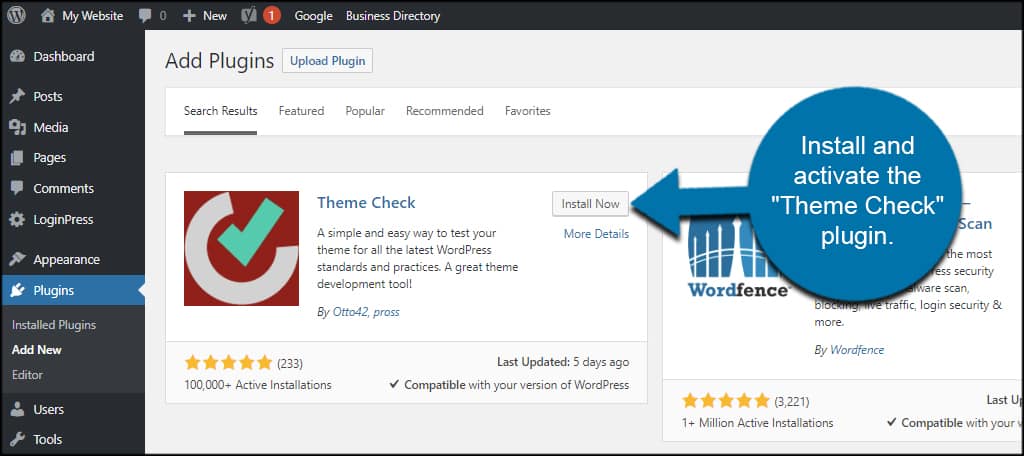
Security keeps your site safe from harm. Use strong passwords for your dashboard. Change them often for better safety. Install security plugins for extra protection. Scan your site for threats regularly. Keep your site safe from hackers. Security plugins alert you of dangers. Always update your plugins for better security.
Credit: www.greengeeks.com
Frequently Asked Questions
How Do I Install A WordPress Theme?
To install a WordPress theme, log in to your WordPress dashboard. Navigate to “Appearance” and then click on “Themes. ” Click “Add New,” search for your desired theme, and click “Install. ” Finally, activate the theme by clicking “Activate. “
Can I Upload A Custom WordPress Theme?
Yes, you can upload a custom WordPress theme. In your WordPress dashboard, navigate to “Appearance,” then “Themes. ” Click “Add New” and “Upload Theme. ” Choose your theme file and click “Install Now. ” After installation, click “Activate. “
What Are The Requirements For A WordPress Theme?
A WordPress theme requires a style. css file and an index. php file. These are essential for proper functionality. Ensure the theme is compatible with your WordPress version. Check the theme’s documentation for additional requirements or dependencies.
How Do I Update A WordPress Theme?
To update a WordPress theme, go to your dashboard and navigate to “Appearance” and “Themes. ” If an update is available, you’ll see a notification. Click “Update Now” to apply the latest version. Always backup your site before updating.
Conclusion
Installing a WordPress theme is simple and straightforward. Just follow the steps. Choose a theme that matches your website’s purpose. Download and install it directly from your WordPress dashboard. Customize the theme to fit your style and brand. Make sure to preview changes before going live.
This ensures everything looks great. Remember to save your settings. Now, your website has a fresh look. Enjoy the new design and features. Keep exploring other themes for future updates. Happy blogging and designing!


