
Are you ready to give your website a fresh look with a new WordPress theme? Installing a theme on Hostinger is simpler than you might think.
Imagine transforming your site’s appearance and enhancing its functionality with just a few clicks. Whether you’re new to WordPress or an experienced user, knowing how to seamlessly install a theme can unlock endless possibilities for your website’s design and user experience.
By the end of this guide, you will feel confident in your ability to breathe new life into your site. Stick around and discover how easily you can elevate your website’s aesthetic and performance.

Credit: www.youtube.com
Choosing The Right Theme
Selecting a theme is exciting. It shapes your website’s look. Many themes are available. Some are free. Others cost money. Think about your needs. Do you want it to be colorful? Or simple and clean? Choose a theme that fits your style. Make sure it works well on mobile too. Mobile-friendly themes are important. They help visitors see your site clearly on phones.
Before choosing, check the theme’s reviews. Good reviews mean happy users. Also, see if updates are regular. Updated themes have new features. They also fix bugs. So, pick a theme that gets updated often. This way, your site stays fresh and secure.
Preparing Your Hostinger Account
Setting up your Hostinger account is simple. Start by logging into your account. Then, navigate to your control panel. Find the WordPress section and select “Themes. ” Browse and choose a theme that fits your style. Click “Install” to add the theme to your site.
Accessing The Control Panel
First, log into your Hostinger account. Find the Control Panel or hPanel. It’s on the top right corner. Click it to open. You will see many options there. Choose Hosting from the menu. Then, select your website from the list. This opens your dashboard.
Setting Up WordPress
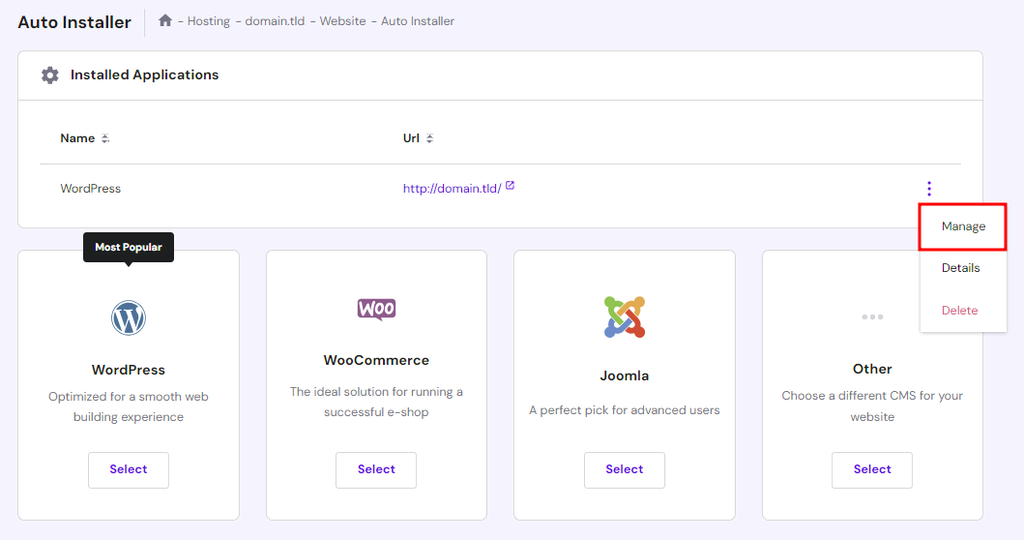
In the dashboard, find the Auto Installer tool. Click on it. Search for WordPress in the search bar. Click Select next to WordPress. Follow the steps to install it. Choose a domain and directory if asked. Enter your admin username and password. Complete the process by clicking Install. Your WordPress is now ready.
Downloading The Theme
Finding trusted sources is very important. Choose websites like WordPress.org. These sites have safe themes. Always check the ratings and reviews. Good feedback means the theme is reliable. Avoid themes from unknown sites. They might have viruses or bugs. It’s safer to download from the official source.
Ensuring compatibility is crucial too. Your theme must work with your WordPress version. Check the theme details. They show the WordPress version needed. An incompatible theme can break your site. Look for themes with recent updates. This means they work with new WordPress features. Keeping your site safe is important. Choose themes that match your site’s needs.

Credit: www.youtube.com
Uploading The Theme To Hostinger
First, log in to your WordPress dashboard. Click on Appearance and then choose Themes. Find the Add New button. Click it. Select the Upload Theme option. Browse for the theme file on your computer. Click Install Now. Wait for the installation to complete. Once done, click Activate to use the theme.
Start by opening your FTP client. Connect to your Hostinger account. Navigate to the wp-content/themes directory. Upload the theme folder from your computer. Make sure the upload is complete. Return to your WordPress dashboard. Go to Appearance and click Themes. You will see the new theme listed. Click Activate to start using it.
Activating The Theme
First, log into your WordPress dashboard. You will see different menu options on the left. Find and click on the Appearance menu. This takes you to the theme settings. Choose the theme you want. Click on the Activate button. Now, your theme is live.
On the left side, find the Appearance tab. Click on it. A drop-down menu appears. Select Themes from the list. This page shows all your available themes. You can add new themes here too.
After activating the theme, click on Customize. This option is under the Appearance menu. You can change colors, fonts, and layout. Make your site look great. Remember to save changes before exiting.
Troubleshooting Common Issues
Installing a WordPress theme on Hostinger can sometimes present challenges. Users often face issues like incorrect file formats or upload errors. Understanding these common problems helps ensure a smooth installation process.
Dealing With Installation Errors
Sometimes, themes don’t install correctly. Files may be missing. Check if the theme is complete. Re-download if needed. Upload it again. Make sure your WordPress is updated. Older versions may have bugs. A network issue can also be a cause. Ensure your internet is stable. Try disabling other plugins. They might conflict with the theme.
Fixing Display Problems
Display issues can be frustrating. First, clear your browser cache. This helps load the new theme. Check if the theme is activated. Sometimes it’s not. Also, ensure all plugins are updated. Outdated plugins may cause errors. Check the theme’s settings. Some themes need adjustments.
Optimizing Theme Performance
Easily install a WordPress theme on Hostinger by logging into your account. Navigate to the WordPress dashboard. Select “Appearance,” then “Themes,” and click “Add New” to upload your chosen theme.
Enhancing Speed
Fast websites make users happy. Slow sites frustrate them. Optimize images to boost speed. Use tools to compress them. Keep your theme light and simple. Avoid heavy plugins. They slow down sites. A caching plugin can help. It stores data for quick access. Speed improves and users stay longer.
Ensuring Mobile Compatibility
Most people use phones to browse. Your theme must be mobile-friendly. A responsive design adapts to screens. Test your site on different devices. Check if buttons and texts are clear. Users need easy navigation. Google loves mobile-friendly sites. They rank higher in searches. Keep your audience engaged and happy.
Credit: www.hostinger.com
Frequently Asked Questions
How Do I Upload A WordPress Theme On Hostinger?
To upload a WordPress theme on Hostinger, log in to your Hostinger account. Navigate to your WordPress dashboard, click on “Appearance,” and then “Themes. ” Select “Add New,” then “Upload Theme” to upload your desired theme file. Finally, click “Install” and then “Activate” to apply it.
Can I Install Free Themes On Hostinger?
Yes, you can install free themes on Hostinger. Simply go to your WordPress dashboard, click on “Appearance,” then “Themes,” and choose “Add New. ” Browse the free themes available in the WordPress repository. Click “Install” on your chosen theme, and then “Activate” to apply it to your site.
What To Do If A Theme Fails To Install?
If a theme fails to install, check your internet connection and ensure the theme file is not corrupted. Verify you have the correct WordPress version for the theme. Try re-uploading the theme file or contact Hostinger support for assistance if the issue persists.
Does Changing Theme Affect My Site’s Content?
Changing a theme does not affect your site’s content. Your posts, pages, and media will remain intact. However, some theme-specific settings and customizations might be lost. Always back up your site before making changes to ensure you can restore any lost configurations.
Conclusion
You have learned to install a WordPress theme on Hostinger. It’s simpler than it seems. Just follow these steps carefully. Start by logging into your Hostinger account. Navigate to your WordPress dashboard. Choose ‘Appearance,’ then ‘Themes. ‘ Click ‘Add New’ for more options.
Select a theme that suits your site. Install and activate it with one click. Check your site for any issues. Customize your theme as needed. Enjoy your new design. Now, your website looks fresh and professional. Remember, practice makes perfect.
Keep exploring WordPress for more features. Happy blogging!


