
Are you ready to give your WordPress website a fresh new look without losing any of your existing content? Installing a new theme over your current one can be a game-changer, transforming the appearance and functionality of your site in just a few clicks.
But, if you’re worried about messing up your site or losing important data, you’re not alone. Many website owners hesitate to change their theme, fearing potential hiccups. The good news is that you can seamlessly install a new WordPress theme while keeping all your posts, pages, and settings intact.
Imagine your website looking more modern, user-friendly, and visually appealing. You’ll not only impress your visitors but also enhance their browsing experience. Stick around, because we’ll guide you through the process step-by-step, ensuring your transition is smooth and stress-free. Get ready to take your website to the next level!
Choosing The Right Theme
Always check if the theme matches your WordPress version. Some themes only work with certain versions. Ensure it supports all the plugins you use. This avoids problems later. Themes need to be responsive. This means they look good on phones and tablets. Check if the theme is SEO friendly. This helps your site show up in search results.
Free themes cost nothing but might lack features. They often have limited support. Premium themes offer more options. They include customer support and updates. You pay for these extras. Think about your site’s needs. Budget is also important. Free themes are good for simple sites. Premium themes suit business sites better.

Credit: startertemplates.com
Backing Up Your Current Theme
Many people use plugins to backup their WordPress site. These tools are easy and quick. Backup plugins save everything on your site. This includes your themes, posts, and plugins. Some popular plugins are UpdraftPlus and BackupBuddy. They are simple to use and very helpful. First, you install the plugin. Then, select what you want to backup. Finally, click the backup button. Your files are safe now.
Some people prefer to backup manually. This method is more hands-on. First, log in to your website’s cPanel. Find the File Manager option. Here, you will see all your files. Look for the wp-content folder. This folder contains all your themes. Download this folder to your computer. Now, your theme is safe. Don’t forget to save your database too. Use phpMyAdmin to export your database. Keep these files in a secure place.
Installing A New Theme
Open the WordPress dashboard. Click on Appearance, then Themes. You will see a button labeled Add New. Click it. Then, click on Upload Theme. Choose the theme file from your computer. The file must be in .zip format. Click Install Now. Wait a few moments. The theme will upload. Once done, click Activate. Your new theme is now ready. Easy, right?
First, use an FTP client. Connect to your website. Go to wp-content/themes folder. Upload the unzipped theme folder here. Ensure the upload is complete. Now, go back to the WordPress dashboard. Click on Appearance, then Themes. You will see your uploaded theme. Click Activate. Your new theme is now live. Simple steps, big change!
Activating The New Theme
Easily update your WordPress site by installing a new theme. Navigate to “Appearance,” click “Themes,” then “Add New. ” Choose your desired theme, click “Install,” and activate it to refresh your site’s look.
Previewing The Theme
Preview the new theme before activating it. This step helps you see how your site will look. Go to the “Themes” section in your WordPress dashboard. Find the theme you want to preview. Click on “Live Preview”. Check if everything looks good. Make sure the layout fits your needs. Look at the fonts and colors. See if they match your brand. You can make changes before activating.
Final Activation Steps
Ready to activate? Go back to the “Themes” section. Hover over the theme you want. Click on “Activate”. This makes the new theme live. Check your site again. Ensure everything looks right. Sometimes things shift after activation. Fix any issues you see. Update widgets if needed. Your site now has a fresh look. Enjoy your new design.
Customizing Your New Theme
Easily update your WordPress site by installing a new theme. Navigate to the dashboard, click “Appearance,” then “Themes. ” Choose a new theme and click “Install. ” Activate it to apply changes. Customize further to match your style. Enjoy a refreshed look for your website.
Adjusting Theme Settings
Open your theme settings. You will find many options. Change colors to match your style. Choose the right font size for easy reading. Adjust the layout to make it look nice. Save changes often to avoid losing work.
Adding Widgets And Menus
Widgets are small blocks. They add features to your site. Drag and drop widgets where you want them. Use the menu settings to organize links. Add pages to the menu for easy navigation. Check the menu looks good on mobile. Make sure all links work.

Credit: themeforest.net
Testing The New Theme
It’s key to test the new theme for compatibility issues. Check if all plugins work with the new theme. Some plugins may break or not work. Look at each page. Ensure everything displays correctly. If things look strange, there might be a compatibility problem.
The theme must be responsive. This means it looks good on all devices. Check it on a phone, tablet, and computer. Make sure texts and images fit well on the screen. If something looks off, adjustments might be needed. A responsive design makes the site user-friendly for everyone.
Troubleshooting Common Issues
Always keep a backup of your WordPress site. It’s your safety net. If things go wrong, you can restore your site easily. First, locate your backup file. It’s usually stored on your computer or cloud. Next, access your WordPress dashboard. Go to “Tools” then “Import”. Choose the backup file and upload it. Follow the prompts to complete the process. This will bring your site back to its previous state. Make sure to check if everything is working well after restoration.
Sometimes, problems need a helping hand. WordPress has a strong community. You can ask questions on their forums. Many users share solutions there. It’s a great place to find answers. Also, consider contacting your theme provider. They often offer technical support. Explain your issue clearly. Many providers have tutorials or FAQs that might help you. Don’t hesitate to reach out for assistance when needed.
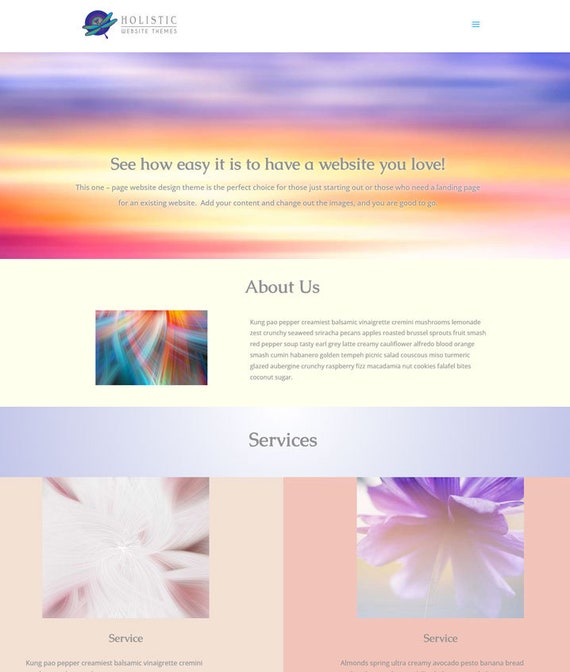
Credit: www.etsy.com
Frequently Asked Questions
How Do I Install A New WordPress Theme?
To install a new WordPress theme, log in to your WordPress dashboard. Navigate to “Appearance” and click “Themes. ” Click “Add New” to browse or upload your desired theme. After selecting your theme, click “Install” and then “Activate” to apply it.
Always back up your site before changing themes.
Can I Change Themes Without Losing Content?
Yes, you can change themes without losing content. WordPress themes primarily affect design and layout. Your posts, pages, and media remain intact. However, some theme-specific settings or widgets may require reconfiguration. Always preview changes before activating a new theme to ensure compatibility and design expectations.
What Should I Do Before Installing A Theme?
Before installing a new theme, back up your website. This ensures you can restore it if issues arise. Review the new theme’s documentation and check compatibility with your WordPress version. Consider using a staging site to test the new theme without affecting your live site.
How Can I Preview A WordPress Theme?
To preview a WordPress theme, go to “Appearance” then “Themes” in your dashboard. Click on a theme and select “Live Preview. ” This allows you to see how the theme will look with your current content. It’s a safe way to explore design changes before activating a new theme.
Conclusion
Updating your WordPress theme can be straightforward. Follow the steps carefully for success. Always backup your site before changes. It ensures data safety and easy recovery. Choose a compatible theme that suits your needs. Check for updates regularly to keep your site secure.
Testing changes on a staging site prevents errors. Take your time to explore theme options. It enhances your site’s appearance and functionality. With patience and practice, you’ll gain confidence. Enjoy the process of making your site better. Happy blogging!


