
Are you ready to transform your website with a stunning WordPress theme on 000Webhost? Imagine having a site that not only looks professional but also captures your audience’s attention in seconds.
The good news is, you don’t need to be a tech whiz to make this happen. Whether you’re launching a new blog or revamping your current site, installing a WordPress theme on 000Webhost can be a breeze. In this guide, we’ll walk you through each step, ensuring you have the confidence and clarity to make your site stand out.
Stick with us, and by the end of this post, you’ll be equipped with all the know-how to give your website that perfect look and feel. Ready to dive in? Let’s get started!

Credit: www.youtube.com
Setting Up 000webhost Account
Begin by visiting the 000Webhost website. Look for the sign-up button. Click it. Enter your email, choose a password, and provide a username. Make sure your password is strong. Check your email for a confirmation link. Click the link to verify your account. Your account is now ready.
Once logged in, you will see the dashboard. It is your main control panel. Here, you can manage your website. Look for the tools and settings. You can find options like File Manager and Website Builder. Spend time exploring each section. Familiarize yourself with the interface. It makes website management easier.
Installing WordPress On 000webhost
Auto Installer is the simplest way to install WordPress. First, log into your 000Webhost account. Find the Auto Installer tool. Click on it. Choose WordPress from the list. Follow the easy steps. Fill in site name and password. Click Install. Wait for it to finish. Your WordPress site is ready!
Download the WordPress package from its website. Open your 000Webhost panel. Go to File Manager. Upload the package to public_html. Extract the files. Next, create a database in MySQL. Note the database name and password. Open the WordPress setup page. Fill in your details. Click Install WordPress. Wait for it to finish. You can now use WordPress!
Choosing The Right Theme
Choosing a WordPress theme can be fun. Look for a theme that is simple and lightweight. It should be responsive, so it looks good on phones. Check if it has a good rating and reviews. A theme that is SEO friendly can help your website. Make sure it is customizable to fit your needs. Free themes are great, but some paid themes have extra features. Think about what is best for you.
Many themes are perfect for beginners. Twenty Twenty-One is simple and clean. Astra is very fast and flexible. Neve is easy to use and works well. OceanWP offers many features even in its free version. Hestia is great for small businesses. Each of these themes has its own charm. You can try them and see which one you like best.
Credit: chatway.app
Uploading A Theme To WordPress
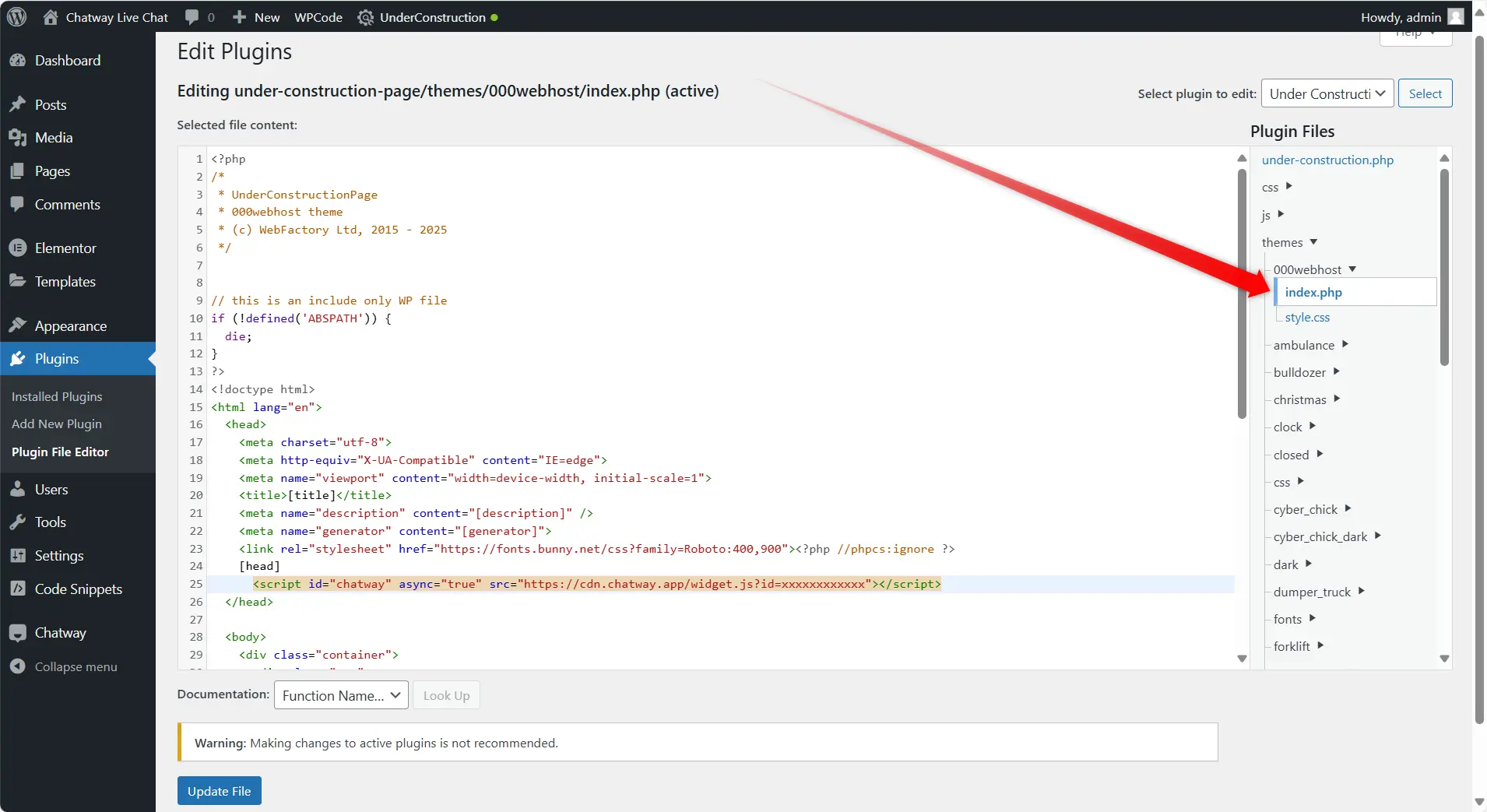
Uploading a theme to WordPress on 000Webhost involves a few simple steps. First, log into your WordPress dashboard and navigate to “Appearance” and “Themes. ” Click “Add New,” choose “Upload Theme,” and select the theme file from your computer. Once uploaded, activate the theme to start customizing your site.
Downloading Theme Files
First, choose a theme you like. Visit a trusted theme site. Click the download button. Save the theme files to your computer. You will need these files soon. Ensure the files are in a zip format.
Using WordPress Dashboard
Log into your WordPress account. Look for the dashboard. Find “Appearance” on the left side. Click “Themes.” Now, press “Add New.” Choose “Upload Theme” at the top. Click “Choose File” button. Select the theme zip file from your computer. Press “Install Now.” Wait for the upload to finish. Click “Activate” to use the theme.
Activating And Customizing The Theme
Easily install your WordPress theme on 000Webhost by accessing the dashboard. Activate the theme under “Appearance” and select “Themes”. Customize it to match your style and enhance your website’s look.
Theme Activation Process
First, go to your WordPress dashboard. Find the Appearance section. Click on Themes. You will see many themes there. Choose your favorite theme. Click on the Activate button. Your theme is now active. Check your website. It should look different now.
Customizing Theme Settings
Visit the Customize option under Appearance. You can change colors, fonts, and layouts. Find options on the left side. Click and try them. Watch the changes on the right. Make sure to save your settings. Your website will look how you want. Enjoy your new look.
Credit: wpmanageninja.com
Troubleshooting Common Issues
Seeing error messages can be frustrating. “Theme installation failed” is a common one. Check your file size. It should be under 2MB. Larger files won’t upload. Another common error is “Stylesheet is missing”. This means the theme file is broken. Try downloading the theme again. Make sure the zip file is complete. Always verify the theme source.
Themes may not be compatible with your WordPress version. Always check theme requirements. Update WordPress if needed. Plugins can cause conflicts too. Deactivate all plugins temporarily. Check if the theme works now. If it does, activate plugins one by one. Find the troublesome plugin. Keep your site and themes updated. This avoids many problems.
Frequently Asked Questions
How To Upload A WordPress Theme In 000webhost?
To upload a WordPress theme in 000Webhost, access your WordPress dashboard. Navigate to “Appearance” > “Themes” > “Add New. ” Click “Upload Theme,” choose your theme file, and click “Install Now. ” Once installed, click “Activate” to use the theme.
Ensure compatibility with your WordPress version.
Can I Install Themes For Free On 000webhost?
Yes, you can install free WordPress themes on 000Webhost. Access the WordPress dashboard, go to “Appearance” > “Themes,” and click “Add New. ” Browse the free themes library, select your desired theme, and click “Install. ” Once installed, activate the theme to apply it to your site.
What To Do If Theme Installation Fails?
If theme installation fails, check your theme file format; it should be. zip. Ensure your WordPress version is compatible with the theme. Clear your browser cache and retry. If issues persist, contact 000Webhost support or consult the WordPress community for troubleshooting advice.
How To Customize A WordPress Theme In 000webhost?
To customize a WordPress theme, navigate to “Appearance” > “Customize” in your WordPress dashboard. Use the customization panel to modify colors, fonts, and layout. Preview changes in real-time before publishing. Ensure your changes align with your site’s branding and user experience goals.
Conclusion
Installing a WordPress theme on 000Webhost is simple. Follow the steps carefully. First, choose the right theme for your site. Then, download the theme to your computer. Next, upload it to your 000Webhost account. Activate the theme in the WordPress dashboard.
Customize your theme to fit your needs. Double-check settings for a perfect look. Remember, practice makes perfect. Mistakes are part of learning. Explore more WordPress features. Enjoy creating your website. Make it unique and engaging. Your site should reflect your style and vision.
Happy blogging!


