
Are you ready to give your WordPress site a fresh look with a new theme? Installing a WordPress theme from Bluehost Cpanel might sound complicated, but it’s easier than you think.
In this guide, you’ll discover a straightforward method to transform your website’s appearance effortlessly. Imagine having the perfect theme that captivates your visitors and enhances your site’s functionality. With just a few clicks, you can make it happen. Whether you’re a beginner or an experienced user, this step-by-step process is designed with you in mind.
Get ready to dive in and unleash the true potential of your WordPress site. Let’s get started!
Accessing Bluehost Cpanel
Installing a WordPress theme via Bluehost Cpanel is straightforward. First, log into your Bluehost account and access Cpanel. Navigate to the WordPress section, select ‘Themes’, and choose your desired theme. Click ‘Install’ to complete the process quickly. Enjoy customizing your website with new design features.
Logging Into Bluehost Account
Enter your username and password. Click the login button. You will see your dashboard. Find the Cpanel button on the screen. Click it to access Cpanel.
Navigating To Cpanel
Look for the Cpanel icon. It is usually easy to find. Click it to open. You will see many options. Choose the WordPress option. Click on it to proceed. Follow the instructions to install the theme.
Finding The WordPress Installer
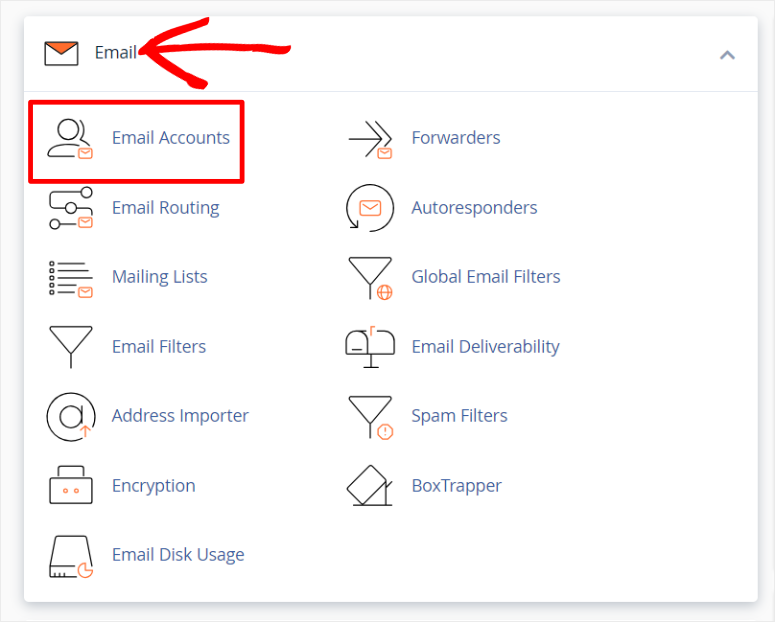
Bluehost makes it easy to find WordPress tools. First, log into your Bluehost account. Look for the Cpanel section on your dashboard. Here, many tools are available for your website. Find the WordPress icon or link. This is where you can access everything related to WordPress. Click on it to view more options.
Once you find the WordPress section, launching the installer is easy. Click on the Install WordPress button. This starts the installation process. Follow the on-screen instructions step by step. Choose the domain where you want your WordPress site. Double-check every detail you enter. Finally, click on the Install Now button. Your WordPress will start installing on your chosen domain.
Selecting A New Theme
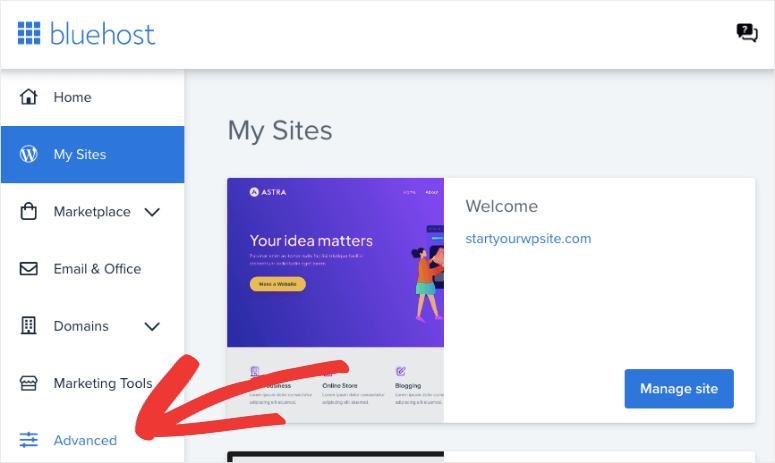
Finding the perfect theme is fun. Start by exploring available themes in your Bluehost cPanel. Look for themes under the “Appearance” tab. Many choices are available. Popular themes are often recommended. Check the ratings and reviews. This helps you know if others like it.
Next, focus on choosing the right theme. Think about what you need. Do you want a blog theme? Or maybe an online store theme? Check the features each theme offers. Some themes are fast and simple. Others have more design options. Make sure the theme matches your style. It should fit your website’s purpose. Your theme should be easy to use. This makes your site more enjoyable for visitors.
Credit: www.isitwp.com
Installing The Theme
First, log into your Bluehost Cpanel. Find the file manager. Click it to open. Go to the public_html folder. Here, locate the wp-content directory. Inside, find the themes folder. Now, upload your theme files here. Use the Upload option at the top. Select your theme’s .zip file. Wait for it to upload. Once done, extract the file. Click the Extract button. Your theme files are now in place.
Go to your WordPress dashboard. Look for the Appearance tab. Click on Themes. Find the new theme. It’s under the Installed Themes. Click Activate. Your theme is now live on your site. Check to see how it looks. Make sure everything works fine. Adjust settings if needed. Enjoy your new theme.
Customizing The Theme
Installing a WordPress theme from Bluehost’s cPanel is straightforward. First, log into your Bluehost account and access cPanel. Then, navigate to the WordPress themes section and select your preferred theme to install. Customize it to match your website’s style for a personalized touch.
Accessing Theme Customizer
Open your WordPress dashboard. Click on Appearance in the menu. Select Customize to access the Theme Customizer. The Customizer lets you change your theme easily. You can see changes in real-time. It is user-friendly and fun to use. Try changing the colors and fonts. You can also change the header image. Explore the menu options. Save your changes when you finish. Make your site look unique!
Adjusting Theme Settings
Visit the Theme Settings section. You can adjust many settings here. Change the site title or tagline. Choose different layouts and designs. Set up your homepage. Add widgets for extra features. You can even change the background image. Customize your menu and footer. Each change makes your site better. Always remember to save your settings. Enjoy making your site special!
Credit: www.isitwp.com
Troubleshooting Common Issues
Installing a WordPress theme via Bluehost cPanel can be simple. Access the cPanel, then find the WordPress installer. Choose your theme and follow the prompts to complete the setup.
Resolving Installation Errors
Installation errors can be frustrating. First, check your internet connection. A weak connection can cause problems. Next, ensure you have enough storage space. Lack of space can stop the installation. Double-check your login details. Wrong details can block access. If the error persists, contact Bluehost support. They can help quickly. Follow these steps for a smooth process.
Checking Theme Compatibility
Theme compatibility is crucial. Ensure your theme supports the latest WordPress version. Older themes may not work well. Check the theme’s ratings and reviews. They provide helpful insights. Also, confirm if the theme is mobile-friendly. Many users access sites on phones. Use the demo option to test the theme. It helps verify features. Choose a theme that fits your needs.
Finalizing Theme Setup
Easily set up your WordPress theme via Bluehost’s Cpanel. Navigate to the theme section, upload your chosen file, and activate it. Enjoy a personalized website in minutes with this straightforward process.
Testing Website Functionality
Check if all buttons work. Make sure links go to the right pages. Test forms to see if they send messages. Try different browsers to see how it looks. Click everywhere to find errors.
Ensuring Mobile Responsiveness
Open your site on a phone. Check if text and pictures fit. Make sure buttons are easy to click. Rotate the phone to see if it still looks good. Ask friends to test it too.
Credit: www.bluehost.com
Frequently Asked Questions
How Do I Access Bluehost Cpanel?
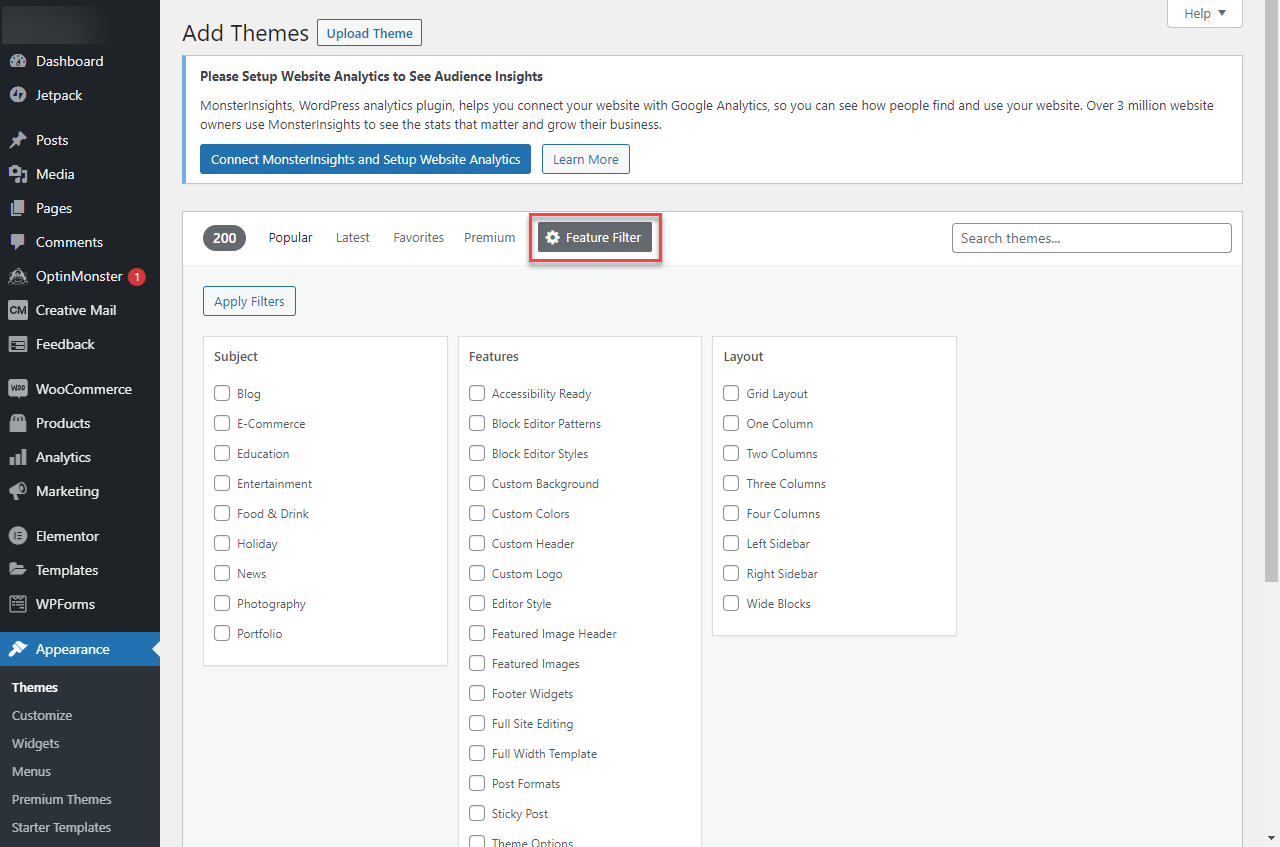
Access Bluehost cPanel by logging into your Bluehost account. Navigate to the ‘Advanced’ tab in the sidebar. This will take you directly to the cPanel interface. From there, you can manage your website settings, including installing WordPress themes and plugins.
Can I Install Themes Directly From Cpanel?
Yes, you can install themes directly from cPanel. First, download the theme’s ZIP file from a trusted source. Then, access the ‘File Manager’ in cPanel and upload the theme file to your WordPress ‘themes’ directory. Finally, activate the theme through the WordPress dashboard.
What Are The Steps To Upload A Theme?
To upload a theme, first download the theme’s ZIP file. Access the Bluehost cPanel and go to the ‘File Manager’. Navigate to ‘public_html/wp-content/themes’ and upload the ZIP file. Extract it there. Finally, activate the theme in your WordPress dashboard under ‘Appearance’.
Why Use Bluehost For WordPress Themes?
Bluehost offers seamless WordPress integration and reliable hosting services. Their cPanel interface is user-friendly, making theme installation straightforward. Additionally, Bluehost provides excellent customer support and performance features tailored for WordPress websites, enhancing both speed and security.
Conclusion
Installing a WordPress theme from Bluehost’s cPanel is straightforward. Follow the steps carefully. Log in to Bluehost, navigate to the cPanel. Locate the WordPress tool, then select your desired theme. Upload and activate it easily. Your website now has a fresh, new look.
This process enhances your site’s design quickly. No advanced skills are required. Make sure to explore various themes for the best fit. Customizing your theme can also elevate your site’s appeal. Enjoy your new WordPress theme, and keep experimenting. Happy blogging!


