
Are you ready to give your website a fresh, captivating look? Installing a WordPress theme on Bluehost is your ticket to transforming your site’s appearance and functionality with ease.
Whether you’re a seasoned blogger, a small business owner, or just starting your online journey, choosing the right theme can make all the difference. Imagine the impression you can make with a stunning design that not only draws visitors in but keeps them engaged.
As you dive into this article, you’ll discover step-by-step instructions that make the process simple and stress-free, ensuring your site stands out in the crowded online space. Are you excited to learn how to effortlessly install your WordPress theme on Bluehost and elevate your web presence? Let’s get started!

Credit: m.youtube.com
Choosing The Right Theme
Themes come with many features. Some are important. Some are extra. Look for easy navigation. Does the theme look good? Is the design clear? Can you change colors? Check for responsive design. Will it work on mobile? Does it load fast? These features matter. They improve user experience. They keep visitors happy. They help your site look professional.
Theme compatibility is key. Will it work with Bluehost? Check the theme’s requirements. Read reviews. See what others say. Does it work with your plugins? Compatibility ensures your site runs smoothly. It avoids problems. It saves time. It makes your website reliable. Test the theme before use. Ensure it fits your needs.
Preparing Your Bluehost Account
Log into your Bluehost account with your username and password. After logging in, find the dashboard. It’s the main page you see first. Look for the section called “My Sites”. This is where you will find your websites. Click on the website you want to work on. You are now ready to make changes.
Make sure your domain name is connected. You need a domain to have a website. Check if you have a hosting plan. Without hosting, your site will not be live. If you see your domain and hosting, you’re all set. You can now install a WordPress theme. Everything is ready to go.
Installing WordPress On Bluehost
Bluehost makes installing WordPress easy. Use the one-click installer. First, log in to your Bluehost account. Find the My Sites tab. Click on it. Select Create Site. Enter your site name and tagline. Choose a domain name. Click Next to start the installation.
Wait a few minutes. Your WordPress site is ready. Now, visit the admin dashboard. Use your login details. Start customizing your site. Add themes and plugins. Make it beautiful. You can also add pages and posts. Make your site special. It’s easy with WordPress.
After installation, configure settings. Go to Settings in the admin dashboard. Set your site title and tagline. Choose a timezone. Pick a language. Set your email address. This helps manage site notifications.
Choose a permalink structure. It makes URLs look nice. Set reading settings. Decide if home page shows posts or a static page. Manage comments. Enable or disable them. Save your changes. Your site is now ready for visitors.

Credit: www.youtube.com
Uploading A New WordPress Theme
First, find a theme you like. Click the download button. Save the theme file to your computer. Make sure it’s a .zip file. This is important for uploading.
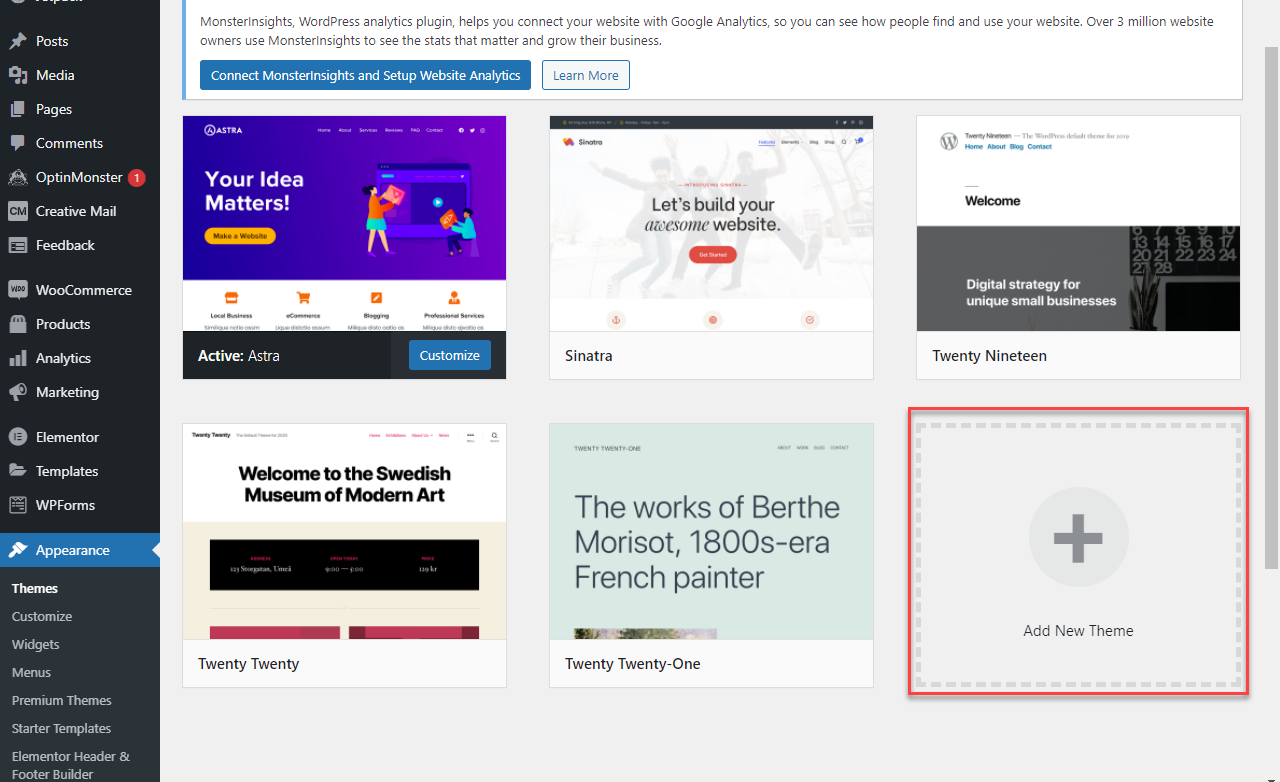
Open your WordPress dashboard. Go to Appearance then click Themes. Choose Add New at the top. Click Upload Theme. Find the .zip file you saved. Click Install Now. Wait for the upload to finish.
Once uploaded, activate the theme. Click Activate button. Your new theme is ready. Enjoy your new look!
Activating The Theme
Activating your WordPress theme on Bluehost is simple. First, log in to your WordPress dashboard. Look for the ‘Appearance’ option on the left sidebar. Click on it. Choose ‘Themes’. A list of installed themes will appear. Find the theme you want to activate. Click ‘Activate’ below the theme name. Your theme is now active. You will see changes immediately.
Customizing Theme Options
Customizing theme options lets you make your website unique. Click on ‘Customize’ under the ‘Appearance’ tab. You can change colors, fonts, and layouts. Add a logo to your site. Adjust the menu to fit your style. Preview changes as you go. Make sure everything looks perfect.
Previewing Before Activation
Preview the theme to see how it looks. Click on ‘Live Preview’ next to the theme. Explore the settings. Check each section carefully. Ensure the theme fits your needs. This step helps avoid mistakes. Preview helps ensure satisfaction.
Troubleshooting Common Issues
Theme upload errors can be frustrating. Check your file size first. The theme file may be too big. If so, try compressing it. Use a reliable internet connection. A poor connection might cause errors. Try again after checking your internet. Ensure your WordPress and PHP versions are up to date. Older versions may not support the theme. Update both if needed. This can fix many issues.
Compatibility problems can stop your theme from working. Check for plugin conflicts. Some plugins don’t work well with new themes. Disable all plugins first. Then, enable them one by one. This helps find the problem. Ensure your theme supports the current WordPress version. Some themes only work with specific versions. Check the theme’s documentation for details. If needed, contact the theme developer. They can offer guidance or updates.
Enhancing Theme Functionality
Plugins make your theme more powerful. Install plugins from your dashboard. Choose plugins that help your site. Security plugins keep your site safe. SEO plugins help your site rank better. Contact form plugins make it easy for users to reach you. Backup plugins save your data. Each plugin adds new features. Choose wisely and keep plugins updated.
Good performance keeps users happy. Speed is important. Faster sites make users stay longer. Caching plugins help speed up your site. Image optimization plugins reduce image size. Minifying CSS and JavaScript makes your code lighter. Fewer requests to server means faster load times. Check your site speed often. Use tools to test performance. Adjust and improve regularly.
Credit: www.bluehost.com
Frequently Asked Questions
How Do I Install A WordPress Theme On Bluehost?
To install a WordPress theme on Bluehost, log into your WordPress dashboard. Navigate to “Appearance” and then “Themes. ” Click “Add New” and search for the theme you want. Click “Install” and then “Activate” to apply the theme to your site.
Can I Use Any Theme With Bluehost?
Yes, you can use any WordPress theme with Bluehost. Bluehost supports all WordPress themes, whether free or premium. Ensure your chosen theme is updated and compatible with your WordPress version for optimal performance and security.
Does Bluehost Offer Free WordPress Themes?
Bluehost does not directly offer themes, but WordPress provides many free options. Within your WordPress dashboard, go to “Appearance” and “Themes” to explore free themes. You can install and activate any theme that fits your website’s needs.
How Do I Change My WordPress Theme On Bluehost?
To change your WordPress theme on Bluehost, go to your WordPress dashboard. Click on “Appearance” and “Themes. ” Browse or upload a new theme, click “Install,” and then “Activate” to change your site’s appearance.
Conclusion
Installing a WordPress theme on Bluehost is simple and quick. Follow each step carefully. Start by selecting a theme that fits your needs. Download and upload it to your Bluehost dashboard. Activate the theme to see changes instantly. Don’t forget to customize it for your brand.
Adjust colors, fonts, and layout. Make sure your site looks appealing on all devices. Check your settings to ensure everything works perfectly. Regular updates will keep your theme secure and fresh. Practice these steps to confidently manage your WordPress site.
Enjoy the process and watch your website come to life!


