
Are you ready to elevate your WordPress site to the next level? Imagine turning your website into a dynamic online store, seamlessly blending the powerful features of WooCommerce with the stunning aesthetics of the Divi theme.
Sounds like a game-changer, right? Whether you’re a seasoned web designer or just starting your online journey, installing WooCommerce on the Divi theme is a straightforward process that can unlock endless possibilities for your business. You might wonder if it’s complicated or time-consuming, but rest assured, it’s simpler than you think.
By the end of this guide, you’ll not only have the tools to create an eye-catching e-commerce site but also the confidence to manage it effortlessly. Let’s dive in and transform your website vision into reality!
Credit: www.elegantthemes.com
Prerequisites
First, you need a website. Install WordPress on your server. Choose a reliable hosting provider. They help keep your site up. Use a domain name. Make sure it’s easy to remember. Log into WordPress dashboard. It’s your control center. From there, you can add features. You can also manage settings. WordPress is flexible and user-friendly. You can customize it as you wish.
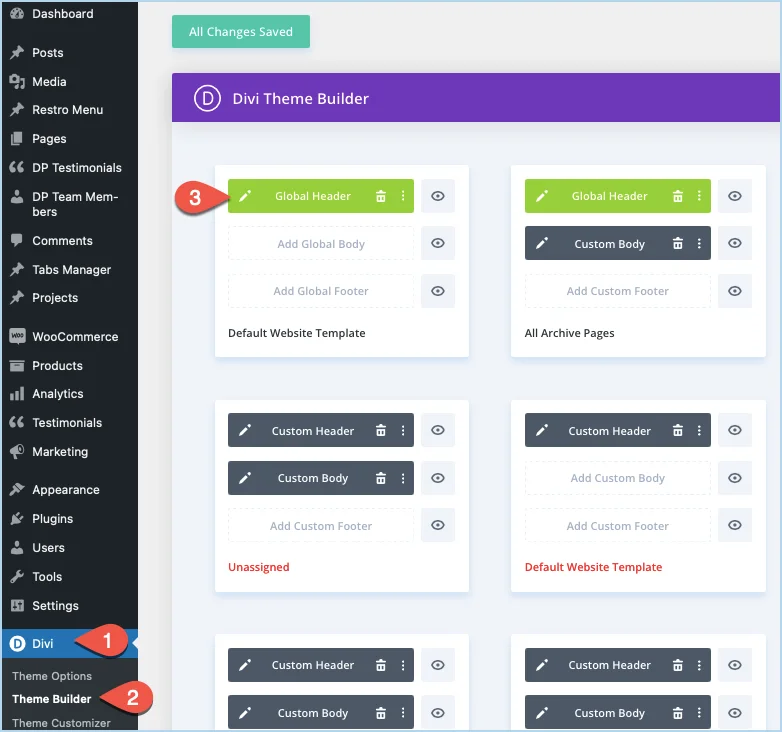
Download the Divi theme from the official site. Save the zip file on your computer. Go to your WordPress dashboard. Click on “Appearance.” Then click on “Themes.” Press “Add New.” Now, upload the Divi zip file. Activate the theme once uploaded. Your site now has a new look. You can start using Divi’s features. It offers many customization options. The Divi Builder is powerful and easy. It helps create beautiful pages. Have fun exploring!
Credit: diviextended.com
Installing Woocommerce Plugin
First, log in to your WordPress dashboard. Use your username and password. The dashboard is your control center. Here, you can manage your site. Look for the Plugins option on the left menu.
Click on Plugins. Then, select Add New. A search bar will appear. Type Woocommerce into the search bar. The Woocommerce plugin should appear. It is a popular choice for online stores.
Click the Install Now button next to Woocommerce. Wait for the installation to finish. Next, click on Activate. Your Woocommerce plugin is now active. You can start setting up your online store. Explore the new options in your dashboard.
Configuring Woocommerce Settings
First, go to WooCommerce in your WordPress dashboard. Click on Settings. Here, set your store’s location and currency. Choose the selling locations. Decide where you will ship your products. Save your changes to proceed.
Navigate to the Payments tab. Select which payment methods you want to offer. You can choose PayPal, Stripe, or bank transfers. Enable the gateways by clicking the toggle button. Enter your account details if needed. Save these settings.
Go to the Shipping tab. Add shipping zones based on locations. Set shipping methods like flat rate or free shipping. Determine costs for each zone. Save the changes to keep them.
Click on the Tax tab. Decide if you want to enable taxes. Set tax rates based on your country rules. Choose whether prices include tax or not. Save these settings to apply.
Credit: www.elegantthemes.com
Integrating Woocommerce With Divi
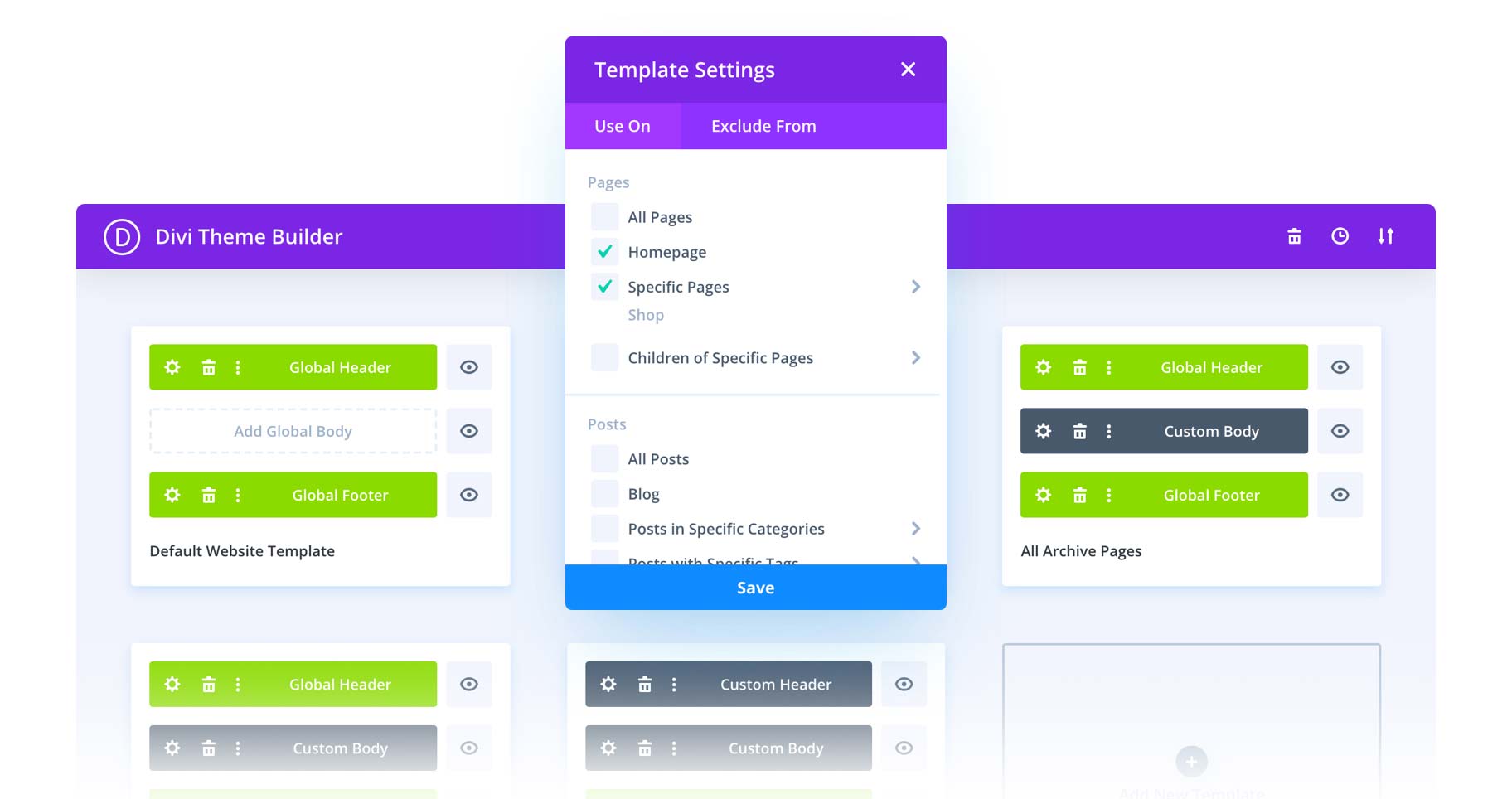
Divi Builder makes it easy to design your store. Drag and drop elements to build pages. Woocommerce widgets help in adding products quickly. Adjust colors and fonts to match your brand.
Product pages need to look good. Use Divi’s modules to design them. Add images and descriptions that stand out. Make sure buttons are easy to click. Product details should be clear and visible.
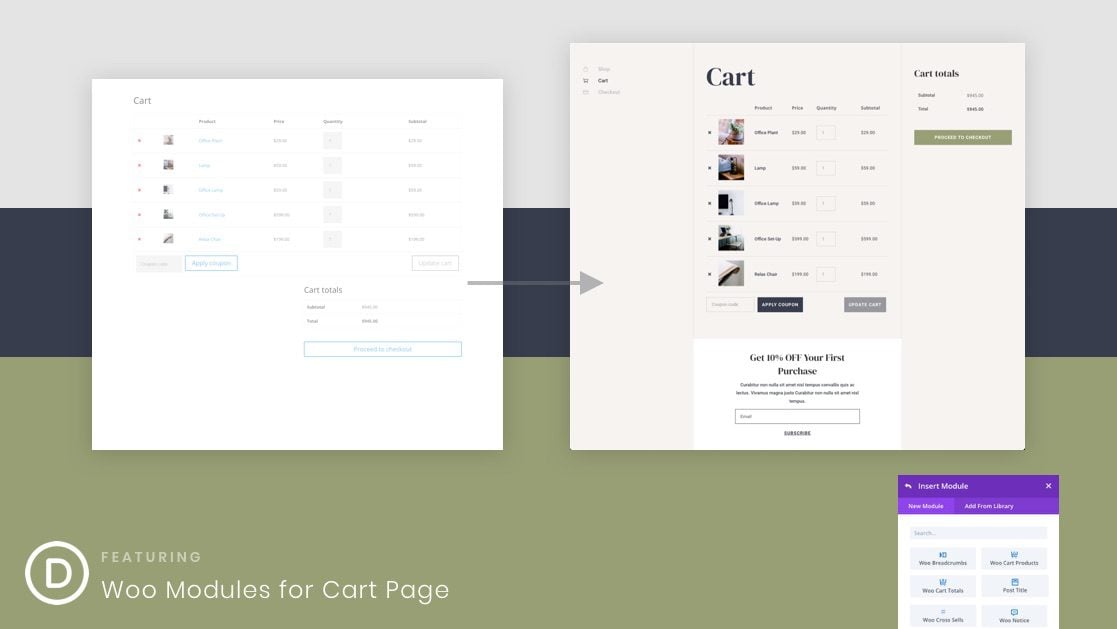
Cart and checkout pages are important. Use Divi to make them user-friendly. Add clear instructions for users. Ensure payment options are easy to find. Keep the design simple and clean.
Enhancing Woocommerce Features
Installing Woocommerce on the Divi Theme in WordPress enhances online store features. Begin by downloading and activating the Woocommerce plugin. Next, customize the Divi Theme to align with your store’s design, ensuring a seamless shopping experience for customers.
Adding Extensions
Extensions make your Woocommerce store better. They add new features like extra payment options or better shipping tools. Find extensions in the Woocommerce marketplace. Check if they work with your Divi theme. Some extensions need updates to work best.
Optimizing For Mobile
Many shoppers use phones to buy things. Your store needs to look good on mobile. Mobile optimization helps pages fit small screens. Use responsive design with Divi. Test your site on different devices. Fast loading is key for mobile users.
Improving Load Speed
Slow sites lose customers. Speed is important. Use caching plugins for faster load times. Optimize images to save space. Minimize CSS and JavaScript files. Check your site speed with online tools. Faster sites make more sales.
Troubleshooting Common Issues
Plugins may not work well together. This can cause Woocommerce problems. Disable other plugins one by one. Then check if the issue is fixed. If it is, a plugin is causing trouble. Reactivate plugins one by one to find the problem. Always keep plugins updated. This helps avoid conflicts.
Some themes might not suit Woocommerce. Divi theme should work well. But sometimes, custom code can cause issues. Check if theme files are up to date. If problems persist, contact theme support. They might have a solution.
Payment errors can upset customers. Ensure payment settings are correct. Double-check API keys and credentials. Check if your payment gateway is active. Sometimes, server issues can cause errors. Contact your hosting provider if needed. Always test transactions in a sandbox environment first.
Frequently Asked Questions
How Do I Install Woocommerce On Divi Theme?
To install WooCommerce on Divi Theme, first, go to your WordPress dashboard. Then, navigate to Plugins > Add New. Search for WooCommerce, click Install, and then Activate. Finally, configure WooCommerce settings according to your store’s requirements. The process is straightforward and user-friendly.
Is Divi Compatible With Woocommerce?
Yes, Divi is fully compatible with WooCommerce. Divi offers dedicated modules and design options for WooCommerce. This allows you to create visually appealing, customized online stores. Both Divi and WooCommerce are popular, ensuring seamless integration. This combination enhances the flexibility and functionality of your website.
Can I Customize Woocommerce With Divi Builder?
Absolutely, you can customize WooCommerce using the Divi Builder. Divi offers WooCommerce-specific modules for product pages and shop layouts. These modules enable complete design control over your store. Customizing is easy with Divi’s drag-and-drop interface. You can create a unique shopping experience without coding knowledge.
What Are The Benefits Of Using Divi With Woocommerce?
Using Divi with WooCommerce offers numerous benefits. It provides extensive design flexibility and customization options. Divi’s visual builder simplifies the design process. You can create professional, responsive online stores effortlessly. Additionally, both platforms are well-supported, ensuring a reliable e-commerce solution for your business.
Conclusion
Installing WooCommerce on the Divi Theme is straightforward. Follow each step carefully. Start by ensuring your WordPress setup is ready. Download and activate the Divi Theme. Next, install WooCommerce from the plugin menu. Configure WooCommerce settings for your store. Customize your Divi pages to match your brand.
Always test your site thoroughly after setup. Ensure everything works smoothly. Troubleshoot any issues promptly. With patience, your online store will soon be ready. You can now manage products and sales efficiently. Enjoy your new e-commerce adventure with WordPress and Divi.


