
Imagine transforming your WordPress site into a dynamic online store that attracts customers and drives sales effortlessly. With WooCommerce paired with the sleek Divi theme, this vision is not just possible; it’s incredibly easy to achieve.
If you’re wondering how to harness these powerful tools to build a stunning e-commerce platform, you’re in the right place. Have you ever felt overwhelmed by the technical jargon or the complexity of setting up an online store? You’re not alone.
Many people feel the same way, but the good news is, installing WooCommerce on WordPress using the Divi theme doesn’t have to be a complicated process. In fact, it can be straightforward and enjoyable. You’ll discover step-by-step instructions that make the installation process smooth and stress-free. You’ll find practical tips and insights that empower you to create an online store tailored to your needs. So, are you ready to unlock the potential of your WordPress site with WooCommerce and Divi? Keep reading, because you’re about to learn just how simple it can be.
Setting Up WordPress
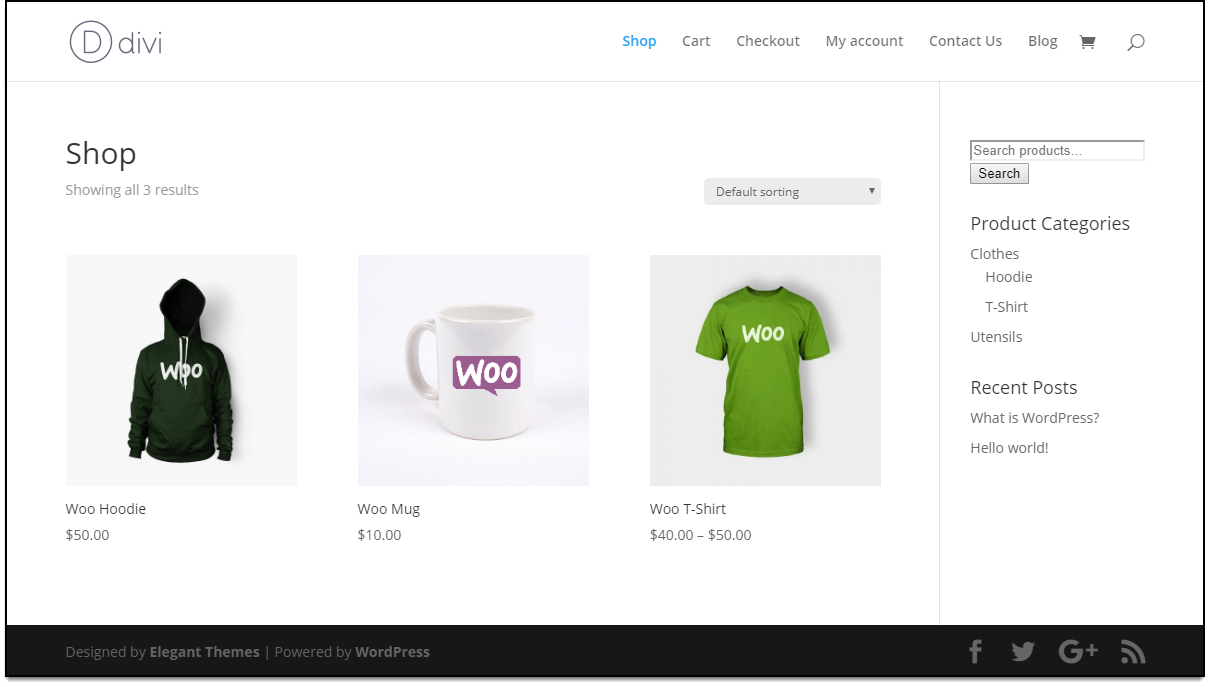
Integrating WooCommerce into WordPress with Divi enhances your e-commerce site. Start by installing WooCommerce plugin, then activate Divi theme for a sleek design. Customize your store layout using Divi’s drag-and-drop builder to create an engaging shopping experience effortlessly.
Choosing A Hosting Provider
First, pick a hosting provider for your website. Some popular choices are Bluehost, SiteGround, and HostGator. They offer good support and easy setup. Check their features. Look at costs and decide what fits your needs. Make sure they support WordPress. This ensures smooth installation. Choose a plan that suits your budget and site requirements.
Installing WordPress
After selecting a hosting provider, install WordPress. Most hosts offer one-click installation for WordPress. This makes setup simple. Follow the steps given by your host. Usually, you need to log into your account. Then, find the WordPress option and click install. Fill in basic site details like name and admin email. Wait for the installation to complete. WordPress will be ready to use after that.
Credit: elextensions.com
Installing Divi Theme
First, visit the Elegant Themes website. Look for the Divi theme. Check the pricing plans. Choose the one that fits your needs. Click on the purchase button. Fill in your details. Pay the amount. After payment, download the Divi theme file. Save it on your computer. Keep it safe. You need it later.
Go to your WordPress dashboard. Find the “Appearance” menu. Click on “Themes”. You will see an “Add New” button. Click it. Now, click “Upload Theme”. Choose the Divi file from your computer. Click “Install Now”. Wait for the upload to finish. Then, click “Activate”. Now, Divi is ready to use. Start customizing your site.
Configuring Divi Theme
Open the WordPress dashboard. Click on Divi in the sidebar. Select Theme Options. Here, you can change colors. Adjust fonts. Set up navigation menus. Make sure your site looks nice. Save your changes often. It keeps things safe.
The Divi Builder helps you design pages. Use the drag-and-drop feature. Add text blocks. Insert images. Create columns. Make sure each part looks good. Preview your changes. Check if everything works well. You can edit anytime. Make your site unique.
Adding Woocommerce Plugin
Installing the WooCommerce plugin on WordPress with the Divi theme enhances your online store’s functionality. Start by accessing the WordPress dashboard, then navigate to ‘Plugins’ and select ‘Add New’. Search for WooCommerce, click ‘Install Now’, and activate it to integrate seamlessly with your Divi theme.
Downloading Woocommerce
Find the WooCommerce Plugin in the WordPress plugin store. Click on the Install Now button. Wait for the plugin to download. The download takes a few moments. Ensure your internet is working well. A stable connection helps the process. After downloading, you will need to activate it.
Activating Woocommerce
After downloading, look for the Activate button. Click on it to start using WooCommerce. This step is important for setup. Your WooCommerce store will now be ready. You can begin setting up your products. Make sure you follow each step carefully. The activation is easy to do. Your store will be live shortly.
Setting Up Woocommerce
Start by opening the WooCommerce settings in WordPress. These settings help your store run well. You can set the currency and choose your selling locations. Don’t forget to check the tax settings. Taxes are important. Set them right for your country. You also need to set up your shipping options. Choose how you will deliver products to customers.
Payment methods are key for your online store. You need options like PayPal or Stripe. Customers use these to pay. Go to the payments tab in WooCommerce. Activate the methods you want. Configure each method. Enter the required details. Make sure each method works well. Test them to avoid problems later. Payment is crucial for success.
Integrating Woocommerce With Divi
Installing WooCommerce with the Divi theme enhances your WordPress site effortlessly. Begin by downloading WooCommerce from the WordPress plugin directory. Activate it, then customize product pages using Divi’s intuitive design tools for a seamless user experience.
Using Divi Modules For Woocommerce
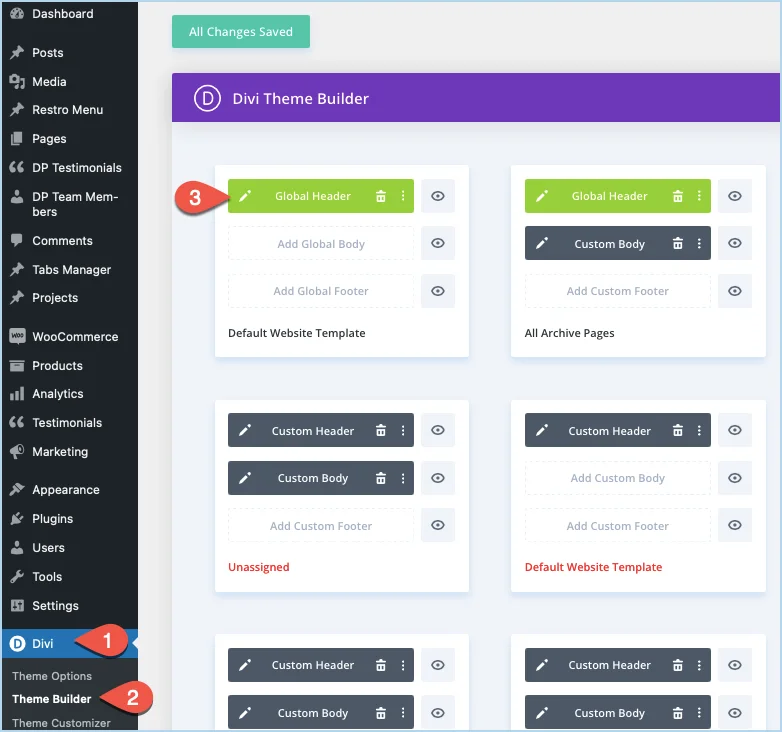
Divi offers special modules to enhance WooCommerce. These modules help in creating unique designs. You can style product galleries and cart pages easily. Adjust colors, fonts, and layouts to match your brand. Divi’s drag-and-drop feature simplifies the process. No coding skills are needed.
Designing Product Pages
Product pages are vital for online stores. Divi helps in designing these with ease. Add images, descriptions, and pricing clearly. Make sure to highlight important details. Ensure your page is clear and attractive. Use Divi’s tools for a polished look. A good design can boost sales. Keep navigation simple for users.
Testing Your Online Store
Easily set up your online store by integrating WooCommerce with WordPress using the Divi Theme. Follow step-by-step instructions to install WooCommerce, enhancing your store’s functionality while maintaining an attractive design. Ensure seamless performance and user-friendly navigation for a successful e-commerce experience.
Checking Functionality
Start by testing every feature in your store. Ensure the cart works smoothly. Try adding items and check the total price. Make sure the checkout process is simple. Fill out the form and test if it goes through. Check if the payment methods are working. Try different options like PayPal or credit card. Verify if users receive a confirmation email. This shows their order went through.
Ensuring Mobile Responsiveness
Your store should look great on all devices. Open it on a phone and tablet. Check if images fit the screen. Text should be easy to read. Buttons must be easy to click. Test the navigation menu. It should be simple to use. Users should easily find products. Make sure the site loads fast. Slow sites annoy users. They may leave before buying.
Credit: www.elegantthemes.com
Credit: diviextended.com
Frequently Asked Questions
How Do I Install Woocommerce On WordPress?
To install WooCommerce, log into your WordPress dashboard. Navigate to ‘Plugins’ > ‘Add New’, search for ‘WooCommerce’, and click ‘Install Now’. Once installed, activate the plugin. Follow the setup wizard to configure WooCommerce settings, including payment methods and shipping options.
Can Divi Theme Work With Woocommerce?
Yes, Divi seamlessly integrates with WooCommerce. It offers custom design options for WooCommerce pages, enhancing your store’s appearance. Use Divi’s builder to customize product pages, checkout, and cart layouts. Ensure both Divi and WooCommerce plugins are updated for best compatibility.
What Are The Benefits Of Using Divi With Woocommerce?
Using Divi with WooCommerce provides enhanced design flexibility. Divi’s drag-and-drop builder allows custom layouts for product pages. It optimizes user experience and improves visual appeal. This combination helps create a professional and unique online store effortlessly.
Do I Need A Divi Child Theme For Woocommerce?
A Divi child theme is recommended for WooCommerce customization. It preserves custom changes during updates. Create a child theme to safely modify WooCommerce templates and styles. This ensures your customizations remain intact after Divi theme updates.
Conclusion
Installing WooCommerce with Divi is straightforward and rewarding. First, ensure WordPress and Divi are set up. Then, add the WooCommerce plugin. Customize your store using Divi’s tools. This combination makes managing online sales easy. Your store looks great and functions well.
Follow each step carefully to avoid issues. Practice makes perfect, so don’t rush. Experiment with different settings to find what works best. Keep your site updated for security and performance. Enjoy selling your products online with ease. Success is just a few clicks away.


