
Are you looking to streamline communication and collaboration within your organization? The Woffice Intranet Extranet WordPress theme might just be what you need.
Installing this powerful theme can transform your website into an efficient intranet or extranet, providing your team with a centralized platform for sharing information and managing projects. But how do you get started with Woffice? In this guide, we’ll walk you through the installation process step-by-step, ensuring you can unlock its full potential with ease.
Whether you’re tech-savvy or a WordPress novice, this article will equip you with everything you need to create a dynamic, interactive workspace for your team. Stay with us, and let’s make your website work harder for you!
Requirements
Woffice theme works best on the latest WordPress version. Keep your WordPress updated. A minimum of PHP version 5.6 is needed. Always choose PHP version 7.0 or higher for better performance. At least 64M of memory limit is required. For big sites, increase memory to 128M. MySQL 5.6 or MariaDB 10.0 should be the database version. These versions help keep the site fast and secure. A good hosting service is important too. Shared hosting might slow things down. Check if your hosting has SSL support. SSL keeps data safe between the server and users. Before starting, back up your website. This ensures no data loss.
Downloading The Theme
Start by visiting the ThemeForest website. Search for the Woffice Intranet Extranet theme. Click on the theme’s page. Find the purchase button. Buy the theme. After buying, look for the download link. Click on the download link. Save the theme file to your computer.
Remember the folder location. This will help later. Make sure the file is not corrupted. Check the file size. It should match the website’s size info. Now, you are ready to install the theme on WordPress.
Uploading To WordPress
Log in to your WordPress dashboard. Go to Appearance and click on Themes. Next, click the Add New button. Choose the Upload Theme option. Click Choose File and find the Woffice theme ZIP file. Press Install Now to upload the theme. Once uploaded, click Activate to start using it.
First, connect to your server using an FTP client. Navigate to the /wp-content/themes/ directory. Extract the Woffice theme folder from the ZIP file on your computer. Upload this extracted folder into the /themes/ directory. After the upload, go back to your WordPress dashboard. Go to Appearance and click on Themes. Find Woffice and click Activate.
Activating The Theme
Get the Woffice theme and upload it to WordPress. Go to the Appearance section and click on Themes. Choose Add New and select the Woffice file. Press Install and wait for it to finish. Once it’s done, click Activate. This will make the theme live on your site. Check your site to see how it looks now.
Visit the theme settings for customization. Adjust settings to fit your needs. You can change colors, fonts, and layouts. Make sure to save any changes you make. Explore other features Woffice offers. These features can enhance your site.
Installing Required Plugins
First, go to the WordPress dashboard. Find the Plugins section. Click on Add New. This will open a new page. Now, search for the plugins you need. Some plugins are important for the Woffice theme. These may include Elementor and BuddyPress. Install each plugin by clicking Install Now. Wait a moment. After installation, click Activate. This makes the plugin ready to use.
Some plugins might ask for settings. Check their instructions. They will help you set them up. Keep your plugins updated. Updates fix problems and add new features. Regular updates keep the site safe.
Credit: themeforest.net
Theme Customization
Discover how to install the Woffice Intranet Extranet WordPress theme with ease. Start by downloading the theme files. Next, upload and activate them in your WordPress dashboard. Enjoy a seamless setup for your intranet or extranet site.
General Settings
Start by exploring the General Settings. These settings let you personalize the theme. Change the site title to match your brand. Set your preferred time zone and date format. Use a custom logo to give a unique look. Make sure to save your changes.
Layout Options
Choose from different Layout Options for your site. Select a boxed or full-width layout. Decide if you want a sidebar. Adjust the header and footer settings. You can also control the content width. Experiment to see what suits your style best.
Color Schemes
Pick a color scheme that fits your brand. Use the Color Schemes settings to do this. Change the background color to something bright or soft. Adjust the text color for readability. Choose accent colors for buttons and links. Make your site pop with vibrant colors.
Setting Up Intranet Features
Easily set up the Woffice Intranet Extranet WordPress theme to enhance team collaboration. Install it by uploading the theme file via WordPress dashboard. Activate it, and follow the setup wizard to configure features like user roles and document sharing for efficient team communication.
User Management
Manage users easily with Woffice. Add new users with a few clicks. Control user roles with simple settings. Admins can update profiles. Members can access their information. Keep user data safe and organized.
Project Management
Projects stay organized with Woffice tools. Create tasks with clear goals. Assign tasks to team members. Set deadlines to keep work on track. View project progress in real-time. Share updates with the team. Easy to manage with a simple interface.
File Sharing
Share files quickly and securely. Upload documents with easy steps. Access files from any device. Keep files organized in folders. Secure sharing keeps information private. Users download files with one click. File sharing boosts teamwork.

Credit: plugintheme.net
Troubleshooting Common Issues
Installation problems can happen. Check your WordPress version. Make sure it’s updated. Older versions cause errors. Themes need the latest WordPress. Plugins can conflict. Disable plugins and check the theme. Server requirements matter. Contact hosting support if unsure. File permissions should be correct. Incorrect permissions block installation. Check PHP version. The theme might need a higher version. Clear browser cache. Sometimes old data causes issues. Refresh to see changes. Re-download the theme if files are missing. Contact support for complex issues. They can guide you. Backup your site before changes. This saves your work. Always test changes on a local server first. Problems can be fixed easily with these steps.
Credit: hottheme.net
Frequently Asked Questions
What Is Woffice Intranet Extranet Theme?
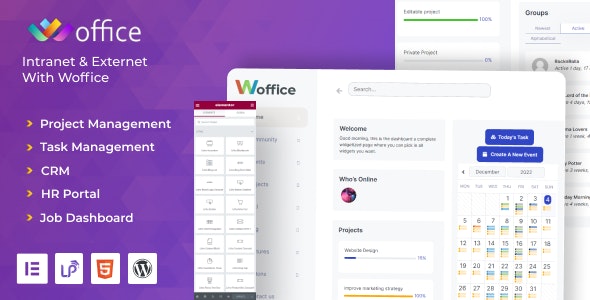
Woffice is a versatile WordPress theme designed for intranet and extranet environments. It offers features like project management, member directories, and file sharing. With its customizable design and powerful tools, it enhances team collaboration and internal communication. Ideal for businesses, schools, and community networks, Woffice simplifies managing a digital workspace.
How Do I Install Woffice Theme?
To install Woffice, download the theme file from ThemeForest. Navigate to your WordPress dashboard, go to “Appearance” > “Themes” > “Add New. ” Click “Upload Theme,” select the Woffice ZIP file, and press “Install Now. ” Once installed, activate the theme to start customizing your intranet or extranet site.
Is Woffice Theme Compatible With Plugins?
Yes, Woffice is compatible with various WordPress plugins. It supports popular plugins like BuddyPress, bbPress, and WooCommerce. These integrations enhance its functionality, offering social networking, forums, and e-commerce capabilities. Always ensure plugins are updated to maintain compatibility and ensure smooth operation of your website.
Can I Customize Woffice Without Coding?
Yes, Woffice allows customization without coding. It offers a user-friendly admin panel for easy adjustments. You can change colors, layouts, and widgets using the built-in tools. This flexibility helps in tailoring the theme to match your brand’s identity and meet specific intranet or extranet needs efficiently.
Conclusion
Installing the Woffice theme is straightforward and user-friendly. Follow each step carefully. Customize settings to fit your needs. Explore features and options for best results. Enjoy enhanced teamwork and communication on your site. Troubleshooting is simple with online resources. Get support through forums and guides.
Keep your site updated for better performance. Experience improved productivity with your new intranet setup. Woffice offers flexibility and functionality for varied projects. Now, your WordPress site is ready to connect and collaborate efficiently. Dive into your new digital workspace today!


