
Imagine the perfect look for your WordPress website—one that truly reflects your style and meets your specific needs. Now, picture that theme isn’t available in the default WordPress library.
You don’t have to settle for less when you can easily install a third-party theme to get exactly what you want. This guide is here to walk you through the process, step by step, ensuring that you achieve a website that stands out.
Whether you’re a beginner or have some experience, you’ll find straightforward instructions that make the task simple. You’ll discover how to unlock a world of creative possibilities, transforming your site into a vibrant reflection of your brand. Ready to give your website a fresh, unique look? Let’s dive in and explore how you can seamlessly install that third-party theme on WordPress.
Preparing For Installation
Before installing a new theme, backup your site. This keeps your data safe. Use plugins like UpdraftPlus. Save the backup to a secure location. You can use a cloud service for storage. Backing up prevents data loss if something goes wrong. It’s a simple step but very important.
Make sure the new theme is compatible with your WordPress version. Check the theme’s requirements. Visit the theme’s website for this information. Look for reviews about compatibility issues. This helps you avoid problems later. If a theme is not compatible, it can cause errors. Always read the theme documentation carefully.
Downloading The Theme
Finding a Reliable Source is important. Choose a trusted website or marketplace. Always read reviews before downloading. This helps in picking a safe theme. Avoid themes from unknown sites. They may harm your site. It’s better to be safe than sorry.
After finding a good theme, start Downloading the Theme Files. Click the download button on the site. The theme files will save on your computer. These files are usually in a ZIP format. Keep them in a folder you can find easily. You’ll need these files soon. They are important for the next steps.
Uploading The Theme
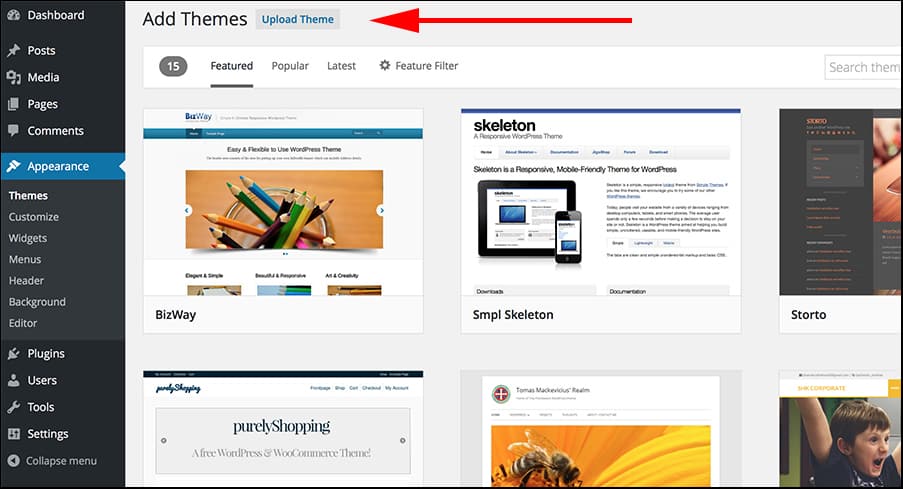
First, download the theme to your computer. Log in to your WordPress dashboard. Go to Appearance and click Themes. Click on Add New. Then choose Upload Theme. Find the theme file on your computer. Click Install Now. Wait for the upload to finish. Activate the theme. Your new design will appear.
Download the theme to your computer. Open your FTP program. Connect to your website. Find the wp-content folder. Open it. Locate the themes folder. Upload the theme folder here. Go to the WordPress dashboard. Click Appearance. Click Themes. Activate the new theme. Now the website looks different. This method needs extra care. Make sure to upload the right files.

Credit: m.youtube.com
Activating The Theme
First, go to your WordPress dashboard. Click on the Appearance tab. This will open a menu. Find the Themes option. Click on it. Here, you will see all your themes.
Now, find your new theme. It should be in the list. Hover over the theme. You will see an Activate button. Click on the button. Your new theme is now active. Check your website to see the new look.
Customizing The Theme
Installing third-party themes on WordPress allows for unique customization. Access the WordPress dashboard, navigate to ‘Appearance’ and select ‘Themes’. Click ‘Add New’, then ‘Upload Theme’ to install your chosen theme. Follow prompts to activate and personalize for a distinct website look.
Adjusting Layout And Design
Start by exploring the theme options in your WordPress dashboard. Look for settings that allow you to change the layout and design. You can choose different color schemes to match your style. Try adjusting the font styles to make text clearer. Some themes offer header and footer customization. These sections are important for branding. Make sure your design is responsive for mobile devices. This helps your site look good on phones and tablets.
Configuring Widgets And Menus
Widgets add functionality to your site. They can display recent posts or social media links. Drag and drop widgets into your sidebar or footer areas. Menus help visitors find pages easily. Go to the menu settings to add new pages. Arrange menu items for simple navigation. You can create dropdowns for subpages. This makes exploring your site easier. Check that widgets and menus look neat and organized.
Credit: www.greengeeks.com
Testing The Installation
After installing a new theme, check the basic functions. Click around the site. Make sure all links work. Test the navigation menu. See if all buttons respond. If something doesn’t work, it might be a theme issue.
Sometimes, the theme may not display correctly. Check for plugin conflicts. Disable plugins one by one. Refresh the site after each. This helps find the problem. If this doesn’t help, try clearing your browser cache. Update your WordPress version. Some themes need the latest version. If issues persist, contact the theme developer for help.
Maintaining Your Theme
Installing a third-party theme on WordPress enhances your website’s look. Start by downloading your chosen theme file. Then, upload it through the WordPress dashboard under “Appearance” and “Themes. ” Activate the theme to apply it, giving your site a fresh appearance.
Updating The Theme
Updating your theme is very important. Always check for new updates. New updates fix bugs. They also improve performance. Visit the theme’s website. Look for update information there. You might need to download the latest version. Sometimes, updates happen automatically. Check your WordPress settings. Make sure automatic updates are turned on. This keeps your theme fresh.
Monitoring For Compatibility Issues
Check for compatibility problems. Themes need to work well with plugins. Sometimes, they don’t get along. This can cause problems. Test your site after updates. Look for broken parts. Check if images load correctly. Verify links work. A quick check saves time later. Ask for help if needed. Many support forums are available. Stay alert to keep your site running smoothly.

Credit: m.youtube.com
Frequently Asked Questions
How Do I Upload A Theme To WordPress?
To upload a theme, navigate to ‘Appearance’ > ‘Themes’ in your WordPress dashboard. Click ‘Add New’, then ‘Upload Theme’. Choose your theme file and click ‘Install Now’. After installation, activate the theme to apply it to your site. Ensure the theme is compatible with your WordPress version.
Can I Use Free Third-party Themes?
Yes, you can use free third-party themes from trusted sources. Always download themes from reputable websites to ensure security. Check theme reviews and ratings before installation. Free themes can offer basic customization options. They are a good starting point for beginners.
Are Third-party Themes Safe To Use?
Third-party themes are generally safe if sourced from reputable providers. Always check user reviews and ratings. Look for themes that are updated regularly. This ensures compatibility with the latest WordPress version. It’s essential to have a backup before installation.
How Do I Customize A Third-party Theme?
Customize a theme via the WordPress Customizer. Go to ‘Appearance’ > ‘Customize’. Here, you can change colors, fonts, and layout. Many themes offer additional settings. Check the theme documentation for specific customization options. Use child themes for advanced customizations.
Conclusion
Installing a third-party theme on WordPress is straightforward. Follow the steps carefully. Ensure your theme fits your website’s needs. Back up your site before making changes. This prevents potential issues. Use the WordPress dashboard for easy installation. Check the theme’s compatibility with your plugins.
Keep your website fresh and appealing. Regular updates enhance security and performance. Explore more themes to find the best fit. Enjoy a personalized website that stands out. Take your time experimenting with different styles. Your site deserves a unique touch.
Happy customizing!


