
Are you ready to give your WordPress site a fresh look? Installing a new theme can transform your website’s appearance, enhance user experience, and even boost your site’s performance.
Whether you’re a seasoned blogger or a small business owner, understanding how to install a theme with WordPress is crucial. Imagine your website captivating visitors at first glance, keeping them engaged, and encouraging them to explore further. In this guide, we’ll walk you through the simple steps to install a WordPress theme effortlessly, ensuring your site stands out and attracts attention.
Let’s dive in and unlock the potential of your website with a stunning new theme!
Credit: themelooks.com
Choosing The Right Theme
Picking a theme is fun. Free themes are great for beginners. They cost nothing. Premium themes have more features. They often look nicer. You must pay for them. Think about what you need. Do you want more choices? Or do you prefer something simple? Both free and premium can work well.
Responsive design makes your site look good on all devices. Phones, tablets, and computers. Some themes are not responsive. This can be a problem. Check if the theme fits all screens. A responsive theme can help your site look better. It helps visitors stay longer.
Reviews help you choose a theme. Read what others say. Ratings show if a theme is good. High ratings are better. Look for themes with many reviews. This means they are popular. Popular themes are often good choices.
Preparing Your WordPress Site
Your site is precious. Backing up your site is essential. This keeps your data safe. Use backup plugins. These plugins save your content. They are easy to use. You click a button. Then your site is backed up. Never skip this step. Your site needs protection.
Updates are important. They keep your site secure. Always update WordPress. Also update your plugins. This helps your site run well. Check for updates often. Click the update button. It is simple. No need to worry. Updates make your site better. Your site will be fast and safe.
Installing A Theme From The WordPress Repository
First, log into your WordPress site. Use your username and password. This takes you to the WordPress Dashboard. The dashboard is the control center. You can manage your site from here.
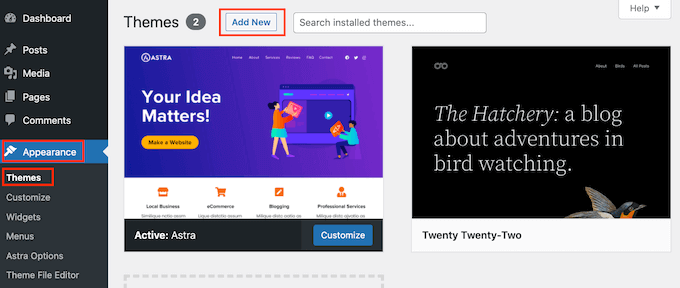
Find the Appearance tab on the left menu. Click on it. A new menu opens. Select Themes. This shows installed themes. You can add new themes here.
Click on the Add New button at the top. This opens the theme repository. Use the search bar to find themes. Type the theme name or keyword. Choose your favorite theme. Click Install to add it. After installation, click Activate. Your site now has a new look.

Credit: www.elegantthemes.com
Uploading A Theme Via WordPress Dashboard
First, visit the theme website. Find the theme you like. Click on the download button. Save the file on your computer. The file should be in ZIP format. This format is easy to upload. Make sure the download is complete.
Open your WordPress dashboard. Go to Appearance and then Themes. Click on Add New. Next, choose Upload Theme. Click Choose File. Select the ZIP file you downloaded. Click Install Now. Wait for the upload to finish.
Once uploaded, you can see the theme in the dashboard. Click Activate to use the new theme. Your site will now have a new look. Check the site to see changes. Customize if needed. Your theme is now live!
Installing A Theme Via Ftp
To install a WordPress theme via FTP, first download the theme’s zip file. Unzip and upload the theme folder to the /wp-content/themes/ directory on your server. Activate it through your WordPress dashboard under Appearance > Themes. This method is useful when the theme upload limit is exceeded.
Setting Up Ftp Access
First, download an FTP client like FileZilla. Open the client and enter your FTP credentials. Hostname, username, password, and port are needed. Click connect to access your server.
Uploading Theme Files
Navigate to the WordPress folder. Open wp-content and find the themes folder. Drag and drop your theme files here. Wait for upload to complete.
Activating The Theme In WordPress
Log in to WordPress dashboard. Go to Appearance and click on Themes. Find your new theme and click Activate. Your theme is now live.
Customizing Your Theme
The WordPress Customizer helps you make your site unique. You can see changes live. It’s easy to use. First, click on “Customize” in your dashboard. This opens the Customizer. You can change your site’s look here. Choose colors, fonts, and more. Make sure to save your changes. Enjoy creating a site that fits your style!
Colors and fonts set the mood of your site. Pick colors that match your brand. Fonts should be easy to read. In the Customizer, look for the “Colors” and “Fonts” options. Click on them to start editing. Try different combinations. Find what works best for your site. Always keep your readers in mind.
Widgets add extra features to your site. You can add a search bar, recent posts, or a calendar. Menus help visitors find their way. Add links to important pages. Go to the “Widgets” and “Menus” sections in the Customizer. Drag and drop items to where you want them. Remember to save your work.
Troubleshooting Common Issues
Some themes might not work with your version of WordPress. Always check if the theme is up-to-date. Update your WordPress and theme regularly. Sometimes, plugins cause conflicts. Deactivate them one by one. See if the theme works better.
A broken layout looks messy. Clear your browser cache first. Sometimes, old files cause display problems. Check if your theme needs updates. Updating often fixes layout issues. If it persists, switch to the default theme. Then switch back. This can reset any errors.
Backups help when things go wrong. First, install a backup plugin. Some popular ones are UpdraftPlus or BackWPup. These plugins save your site data. To restore, go to the plugin settings. Choose the backup date you want. Click restore. Your site should return to normal.
Exploring Additional Theme Options
Discovering diverse theme options in WordPress enhances your site’s look and feel. Begin by accessing the dashboard, then navigate to the ‘Appearance’ section. From there, explore various themes and activate your preferred choice with a click.
Installing Theme Demos
Many themes come with demo content
Child themes are very useful. They let you customize without fear. Your changes stay safe during updates. This is very helpful. You can keep your site looking great. You can try new things. You won’t lose your work. It’s like having a backup plan. Child themes are easy to use. Just install one. Make changes as you like. Your main theme stays the same.
Utilizing Child Themes

Credit: wpmarmite.com
Frequently Asked Questions
How Do I Install A Theme In WordPress?
To install a theme, go to your WordPress dashboard. Click on “Appearance” and then “Themes. ” Choose “Add New” to browse available themes. Once you find a theme you like, click “Install” and then “Activate” to apply it to your website.
Can I Install Themes From Outside WordPress?
Yes, you can install themes from outside WordPress. Download the theme file, usually in. zip format. Then, go to “Appearance” > “Themes” in your dashboard. Click “Add New,” then “Upload Theme. ” Choose the file and click “Install Now. ” Activate the theme to use it.
How Do I Customize My WordPress Theme?
To customize, go to “Appearance” > “Customize” in your dashboard. Use the WordPress Customizer to change settings like colors, fonts, and layouts. Many themes offer additional customization options. Save changes when you’re satisfied. Always preview your changes to ensure they look good on your site.
What If My Theme Installation Fails?
If installation fails, check your WordPress version and theme compatibility. Ensure your theme file is complete and not corrupted. Check for server restrictions on file size. Alternatively, try uploading the theme via FTP. Consult your hosting provider or WordPress support if issues persist.
Conclusion
Installing a WordPress theme is simple and rewarding. You enhance your site’s look and feel. Follow the steps carefully for a smooth process. Choose themes that match your brand and audience. Keep exploring different themes for unique designs. Remember to check compatibility with your plugins.
Always back up your site before making changes. Enjoy customizing your site with fresh themes. Your site can stand out beautifully. Happy designing and good luck with your WordPress journey!


