
Imagine transforming your WordPress Multisite network into a visually stunning and cohesive collection of websites, each with its own unique theme. Whether you’re managing a network for your business, organization, or personal projects, knowing how to efficiently install themes can make a world of difference in the user experience and aesthetics of your sites.
In this guide, you’ll discover a straightforward process that will empower you to take control of your network’s appearance effortlessly. Ever felt overwhelmed by the technicalities of WordPress Multisite? You’re not alone. But fear not, because this step-by-step tutorial is designed with you in mind.
We’ll break down the installation process into simple, manageable tasks that even beginners can follow. You’ll gain the confidence to enhance your sites without the hassle, and soon, you’ll be enjoying a more engaging and attractive online presence. Stick around to unlock the secrets of theme installation, and you’ll soon master an essential skill that will elevate your WordPress Multisite network to new heights. Ready to dive in? Let’s get started!
Setting Up WordPress Multisite
First, open your WordPress dashboard. Go to Tools and click Network Setup. You need to update the wp-config.php file. Add the line define('WP_ALLOW_MULTISITE', true);. Save changes and refresh your dashboard. The multisite feature is now active.
Open the Network Admin panel. Click Settings and select Network Setup. Choose your preferred domain type. Subdomains or subdirectories. Fill in site details. Set your network title and admin email. Save changes. Your network is ready.
Choosing A Theme
Free themes are good for beginners. They help you save money. But they might lack some features. Premium themes offer more options. They often have better support. This is important for big websites. Think about your needs. Choose wisely based on your budget.
Not all themes work with every plugin. This can cause issues. Always check the theme’s compatibility. Read reviews and comments. They can tell you about problems. Make sure the theme updates often. This helps keep your site safe. A good theme works smoothly with WordPress updates.
Uploading A Theme
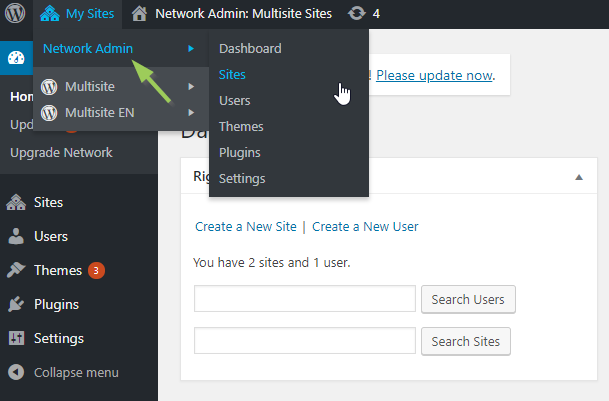
Installing a theme on WordPress Multisite involves accessing the network admin dashboard. Select “Themes” from the sidebar menu. Click “Add New” to upload and activate your desired theme across all sites.
Using The Network Admin Dashboard
Open the Network Admin Dashboard. Click on Themes in the sidebar. Choose Add New at the top. Search for the desired theme. Click Install to upload it. Activate the theme to use it. Always check compatibility with your WordPress version. Some themes may need updates. Ensure the theme supports multisite.
Uploading Via Ftp
Access your site files using FTP. Connect to your server. Find the wp-content/themes folder. Upload your theme files into this folder. Ensure the theme folder is complete. Check file permissions. Incorrect permissions may cause errors. Log in to the Network Admin Dashboard. Activate the theme for your sites. Verify it shows correctly on each site.
Network Activating The Theme
Log into your WordPress admin panel. Find the “Themes” section. Click it. Choose the theme you want. Hit the “Network Enable” button. This makes the theme active for all sites. Remember, this affects every site on your network. All sites will use the same theme.
Go to your WordPress dashboard. Click on “My Sites”. Choose the site you want to change. Go to the “Themes” section. Pick the theme you like. Click the “Activate” button. Now, only this site has the new theme. Each site can have a different look. Easy and simple!
Customizing The Theme
Installing a theme on WordPress Multisite involves accessing the network admin dashboard. Navigate to “Themes” and select “Add New” for network-wide activation. Customize settings to suit the site’s design needs.
Using The WordPress Customizer
The WordPress Customizer makes it easy to change your theme. You can find it in your dashboard. Click on Appearance, then Customize. You will see many options. Change colors, fonts, and backgrounds. Preview changes instantly. Save to apply them. This tool is user-friendly. No coding skills needed. Every change is simple to make.
Editing Theme Files
Editing theme files gives more control. Access them through your dashboard. Go to Appearance and click Theme Editor. Be careful here. Changes can affect your site. Always backup files before editing. Use simple HTML and CSS. Small changes can make a big difference. You can change layouts, styles, and functions. Test changes before saving. This ensures your site looks good.
Credit: multilingualpress.org
Troubleshooting Common Issues
Themes may not work well together. This causes problems. Always check for conflicts. Deactivate all plugins first. Then, activate the theme again. See if it works. If it does, turn plugins back on. One by one. This helps find the problem. Sometimes, themes need updates. Update the theme to the latest version. This can fix many conflicts.
Errors happen when activating themes. Check if the theme is compatible. Some themes don’t work with all WordPress versions. Update WordPress to ensure compatibility. Sometimes, a theme is missing files. Reinstall the theme. Make sure all files are there. If the problem continues, contact the theme developer. They can help solve the issue.
Best Practices
Regular Theme Updates help your site stay safe. Old themes can have bugs. Always use the latest version. Check for updates once a month. This keeps your site running well. Updates can also add new features. This makes your site look better.
Backing Up Your Network is very important. Backups protect your site data. If something goes wrong, you can restore your site. Use a reliable backup tool. Schedule backups at least once a week. Store your backups safely. This way, you won’t lose important data. Backups give peace of mind.
Credit: www.wpbeginner.com
Credit: wcanvas.com
Frequently Asked Questions
How Do I Enable Themes On WordPress Multisite?
To enable themes on WordPress Multisite, navigate to “Network Admin” and select “Themes. ” Find the desired theme and click “Network Enable. ” This allows all subsites to access the theme. Ensure your theme is compatible with Multisite. Always test the theme on a staging site first.
Can Each Site Have A Different Theme?
Yes, each site in a WordPress Multisite network can have its own theme. After enabling themes network-wide, site administrators can select a theme from the “Appearance” section. This flexibility allows each site to maintain a unique look and feel, catering to its specific audience and purpose.
Is Theme Installation Different On Multisite?
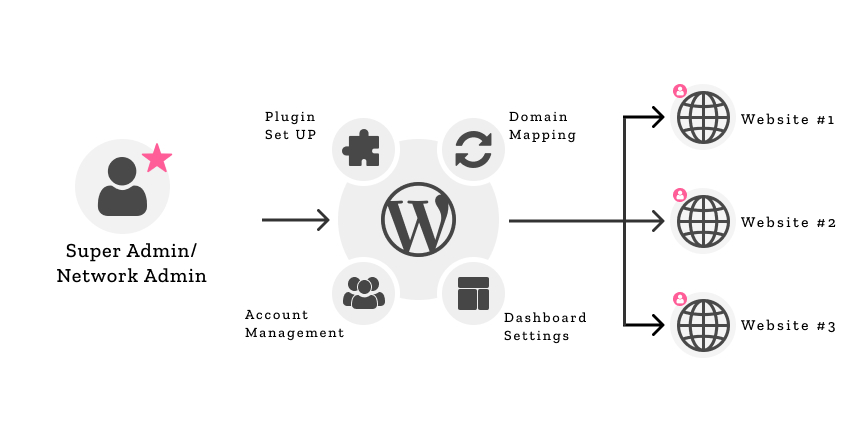
Yes, theme installation on WordPress Multisite differs slightly. Only the Network Admin can install themes. Once installed, themes must be network-enabled to be available for individual subsites. This centralized management ensures consistency and control over the themes used across the network.
What Are The Steps To Add A New Theme?
To add a new theme, go to “Network Admin” and select “Themes. ” Click “Add New,” search for your desired theme, and click “Install. ” After installation, ensure you “Network Enable” the theme. This makes it accessible to all sites within the Multisite network.
Conclusion
Installing a theme on WordPress Multisite is straightforward. Follow the steps carefully. Start by accessing your network admin dashboard. From there, you can add new themes. Remember to activate the theme for individual sites as needed. This process saves time and keeps your sites looking fresh.
Consistency in theme selection helps maintain a unified brand image. If you encounter issues, consult WordPress support forums. Practice makes perfect, so don’t hesitate to explore different themes. Enjoy customizing your multisite network! Your online presence will surely benefit from these enhancements.


