
Have you ever stumbled upon a stunning WordPress theme, only to wonder how you can make your website look just as impressive? Installing a theme demo in WordPress is your ticket to achieving that polished, professional look without breaking a sweat.
Imagine transforming your site into a visual masterpiece in just a few clicks. You don’t need to be a tech wizard to pull it off. This guide will walk you through the process, step-by-step, ensuring you can effortlessly replicate those eye-catching designs.
Curious to know how it’s done? Stick around, and you’ll uncover the secret to turning your WordPress site into a captivating online presence.

Credit: wordpress.org
Prerequisites
Setting up a theme demo in WordPress requires specific steps. First, ensure you have a WordPress account and admin access. Then, download the theme demo files from the provider, often found in the theme package.
WordPress Installation
Ensure WordPress is installed. Check your server settings. Verify PHP version. Make sure it is compatible. Install WordPress easily. Use a one-click install. Many hosts offer this. Follow instructions. Ensure WordPress is working. Log into the dashboard. Check site functionality. It’s ready for themes!
Theme Download
Find a theme you like. Choose from WordPress theme directory. Download the theme file. Ensure it’s a .zip format. Save to your computer. Keep it accessible. Open WordPress dashboard. Navigate to Appearance. Click Themes. Select Add New. Upload the theme file. Activate the theme. Check for demo content. Prepare for the next steps!
Accessing WordPress Dashboard
Access the WordPress dashboard to install your theme demo quickly. Navigate to “Appearance” and select “Themes” to explore your options. Click “Add New” to install the demo content effortlessly.
Logging In
Enter your username and password on the login page. Click the login button. You will see the WordPress dashboard.
Dashboard Overview
The dashboard is your control center. It shows many options. You can see posts, pages, and comments. Quick links make it easy to use.
On the left side, you will find a menu. This menu helps you navigate the dashboard. You can also see updates and settings here.
The main area shows important information. This includes site stats and recent activities. Use the dashboard to manage your site. It’s simple and helpful.
Installing A New Theme
First, go to your WordPress dashboard. Find the Appearance menu on the left. Click on it. Then, click on Themes. At the top, there is an Add New button. Click it. You will see different themes. To upload a new one, click on Upload Theme. Choose the theme file from your computer. Make sure it is a .zip file. Click Install Now to upload the theme.
After the upload, you will see an Activate button. Click it to use the theme. Your site will now have a new look. Check the site to see the changes. If you want, customize the theme. Use the Customize option in the Appearance menu. This will help make your site look unique. Enjoy your new WordPress theme!
Credit: www.bluehost.com
Importing Demo Content
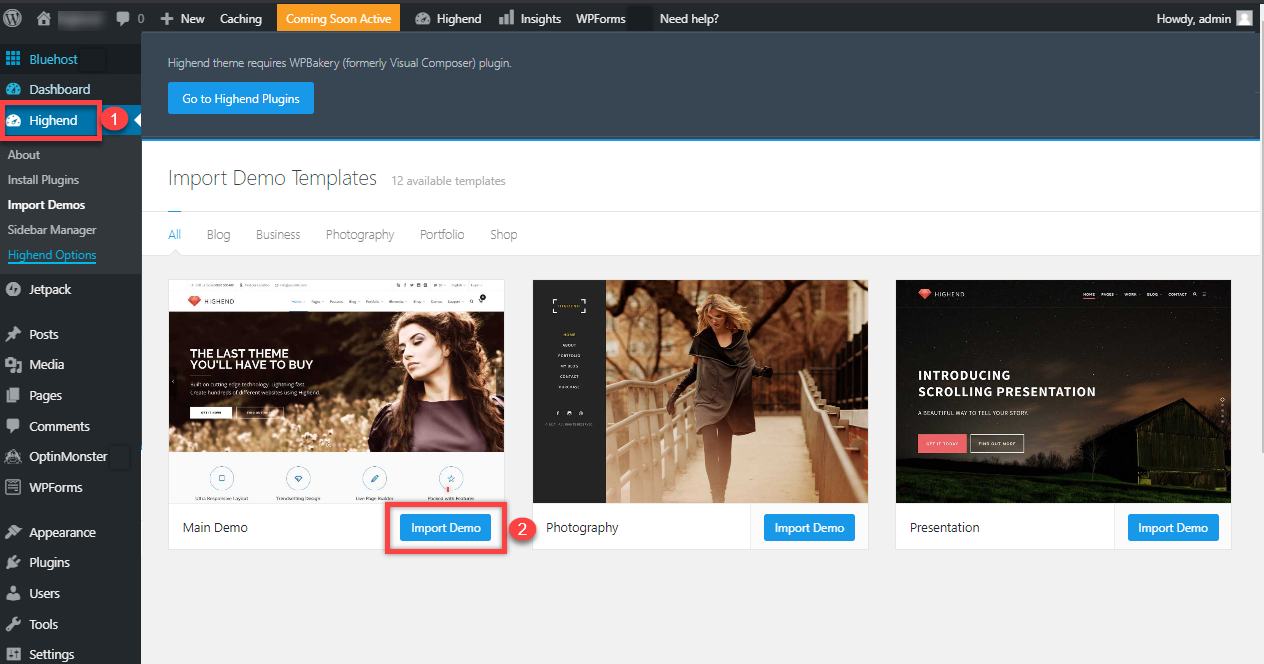
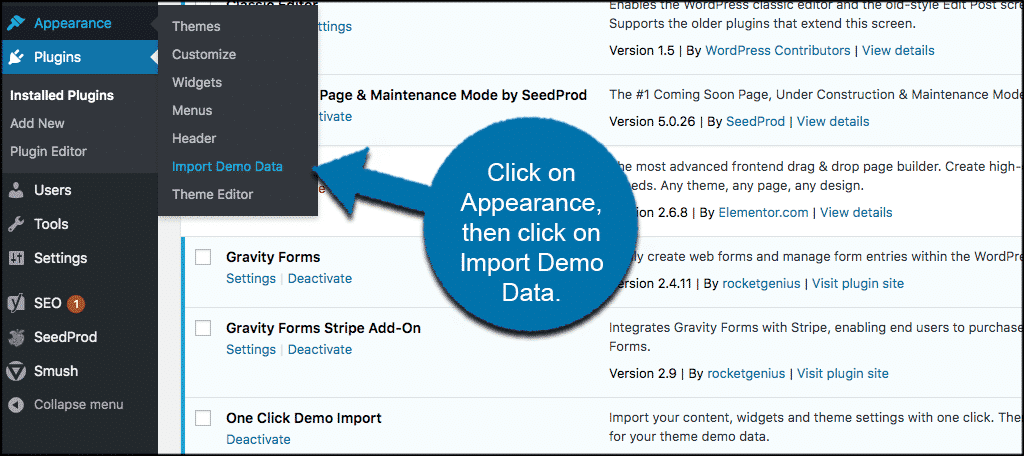
Find the theme settings in your WordPress dashboard. Go to Appearance and click on Theme Options. Look for the Import Demo Data tab. This is where you can start importing. Not all themes have this feature. So, check if yours does.
Themes often have different demo content choices. Choose the one you like. Look at the preview to see how it looks. Make sure it matches your website’s style. Click on the demo you want. Then click Import. This will add the demo to your site. Wait for the process to finish. Now your site has the demo content.
Configuring Demo Settings
Open your WordPress dashboard. Find the Appearance tab. Click on Themes. Choose the theme you want. Click Install. After installation, click Activate. Look for the Demo Import option. This may be under the theme settings. Click on Import Demo Data. Wait as it loads. This may take a few minutes. Once done, your site will look like the demo.
Customizing Layout
Access the Customize option. It’s under the Appearance tab. Change the layout as you like. Edit the header and footer. Adjust the colors and fonts. Preview changes before saving. This helps in making sure it looks good. Remember to save all changes.
Adjusting Widgets
Go to the Widgets section. It’s under Appearance. Add new widgets as needed. Drag and drop them to desired areas. You can edit the widget settings. This helps make the site useful. Remove widgets you don’t need. Keep the site clean and easy to use.
Troubleshooting Common Issues
Sometimes, images do not appear after installing a theme demo. This can be frustrating. First, check your media library. Are the images there? If not, they might not have imported correctly. Make sure your internet connection is stable. A poor connection can cause issues.
Another thing to look at is your image path settings. Make sure they are correct. If the paths are wrong, images will not show. Lastly, confirm that your theme is updated to the latest version. Old versions may have bugs.
Import errors can stop a theme demo from working. Ensure you have enough memory and storage space. Limited space can cause errors. Check your server settings. They must meet the theme requirements. Sometimes, import files are too large.
You can solve this by increasing the upload size limit. Look for any error messages. They can help you find the problem. If all else fails, contact the theme support. They can help fix the issue.
Enhancing Performance
Setting up a theme demo in WordPress boosts site performance and aesthetics. Begin by installing the theme from the WordPress dashboard. Next, import the demo content to visualize the design and functionality.
Optimizing Images
Big images can slow down your website. Make images smaller before uploading. Use tools like TinyPNG or JPEGmini. These tools make image files smaller. Smaller images load faster. This helps in making the site quick. Faster sites keep visitors happy. Also, use the right image format. JPEG is good for photos. PNG is best for graphics with few colors. Keep image dimensions correct. Avoid using super large images on small screens. This saves space and loading time. A fast website is a happy website.
Caching Techniques
Caching helps pages load fast. It saves a copy of the page. So, users see it quickly next time. Use plugins like W3 Total Cache or WP Super Cache. These plugins are easy to use. They make your site fast. Fast sites are loved by users. They also help with better search rankings. Caching reduces server load. This means your site stays strong even with many visitors.
Credit: www.greengeeks.com
Frequently Asked Questions
How To Install Demo Theme In WordPress?
To install a demo theme in WordPress, navigate to Appearance > Themes. Click ‘Add New’, search your theme, then ‘Install’ and ‘Activate’. For demo content, use the theme’s documentation or importer plugin. Follow instructions to import and set up demo content.
Ensure your hosting meets theme requirements.
How Do I Make My WordPress Theme Look Like A Demo?
To make your WordPress theme look like a demo, import the demo content provided. Navigate to your theme options and locate the import demo data option. Follow the instructions to import all necessary content, widgets, and settings. Customize as needed to match the demo appearance.
How Do I Manually Install A WordPress Theme?
To manually install a WordPress theme, download it as a. zip file. Go to your WordPress dashboard. Navigate to Appearance > Themes > Add New. Click “Upload Theme,” choose your. zip file, and click “Install Now. ” After installation, activate the theme.
How To Download Demo Pages In WordPress?
Install a demo importer plugin in WordPress. Navigate to the plugin settings. Select and import demo pages. Save changes.
Conclusion
Installing a theme demo in WordPress is simple and beneficial. It enhances your site’s look and saves time. Follow the steps carefully for a smooth process. Customize your theme to reflect your brand. This ensures a unique website that stands out.
Remember, practice makes perfect. Experiment with different options to find what works best. Stay updated with WordPress changes for better results. Use this guide as a reference when needed. Happy customizing your WordPress site! Your journey to a better website starts here.
Enjoy the creative process and watch your site come alive.


