
Imagine having your entire media library at your fingertips, accessible from anywhere in the world. That’s the magic of Plex, a platform that transforms your web hosted server into a powerful media hub.
Whether you’re a movie buff, a music lover, or simply someone who wants to access their media on the go, installing Plex on your server can open up a world of convenience and entertainment. But here’s the catch: getting Plex up and running on a web hosted server might seem like a daunting task.
You might be wondering where to start or what steps to follow. The good news is, you don’t need to be a tech wizard to make this happen. In this guide, you’ll discover a straightforward, step-by-step approach to installing Plex on your server, so you can start enjoying your media collection like never before. Stay with us, and you’ll soon realize that setting up Plex is not just about installation; it’s about creating a seamless, personalized media experience that’s tailored just for you. Let’s dive in and make your media dreams a reality!

Credit: hostadvice.com
Preparing Your Server
Selecting a good hosting provider is vital. The provider should offer enough storage and reliable uptime. Check if they support the required software. Cost is important too. Look for affordable plans with necessary features. Customer support matters. A responsive team can help quickly.
Read reviews from other users. This helps in understanding their service. Make sure they offer flexible plans. You might need upgrades later. A good provider makes a big difference.
Plex needs certain conditions to run well. The server must have enough RAM and a fast processor. At least 2GB RAM is good. The processor should be dual-core or better. Storage space is another factor. Plex libraries grow over time. Ensure there is enough space. A stable internet connection is crucial. It helps in streaming smoothly.
Check the server’s operating system. Plex supports Windows, Mac, and Linux. Make sure your server matches. Keeping these requirements in mind ensures Plex runs smoothly.

Credit: m.facebook.com
Accessing Your Server
SSH lets you talk to your server. It’s like a phone call. You need an SSH client like PuTTY. Open it and enter your server’s IP address. Click “Open” to start the connection. A new window appears. Enter your username and password to log in. You are now inside your server. You can type commands to control it.
Credentials are your secret keys. You need them to access your server. First, find your server’s IP address. Write it down. Next, create a username. Choose something easy to remember. Now, set a password. Make it strong and secure. Keep these credentials safe. Without them, you can’t access your server.
Installing Plex Media Server
First, you need to download the Plex Media Server. Visit the Plex website. Choose the version for your operating system. Click the download button. Save the file to your computer. Make sure you remember the file location.
Open your terminal. Navigate to the downloaded file location. Use the command: sudo dpkg -i plexmediaserver.deb. This command will install Plex. Wait for the process to finish. Once done, check if Plex is running. Use the command: sudo service plexmediaserver status.
Locate the downloaded file on your computer. Double-click to open it. Follow the on-screen instructions. Click “Next” when prompted. Choose the install location. Click “Install” to begin. Wait for the installation to complete. Once done, launch Plex from the start menu.
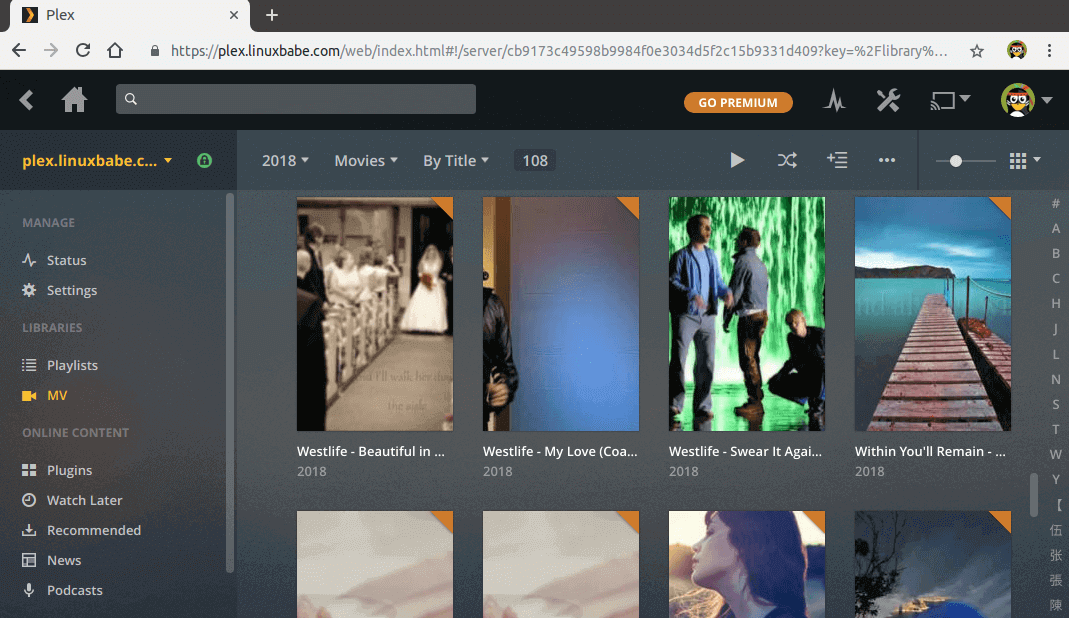
Credit: www.linuxbabe.com
Configuring Plex
Start by creating libraries for your media. These can be movies, music, or photos. Click the “Add Library” button in Plex. Choose your library type. Then, select the folder where your files are stored. Give your library a name that is easy to remember. Click “Next” to proceed. Plex will now scan the folder. It will add all the media it finds. Keep your files organized. This makes it easier for Plex to find them.
Open the settings menu in Plex. You can adjust different options here. Make sure to update server settings. This helps Plex run smoothly. Look for the “Remote Access” option. Enable it to access Plex from anywhere. Check the “Transcoder” settings to manage video quality. Lower quality can save data. Click “Save Changes” after updating each setting. Always keep Plex updated. This ensures you get the best performance.
Securing Your Plex Server
Installing Plex on a web-hosted server enhances your media streaming experience. Begin by choosing a compatible hosting service. Follow the server setup instructions carefully to ensure secure access and optimal performance for your Plex media library.
Implementing Firewall Rules
Firewalls keep your server safe. They stop bad traffic from entering. Set up rules for your firewall. Allow only necessary ports. Block others. This keeps your server secure. Regularly check these rules. Update them if needed. This helps maintain safety.
Enabling Secure Connections
Secure connections protect data. Use HTTPS for Plex. It encrypts information. Keeps it private. Install an SSL certificate. It helps with HTTPS. This adds a layer of safety. Always use secure connections. Your server stays safe. Users feel confident. Their data remains protected.
Accessing Plex Remotely
To access Plex from anywhere, enable remote access in Plex settings. Go to settings and find the server tab. Click on the remote access option. Ensure your server is set to allow remote connections. Check your network settings for any blocks. Port forwarding is required. Find your router settings and forward port 32400 to your server. Test the connection after setting it up. Make sure the internet speed is stable for smooth streaming.
Connection issues can occur. Check if the server is running. Verify your internet connection. Make sure the Plex server is updated. Restart your router if needed. Examine firewall settings. Ensure the firewall isn’t blocking Plex. Verify if port 32400 is open. Use Plex forums for extra help. Sometimes settings need adjustments. Reach out to support if needed.
Optimizing Plex Performance
Installing Plex on a web hosted server enhances streaming. Begin by choosing a compatible server. Download and configure Plex Media Server. Follow the setup steps for optimal performance. This setup allows for easy access to your media collection from anywhere, ensuring seamless streaming across devices.
Adjusting Transcoding Settings
Transcoding is key for Plex performance. Lower the quality to save bandwidth. Choose a lower resolution if the device allows it. This reduces buffering and speeds up streaming. Consider setting the quality to 720p. This often works well for many users. It keeps the video clear yet smooth.
Managing Server Resources
Plex uses CPU and RAM on your server. Monitor these resources carefully. Ensure you have enough memory available. If your server struggles, reduce the number of streams. Free up resources by stopping unused applications. This helps Plex run better and faster. Always keep your server clean and updated.
Frequently Asked Questions
How To Install Plex On A Server?
Download Plex Media Server from the official website. Install it by following on-screen instructions. Configure settings and add media.
Why Is Plex Not Illegal?
Plex is legal because it is a media server software. Users stream their own content legally stored on devices. It doesn’t host or distribute copyrighted material, making its operations within the law. Users must ensure their content complies with copyright rules to avoid legal issues.
How Do I Access Plex Media Server From Web Browser?
Access Plex Media Server via a web browser by visiting its IP address and port number. Type “http://:32400/web” in your browser. Make sure your server is running and connected to the same network. Log in with your Plex account to manage and stream your media.
What Is The Best Hosting For Plex Servers?
For Plex servers, choose reliable hosting providers like AWS, DigitalOcean, or Linode. They offer excellent performance and scalability. Look for robust bandwidth, storage capacity, and customer support. VPS hosting can provide optimal control and flexibility for Plex media streaming. Consider your budget and specific needs when selecting a hosting service.
Conclusion
Installing Plex on a web hosted server is simple. Follow the steps carefully. With Plex, enjoy your media anywhere. Share your library with friends easily. Keep your server secure by updating regularly. Troubleshooting is straightforward with community support. Plex brings your movies, music, and photos together.
Enjoy seamless streaming on any device. The installation process takes time. It’s worth the effort for endless entertainment. Dive into your favorite shows. Watch your collection grow with Plex’s features. Bring your media to life today. Make streaming enjoyable and hassle-free.
Your server becomes a powerful media hub.


