
Are you looking to keep your website fresh and engaging with the latest features and styles? Updating your WordPress theme can be the perfect solution.
If you’re using the Newspaper theme, you’re in luck! This theme is known for its versatility and stunning design options. However, updating can sometimes feel like a daunting task. You might worry about losing customizations or breaking your site. Fear not! This guide is here to simplify the process.
By following a few straightforward steps, you can seamlessly install the Newspaper theme update on WordPress. Stick around, and you’ll discover how to enhance your site’s appearance and functionality without a hitch. Let’s get started on making your site the best it can be!

Credit: themeforest.net
Preparing For Theme Update
Always backup your website before updates. Use reliable tools like UpdraftPlus or BackupBuddy. These tools save your site data. They protect your content. Download the backup to your computer. This keeps your website safe. You won’t lose important files. This step is very important.
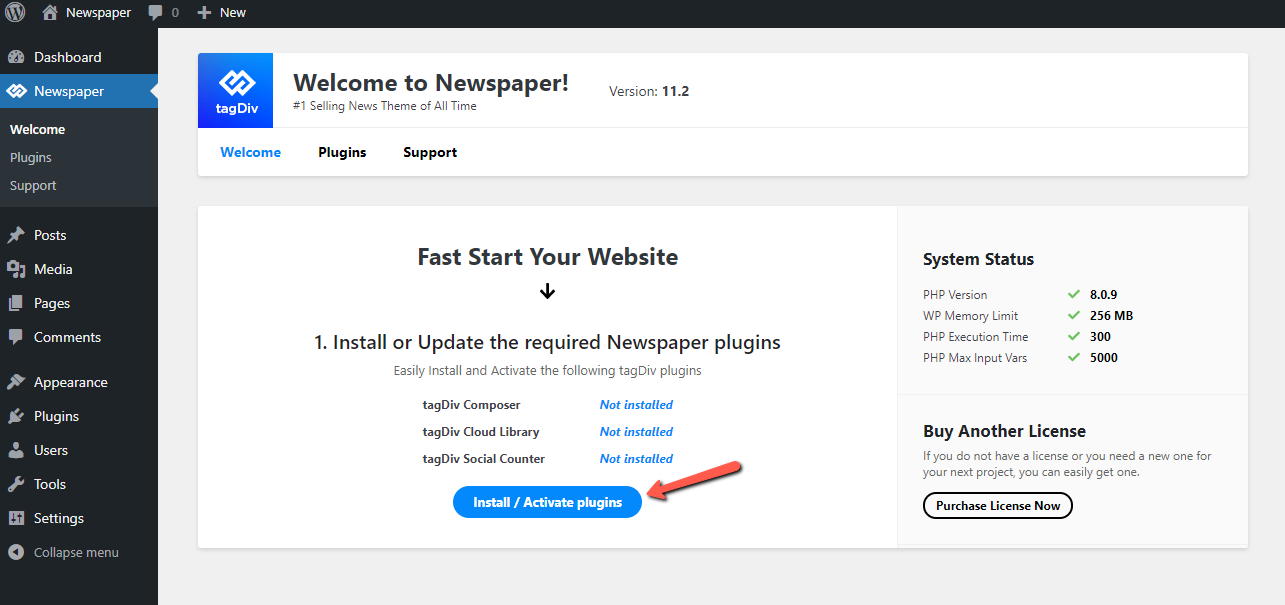
Check if plugins work with the new theme. Some plugins may not be compatible. Visit the plugin page for details. Read user feedback too. This helps you know if plugins work well. Disable incompatible plugins. This prevents website errors. Update plugins if needed. Keep your site running smoothly.
Credit: forum.tagdiv.com
Downloading Latest Newspaper Theme
Visit ThemeForest to get the newest Newspaper theme. Use your login details to sign in. Once logged in, navigate to your downloads section. It’s where you find purchased themes. Look for the Newspaper theme in your list. Click on the download button next to it. Choose the “Installable WordPress file only” option. Your theme file will start downloading to your computer. Save it in an easy-to-find location.
Find the downloaded file on your computer. It’s usually in your Downloads folder. The file is a zip file. Do not unzip it. You need this file to upload to WordPress. It’s ready for the next steps. Keep it handy for easy access.
Installing Newspaper Theme Update
Start by logging into your WordPress dashboard. Go to the Appearance section. Click on Themes. You will see the Newspaper Theme. Click on the Update Now button. Wait for the update to finish. This might take a few minutes. After updating, check your website. Ensure everything looks good.
Open your FTP client. Connect to your website server. Find the wp-content folder. Inside, locate the themes folder. Upload the new Newspaper theme files here. Overwrite existing files. This method is useful if the dashboard method fails. Always back up your files first.
Activating Updated Theme
First, navigate to your WordPress dashboard. Then, find the Appearance section. Click on Themes. Here, you will see all your installed themes. Locate the Newspaper theme. Click on Activate to use the updated version. Your theme is now active. Check your site to ensure it looks right.
Go to the Theme Panel in your dashboard. This is where you can change settings. Explore options like layout, colors, and fonts. Adjust these settings to match your style. Save your changes regularly. This keeps your work safe.
It’s important to test your site. Open different pages. Make sure everything works. Check links, images, and videos. They should display correctly. If something is wrong, go back to your settings. Adjust and save again. Repeat tests until your site works well.
Troubleshooting Common Issues
Updating the Newspaper theme in WordPress can sometimes be tricky. Common issues involve compatibility and plugin conflicts, which often require deactivating problematic plugins to resolve. Ensuring your WordPress version is current can also prevent installation errors.
Resolving Update Errors
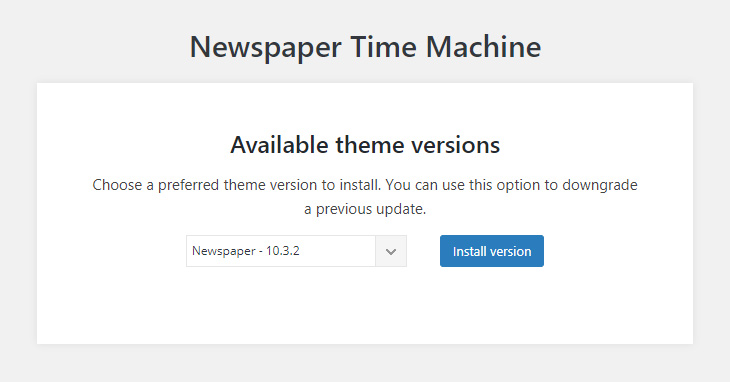
Updating the Newspaper Theme can sometimes cause errors. First, check your internet connection. Slow connections may interrupt updates. Next, ensure your WordPress version is current. An outdated version can lead to problems. Also, clear your browser cache. This helps in loading the latest files. If the error persists, try reinstalling the theme. Download it again from the official site. This ensures all files are correct. Contact customer support if you need more help. They can provide specific solutions.
Fixing Plugin Conflicts
Plugins can sometimes clash with themes. Disable all plugins first. Then, activate the Newspaper Theme alone. This checks if a plugin caused the issue. Next, enable plugins one by one. Watch for any conflicts. Use a compatibility checker tool. This helps find problematic plugins quickly. Sometimes, updating plugins solves the issue. Always use the latest versions. If conflicts continue, consider replacing the problematic plugin. Look for alternatives that work well with your theme.
Credit: tagdiv.com
Enhancing Site Performance
Speed is very important for websites. Slow pages can upset visitors. Use lightweight images. This helps pages load faster. Keep scripts short. Too many scripts slow things down. Fast websites keep users happy. They stay longer. They explore more pages. This is good for your site.
Visitors love easy sites. Make menus simple. Users find what they need fast. Use clear buttons. Clear buttons guide users. Happy visitors return. They tell friends. This brings more traffic. Friendly designs make users feel at home. This is good for success.
Utilizing New Features
Discover how to install the latest Newspaper Theme update on WordPress. Start by accessing your WordPress dashboard. Navigate to the themes section. Select “Add New” and upload the updated theme file. Activate the theme to enjoy new features and enhancements.
Exploring Design Options
The Newspaper theme offers many design options. You can change the colors and fonts easily. Make your site unique with these choices. Try different layouts for your pages. Each layout gives a new look. Preview changes before going live. This helps in deciding what looks best. Design options make your site look fresh and modern.
Integrating Widgets And Shortcodes
Widgets add new features to your site. They are easy to use. Drag and drop them into the sidebar. Shortcodes add extra functionality. Use them in posts and pages. They are simple codes that do complex tasks. Save time with shortcodes. Both widgets and shortcodes enhance your site without much effort.
Frequently Asked Questions
How Do I Update The Newspaper Theme?
To update the Newspaper theme, navigate to your WordPress dashboard. Select “Appearance,” then “Themes. ” Click “Update” next to the Newspaper theme if an update is available. Ensure your site is backed up before updating to prevent data loss. Regular updates improve performance and security.
Can I Install The Theme Manually?
Yes, you can install the theme manually. Download the latest Newspaper theme file from the official website. Go to “Appearance” in WordPress, then “Themes,” and click “Add New. ” Select “Upload Theme” and upload the downloaded zip file. Activate the theme after installation.
What Are The Benefits Of Updating Themes?
Updating themes enhances security, fixes bugs, and improves performance. New updates often include new features and compatibility improvements. Keeping your theme updated ensures your site runs smoothly and efficiently. Regular updates are crucial for maintaining an optimal user experience.
Is A Backup Necessary Before Updating?
Yes, creating a backup before updating is essential. It protects your data in case of unexpected issues during the update. Use a reliable WordPress backup plugin to save your site’s content and settings. This precaution ensures you can restore your site if problems arise.
Conclusion
Updating the Newspaper theme in WordPress is simple. Follow the steps carefully. You ensure your website runs smoothly. Keep your site visually appealing and functional. Regular updates offer new features and improvements. Stay informed about the latest developments. Don’t miss out on important updates.
Your website needs regular attention. Maintain performance and security. Enjoy the benefits of an updated theme. Your audience will notice the difference. A well-maintained site keeps visitors returning. Remember to backup before updates. It’s a small step with big advantages.
Keep your site fresh and current. Your visitors will appreciate it.


