Are you ready to transform your WordPress site with a stunning design? Imagine having a website that not only looks professional but also captivates your visitors from the moment they land on your page.
The Newspaper theme is one of the most popular choices for bloggers and news sites, offering a sleek layout and powerful features. But how do you get it up and running? Installing a WordPress theme might sound daunting, especially if you’re new to it.
Don’t worry, though; using Filezilla makes the process simple and straightforward. In this guide, you’ll discover step-by-step instructions to install the Newspaper theme using Filezilla, ensuring your site looks impressive and functions flawlessly. Ready to dive in and make your website shine? Let’s get started!

Credit: forum.tagdiv.com
Prerequisites
WordPress must be installed on your website. Ensure it’s the latest version. FileZilla should be downloaded on your computer. Install it and open the application. You need the FTP credentials from your hosting provider. These include host, username, password, and port. FileZilla helps you upload files to your website. Make sure the connection is secure.
Download the Newspaper theme from a trusted source. Save the theme’s ZIP file to your computer. Do not unzip the file. The ZIP format is needed for upload. Keep the file location easy to find. You will use it soon. Check the file size. It should be within limits allowed by your hosting.
Accessing Your WordPress Files
Open FileZilla and find the Host, Username, Password, and Port fields. Enter your server details here. Check your web host account for these details. Click Quickconnect to link FileZilla to your server. A successful connection shows your server files on the right side of FileZilla. Now you can manage these files.
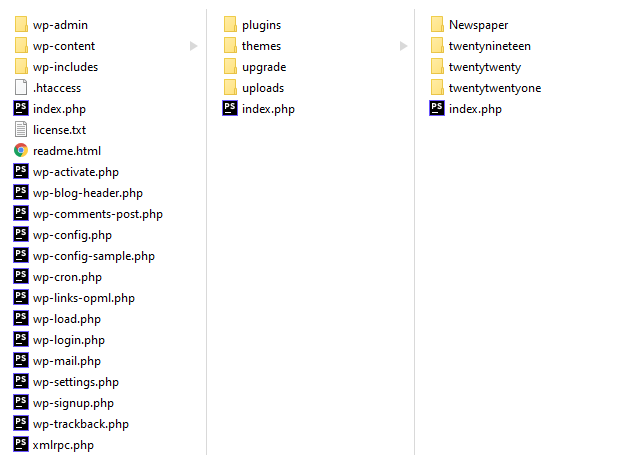
On the right, you’ll see many folders. Look for the public_html folder. Double-click to open it. Inside, find the wp-content folder. Open it too. This folder holds your WordPress files. Find the themes folder inside. Here is where you will upload your Newspaper theme. Make sure you follow these steps closely.
Uploading The Newspaper Theme
Find your WordPress folder on your computer. Look for the wp-content directory. Inside, you will see a folder named themes. This is where you will upload the new theme. Ensure the Newspaper theme files are unzipped on your computer. The theme files should be ready for upload.
Open FileZilla and connect to your website. Use your FTP credentials to log in. Navigate to the wp-content/themes folder. Drag and drop the Newspaper theme folder from your computer to the server. FileZilla will transfer the files automatically. Wait until the transfer is complete. Make sure all files have been uploaded successfully.
Credit: www.elegantthemes.com
Activating The Newspaper Theme
Installing the Newspaper Theme in WordPress using Filezilla involves uploading theme files to the server. Start by connecting Filezilla to your server. Navigate to the WordPress themes folder and transfer the Newspaper Theme files. Once uploaded, activate the theme through the WordPress dashboard.
Accessing WordPress Dashboard
Open your browser. Go to your WordPress site. Log in with your details. Find the dashboard. It is your control center. Here, you can make changes. Look for the “Appearance” tab. Click on it. You will see “Themes”. This is where you manage themes. It is simple and easy to use. Remember to save your changes.
Enabling The New Theme
In the dashboard, click “Add New”. Find the “Upload Theme” button. Choose the Newspaper theme file. Click “Install Now”. Wait for it to upload. Once done, hit “Activate”. Your new theme is now live. Check your site to see the changes. The Newspaper theme should be visible. It gives your site a fresh look. Enjoy your new theme!
Customizing The Newspaper Theme
Explore the Theme Options to change settings easily. Find the dashboard and click on “Newspaper” options. Adjust the color settings for a unique look. Choose different fonts for your text. You can change the logo here too. It’s simple to make the theme match your style.
Design And Layout Adjustments
Arrange the layout using built-in tools. Pick a suitable layout for your homepage. Add widgets to your sidebar. Decide where to place ads for better visibility. Adjust the header and footer sections. Make sure your site looks good on mobile devices.
Credit: forum.tagdiv.com
Troubleshooting Common Issues
Installing the Newspaper Theme in WordPress using Filezilla can encounter a few common issues. Ensure the theme files are correctly uploaded to the wp-content/themes directory. Check file permissions and server settings to resolve access problems during the installation process.
File Transfer Errors
Sometimes, files won’t upload. This might be due to file size limits. Check your server’s limit. Also, ensure your internet connection is stable. Broken connections cause errors. Reconnect and try again.
Check permissions too. Files need proper permissions to transfer. Use Filezilla to set them right. If problems persist, contact your hosting provider. They can help solve server issues.
Theme Activation Problems
After uploading, themes may not activate. This can be due to incompatible WordPress versions. Make sure your WordPress is updated. Sometimes, missing files cause issues. Verify all theme files are present.
Double-check your theme’s requirements. Some need specific plugins. Install any missing plugins. If activation still fails, consult your theme support. They can provide guidance.
Frequently Asked Questions
How To Use Filezilla For WordPress Theme Upload?
To upload a WordPress theme using Filezilla, connect to your server using FTP credentials. Navigate to the ‘wp-content/themes’ folder. Drag and drop the theme files from your computer to this folder. Ensure you upload the theme folder, not individual files.
Refresh your WordPress dashboard to see the theme.
Is Newspaper Theme Compatible With WordPress?
Yes, the Newspaper theme is fully compatible with WordPress. It is designed specifically for WordPress websites. It offers numerous features tailored for WordPress users. Regular updates ensure compatibility with the latest WordPress versions. Check the theme documentation for specific version compatibility details.
Can I Install Themes Directly From WordPress Dashboard?
Yes, you can install themes directly from the WordPress dashboard. Go to ‘Appearance’ > ‘Themes’, click ‘Add New’, and search for your desired theme. You can also upload theme files here. This method is straightforward and doesn’t require FTP access.
What Are Ftp Credentials In WordPress?
FTP credentials are the username, password, and server address needed to access your WordPress files via FTP. They are provided by your hosting provider. These credentials allow you to manage and transfer files securely between your computer and server using software like Filezilla.
Conclusion
Installing the Newspaper Theme with Filezilla is simple. Follow each step carefully. Connect Filezilla to your server. Upload the theme files to WordPress. Activate the theme from your WordPress dashboard. Check your site for any issues. Make sure everything looks good.
This method offers more control. It’s perfect for those who prefer direct file access. Enjoy your new theme and design. Customize it to fit your needs. Happy blogging with your fresh Newspaper Theme!