
Are you looking to give your WordPress site a fresh and exciting look? Installing a new theme could be the perfect solution for you.
Imagine the possibilities: a sleek design that captures your brand’s essence, improved navigation that keeps visitors engaged, and a layout that makes your content pop. But maybe you’re worried about the process being too complicated or time-consuming. Don’t worry! In this guide, we’ll walk you through every step of installing a new WordPress theme.
By the end, you’ll feel confident and ready to transform your site with just a few clicks. Let’s dive in and unlock the potential of your website!
Choosing The Right Theme
Start by thinking about what your website needs. Do you want a blog, a shop, or a portfolio? Each type has different needs. A shop needs a theme with e-commerce features. A blog should have good readability. List your needs on paper. This will help you focus. Knowing your needs makes choosing easier.
Visit the WordPress theme directory. It’s full of free themes. You can also check premium theme shops. These often have more features. Look for themes that match your list. Pay attention to reviews and ratings. A good theme should have positive feedback. This means others like using it. Consider the theme’s design and usability. A good design is clean and simple. Usability means it’s easy to navigate. These are key for a good website.
Preparing For Installation
Always back up your website. It keeps your data safe. Use plugins like UpdraftPlus or BackupBuddy. They are easy to use. Save backups on cloud or computer. If something goes wrong, you can restore it.
Ensure the theme works with your WordPress version. Check the theme’s documentation. Look for the WordPress version it supports. Update your WordPress if needed. Check theme reviews. They often mention compatibility issues. Make sure it fits your website’s purpose.
Downloading The Theme
Many websites offer WordPress themes. Some sites are official. Others are made by users. The WordPress.org website is a great place to start. It offers many free themes. Other sites like ThemeForest have premium themes. Always pick a theme from a safe site. This keeps your website secure.
Free themes are great for beginners. They cost nothing and are easy to use. But they may lack advanced features. Premium themes often come with more options. They may offer better support. Premium themes usually cost money. Consider your needs before choosing.

Credit: wpmarmite.com
Installing Via WordPress Dashboard
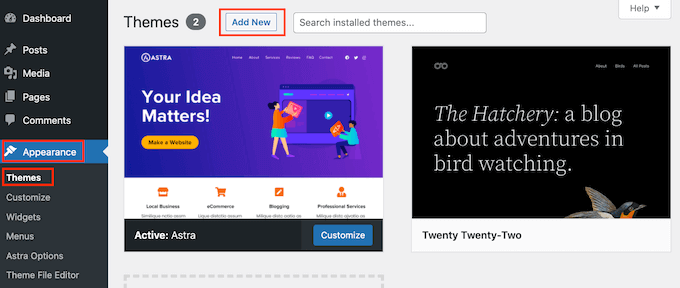
Log in to your WordPress dashboard. Find the menu on the left. Click on “Appearance”. Then select “Themes”. You are now in the Themes section. Look for the big button labeled “Add New”. Clicking it will take you to the theme library.
Once in the theme library, look for the “Upload Theme” button. It’s usually near the top. Click it, and you will see a new option. This option lets you upload a theme from your computer. Choose your file. Make sure it is in .zip format. Click “Install Now”. Wait for the upload to finish. After that, click “Activate” to use your new theme.
Installing Via Ftp
First, choose an FTP client like FileZilla. Easy to use. Download and install it on your computer. Next, you need your FTP credentials. These are username, password, and host. Find these in your web hosting account. Enter these details in the FTP client. Connect to your website server. Now, you can see your website files.
Download the WordPress theme you like. It should be a .zip file. Extract it on your computer. In the FTP client, find the wp-content/themes folder. This is where you upload your theme files. Drag the extracted theme folder into this directory. Wait for the upload to finish. Once done, go to your WordPress dashboard. Activate your new theme from the Appearance section.
Credit: themelooks.com
Activating The New Theme
Easily enhance your WordPress site by activating a new theme. Navigate to ‘Appearance’ in the dashboard, click ‘Themes’, then select and activate your desired theme. Enjoy a fresh look instantly.
Ensuring Proper Activation
Activate the new theme in the WordPress dashboard. Go to Appearance and select Themes. Click on the theme you want. Press the Activate button to set it live. This step ensures your site uses the new design. Make sure the activation is successful.
Checking Site Functionality
After activating, visit your site. Check if all parts work well. Look at the homepage, posts, and pages. Ensure everything displays correctly. Verify that menus and links function. Test the site on different devices. Confirm it is mobile-friendly. This ensures a good user experience for visitors.
Customizing Your Theme
Using Theme Customizer can be fun and easy. Open your WordPress dashboard. Find the Appearance tab. Click on Customize. This will open the Theme Customizer. Here, you can change colors, fonts, and more. See changes in real-time. Make your website unique and pretty. Try different settings. Find what looks best. Always save changes before exiting. This keeps your work safe.
Adding Widgets and Menus is also simple. Widgets are small tools. They add extra features to your site. Go to the Widgets section in the customizer. Drag and drop them where you want. Menus help visitors find pages easily. Go to the Menus section. Create new menus. Add pages or links. Arrange them in order. Save the menu. Now your site is easy to navigate. Your visitors will thank you.
Credit: www.elegantthemes.com
Troubleshooting Common Issues
Installing a new WordPress theme can sometimes cause issues like broken layouts or missing features. Check theme compatibility with your current plugins and WordPress version. Ensure all files are uploaded correctly, and consider clearing your browser cache to see changes.
Resolving Theme Conflicts
Theme conflicts can break your website. They often happen after installing a new theme. Check if plugins are causing trouble. Deactivate each plugin one by one. This helps find the problem. Sometimes, plugins and themes don’t work well together. Updating them can fix this. Always use themes from trusted sources. Download themes from the official WordPress site. This reduces conflicts and keeps your site safe.
Fixing Display Problems
Display problems can make your site look bad. Images might not appear right. Text can be misaligned. Check your theme settings first. Look for options to adjust layout. Sometimes, clearing the cache helps. Browsers store old versions of your site. Refreshing the cache can update the view. Ensure your theme is compatible with your WordPress version. Outdated themes can cause display issues. Regular updates fix these problems.
Frequently Asked Questions
How Do I Change My WordPress Theme?
To change your WordPress theme, navigate to the dashboard. Click on “Appearance” and select “Themes”. Choose “Add New” to explore available themes. Once you find one you like, click “Install” and then “Activate”. This process will change your site’s appearance seamlessly.
Can I Install A Theme Without Coding?
Yes, you can install a WordPress theme without any coding knowledge. Use the WordPress dashboard to find and install themes easily. Simply go to “Appearance”, then “Themes”, and click “Add New”. Browse through themes and click “Install” and “Activate” for your preferred choice.
What Is The Safest Way To Install A Theme?
The safest way to install a theme is through the WordPress dashboard. Navigate to “Appearance” and then “Themes”. Use the “Add New” option to browse official themes. Always ensure themes are from trusted developers. This minimizes risks of security vulnerabilities and ensures compatibility.
How Do I Upload A Custom WordPress Theme?
To upload a custom theme, go to “Appearance” in the dashboard. Click “Themes”, then “Add New”. Choose “Upload Theme” and select your theme’s ZIP file. Click “Install Now” and once uploaded, click “Activate”. This installs your custom theme on your WordPress site.
Conclusion
Installing a new WordPress theme is straightforward. First, choose a theme you like. Then, download it from a trusted source. Next, access your WordPress dashboard. Navigate to “Appearance,” then “Themes. ” Click “Add New” at the top. Upload your theme file.
Finally, click “Install” and “Activate. ” Now your site has a fresh look. Remember, themes change layout, not content. Check your site’s appearance after activation. Make adjustments as needed. Explore options in the theme settings. Enjoy your site’s new design.
Simple steps make a big difference. Your WordPress journey just got easier.


