
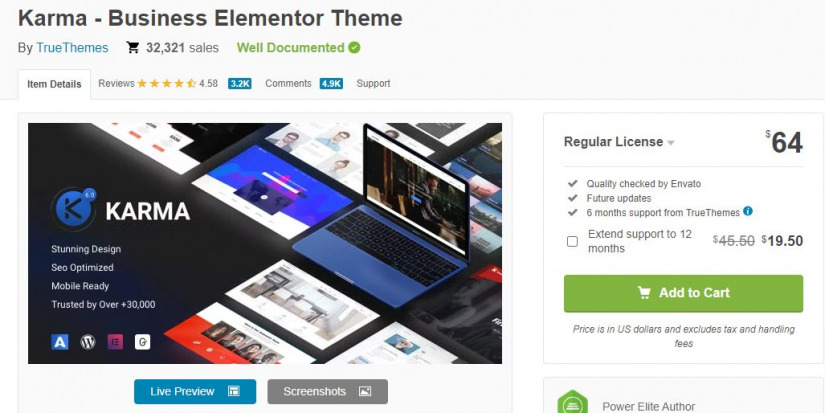
Imagine having a WordPress site that not only looks amazing but also performs at its peak. That’s the promise of the Karma Theme, a favorite among website owners for its sleek design and robust features.
But to keep your site running smoothly and securely, updating your theme is crucial. If you’re unsure how to install the latest Karma Theme update on WordPress, you’re not alone. Many face this challenge, but the good news is, it’s easier than you might think.
In this guide, you’ll discover step-by-step instructions tailored just for you, ensuring a seamless update process. Stay with us, because by the end, your website will not only look better but also function more efficiently, keeping your visitors engaged and happy. Let’s dive into the process together.
Credit: stylemixthemes.com
Preparation Steps
It’s important to backup your website. This keeps your data safe. Use a plugin or manual method. Save the backup file on your computer. This step is easy but crucial.
Ensure the new theme works with your WordPress version. Check the theme’s update notes. Visit the theme’s website. Look for compatibility information. This avoids errors later.
Deactivate plugins you don’t use. This helps the update process. Go to the plugins page. Click deactivate for each unneeded plugin. This makes your site run smoother.
Downloading The Update
Access your theme account to download the Karma theme update. First, open your web browser. Type the theme website address. Enter your login details. Click to log in. Find your account dashboard.
Next, locate the latest version. Look for the update section. The newest version is usually listed there. Check the version number. Make sure it’s the latest one. You want the most recent updates.
Finally, download the update file. Click on the download button. Save the file to your computer. Remember the file location. You will need it for installation. Make sure the download completes.
Upload Theme Update
Access WordPress Dashboard first. Log into your WordPress account. Look for the dashboard on the left side.
Next, navigate to the Themes section. Click on “Appearance” and then “Themes.” Here, you will see all your themes.
Now, it’s time to upload the new theme version. Click the “Add New” button at the top. Then, click “Upload Theme.”
Select the updated theme file from your computer. Make sure it is in a zip format. Click “Install Now” to start the upload.
Once uploaded, activate the theme. Check if everything looks good. Your theme is now updated!

Credit: plugintheme.net
Activating The Updated Theme
Activating the updated Karma Theme on WordPress is simple. Navigate to the themes section, select Karma, and click “Update. ” Ensure you have backups to avoid data loss during updates. Enjoy improved features and enhanced design with the latest version.
Preview Before Activation
Check the preview of the new Karma theme. This helps to see how your site will look. Make sure everything appears as expected. If something seems off, you can make adjustments.
Activate Karma Theme
Once satisfied with the preview, click on the activate button. This sets the Karma theme live. Now, your website shows the updated theme to visitors. Ensure all parts of the site work well. Check menus, images, and links.
Post-installation Checks
Ensure your Karma theme update is successful by performing post-installation checks. Verify theme compatibility with plugins and review site functionality. Check for broken links and test page speed for optimal performance.
Verify Theme Settings
Check the theme settings after installing the update. Ensure all your custom options are still there. Sometimes updates reset settings. Make sure your colors, fonts, and layouts are correct. Look at your header and footer too. They should look like before.
Test Website Functionality
Open your website on different browsers and devices. Check if everything looks good. Click on links and buttons. Ensure they work correctly. Try out forms. Make sure they send information properly. Your website should be responsive and fast.
Reactivate Plugins
After the update, some plugins might be off. Go to your plugin list. Turn on any that are off. Check if they work well with the new theme. Sometimes updates cause conflicts. Make sure all plugins function smoothly.
Troubleshooting Common Issues
Sometimes, a plugin might not work well with the theme. Deactivating all plugins is helpful. Then, reactivate them one by one. This way, you find the problem plugin. Keep the theme updated to avoid more issues.
Sometimes, the website does not look right. Clear your browser cache first. This action solves many display problems. Also, check if your theme is the latest version. An outdated theme can cause errors.
If problems continue, ask the developers for help. They know their theme best. They can offer solutions. Contacting them through support forums is a good idea. This way, you get expert advice.
Credit: github.com
Frequently Asked Questions
How Do I Update The Karma Theme In WordPress?
To update the Karma theme, first, log into your WordPress dashboard. Navigate to “Appearance” and then “Themes. ” Check for updates next to Karma. Click “Update” to install the latest version. Ensure you have a backup before proceeding to avoid data loss.
What Precautions Should I Take Before Updating?
Before updating, always back up your WordPress site. Use a reliable backup plugin or manual method. This ensures you can restore your site if issues arise. Additionally, check compatibility with other plugins and themes to prevent conflicts.
Can I Update The Karma Theme Manually?
Yes, you can update manually by downloading the latest theme version from the official site. Unzip the package and upload it via FTP to your WordPress themes directory. Replace the existing Karma theme files. Ensure you back up your site before proceeding.
Will Updating Karma Theme Affect My Site’s Layout?
Updating the Karma theme may affect your layout if you have customizations. Always use a child theme for modifications. This ensures updates don’t overwrite your changes. After updating, check your site thoroughly to ensure everything displays correctly.
Conclusion
Updating your Karma theme on WordPress is simple. Follow the steps carefully. Start with a backup. Download the latest version. Install it via your dashboard. Check your site for changes. Ensure all features work smoothly. Keep your WordPress updated regularly.
It helps with security and performance. Always look for new updates. They bring improvements. Your site will remain fresh and secure. Enjoy your newly updated Karma theme. Happy blogging!


