
Imagine transforming your WordPress website into a powerhouse of functionality and customization. The Divi theme is a popular choice for many, offering incredible flexibility and design options.
But to truly unlock its potential, you need to know how to install a header script. Whether you’re looking to enhance your site’s analytics, improve its design, or add new features, inserting a header script can be the key. But don’t worry, you don’t need to be a tech wizard to do this.
In this guide, you’ll discover straightforward steps to seamlessly integrate a header script into your Divi theme. Get ready to elevate your website’s performance and unleash its full potential. Let’s dive in and make your website work smarter for you.
Prerequisites
WordPress Basics are important to know. This is a website tool. It helps people build sites. You can write and share things. You can also change the look of your site. It is easy to use. Many people use it.
Divi Theme Overview gives your site a nice look. It is easy to change. There are many options. You can make your site pretty. You can also make it work well. Many people like Divi. It is fun to use.
Understanding Header Scripts is important for your site. These scripts help your site do more. They can add cool features. They make your site better. You put them in the header. This is a special place on your site. It is easy to add them.
Credit: divilover.com
Accessing Divi Theme Options
First, log into your WordPress dashboard. Use your username and password. This opens the main dashboard area. Here, you control your website. Look for the left sidebar. It has all the options you need.
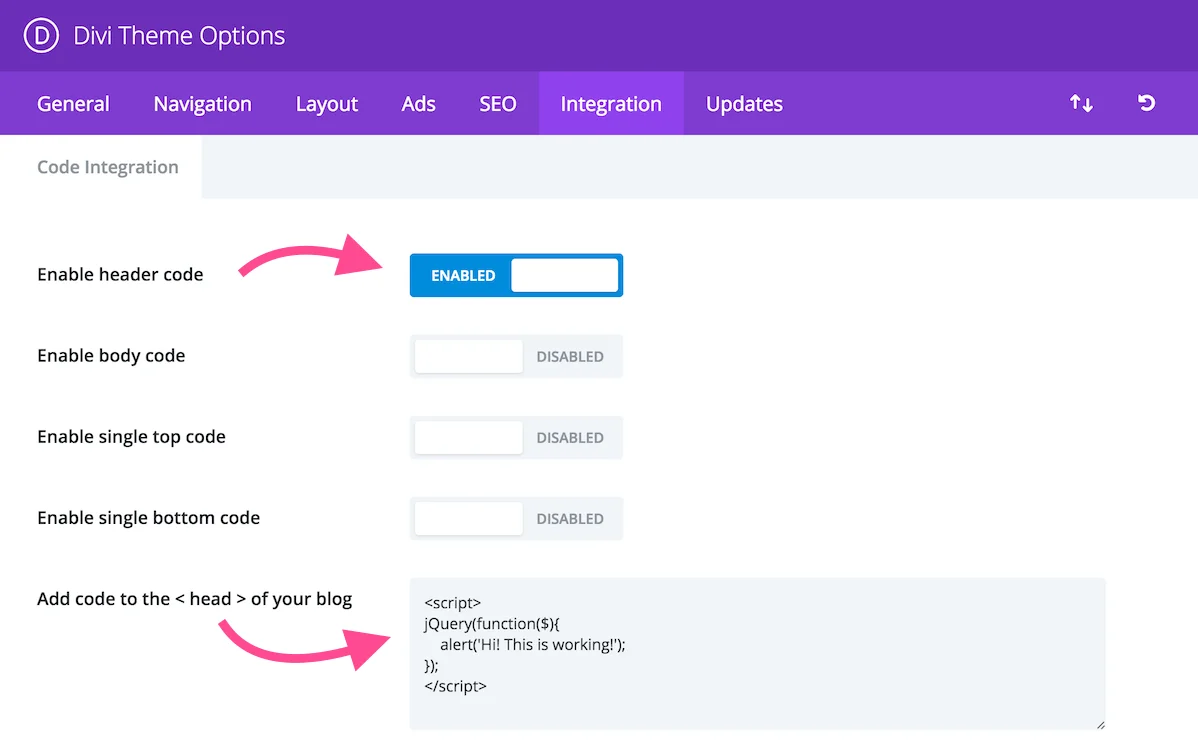
Find the Divi option in the sidebar. It is easy to spot. Click on it. This takes you to Divi Theme settings. You see many tabs here. Choose the one labeled “Integration”.
Adding Header Script
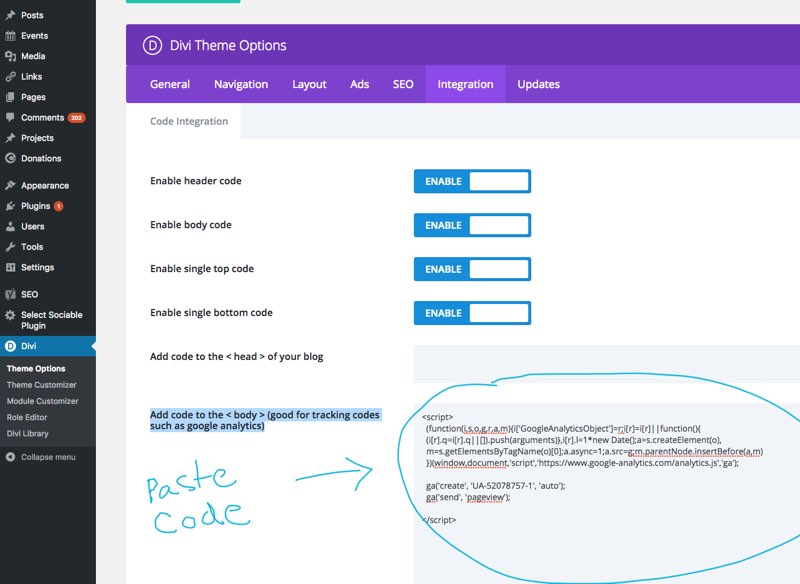
Go to your WordPress dashboard. Look for the Divi option on the left. Click on it. Find and click the Theme Options. A new page will open. At the top, click on the Integration Tab. You will see a box for scripts in the header.
Copy your script code. Paste it into the header box. Ensure the code is correct. Double-check for mistakes. Click on the Save Changes button. This will save your header script. Your website now has the script in its header. Check your site to ensure it works.
Credit: hangtenseo.com
Verifying Script Installation
Ensure the script is installed correctly. Visit your site and open a page. Right-click and choose “Inspect” or “View Page Source.” Look for the header script code. It’s important to check if the script is visible. This confirms installation. If it’s missing, you may need to reinstall.
Testing Functionality
Test the script to ensure it works. Refresh your page and observe changes. Scripts often change layout or add features. Check if these changes appear. If nothing changes, the script may not be active. Try clearing your browser cache. This helps display any hidden changes.
Troubleshooting Common Issues
Issues can arise with installation. Check for typos in the script code. These can cause errors. Ensure the script is placed in the right location. Header scripts must be in the head section. Wrong placement can prevent functionality. If issues persist, review your theme settings. Some themes block certain scripts.
Advanced Customization
Adding custom code to your Divi theme is simple. Use the Theme Options panel. This panel helps you place scripts in the header. It is a safe way to add extra features. Make sure your code is correct. Wrong code may break your site. Always save your work before making changes.
A child theme is a great choice for custom changes. It keeps your main theme safe. You can update Divi without losing edits. To start, make a new folder in wp-content/themes. Name it anything you like. Add a style.css file inside. This file tells WordPress about your child theme. Next, create a functions.php file. This file will hold your custom code. Now, you can edit without worry. Always test changes on a local server first.

Credit: www.elegantthemes.com
Best Practices
Easily add a header script to your Divi Theme in WordPress by accessing the Theme Options panel. Paste your script into the Integration tab for seamless functionality. This method ensures your website runs efficiently and supports enhanced features.
Security Considerations
Adding scripts can make your site vulnerable. Always check script sources. Trusted sources are safer. Avoid scripts from unknown sites. They might cause security risks. Use HTTPS links for secure data transfer. Update your theme and plugins regularly. This keeps your site protected.
Performance Optimization
Scripts can slow your site. Test your site speed after adding scripts. Use tools like Google PageSpeed Insights. It helps check speed. Reduce the number of scripts if needed. Place scripts in the footer for better speed. This makes your site load faster. Minimize script size for quick loading.
Frequently Asked Questions
How Do I Add A Script To Divi?
To add a script in Divi, navigate to the WordPress dashboard. Go to Divi > Theme Options > Integration. Paste your header script into the ‘Add code to the of your blog’ section. Save changes to apply the script site-wide.
Can I Install Scripts Without A Plugin?
Yes, you can install scripts without a plugin in Divi. Use the Theme Options in Divi to directly add scripts. Navigate to Integration settings and paste your script code. This method avoids extra plugins, keeping your site lightweight and efficient.
Is It Safe To Modify Divi Header?
Modifying the Divi header is safe if done correctly. Always backup your site before making changes. Use Divi’s built-in Theme Options for script additions. Avoid editing core files directly to prevent issues with future theme updates.
What Scripts Can Be Added To Divi?
You can add various scripts to Divi, including Google Analytics, Facebook Pixel, and custom CSS or JavaScript. These enhance functionality and tracking. Ensure scripts are from reputable sources and necessary for your site’s performance and analytics.
Conclusion
Installing a header script on Divi Theme is straightforward. Follow the steps carefully. Navigate to your WordPress dashboard. Locate the “Theme Options” under Divi. Paste your script in the “Integration” tab. Save your changes. Check your website to ensure it’s working.
This process enhances your site’s functionality. Beginners can easily manage it. Remember, practice makes perfect. Once you understand the steps, future installations become easier. Your website grows more dynamic and interactive. Enjoy exploring the possibilities with Divi Theme and WordPress.
Keep learning and improving your website’s features.


