
Are you looking to give your WordPress site a fresh, stylish look with the Foundry theme? You’re in the right place.
Installing a new theme can feel a bit daunting, especially if you’re not a tech wizard. But don’t worry, you’re not alone. Many people are eager to enhance their websites without getting tangled in technical jargon. You deserve a website that looks great and works seamlessly, and with Foundry, you can achieve just that.
This guide will walk you through the simple steps to install the Foundry theme on WordPress, ensuring you have all the tools you need to make your site stand out. Imagine the satisfaction of seeing your website transform into a professional-looking platform that engages and captivates your audience. Keep reading, and you’ll discover how easy it is to elevate your site’s appearance without stress.
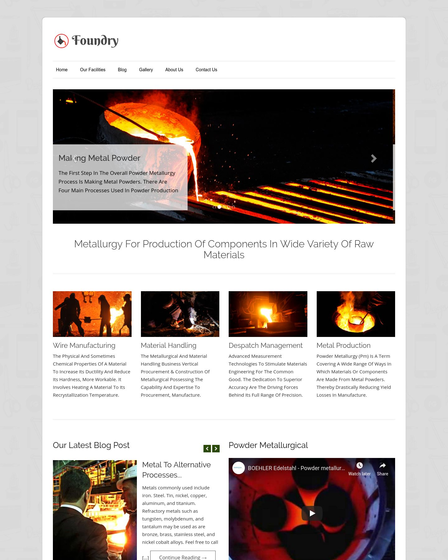
Credit: www.inkthemes.com
Requirements For Foundry Theme
Installing WordPress is the first step. Ensure you have a hosting account. Your host must support PHP 7.4 or higher. Create a database for WordPress. Download the WordPress package. Upload the files to your server. Run the installation script. Follow the instructions to set up WordPress.
You need theme files for installation. Download the Foundry theme from a trusted source. Make sure the theme is in a .zip format. Save the downloaded file on your computer. Keep it handy for the next steps. Check the file for any errors. Ensure it is complete.

Credit: thethemefoundry.com
Accessing WordPress Dashboard
First, open your web browser. Type in your website’s URL. Add “/wp-admin” at the end. Press enter. You will see the login page. Type your username and password. Then click the login button. Now you are in the WordPress dashboard. This is where you make changes to your site. You can add posts or change themes. The dashboard is like your website’s control center. Be careful with changes. Always remember to save your work. Keep your login details safe and secure.
Uploading Foundry Theme
First, open your WordPress dashboard. Find the Appearance menu on the left side. Click on it. You will see the Themes section. This is where themes are managed. You can add new themes here.
To add the Foundry theme, click on Add New at the top. Then, select Upload Theme option. You need the theme file on your computer. Make sure it is in a .zip format. Click Choose File and find the theme file. After selecting it, click Install Now. This uploads your theme to WordPress.
Activating Foundry Theme
Start by logging into your WordPress dashboard. Look on the left side for Appearance. Click on it. You will see Themes under Appearance. Click on Themes. Find the Foundry Theme. Click on Activate. Wait for a moment. The theme will load. You will see a success message.
Check your site. Make sure the theme is working. Look at the design. Make sure it matches Foundry. If there are any issues, repeat the steps. Sometimes themes need to reload. Ensure your internet is strong. A weak connection can cause problems.
Explore the theme options. Customize it to your liking. Change colors, add widgets, or adjust fonts. Make your site unique. Have fun experimenting. Foundry offers many choices. Enjoy creating your website.
Installing Required Plugins
Some plugins are needed for the Foundry theme to work well. These plugins help with design, speed, and security. Each plugin has a special task. They make your website look great and work smoothly. It’s smart to use these plugins.
Recommended Plugins
- Elementor: Build pages with ease.
- Yoast SEO: Improve your site’s search rank.
- WPForms: Create forms quickly.
- WooCommerce: Sell products online.
Plugin Installation Process
Go to your WordPress dashboard. Click on “Plugins”. Choose “Add New”. Search for the plugin name. Click “Install Now”. Wait for the install to finish. Click “Activate”. Your plugin is ready to use.
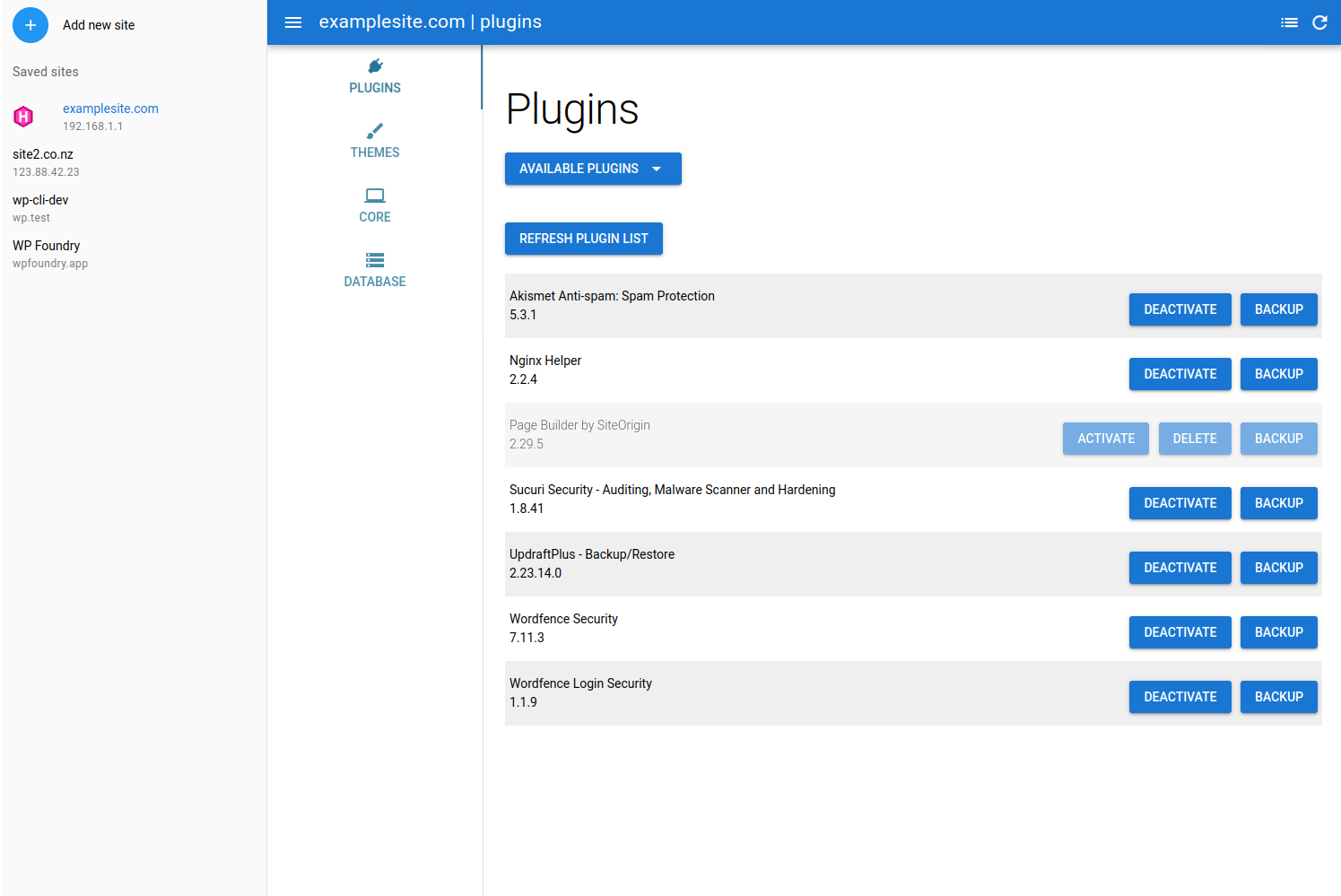
Credit: wpfoundry.app
Customizing Foundry Theme
The Theme Options Panel is the heart of customization. Users can easily adjust settings. Change colors and fonts with a few clicks. Make the website unique. Easy to navigate for all users. Explore different tabs in the panel. Find options for the header, footer, and sidebar. Each tab offers distinct features. Save changes after making adjustments.
Layout and design settings help shape the site’s look. Choose from various pre-designed layouts. Adjust the width and padding of sections. Design settings let users play with background colors. Add custom images for a personal touch. Ensure the site looks good on all devices. Mobile-friendly designs are essential. Preview changes before making them live.
Importing Demo Content
Installing the Foundry Theme on WordPress involves importing demo content for a seamless setup. Begin by accessing your WordPress dashboard, navigate to the theme options, and select the import demo content feature. This process helps achieve the desired design quickly, ensuring your site looks professional and well-structured.
Benefits Of Demo Content
Demo content helps you see how your website will look. It provides a structure to follow. You save time by not starting from scratch. Demo content often includes pages, posts, and images. This can help you understand the theme’s features better. It can be easily customized to fit your needs. Overall, it serves as a great starting point for beginners.
Importing Process
Open your WordPress dashboard. Go to the ‘Appearance’ menu. Click on ‘Themes’. Find and activate the Foundry Theme. Next, go to the ‘Tools’ section. Click on ‘Import’. Choose the ‘WordPress’ option. Upload the demo content file. Click on ‘Upload and Import’. Select the ‘Import Attachments’ option. Finally, click on ‘Submit’. Now, the demo content is on your site. Check your pages and posts to see the changes.
Troubleshooting Common Issues
Installing the Foundry Theme on WordPress can sometimes be tricky. Ensure compatibility with your WordPress version. Check your theme files for any missing components.
Theme Installation Errors
Sometimes, themes do not install correctly. This could be due to file size limitations on your server. Check the maximum upload size. Increase it if needed. Another problem might be missing theme files. Ensure you have downloaded the complete theme package. Also, verify the theme is compatible with your WordPress version. Ensure you have the correct version installed. Theme installation issues can be frustrating but are usually easy to fix.
Plugin Conflicts
Plugins can cause conflicts with themes. This can result in errors or slow website performance. Disable all plugins and check if the problem persists. If the theme works fine, activate plugins one by one. Identify which plugin causes the issue. Sometimes, plugins have conflicting JavaScript or CSS. Update these plugins if possible. Consider contacting plugin developers if the issue remains. Keeping plugins updated reduces conflicts.
Updating Foundry Theme
Always ensure your theme is up-to-date. Go to your WordPress dashboard. Click on Appearance, then Themes. Check for the Foundry theme. If there’s an update, a message will show. This keeps your site safe and fast.
Begin by backing up your site. This is very important. Next, click on the update notification. Follow the steps to update. Let it finish without interruptions. Once done, check your site. Ensure everything works fine. This process is quick and easy.
Frequently Asked Questions
How Do I Install The Foundry Theme On WordPress?
To install the Foundry theme, go to your WordPress dashboard. Navigate to Appearance > Themes, click “Add New,” and then “Upload Theme. ” Choose your Foundry theme file, click “Install Now,” and activate it. Ensure your WordPress version is compatible with the theme for optimal performance.
Is The Foundry Theme Mobile-friendly?
Yes, the Foundry theme is designed to be mobile-responsive. It ensures your website looks great on all devices. This helps improve user experience and SEO, as search engines prioritize mobile-friendly sites. Regular updates may enhance its mobile performance even further.
Can I Customize The Foundry Theme Easily?
Absolutely, the Foundry theme offers easy customization options. Use the WordPress Customizer to tweak colors, fonts, and layouts. Built-in page builder support also allows for advanced customizations. This flexibility ensures your website aligns with your brand identity.
Does Foundry Theme Support Plugins?
Yes, the Foundry theme supports various WordPress plugins. This includes popular plugins like WooCommerce, Yoast SEO, and Contact Form 7. Adding plugins can extend functionality, enhancing your site’s features and user experience. Always ensure plugins are compatible with the theme.
Conclusion
Installing the Foundry theme on WordPress is simple. Follow the steps carefully. First, download the theme file. Next, go to your WordPress dashboard. Click on “Appearance” and then “Themes. ” Choose “Add New” and “Upload Theme. ” Select the Foundry file.
Click “Install Now. ” Finally, activate the theme. Enjoy your new website look. Remember to customize it to fit your style. Check for updates regularly. This keeps your theme running smoothly. Happy blogging with your new theme!


