
Are you tired of outdated themes holding back your WordPress site? It’s time to give your website a fresh, modern look by updating your Envato WordPress theme.
Imagine the possibilities: improved functionality, enhanced aesthetics, and a seamless user experience that keeps visitors coming back. In this guide, you’ll discover simple, step-by-step instructions to effortlessly install the latest update of your Envato theme. You’ll also learn tips to ensure the process goes smoothly, avoiding common pitfalls that can cause frustration.
Ready to transform your website and make it shine? Let’s dive in and unlock the potential of your WordPress site!
Preparation Steps
Creating a backup is very important. It saves your site. Use backup plugins or manual methods. Plugins help quickly. You can store backups on your computer or cloud. This ensures no data loss. Regular backups are a good habit. Backup before any update. It makes you safe.
Checking compatibility avoids problems. Make sure your theme works with the latest WordPress version. Look for updates from the theme maker. Check reviews for bugs. Sometimes, themes need extra plugins. Look for plugin requirements. Ensure all plugins are ready. A compatible theme runs smoothly. It saves time and worry.
Credit: help.elements.envato.com
Download Updated Theme
Access your Envato account to start. First, go to the Envato website. Log in with your username and password. Once logged in, find the Downloads section. This is where you’ll find all your purchases. It’s important to check for any new updates.
Next, locate the theme you want to update. Look for the theme name in your list. If the theme has an update, you’ll see a notice. Click on the Download button next to the theme. Choose the Installable WordPress file option. Save the file to your computer. Now you have the updated theme ready for installation.
Install Theme Update
First, go to the WordPress dashboard. Find the Appearance section. Click on Themes. You will see your current theme. Hover over it. Click Deactivate. This makes sure your site stays safe. Don’t worry, you can activate it again later.
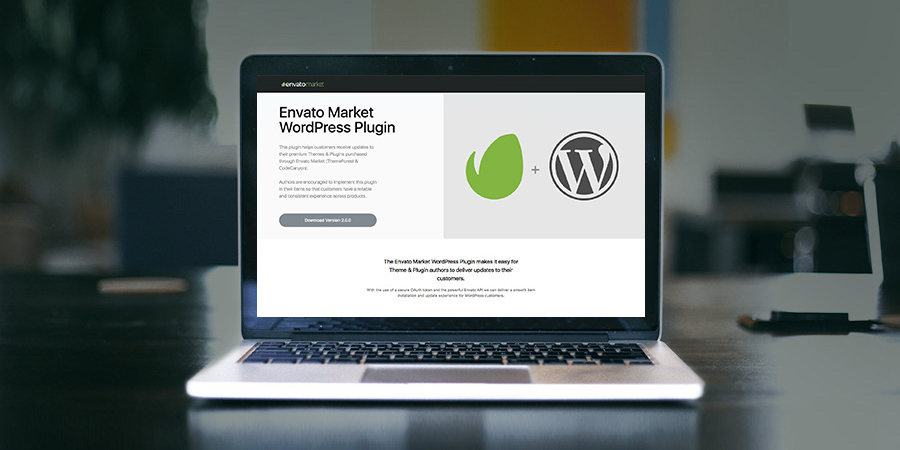
After deactivating, click Add New at the top. Then, click Upload Theme. Now, find the new theme file. It should be a .zip file. Select it and click Install Now. Wait for the upload to finish. Once done, click Activate. Your new theme is now live. Enjoy the fresh look!
Credit: www.wpexplorer.com
Verify Installation
Go to your WordPress dashboard. Click on Appearance. Then select Themes. Look for the updated theme. Click on Activate to use it. This makes your site use the new theme. Old theme settings may change. Check them after activation.
Open your website in a browser. Look at the main pages. Check if they load correctly. Click on the menu items. Ensure they work as expected. Test the contact forms. Make sure they send messages. Check your site on mobile too. It should look good on all devices.
Troubleshooting Common Issues
Updating your Envato WordPress theme can sometimes present challenges. Ensure you have the latest theme files downloaded. Use the WordPress dashboard to upload and activate the new version, replacing the old files without losing custom settings.
Resolve Installation Errors
Installation errors can be frustrating. First, ensure the theme file is complete. Sometimes files are corrupted during download. Check your internet connection. A stable connection is essential. Also, verify compatibility with your WordPress version. Outdated versions can cause conflicts. Clear your browser cache. It might hold old data. Try reinstalling the theme. Sometimes a fresh start helps.
Fix Broken Elements
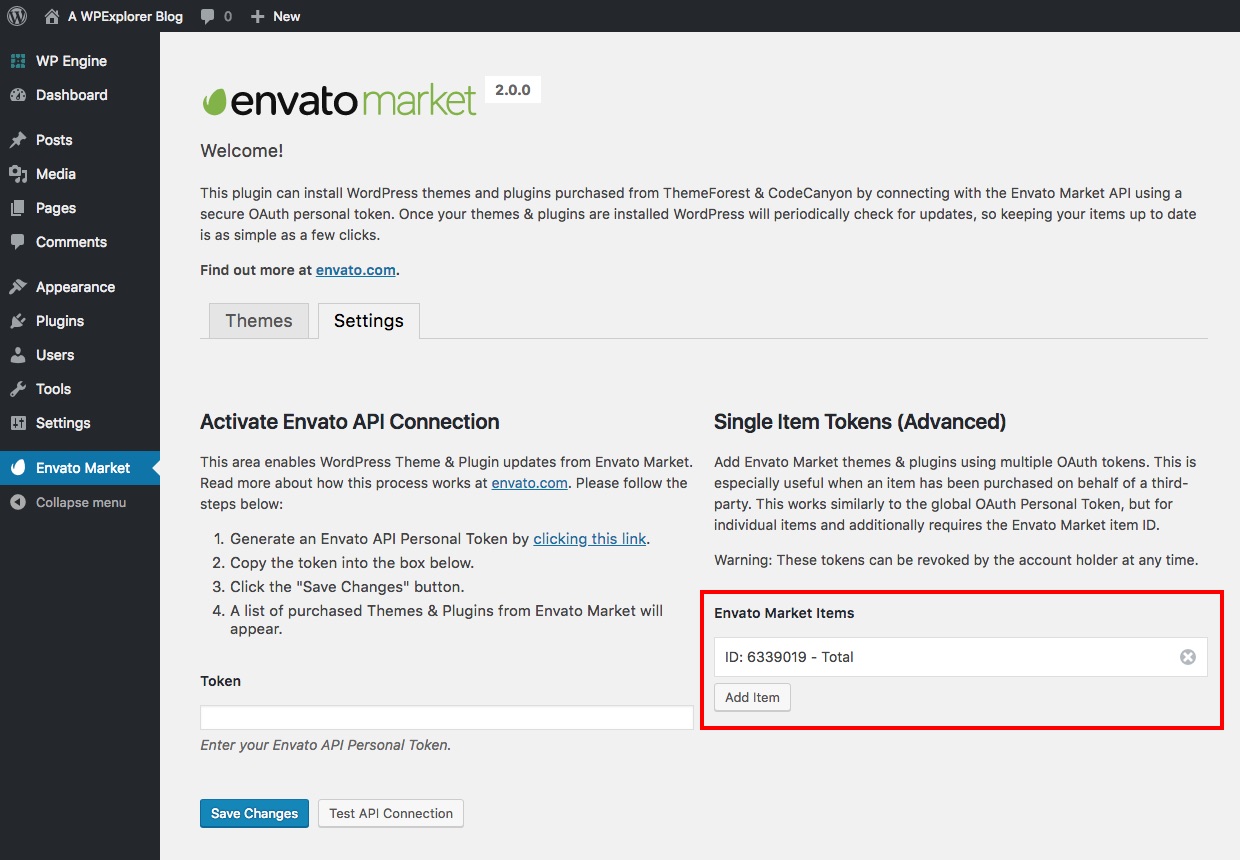
Broken elements affect site appearance. Check theme settings first. Incorrect settings can cause issues. Use the WordPress customizer. It helps in adjusting elements. Ensure all plugins are updated. Old plugins may conflict with new themes. Deactivate each plugin one by one. See if the problem resolves. Check your theme documentation for solutions. They often provide guidance. If problems persist, contact support. They can offer help.
Credit: www.wpexplorer.com
Post-installation Tips
After installing your Envato WordPress theme, it’s important to reconfigure theme settings. These settings help your site look right. Go to your WordPress dashboard. Click on the ‘Appearance’ tab. Then choose ‘Customize’. Check each setting carefully. Fonts, colors, and layouts should match your brand. Save changes after adjusting each setting. This makes your website look good.
Plugins help your site work better. They add special features. Ensure all plugins are up-to-date. Go to the ‘Plugins’ section on your dashboard. Look for any update notifications. Click ‘Update Now’ for each plugin. Always keep plugins updated. This keeps your site secure and functioning well. Regular updates also prevent bugs.
Frequently Asked Questions
How To Update Envato WordPress Theme Manually?
To update manually, download the latest theme version from Envato. Unzip the files on your computer. Use an FTP client like FileZilla to access your WordPress directory. Replace the old theme files with the new ones. Ensure to back up your site before updating to prevent data loss.
Can I Update Envato Theme Via WordPress Dashboard?
Yes, you can update via the dashboard. Go to Appearance > Themes. Click on the theme needing an update. If an update is available, you’ll see an “Update Now” button. Click it, and WordPress will handle the update automatically. Ensure your theme is licensed and activated for updates.
What Happens If I Don’t Update My Theme?
Not updating can lead to security vulnerabilities. Your site might become incompatible with newer WordPress versions. Outdated themes may lack new features and improvements. Regular updates ensure optimal performance and security. Always keep your theme and plugins updated to maintain site integrity.
Is It Safe To Update My Envato Theme?
Yes, it’s safe if you follow precautions. Always back up your site before updating. Ensure compatibility with your WordPress version and plugins. Check the theme’s change log for any critical updates or changes. Updates improve security, functionality, and performance.
Conclusion
Installing an Envato WordPress theme update is straightforward. Follow the steps, and you’ll succeed. First, download the latest theme files. Next, back up your existing site. Then, upload the new theme using FTP or your dashboard. Check for compatibility with plugins and settings.
Always test your site after the update. This ensures everything functions smoothly. Regular updates improve your site’s performance and security. Stay on top of updates to avoid issues. Keep your WordPress site optimized and user-friendly. With practice, theme updates become routine.
Happy updating!


