
Are you ready to give your WordPress site a fresh and unique look but unsure how to install those stunning themes you’ve downloaded? You’re not alone.
Navigating through the world of WordPress themes can feel daunting, especially when you’re eager to see your website transform right before your eyes. Imagine the satisfaction of clicking just a few buttons and watching your site evolve with a new design that truly reflects your brand or personal style.
In this guide, you’ll discover the simple steps to install downloaded themes on WordPress, demystifying the process so you can focus on what really matters—expressing yourself and connecting with your audience. Dive in, and let’s turn your WordPress site into something spectacular!
Preparing Your WordPress Site
Make a backup of your site first. This keeps your content safe. Use a plugin for easy backup. There are many free options available. Store the backup in a secure place. This ensures your data is always protected. A backup is like a safety net for your site.
Ensure the theme works with your WordPress version. Not all themes are compatible. Check the theme details before installing. Look at user reviews and ratings. A theme with good feedback is often safe. Avoid themes that cause problems. Compatibility ensures your site runs smoothly.
Locating The Downloaded Theme File
Identify File Format: Themes come in different formats. Most themes are in .zip format. Check the file you downloaded. Is it a .zip file? Some themes have .rar or other formats. You may need tools to open them. Make sure you know the format before moving on.
Verify Theme Source: It’s important to check where your theme came from. Ensure it is from a trusted source. Some themes might have harmful code. Only use themes from well-known sites. This keeps your website safe. Always verify before installing.
Uploading Themes Via WordPress Admin
Installing downloaded themes on WordPress is simple. Navigate to the WordPress dashboard, click “Appearance,” then “Themes,” and select “Add New. ” Upload your theme file and activate it to change the site’s appearance.
Access The Theme Section
Open your WordPress dashboard. Find the Appearance tab on the left side. Click on it. You will see a Themes option. Click on Themes. This will open the theme section. Here, you can manage your themes.
Upload Theme Files
In the theme section, look for the Add New button. Click it to open a new page. Now, look for the Upload Theme button. Click on it. You will see a Choose File button. Click on this button to select your theme file. Make sure your theme file is in .zip format. After selecting the file, click on the Install Now button. This will upload and install your theme.

Credit: wpfactory.com
Installing Themes Using Ftp
Open your FTP client. Enter your server details. Use your username and password. Click ‘Connect’. Connection takes a few seconds.
Find the ‘wp-content’ folder. It’s inside your server files. Click on it. Next, click ‘themes’. This is your theme directory.
Select your downloaded theme. Drag it to the ‘themes’ folder. Wait for the upload to finish. Refresh your WordPress dashboard. Your theme is ready.
Activating Your New Theme
First, go to your WordPress dashboard. Find the Appearance menu and click on Themes. You will see all your themes here. Click on the Activate button for your new theme. Your website will now use this theme.
After activating, it’s good to preview your website. This helps you see how the theme looks live. Check if all parts of your website display correctly. Sometimes things do not look perfect at first.
Go through your site to spot any errors. Look for broken links or missing images. Fix these issues if you find any. Small changes might be needed to make everything look nice. This ensures your site works well for visitors.

Credit: www.greengeeks.com
Customizing And Configuring The Theme
The Theme Options Panel lets you change your site’s look. Find it in your WordPress dashboard. Click on “Appearance” and then “Customize”. Many themes have this panel. Some options might be color, font, or layout choices. These changes make your site unique.
Not all themes have the same options. Read your theme’s documentation for help. Play around with the settings. See what looks best. Make small changes first. Check the preview before saving. Enjoy seeing your site come alive!
Want to make your site special? Change some design elements. You can add a new logo. Use your favorite colors. Choose different fonts. These elements show your style. They make your site feel more like you.
Don’t forget the details. Look at your site’s header and footer. Add your contact info. Maybe a social media link. Keep it simple. Too many changes can look messy. Your site should be easy to read. Have fun personalizing!
Troubleshooting Common Issues
Installing downloaded themes on WordPress involves a few straightforward steps. First, log into your WordPress dashboard. Next, navigate to ‘Appearance’, then ‘Themes’, and click ‘Add New’. Upload your downloaded theme file and activate it to use.
Resolve Upload Errors
Many users face upload errors when adding themes. First, check your internet connection. Slow internet can cause problems. Make sure the theme file is in ZIP format. WordPress needs the theme in ZIP form. Check file size too. WordPress has a limit. Large files may fail. You can increase the limit in the php.ini file. If you can’t, ask your host for help. Clear your browser cache before trying again. Sometimes, errors hide because of old data.
Fix Compatibility Problems
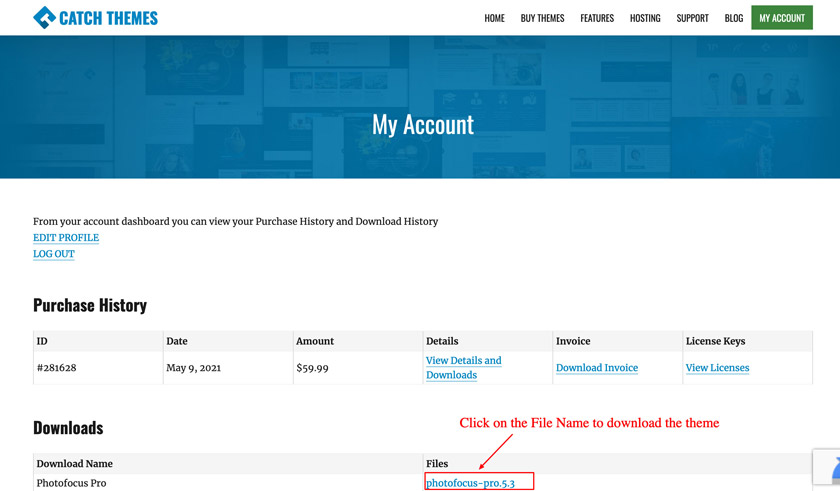
Compatibility problems can be tricky. First, check your WordPress version. Themes need specific versions. Update WordPress if it’s old. Check your plugin list. Some plugins clash with themes. Disable plugins one by one. See if the theme works. Look at the theme’s documentation. It might have fixes. If needed, contact the theme’s support team. They know their theme best.
Credit: catchthemes.com
Frequently Asked Questions
How Do I Upload A Theme To WordPress?
To upload a theme, go to your WordPress dashboard. Navigate to “Appearance” and then “Themes. ” Click “Add New” and then “Upload Theme. ” Choose your downloaded theme file and click “Install Now. ” Once installed, click “Activate” to apply the theme to your site.
Can I Install Themes Without A WordPress Account?
No, you need a WordPress account to install themes. The account allows access to the dashboard where themes are managed. Without it, you can’t upload or activate themes. Create an account to start customizing your site with themes.
What File Format Should WordPress Themes Be In?
WordPress themes should be in a. zip file format. This compressed format ensures compatibility during the upload process. Download themes from reputable sources, ensuring they are packaged correctly. Avoid extracting the files before uploading to WordPress to prevent errors.
Why Won’t My WordPress Theme Install?
There could be several reasons for installation failure. Check if the theme is a valid. zip file. Ensure your WordPress version supports the theme. Insufficient server resources or file size limits might also cause issues. Double-check these factors for a successful installation.
Conclusion
Installing downloaded themes on WordPress is simple and rewarding. Follow the steps carefully. Begin by accessing your WordPress dashboard. Then, navigate to the themes section. Upload your downloaded theme file. Activate the theme to make it live. Check your website for any issues.
Ensure everything works smoothly. Explore customization options to suit your style. Use this guide to enhance your website’s look. Enjoy the new design and features. Keep your site fresh and engaging. Regularly update themes for security and performance. Share your new look with your audience.


