
Are you ready to give your WordPress site a fresh new look but unsure how to install different themes on Bluehost? You’re not alone!
Choosing the perfect theme can be daunting, but the installation process doesn’t have to be. Imagine transforming your website’s appearance in just a few simple steps. Sounds exciting, right? This guide will walk you through each step of installing WordPress themes on Bluehost, ensuring a smooth and stress-free experience.
You’ll be equipped to not only enhance your site’s aesthetics but also improve its functionality. So, let’s dive in and discover how you can easily revamp your website with stunning themes!
Choosing The Right WordPress Theme
Picking the right WordPress theme is very important. Themes change how your site looks. Some themes are fast, while others are slow. A fast theme can help your site load quickly. This is good for visitors. A slow theme might make people leave your site.
Factors To Consider
Think about how your site will look. Choose a theme that fits your style. Colors and fonts should match your brand. Make sure the theme works well on phones. Many people use phones to look at websites. A theme that works on all devices is the best choice.
Popular Theme Categories
| Category | Description |
|---|---|
| Blog | Great for writers and storytellers. |
| Business | Perfect for companies and services. |
| E-commerce | Best for online stores. |
| Portfolio | Ideal for artists and creators. |
Credit: www.bluehost.com
Preparing Bluehost For Theme Installation
First, visit the Bluehost website. Click on the “Get Started” button. Choose a hosting plan that fits your needs. Enter your domain name or create a new one. Fill in all your personal details. Make sure to review the package information. Complete the payment and your account is ready.
Log into your Bluehost account. Go to the “My Sites” tab. Click on “Manage Site” next to your domain. Find the “Log into WordPress” button and click it. Now, you’re in your WordPress dashboard. From here, you can install themes. Look for the “Appearance” section. Choose a theme you like.
Installing Free WordPress Themes
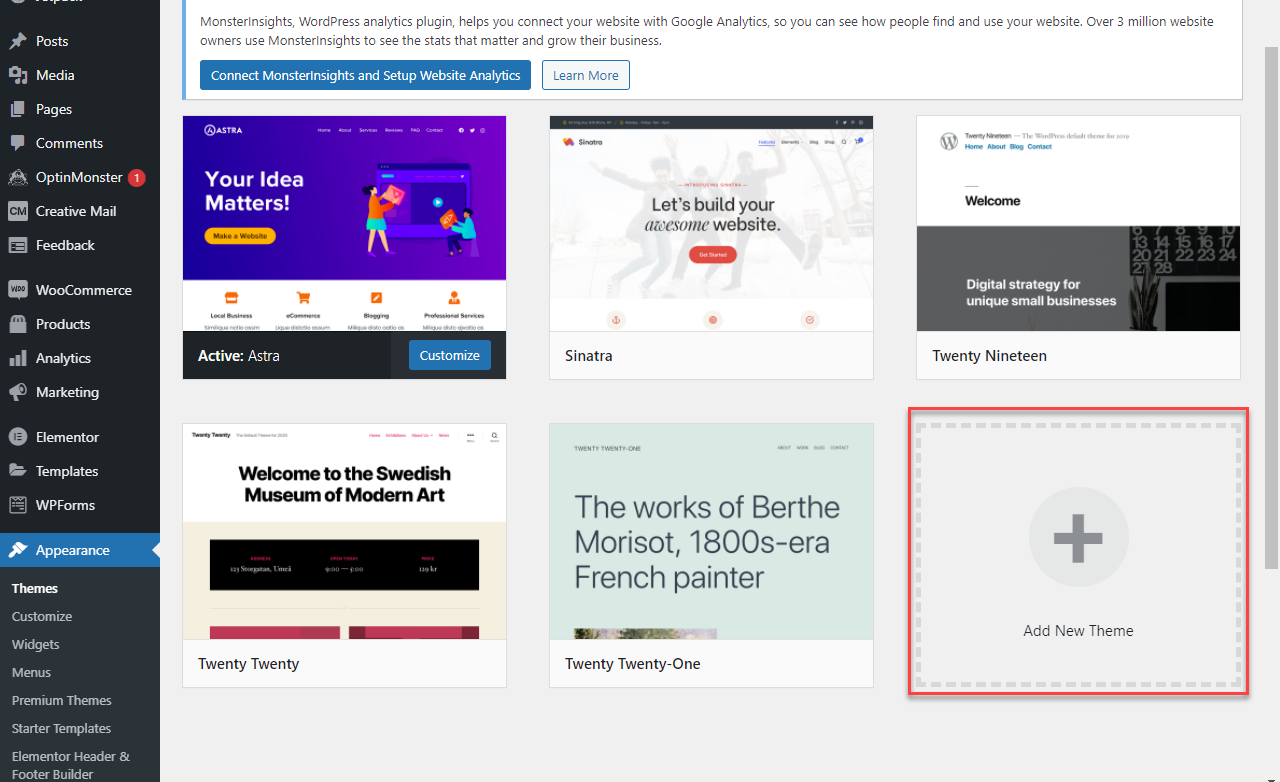
Find the Theme Directory in your WordPress dashboard. Click on Appearance, then choose Themes. Search for themes using keywords. Browse through the list. Pick a theme you like. Click on Install. Wait for the process to finish.
After installation, click Activate. Your new theme will become active. Check your website to see the changes. Make sure everything looks good. Customize the theme as needed. Use the Customize option to tweak settings. Adjust colors, fonts, and layout. Enjoy your new look!
Uploading Custom WordPress Themes
First, locate your desired WordPress theme. Visit the theme’s website. Find the download button. Click to download the theme files. Save them on your computer. Ensure files are in .zip format. This is crucial for uploading.
Open your Bluehost dashboard. Navigate to your WordPress admin area. Find the “Appearance” menu. Click on “Themes”. Then click “Add New”. Choose the Upload Theme button. A box will appear. Click “Choose File”. Select the downloaded .zip file. Click Install Now. Wait for the upload to complete. Finally, click Activate to use the theme.
Using Ftp For Theme Installation
Installing WordPress themes on Bluehost via FTP is simple. Download the theme files, connect to your server with FTP, and upload them to the ‘themes’ folder in ‘wp-content’. This method offers more control over the installation process.
Setting Up Ftp Access
First, download an FTP client like FileZilla. It’s free and easy to use. Open FileZilla and enter your Bluehost FTP details. You’ll need your server name, username, and password. These are in your Bluehost account. Connect to your server by clicking the “Quickconnect” button. You should see folders on your server now. Find the folder named “public_html”. This is where your website files are stored. You’re ready to upload theme files.
Uploading Theme Files Via Ftp
Locate the theme folder on your computer. Unzip the theme file if it’s compressed. Drag and drop the unzipped theme folder into “wp-content/themes” on your server. Wait for the upload to finish. Don’t close FileZilla until it’s done. Check your WordPress dashboard after uploading. Go to “Appearance” and then “Themes”. Your new theme should appear there. Click “Activate” to use your new theme.

Credit: www.bluehost.com
Troubleshooting Common Issues
Installing WordPress themes on Bluehost can sometimes be tricky. Users may face issues with theme compatibility or upload errors. Solutions include checking theme requirements, ensuring file format is correct, and using Bluehost’s one-click theme installation feature.
Theme Not Displaying Correctly
Sometimes, your WordPress theme might not show up as expected. This can happen due to incomplete installation or missing files. First, check if you have all the theme files. Go to your WordPress dashboard and click on Appearance. Then, click on Themes and see if the theme is active. If not, activate it. If it still doesn’t work, try reinstalling the theme. Sometimes, resetting your browser cache can also help. Make sure your WordPress version is up-to-date.
Resolving Compatibility Problems
Some themes may not work well with all plugins. Check if your plugins are updated. Sometimes, a plugin might stop the theme from working. To find the problem, turn off all plugins. Then turn them on one by one. This helps find the problem plugin. Also, check if the theme is compatible with the latest WordPress version. If not, look for a theme update or choose a different theme.
Customizing Your Installed Theme
The Customizer Tool helps make your site look unique. Find it in the WordPress dashboard. Click on Appearance, then Customize. Here you can change colors, fonts, and site title. You can also upload a logo. Preview changes live to see how they look. It’s fun and easy to use.
Widgets make your site more useful. Add them from the Appearance menu. You can add a search bar or recent posts. Plugins add extra features. Find them under Plugins in the dashboard. Install and activate them to use. Many plugins are free. Some need payment. Choose what fits your needs.
Maintaining And Updating Themes
Discover the process of installing WordPress themes on Bluehost effortlessly. Navigate to your Bluehost dashboard, select Marketplace, then Themes. Choose your favorite and click Install to enhance your site’s appearance. Customize with ease and keep your website fresh and engaging for visitors.
Regular Updates
Regular updates keep your themes fresh and secure. New updates fix bugs and add features. Ignoring updates can lead to security risks. So, always update your themes. Check for updates in your WordPress dashboard. Click on “Updates” to see available updates. You can also set themes to update automatically.
Backup Strategies
Backups save your work if something goes wrong. Always backup before updating themes. Use plugins like UpdraftPlus or BackupBuddy. These plugins are easy to use. They save your data safely. You can also use Bluehost’s backup tool. It backs up your site regularly. Restore your site easily if needed. Regular backups protect your website.

Credit: www.youtube.com
Frequently Asked Questions
How Do I Choose A WordPress Theme?
To choose a WordPress theme, consider your website’s purpose and target audience. Look for themes with responsive design, good reviews, and customization options. Test the theme’s speed and compatibility with plugins. Ensure it aligns with your brand’s aesthetics and functionality needs.
Can I Change My WordPress Theme Later?
Yes, you can change your WordPress theme anytime. However, changing themes might affect your site’s appearance and functionality. Always backup your site before making changes. Test the new theme on a staging site to ensure compatibility with existing content and plugins.
Are Free WordPress Themes Reliable?
Free WordPress themes can be reliable if downloaded from reputable sources like WordPress. org. They are reviewed for quality and security. However, they may have limited features compared to premium themes. Always check user reviews and update history to ensure ongoing support and compatibility.
How Do I Install A WordPress Theme On Bluehost?
To install a WordPress theme on Bluehost, log into your WordPress dashboard. Navigate to “Appearance” > “Themes” and click “Add New. ” Search for a theme, then click “Install” and “Activate. ” You can also upload a theme file by clicking “Upload Theme.
“
Conclusion
Installing WordPress themes on Bluehost is simple. Follow the steps above. You can easily customize your site. Choose a theme that fits your style. Remember to update themes regularly. This keeps your site secure and fresh. Explore different themes and find the perfect match.
Each theme offers unique features. Experiment and see what works best. Make your site stand out. A well-chosen theme enhances user experience. It also boosts your site’s appeal. Enjoy creating your unique online space. Happy blogging!


