
Imagine having a stunning website that captivates visitors at first glance. You can achieve this by installing a demo theme on your WordPress site.
It’s an easy way to get a professional look without starting from scratch. Whether you’re starting a blog, creating an online store, or showcasing your portfolio, demo themes offer a quick and stylish solution. But here’s the catch—installing them can sometimes feel overwhelming.
Don’t worry, though! This guide is designed just for you. You’ll discover step-by-step instructions that make the process simple and straightforward. You’ll soon have a site that looks like a million bucks, ready to impress and engage your audience. Dive in and transform your website into something extraordinary!
Credit: www.bluehost.com
Choosing The Right Demo Theme
Picking the right demo theme is crucial. Themes affect how your website looks. Think about your site’s purpose. Do you need a blog or a store? Colors and layout matter too. They make your site unique.
Check the theme’s features. Does it have what you need? Look for easy customization. You want to change things without hassle. Support is also important. Can you get help if needed?
Read user reviews. They tell you what others think. Good reviews mean the theme works well. Be careful of themes with many bad reviews. They can cause problems.
Preparing Your WordPress Site
It’s important to back up your site before changes. This keeps your data safe. First, go to your WordPress dashboard. Then, find the backup plugin. Many plugins are free. Choose one and install it. Follow simple steps to back up. Save your backup file on your computer. This file is very important. It keeps your data safe from loss.
Always check your WordPress version. It must be up-to-date. Go to your dashboard. Look for the “Updates” section. It shows your current version. If it’s old, update it. Click the “Update Now” button. This keeps your site working well. New versions have better features. They also fix bugs and security issues.
Installing The Demo Theme
First, open your WordPress dashboard. Find the Appearance option on the left menu. Click on it. Then, choose Themes. You will see many themes here. This is the theme directory. You can find free themes here. You can also search for themes using the search bar.
Sometimes, you might have a theme file. It could be in .zip format. To upload it, click Add New at the top. Then, click Upload Theme. Choose your .zip file. Press Install Now. Wait for the upload to finish.
After installing, you need to activate the theme. Find the theme you uploaded in the list. Click Activate. Your new theme will now be live. Visit your site to see it in action.
Credit: xpeedstudio.com
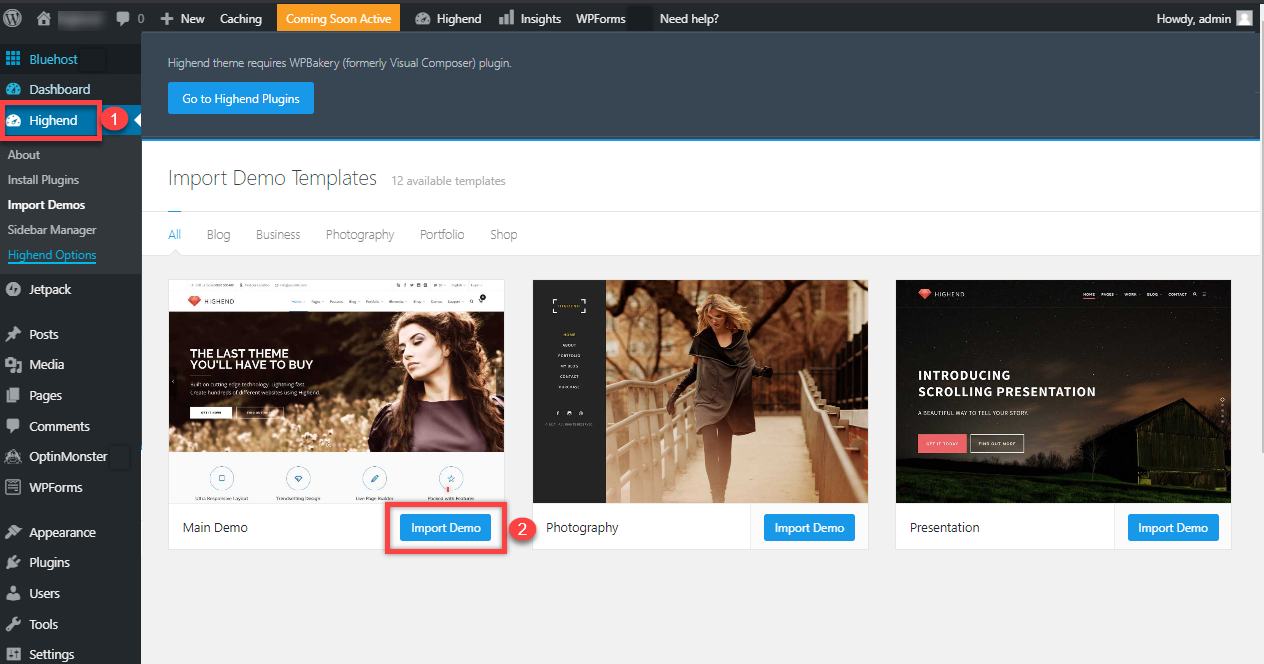
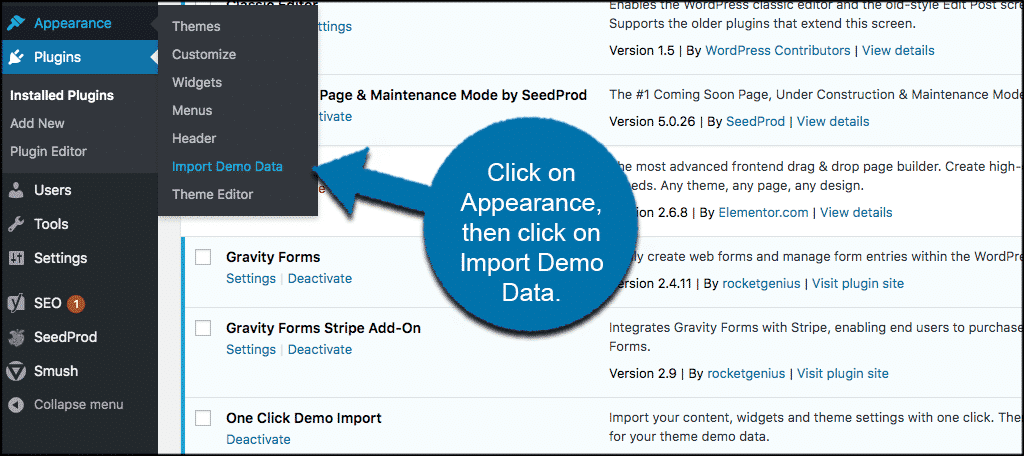
Importing Demo Content
To start, visit your WordPress dashboard. Find the Tools section on the left. Click on Import. Choose WordPress from the list. You might need to install a plugin. Follow the on-screen instructions to do so. After installing, click Run Importer. Upload the demo file provided by your theme. Click Upload file and import. Assign authors as needed. Check the box for downloading attachments. Finally, click Submit to finish importing. Your demo content is now ready.
Open the settings page in WordPress. Look for Reading settings. Set the front page to display a static page. Choose the imported page from the list. Save your changes. This ensures your site looks like the demo. Check Permalinks settings too. Ensure they are set to Post name. This helps with SEO. Your theme is now set and ready. Enjoy exploring your new site!
Customizing The Demo Theme
Explore the steps to install a demo theme on WordPress. Begin by navigating to the WordPress dashboard. Select ‘Appearance,’ then ‘Themes. ‘ Click ‘Add New’ to search for themes. Choose your demo theme and click ‘Install. ‘ Finally, activate your theme for a fresh look.
Customize features for a personal touch.
Adjusting Theme Settings
Theme settings help you change how your site looks. Open the theme settings panel. Look for options like colors, fonts, and layouts. Choose a color scheme that suits your style. Select fonts that are easy to read. Adjust the layout for a neat appearance. Save changes to see the difference. Settings make your site unique. Experiment to find what looks best.
Personalizing Layout And Design
Design makes your site stand out. Start with the layout. Choose a layout that fits your content. Add images to make it attractive. Change headers and footers for a personal touch. Use widgets for extra features. Arrange elements in a way that looks tidy. Keep design simple but appealing. Layout and design should reflect your personality. Try different styles until you are happy.
Troubleshooting Common Issues
Installing a demo theme in WordPress can present challenges, such as compatibility issues or missing files. Ensure your theme supports the current WordPress version. Always back up your site before making changes.
Resolving Theme Compatibility Problems
Sometimes, a theme might not work well with your plugins. This can make your site look broken. First, check if your theme and plugins are updated. Always use the latest versions. If the problem stays, try disabling plugins one by one. This helps find which plugin causes issues. You may need to switch themes if nothing works. Always keep a backup before making changes. It saves your work if something goes wrong.
Addressing Import Errors
Import errors often happen with demo content. This can be very frustrating. Ensure your server meets the theme’s requirements. Check the PHP version and memory limits. Increase limits if needed. Sometimes, files are too big to import. Split large files into smaller parts. Try importing again after splitting. If errors persist, contact theme support. They can offer more help.
Ensuring Site Performance
Installing a demo theme in WordPress enhances site performance. First, access the WordPress dashboard. Navigate to “Appearance” and select “Themes. ” Choose “Add New” and search for the desired theme. Activate it after installation to see the demo content. This helps visualize site layout and functionality effectively.
Optimizing For Speed
Fast websites make users happy. Use lightweight themes for better speed. Reduce image sizes for quick loading. Minimize CSS and JavaScript files. Enable caching to store data for faster access. Test site speed often with tools like Google PageSpeed. Use a Content Delivery Network (CDN) to serve content quickly.
Conducting Regular Updates
Updates keep your site safe. Themes and plugins need updates often. WordPress core updates are important for security. Always backup before updating. Check for updates weekly. Update PHP to the latest version for better performance. Keep site running smoothly with regular updates.
Credit: www.greengeeks.com
Frequently Asked Questions
How Do I Install A Demo Theme In WordPress?
To install a demo theme, go to your WordPress dashboard. Navigate to “Appearance,” then “Themes,” and click “Add New. ” Search for your desired theme, click “Install,” and then “Activate. ” Import demo content through the theme’s settings, if available, to replicate the demo look.
Can I Customize The Demo Theme After Installation?
Yes, you can customize the demo theme after installation. Use the WordPress Customizer to change colors, fonts, and layouts. Many themes offer additional customization options through their own settings panel. Always check the theme documentation for specific customization guidance and tips.
What If The Demo Theme Is Not Working?
If the demo theme is not working, ensure it’s compatible with your WordPress version. Check for any required plugins and install them. Clear your browser cache and refresh the page. Consult the theme’s support documentation or contact the theme developer for further assistance.
Do Demo Themes Affect Website Speed?
Yes, demo themes can affect website speed. Some themes come with large images and scripts that slow down loading. Optimize images and use performance plugins like caching tools to improve speed. Choose a lightweight theme and regularly update your WordPress installation and plugins.
Conclusion
Installing a demo theme on WordPress is simple. Follow each step closely. Begin by selecting a suitable theme for your site. Use the WordPress dashboard to upload and activate it. Import the demo content to see how it looks. Customize the design to match your brand or style.
Check that all elements function properly. This process helps create a professional-looking website quickly. Practice makes it easier each time. Now, you can confidently set up any WordPress demo theme. Enjoy building and enhancing your WordPress site today.


