
Struggling to make your WordPress site look just like the demo you fell in love with? Installing demo content can transform your site from a blank canvas to a stunning masterpiece in just a few clicks.
Imagine having a website that captivates your audience instantly, showcasing all the features that made you choose the theme in the first place. Whether you’re a seasoned developer or a WordPress beginner, understanding how to install demo content is a game-changer.
This guide will walk you through the process, ensuring your site not only looks professional but also saves you hours of design time. Ready to make your website come alive with ease? Let’s dive in and unlock the potential of your WordPress theme together.
Credit: xpeedstudio.com
Preparation
Before adding new things, save your work. Make a backup of your site. This keeps your content safe. Use a plugin to help. It’s easy and quick.
Every theme has needs. Check the theme requirements first. Some need certain WordPress versions. Others need special plugins. Make sure your site matches these needs. This helps the theme run smoothly.
Install WordPress Theme
Open your WordPress dashboard. Find the “Appearance” option on the left. Click on it. Choose “Themes” from the list. You will see all installed themes. To change settings, click on “Customize”. This lets you change how the theme looks. Make sure to save your changes.
Go to the “Themes” page. Click on “Add New”. Search for your theme. Click “Install” to start. After installing, click “Activate”. Your new theme is now live. Check your site to see changes.
Download the theme’s zip file. Unzip it on your computer. Open an FTP client like FileZilla. Connect to your server. Go to “wp-content/themes”. Upload the unzipped theme folder here. Go back to WordPress dashboard. Activate the theme from the “Themes” page.
Demo Content Installation
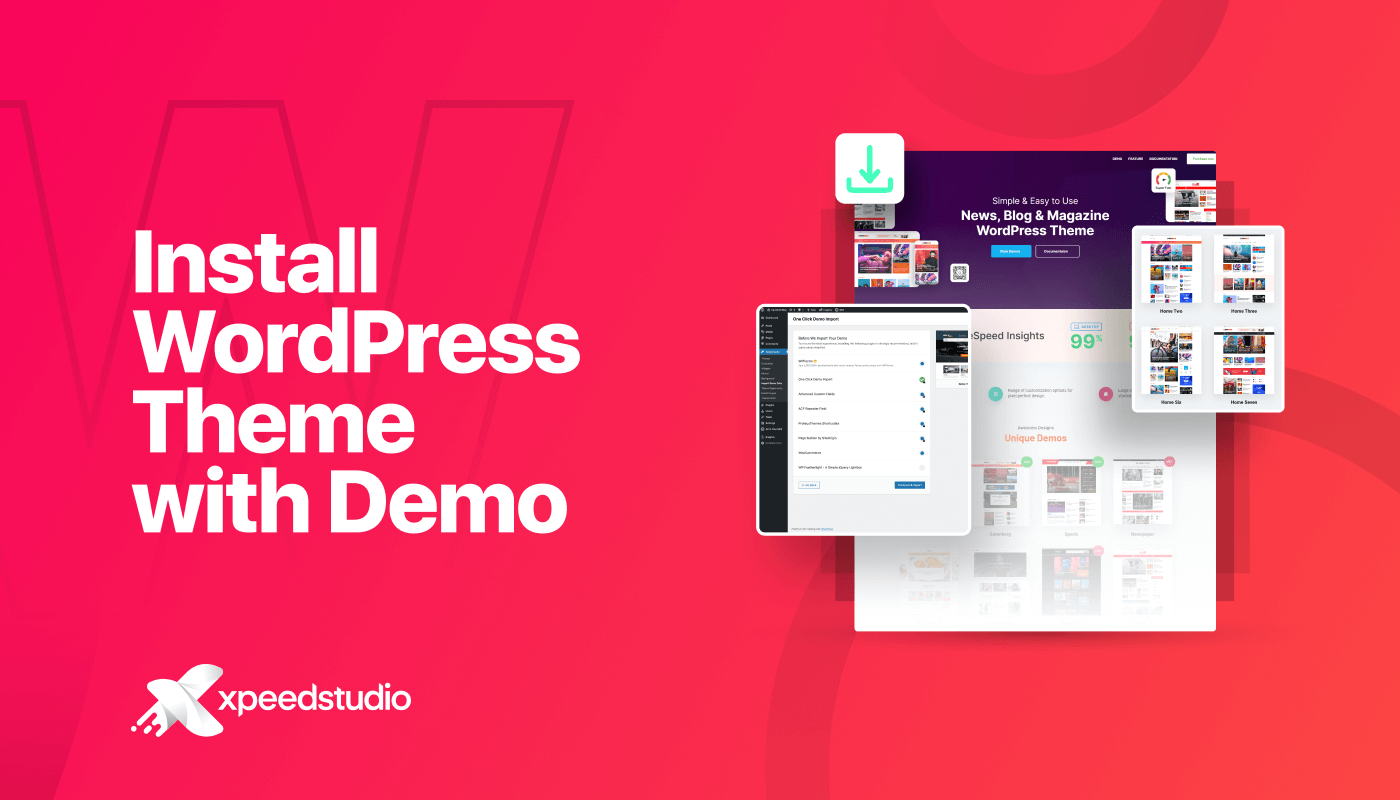
Many themes offer a one-click demo import feature. This makes setup easy. Open your WordPress dashboard. Find the theme options. Look for the demo import tool. Click it. Wait for the process to finish. Now your site looks like the demo.
Some themes use XML files for demo content. Download the file from the theme’s website. Go to your WordPress dashboard. Find Tools and click Import. Choose WordPress from the list. Upload your XML file. Click Import. Wait for it to finish.
After importing, check your import settings. Open the WordPress dashboard. Go to Settings. Ensure everything looks correct. Adjust if needed. Your demo content is now ready.
Troubleshooting
Installing demo content in WordPress themes can be tricky. Start by accessing the WordPress dashboard and navigating to the theme options. Follow the import instructions carefully to ensure the demo content appears correctly on your site.
Common Issues
Sometimes the demo content does not load. This can be due to low memory. Increase the PHP memory limit in your server settings. Check your internet connection. A slow connection can cause issues. Plugins may also conflict. Disable all plugins and try again. Ensure your theme and WordPress are up to date. Old versions can cause problems. Permissions on your server might be incorrect. Verify that your server allows file uploads.
Fixing Import Errors
Errors might appear during import. Look for error messages. They often explain the issue. Fix them one by one. Missing files can cause errors. Check if all files are present. Sometimes the import process stops midway. Restart the import process. If the error persists, contact your theme’s support. They can offer specific solutions. Always create a backup before making changes. Backups help restore your site if needed.
Post-installation Steps
Installing demo content in WordPress themes involves accessing the theme’s settings after installation. Locate the import option, usually found under ‘Appearance. ‘ Follow prompts to import demo files, ensuring your site mirrors the theme’s design. This process helps visualize how your site will look.
Customizing Demo Content
Begin by visiting the WordPress dashboard. Click on Appearance and then Customize. Here, you can see options to change colors, fonts, and layout. Make sure to save your changes often. This keeps your work safe.
You might want to swap images or text. Go to the Widgets section for this. Widgets let you add or remove elements easily. Drag and drop them to change their order. Experiment with different settings to find what suits your style.
Checking For Missing Elements
Always check for missing elements in your demo content. Look for broken links or images that don’t load. Fix any errors you see. This makes your website look professional. Use the preview button to view changes before they go live.
If something is missing, consult the theme’s documentation. It often provides solutions. This helps you ensure everything is in place. A complete website is more engaging for visitors. Keep an eye on details for a polished look.

Credit: wordpress.org
Best Practices
To install demo content in WordPress, first activate your chosen theme. Next, navigate to the theme’s options panel and select the ‘Import Demo Content’ option. Follow the on-screen prompts to complete the process. This helps you quickly set up your website with pre-designed layouts and features.
Regular Updates
Always keep your WordPress updated. Updates fix bugs and improve safety. Themes also need updates. These updates often add new features. Updating is easy. Just click the update button in your dashboard. Check for updates once a month. Backup your site before updating. This keeps your data safe. Use a plugin for backup. Popular ones are UpdraftPlus and BackupBuddy.
Security Measures
Security is very important. Use strong passwords for your account. Change your password often. Use a plugin for extra security. Wordfence and Sucuri are good choices. They protect against hackers. Also, limit login attempts. This stops bad people from guessing your password. Keep an eye on your site. Check for strange activity. Remove any suspicious plugins or themes.

Credit: harutheme.com
Frequently Asked Questions
How Do I Upload Demo Content In WordPress?
To upload demo content, first, navigate to your WordPress dashboard. Then, go to the theme options or demo importer section. Follow the instructions to import the demo content. This usually involves selecting a demo file and clicking “Import. ” Ensure your server meets all requirements for a smooth import process.
Why Can’t I See Demo Content In WordPress?
If demo content isn’t visible, check your server settings and permissions. Ensure your theme is activated and compatible. Verify you’ve followed all import instructions correctly. Sometimes, conflicting plugins may cause issues. Disable unnecessary plugins and try again. If problems persist, consult your theme’s support documentation or contact their support team.
Is Importing Demo Content Safe For My Site?
Importing demo content is generally safe if you use a reputable theme. Always backup your site before proceeding. Demo content helps set up your site quickly, mimicking the theme’s demo. However, be cautious of any unwanted data or settings changes.
Review imported content and remove unnecessary items for optimal performance.
Can I Customize Demo Content After Import?
Yes, you can customize demo content after importing it. Use WordPress’s built-in customizer or theme options panel to make changes. Edit pages, posts, and media as needed. Customize colors, fonts, and layouts to match your brand. Personalizing demo content helps you create a unique, professional-looking website.
Conclusion
Installing demo content in WordPress themes is simple and useful. It helps you visualize the final look. Follow the steps carefully, and your setup will be smooth. This guide simplifies the process for beginners. Take your time and enjoy customizing your site.
With practice, it gets easier. Personalize your theme to match your vision. A well-designed site attracts visitors. Stay creative and explore different settings. Your WordPress site becomes a reflection of your ideas. Remember, patience is key. Happy building and customizing your digital space!


