
Are you eager to give your WordPress site a fresh look but unsure where to start? You’re in the right place!
Installing default WordPress themes is an easy way to revamp your website without diving into complex design tasks. Imagine transforming your site’s appearance in just a few clicks. Exciting, right? This guide will walk you through the simple steps to install and customize default WordPress themes, ensuring your site stands out and engages your audience.
With clear instructions and practical tips, you’ll gain the confidence to enhance your website’s design effortlessly. Stay tuned, and let’s unlock the potential of your WordPress site together!
Why Choose Default Themes
Default themes are easy to use and maintained by WordPress. They are secure and updated regularly. These themes work well with plugins. No need for extra settings. Default themes are light and fast. They load quickly on websites.
Beginners find default themes simple to set up. They have basic designs and layouts. These themes help users learn WordPress. Default themes are reliable and trusted. Many users use them for personal blogs. They offer a good starting point for new users.
Default themes are free to use. They save users money. No need to buy premium themes. WordPress offers these themes to all users. They are accessible and easy to find.

Credit: www.wpzoom.com
Accessing The WordPress Dashboard
First, open your web browser. Then, type your website’s URL. Add “/wp-admin” at the end. Press “Enter” on the keyboard. The WordPress login page will appear. Enter your username and password. Click the “Log In” button. Now, you are inside the WordPress Dashboard.
On the left, see many options. This is the menu. The Dashboard is like a command center. You can do many things here. For example, you can add posts, pages, or change settings. You can also install and change themes. Remember, this is your website’s control room. Use it carefully.
Navigating To The Themes Section
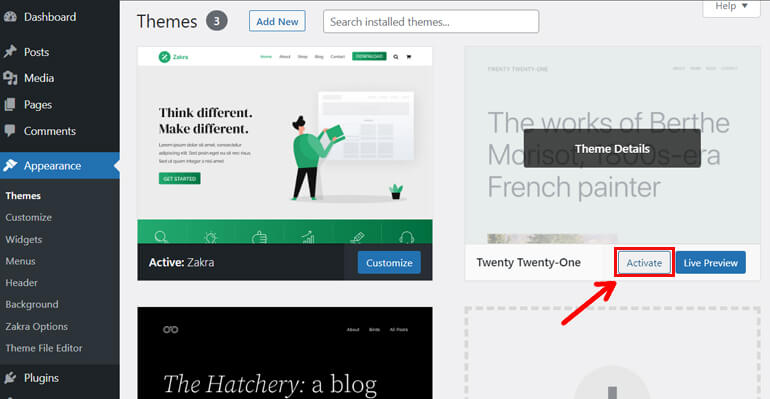
Begin by logging into your WordPress dashboard. Once inside, find the Appearance tab. It is on the left side menu. Click on it. A new page will open. This page is called Themes Section. Here, you will see the default themes. You can choose from many options.
Each theme has a Preview button. You can click to see how it looks. If you like a theme, click Activate. It changes your website’s look. Themes are easy to install. They make your site look fresh. Explore and find your favorite style.
Exploring Available Default Themes
WordPress offers several default themes for users. These themes are great for beginners. Each theme is unique and has different styles. Some themes are simple, while others are more colorful. Choosing the right theme is important. It can change the look of your website.
Popular default themes include Twenty Twenty-One and Twenty Twenty-Two. These themes are designed to be easy to use. They are also fully responsive. This means they look good on all devices. Users can easily customize these themes. They allow changes in color and layout.
Exploring these themes is fun. It helps users find the perfect fit for their site. Installing a default theme is quick. It only takes a few clicks. This makes it simple for anyone to start building a website.
Installing A Default Theme
Start by logging into your WordPress dashboard. Look for the Appearance section. Click on Themes. You will see a list of themes. These are default themes. Choose any theme you like. Click Activate to make it your site theme. It’s that simple!
You can also explore more themes. Click on Add New. Browse through the theme library. Choose one and click Install. Activate it after installation. Now your site has a fresh look. Enjoy the new design!
Activating Your New Theme
Activate the theme from your WordPress dashboard. First, click on “Appearance.” Then, select “Themes” from the menu. You will see a list of installed themes.
Find the theme you want. Click on “Activate.” Your theme is now live.
Check your website. Make sure it looks good. If not, you can change settings.
Use the “Customize” option. It lets you tweak the look. Change colors, fonts, and layouts.
Save your changes. Click “Publish” when done. Your site is ready.
Visit your site to see the changes. Ask friends if they like it. You can always switch back.
Customizing The Default Theme
Default WordPress themes offer a clean look. To make it yours, start with customizing the colors. Choose shades that match your style. Next, explore fonts. Try different ones until you find the perfect fit.
Background images add personality. Pick one that stands out. Widgets help display extra content. Add them for more features on your site. Menus guide visitors. Change them for easy navigation.
Check settings for the header and footer. Modify them to include your name or logo. Save changes often. It ensures your work is safe. Preview your site before going live. Make sure everything looks good.
Troubleshooting Common Issues
Problems can occur during WordPress theme installation. A common issue is a white screen. This screen appears when themes conflict with plugins. Deactivate all plugins first. Then, activate them one by one.
Another issue is a missing stylesheet. This happens if the theme folder is incorrect. Ensure the folder contains only theme files. Check for a style.css file inside. Without it, the theme won’t work.
Error messages might appear. They often include a memory limit warning. Increase the memory limit in the wp-config.php file. Locate the line with define('WP_MEMORY_LIMIT', '64M');. Change the number to 128M or higher.
The theme might fail to install due to size limits. Increase upload size in PHP settings. Check server support for guidance.
Always back up your site. This prevents data loss. Use a backup plugin or manual method. Restore easily if issues persist.
Benefits Of Using Default Themes
Default themes are easy to use. They are made by WordPress. These themes are safe and secure. No need to worry about bugs. Updates come often. This keeps your site safe.
Fast loading speed is a plus. Sites load quickly with default themes. This is good for users. They stay longer on your site.
Simple design is key. Easy for visitors to navigate. They find what they want fast.
Default themes work with many plugins. This makes adding features easy. You can add forms or galleries. No trouble at all.
Support is great. WordPress has big help forums. Many people can assist you.

Credit: www.namecheap.com
Credit: themegrill.com
Frequently Asked Questions
What Are Default WordPress Themes?
Default WordPress themes are pre-installed themes with every WordPress installation. They offer basic design and functionality. These themes are developed by the WordPress team to ensure compatibility and optimal performance. They are ideal for beginners or anyone seeking a simple, clean design.
How Do I Find Default WordPress Themes?
To find default WordPress themes, log into your WordPress dashboard. Navigate to “Appearance” and click “Themes. ” Here, you’ll see a list of available themes, including the default ones. These are automatically included in your WordPress installation, ready for activation.
Can I Customize Default WordPress Themes?
Yes, you can customize default WordPress themes. Use the WordPress Customizer to change colors, fonts, and layouts. You can add widgets, menus, and custom CSS for more personalization. These themes are flexible, allowing users to tailor them to their specific needs and preferences.
Are Default WordPress Themes Free?
Yes, default WordPress themes are free. They come pre-installed with WordPress, ensuring no additional cost. These themes are open-source, maintained by the WordPress community. They offer a cost-effective solution for users seeking reliable, well-supported themes without spending extra money.
Conclusion
Installing default WordPress themes is simple and straightforward. Follow these steps to enhance your website. Navigate to the WordPress dashboard. Locate the “Appearance” tab. Select “Themes” to explore options. Choose your preferred default theme. Click “Install” and then “Activate. ” Your website now has a fresh look.
Always keep themes updated for security. Updates also ensure new features work smoothly. Remember, themes can affect speed and user experience. Test your site after changes. Enjoy customizing your site with ease. WordPress makes it accessible to everyone, even beginners.
Happy blogging!


