
Imagine having the freedom to customize your WordPress site without worrying about losing all your changes with the next update. Sounds great, right?
That’s exactly what installing a child theme can do for you. A child theme lets you tweak the design and functionality of your site while keeping the core theme intact. It’s like having a safety net for your creative work.
But, you might be wondering, how do you actually set up a child theme in WordPress? Don’t worry—you’re about to discover just how simple it can be. By the end of this article, you’ll be ready to enhance your website like a pro, without the fear of losing your personalized touch. Keep reading to unlock the secrets of child theme installation and take your WordPress site to the next level!
What Is A Child Theme?
A Child Theme is a theme that inherits the features of another theme, called the Parent Theme. It allows you to make changes to your site without altering the parent theme’s code. This is useful. It keeps your changes safe during updates. You can tweak styles and layouts. All while keeping the main design intact.
Child Themes are easy to set up. You just need a new folder. Add a few files like style.css and functions.php. Once installed, activate it in your WordPress dashboard. You can now customize your site safely. This is a smart way to manage your site’s design.
Benefits Of Using A Child Theme
A child theme keeps your site safe during updates. It protects your custom changes. Your main theme can update without losing your edits. This makes your website more secure and stable.
You can add new features easily. A child theme allows you to experiment. Try new things without the worry of breaking your site. This is great for learning and growth.
Child themes help keep your website’s style. You can change the look without much risk. This is perfect for beginners. Make your site unique with a child theme.
Prerequisites For Installation
Understanding WordPress basics is essential. Know how to navigate the dashboard. Familiarize yourself with themes and plugins. Explore the settings menu. This helps when installing a child theme. WordPress is user-friendly. Practice makes it easier.
Ensure the parent theme is active. The child theme relies on it. Check your theme settings. Make sure updates are installed. An outdated parent theme may cause issues. Keep it updated for best results. Compatibility is key. It’s the foundation for the child theme.

Credit: qodeinteractive.com
Creating A Child Theme Folder
Creating a child theme folder in WordPress involves a few easy steps. First, access your website files via FTP or your hosting account’s file manager. Next, create a new folder in the themes directory and name it appropriately. This allows you to customize your website while preserving the original theme.
File Naming Conventions
Use a simple name for your child theme folder. It should describe the theme. Avoid spaces and special characters. A good example is my-theme-child. This keeps it clear and organized. Always end with “-child” to indicate it is a child theme.
Folder Location
Place the folder in the wp-content/themes directory. Navigate to this directory on your server. This is where all themes live. You will see other themes here. Add your child theme folder here. This ensures it is in the right place. Your child theme will then work with WordPress.
Creating The Style.css File
The style.css file is the heart of a child theme. It needs header information at the top. This tells WordPress about your theme. Start with / Theme Name: Child Theme /. Include Template: followed by the parent theme’s name. Add your Author name. Use Description to explain the theme’s purpose. Don’t forget the Version number, like 1.0. These details help WordPress understand your child theme.
Linking the child theme to the parent theme styles is easy. Use @import url in the style.css file. It looks like @import url(“../parent-theme/style.css”). Place this code at the top of your style.css file. It loads the parent theme’s styles first. Then your child theme’s styles are applied. This keeps your design consistent. Always check the path to the parent theme. It must be correct for this to work.
Creating The Functions.php File
The functions.php file is important in a child theme. It helps to add new features. This file can also change the theme’s behavior.
You can use it to add new functions or scripts. This file does not replace the parent theme’s functions. It just adds more to them.
Using enqueue is a smart way to add styles. You need to add both parent and child theme styles.
First, load the parent theme’s style. Then, load the child theme’s style. This keeps the styles in order.
Activating The Child Theme
Log into your WordPress account. Use your username and password. Find the sidebar on the left. Click on Appearance. Then, click on Themes. This will show all your themes. Now you are ready to change to a new theme.
In the Themes section, find the child theme. Click on the Activate button. This will change your site to use the child theme. Check if your site looks the way you want. Sometimes, you might need to adjust some settings. Make sure everything works fine.
Customizing The Child Theme
Installing a child theme in WordPress allows safe customization without losing changes during updates. First, create a new folder in the themes directory. Then, add style. css and functions. php files to link the parent theme. This setup enables personalized tweaks while keeping the parent theme intact.
Adding Custom Code
You can make your website unique with custom code. First, open the functions.php file in your child theme. Add your custom code here. This file is like your theme’s brain. It tells your website how to look and behave. Be careful with changes. One wrong code can break your site. Always back up before you start.
Modifying Theme Templates
Want a different look? Modify your theme templates. Copy the template file you want to change. Place it in your child theme folder. Now, edit this file. Your changes will not affect the original theme. This keeps updates safe. Templates control how pages appear. Change them to fit your style.
Testing The Child Theme
Checking for Errors is important after installing a child theme. First, look at your website. Make sure everything appears normal. Sometimes, things can break. Check the homepage and other pages. If something seems off, go back to the original theme. You might need to fix code errors. Errors can hide in the CSS or JavaScript files. It is wise to check the browser console for error messages. Take your time to fix any issues.
Ensuring Compatibility is the next step. Check if all plugins work well with your child theme. Some plugins might not be compatible. Update your plugins if needed. Sometimes, themes and plugins need the latest updates. Look at your theme’s settings. Make sure they work well with your plugins. If you find a problem, contact the plugin developer. They can help you solve compatibility issues.

Credit: developer.wordpress.org
Troubleshooting Common Issues
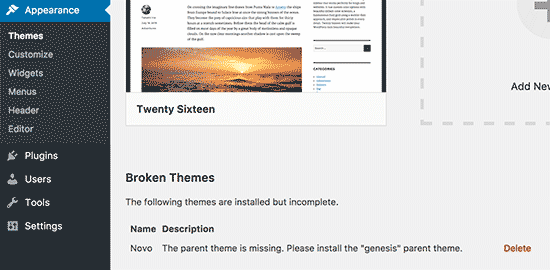
Installing a child theme in WordPress can prevent changes from being lost after updates. Start by creating a new folder in your theme directory. Then, add a style. css file and import the parent theme. Activate it through your dashboard for a customized experience.
Style Not Applying
Styles sometimes do not apply correctly. This can happen because of CSS conflicts between the parent and child theme. Ensure the style rules in the child theme are specific. Specific rules override general ones. Check if the child theme’s CSS file is loaded correctly. It must be loaded after the parent theme’s CSS. Use browser tools to inspect the elements and confirm the correct styles are applied.
Function Conflicts
Functions can conflict between the parent and child theme. Child themes should use unique function names. This prevents conflicts. Also, check if the child theme functions override the parent theme functions properly. Ensure functions in the child theme are placed correctly. Use the functions.php file in the child theme wisely. Always back up your site before making changes. This helps in case of errors.
Credit: www.wpbeginner.com
Frequently Asked Questions
What Is A Child Theme In WordPress?
A child theme in WordPress is a sub-theme that inherits styles and functions from a parent theme. It allows you to modify or add to the functionality of the parent theme without affecting its core files. This makes updates safe and customization easier.
Why Use A Child Theme In WordPress?
Using a child theme in WordPress ensures that your customizations are preserved during updates. It allows for easy modifications without altering the parent theme’s core files. This keeps your site secure and functional, while also making it easier to troubleshoot or revert changes if needed.
How Do I Create A Child Theme?
To create a child theme, create a new folder in the wp-content/themes directory. Inside, add a style. css file with a specific header and an optional functions. php file. The style. css should import styles from the parent theme. Activate the child theme from your WordPress dashboard.
Can I Customize A Child Theme?
Yes, you can customize a child theme by adding or editing its files. Use CSS for style changes and functions. php for PHP modifications. This allows you to tweak design and functionality without touching the parent theme, keeping changes safe during updates.
Conclusion
Installing a child theme is simple and crucial for customization. It helps preserve changes during updates. Follow steps carefully to avoid errors. First, create a new folder in your theme directory. Then, add a stylesheet and functions file. Activate the child theme in your WordPress dashboard.
Test thoroughly to ensure everything works. With a child theme, your site stays unique and safe. It’s a smart step for any WordPress user. Remember, practice makes perfect. Enjoy your tailored website experience!


