
Imagine transforming your WordPress site with a sleek, modern design that instantly captivates your visitors. That’s what a Bootstrap theme can do for you.
Whether you’re a seasoned developer or a WordPress newbie, installing a Bootstrap theme might seem like a daunting task. But don’t worry—you’re about to discover a simple, step-by-step process that will make it easier than ever. By the end of this guide, you’ll be equipped with the tools to elevate your website’s aesthetic and functionality, giving your users an experience they won’t forget.
Ready to dive in and unlock the potential of your site? Let’s get started!
Credit: www.youtube.com
Preparation Steps
Always backup your site before changes. Use a plugin for this task. UpdraftPlus is a popular choice. It saves your site data safely. You can restore it if needed. This keeps your work safe.
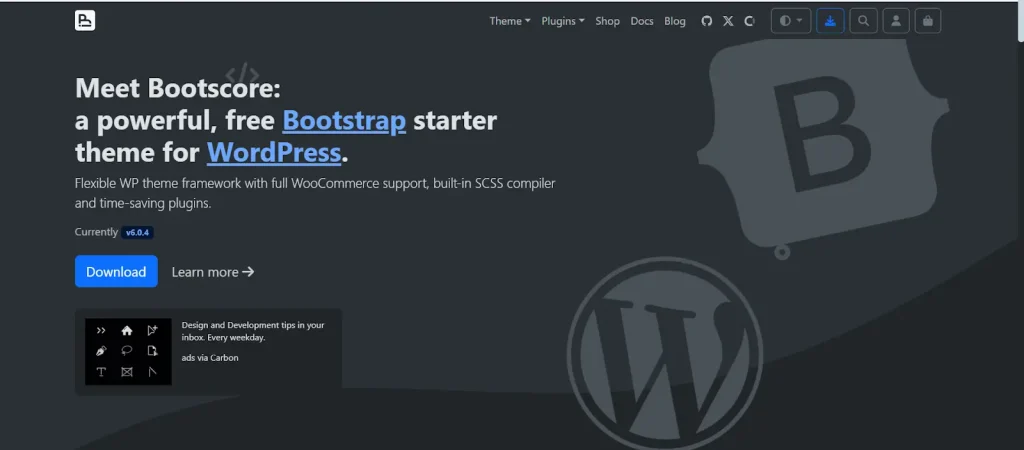
Choose a Bootstrap theme that suits your needs. Many themes are available online. Look for responsive designs. Check if the theme is regularly updated. This ensures it works well. Download the theme files to your computer.
Accessing WordPress Dashboard
Start by opening your browser. Type your website’s URL. Add “/wp-admin” at the end. Press “Enter” to load the page. You will see the login screen. Enter your username. Type in your password. Click the “Log In” button. Now you are inside your dashboard.
Look on the left side of the screen. Find the “Appearance” tab. Click on it. You will see “Themes.” Click on “Themes.” You are now in the themes section. Here, you can add new themes. You can see active themes. You can change themes too.
Installing The Theme
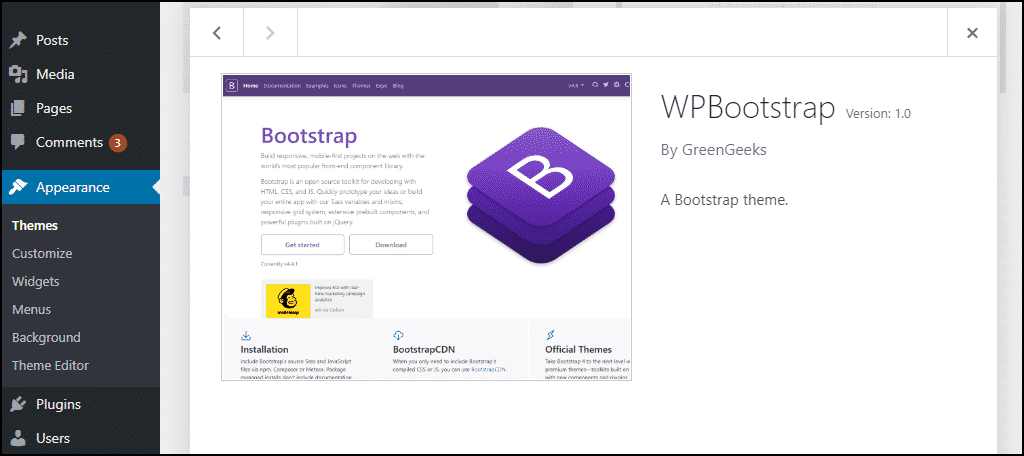
First, download the Bootstrap theme to your computer. Find the WordPress dashboard. Click on Appearance, then Themes. Look for the Add New button. Click it. Now, choose the Upload Theme option. Select the theme file from your computer. Press the Install Now button. Wait for the upload to finish. A message will appear once done.
After uploading, you need to activate the theme. Go back to the Themes section. Find the new Bootstrap theme. Click on the Activate button. Your website now uses the new theme. Check your site to see changes. Make sure everything looks good. Adjust settings if needed. Enjoy your new look!
Customizing The Theme
Change the layout to fit your needs. Use the options in the theme settings. You can make the sidebar wider or narrower. Adjust the header to show your logo. Move elements to different parts of the page. Experiment with the layout until it looks great.
Choose colors that match your style. Use the color picker in the theme. Bright colors can make your site pop. Select fonts that are easy to read. Try different font sizes. Mix and match until it looks good. Make sure text is clear and visible.
Adding Bootstrap Components
Bootstrap components make a site look great. Use Bootstrap shortcodes for easy design tweaks. They help create buttons, alerts, and more. Shortcodes simplify adding these elements. No need for complex coding. Copy and paste the shortcode to use it. This saves time and effort.
Utilize Bootstrap Shortcodes
Shortcodes are tiny bits of code. They add style elements to pages. You can make tables look neat. Add buttons with different colors. Alerts can be created too. All this is possible with shortcodes. They make design tasks easier. No need to be a coding expert.
Integrate With Plugins
Plugins enhance your website. They work well with Bootstrap themes. Some plugins add extra features. They can improve site speed. Others help with SEO. Use plugins to add more Bootstrap elements. This enriches the user experience. Plugins offer many options.
Credit: www.greengeeks.com
Testing And Optimization
Easily install a Bootstrap theme in WordPress by downloading your chosen theme file. Next, navigate to the WordPress dashboard and upload the theme. Activate it to enjoy a fresh, responsive design. This simple process enhances your site’s appearance and functionality, making it more appealing to visitors.
Check Responsiveness
Every device should display the site nicely. Use tools or browser features to check this. Resize the browser window to see changes. Your site should look good on phones, tablets, and computers. Ask friends to check it on their devices too. This helps find any problems. Fix any issues you see right away.
Optimize For Performance
Fast sites keep users happy. Slow sites make people leave. Use smaller image sizes. This helps the site load fast. Use a cache plugin. It saves site data. This makes pages load quicker. Check the site’s speed often. Fix any speed problems you find. A speedy site is a happy site.
Troubleshooting Common Issues
Installing a Bootstrap theme in WordPress often encounters common issues. Ensure compatibility with your WordPress version and check for theme conflicts. Properly configure settings to avoid display errors.
Resolving Installation Errors
Installation errors can confuse users. Check your WordPress version first. It should be the latest version. Old versions can cause errors. Next, ensure the theme files are complete. Incomplete files can lead to installation failure. Use a reliable internet connection. Slow or unstable connections can interrupt installations. Clear your browser cache. Sometimes, old data causes conflicts. If the problem persists, check file permissions. Incorrect permissions can block theme access.
Fixing Compatibility Problems
Compatibility problems can break websites. Verify theme compatibility with your plugins. Some plugins may not work with certain themes. Update all plugins and themes regularly. Updates fix bugs and compatibility issues. Check PHP version. Themes need the right PHP version to run. Use a theme with good support. Support helps solve technical problems. Lastly, look for theme documentation. It gives solutions for common issues.
Resources For Further Learning
Official Bootstrap Documentation offers a wealth of information. It has guides and examples. You can see how to use Bootstrap in your projects. The documentation is easy to follow. Beginners can start with basic tutorials. Advanced users can explore detailed examples. Learn how to integrate themes with WordPress.
WordPress Support Forums are helpful. Many users share their experiences. You can ask questions and get answers. Find solutions to common problems. The forums are community-driven. People are friendly and eager to help. Look for discussions about Bootstrap themes. Learn from others who have done it before.
Credit: cyberpanel.net
Frequently Asked Questions
How Do I Add A Bootstrap Theme To WordPress?
Install a WordPress theme compatible with Bootstrap. Upload the Bootstrap theme files to your theme directory. Activate the theme in your WordPress dashboard. Customize the theme using the WordPress customizer or theme settings. Ensure all Bootstrap components function correctly.
How Do You Install A Theme In WordPress?
To install a theme in WordPress, go to “Appearance” in the dashboard. Click “Themes,” then “Add New. ” Search for a theme or upload one. Click “Install,” then “Activate” to use it. Ensure the theme is compatible with your WordPress version for optimal performance.
Is Bootstrap Included In WordPress?
Bootstrap is not included in WordPress by default. You can manually integrate it into your theme. Many WordPress themes and plugins support Bootstrap, enabling responsive design. Utilize Bootstrap’s components by adding its CSS and JavaScript files to your WordPress project for enhanced styling and functionality.
How To Import Theme Template In WordPress?
To import a theme template in WordPress, go to “Appearance” > “Themes” > “Add New. ” Click “Upload Theme,” choose your file, and hit “Install Now. ” Then activate the theme.
Conclusion
Installing a Bootstrap theme in WordPress is straightforward. Follow the steps to enhance your website’s design. Start by downloading the Bootstrap theme. Upload it to your WordPress site. Activate the theme in your dashboard. Customize it to fit your brand’s style.
Explore various features and options. Keep your website responsive and modern. Regular updates ensure security and functionality. Practice makes perfect, so take your time. Enjoy the new look of your website. A well-designed site attracts more visitors. Happy designing with Bootstrap and WordPress!


