
Are you ready to give your WordPress site a fresh new look? Installing and activating a WordPress theme is one of the simplest yet most impactful ways to transform your website’s appearance and functionality.
But where do you start? Whether you’re a beginner dipping your toes into the world of WordPress or a seasoned pro looking for a quick refresher, this guide is crafted just for you. Imagine the excitement of seeing your site come to life with stunning designs and features that captivate your audience.
By the end of this article, you’ll have the confidence and know-how to install and activate a WordPress theme with ease. So, roll up your sleeves and let’s dive into making your website the showstopper it deserves to be!

Credit: docs.themeisle.com
Choosing The Right Theme
Picking a WordPress theme is exciting. Themes are like clothes for your website. Each theme has a unique design. Some themes are simple. Others are flashy. Think about your website’s purpose. Is it a blog or a store? A good theme matches your website’s goal.
Check if the theme is easy to use. A complicated theme can be confusing. Also, ensure the theme is mobile-friendly. Many people use phones to browse. A mobile-friendly theme looks good on phones. Lastly, read reviews. They can tell you if the theme is good.
Make sure the theme is updated often. Updates keep it safe from hackers. Choose a theme wisely. It can make your website look great.
Downloading A Theme
First, visit the WordPress theme directory. Search for the theme you like. Click on the theme title. This opens the theme page. Look for the download button. Click it. The theme will download to your computer.
Sometimes, themes are not free. Check for any price. If it costs money, you must purchase before downloading. After purchase, download it. Save the theme file to your desktop. It’s usually a .zip file. Now, you are ready for the next step.
Installing A Theme Via WordPress Dashboard
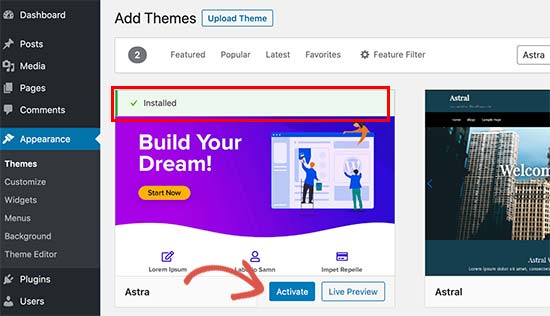
Access the WordPress dashboard to easily install and activate a theme. Find the “Appearance” section and click “Themes. ” Choose “Add New,” search for your desired theme, and click “Install. ” Activate the theme to apply changes and refresh your site’s look.
Accessing The Dashboard
First, log into your WordPress dashboard. Use your username and password. You’ll see the main screen. This is the dashboard. It’s your main control center.
Navigating To Themes Section
On the left side, find Appearance. Click on it. A menu will drop down. Choose Themes. This takes you to the Themes section.
Uploading Theme File
At the top, click the Upload Theme button. You will see a box. Click the Choose File button. Find your theme file on your computer. It must be a .zip file. Click Install Now to upload the theme.
Installing A Theme Via Ftp
First, install an FTP client on your computer. FileZilla is a good choice. Open FileZilla and enter your FTP credentials. This includes the host, username, and password. Click on the Quickconnect button to connect. Wait for the connection to establish.
After connecting, look for the public_html folder on your server. Open it and find the wp-content folder. Click on it and then open the themes folder. This is where you will upload your theme files.
On your computer, find the theme files. Unzip the downloaded theme if needed. Drag the theme folder into the themes directory. Wait for the upload to complete. Refresh your WordPress admin dashboard. You will see your new theme in the themes section.
Activating The Theme
Navigating to Installed Themes is simple. Start by logging into your WordPress dashboard. Find the “Appearance” option on the left side. Click on it. You will see “Themes” under it. Click on “Themes” to open the page. This page shows all your installed themes. It’s like a gallery of options. Choose your favorite theme from here.
Next, let’s move to Selecting and Activating. Hover over the theme you like. A button saying “Activate” will appear. Click on “Activate” to make the theme live. The theme will now be your site’s new look. Enjoy the new design! Your site now has a fresh style. It’s easy to change anytime. Just repeat these steps for another theme.

Credit: wpmarmite.com
Customizing Your Theme
The WordPress Customizer is a handy tool. It helps you change your theme’s look. Find it in your dashboard. Click on “Appearance” and then “Customize.” Now, you can see a new screen. On the left, there are many options. Change your site’s title and tagline here. You can also upload a new logo. Add a custom background to your site.
Each theme has special settings. Look for the “Theme Options” tab. Use this to tweak colors and fonts. Some themes let you change layouts. Try out different designs. Preview changes before saving. This way, you know what looks best. Remember, you can always go back and adjust things. It’s easy and fun to make your site yours.
Troubleshooting Common Issues
The theme might not show as expected. This can happen due to incorrect settings or missing files. Check if all theme files are uploaded. Sometimes, a simple refresh can fix display issues. Make sure the theme is compatible with your version of WordPress.
Missing features often occur due to incomplete installation. Ensure you have uploaded all theme files. Some features need extra plugins to work. Verify if the required plugins are active. Check the theme documentation for detailed instructions.
Compatibility issues can cause trouble. Make sure your theme supports your WordPress version. Sometimes, plugins conflict with themes. Disable plugins one by one to find the problem. Update both theme and WordPress for best results.
Credit: thimpress.com
Frequently Asked Questions
What Is A WordPress Theme?
A WordPress theme is a collection of templates and stylesheets. It determines the design and functionality of a WordPress site. Themes control the visual aspects, including layout, colors, and fonts. They allow users to customize their website’s appearance without coding.
Installing the right theme enhances user experience and site aesthetics.
How Do I Install A WordPress Theme?
To install a WordPress theme, go to your admin dashboard. Navigate to “Appearance” and click “Themes. ” Click “Add New” and search or upload your desired theme. After selecting a theme, click “Install. ” Once installed, activate the theme to apply changes.
Ensure compatibility with your WordPress version.
Why Activate A WordPress Theme?
Activating a WordPress theme applies its design and features to your site. It changes the site’s appearance, affecting layout, colors, and fonts. Activation ensures that the chosen theme’s functionality is implemented. This step is essential for customizing your website’s look and enhancing user experience.
Can I Change My WordPress Theme Later?
Yes, you can change your WordPress theme anytime. Navigate to “Appearance” in the dashboard and click “Themes. ” Choose a new theme and click “Activate. ” Changing themes can affect your site’s layout and appearance. Always preview and back up your site before switching themes to avoid issues.
Conclusion
Installing a WordPress theme is simple and quick. Start with a theme search, then download your favorite. Upload and activate it through your WordPress dashboard. Customize the theme settings to match your vision. Don’t forget to test the features and design on different devices.
Make changes if needed. This process ensures your site looks great and functions well. With each step, your website becomes more personal and unique. Follow these steps for a successful setup. Now, enjoy your new WordPress theme and create amazing content!


