
Are you looking to give your WordPress site a fresh new look? Installing a theme can transform your website’s appearance and functionality in just a few clicks.
But what if you’ve got a theme that’s been extracted and you’re not sure how to get it up and running? You’re in the right place! This guide will walk you through the simple steps to install an extracted theme on WordPress, ensuring your site looks exactly how you’ve envisioned.
Don’t worry if you’re not tech-savvy; with a bit of guidance, you’ll feel confident navigating this process. Stick with us, and by the end of this article, you’ll have your new theme installed and ready to impress your visitors. Curious to learn more? Let’s dive right in!
Preparing Your Theme Files
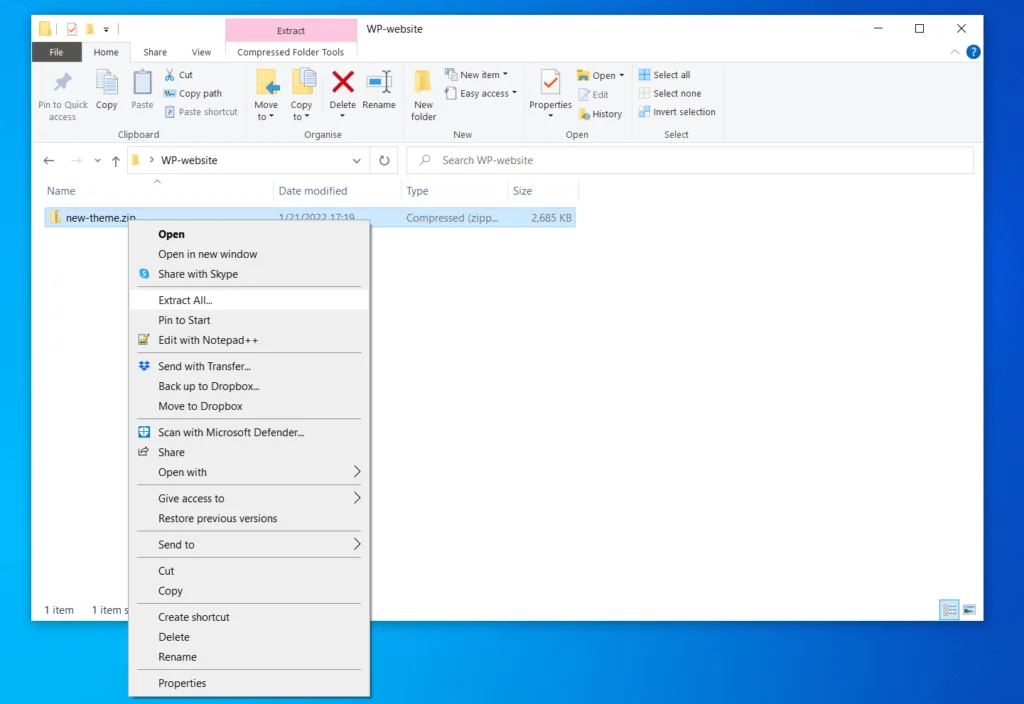
Theme files usually come in a ZIP format. Check if your theme is in ZIP. Download again if the format is not correct. Extract the contents using a tool. Some computers can extract files without tools. See if you have an app called “Archive Manager” or “WinRAR”. Open the ZIP file. Look for a folder. This folder should have files like style.css and index.php.
Keep theme files organized. Create a folder with the theme name. Place all files inside. Check for important files like CSS and PHP. These are the backbone of your theme. Avoid deleting any file from this folder. Every file has a purpose. Ensure all files are in the folder before installation.

Credit: forums.envato.com
Accessing Your WordPress Dashboard
First, open your web browser. Type your website address. Add “/wp-admin” at the end. Press “Enter”. A login page will appear. Enter your username and password. Click the “Log In” button. Now, you are in the WordPress dashboard. It is the control center for your site. You can do many things here. Install themes, add posts, and more.
Look at the left side menu. Find the “Appearance” option. Click on it. A list will drop down. This includes “Themes”, “Customize”, and more. Choose “Themes” to see your installed themes. From here, you can add new themes. You can also customize your current theme. It is simple and quick.
Uploading The Theme
Start by logging into your WordPress dashboard. Find the menu on the left side. Click on “Appearance” and then select “Themes”. At the top, you will see an “Add New” button. Click on it. Now, click “Upload Theme” at the top. A new window will pop up. Here, click on “Choose File”. Select the extracted theme zip file from your computer. Finally, click on the “Install Now” button. Wait for WordPress to upload and install the theme. This might take a few seconds.
After the theme installs, you will see an “Activate” button. Click on it to make the theme live. Your site will now use the new theme. Check how your site looks. Visit your homepage to ensure everything is in place. If you see any issues, go back and check settings. Make sure everything is correct. Enjoy your new theme!
Credit: www.scalahosting.com
Troubleshooting Common Issues
Installing an extracted theme on WordPress involves navigating through potential issues. Ensure the theme is compatible with your WordPress version. Upload the theme via the WordPress dashboard, activate it, and customize as needed.
Error Messages
Installing a new theme can sometimes lead to error messages. These messages often appear due to file upload limits. Adjust these limits in your hosting settings. Another common error is missing stylesheet. Check the theme folder for the correct files.
If you see a “theme installation failed” message, it might be due to incomplete uploads. Ensure the theme files are fully extracted before uploading. Double-check the file format; it should be .zip for WordPress.
Theme Compatibility Problems
Sometimes, themes may not be compatible with your WordPress version. Always update WordPress to its latest version. If the theme isn’t working, it might conflict with existing plugins. Try deactivating plugins one by one to identify the issue.
Ensure the theme is compatible with your server’s PHP version. Contact your hosting provider if needed. Check theme documentation for any specific requirements. Follow them carefully for a smooth installation.
Customizing Your New Theme
Installing an extracted theme on WordPress involves a few simple steps. Begin by accessing your WordPress dashboard and navigating to ‘Appearance,’ then ‘Themes. ‘ Click ‘Add New’ and select ‘Upload Theme. ‘ Choose your extracted theme file, upload it, and activate.
Enjoy your new, customized look.
Using The Customizer
The WordPress Customizer helps change your theme easily. You can edit colors, fonts, and layouts. Preview changes live as you make them. This feature allows users to personalize their website. Save changes when satisfied with the look. Explore different options to find what suits you best.
Adding Widgets And Plugins
Widgets add functionality to your site. Drag and drop them in widget areas. Plugins offer extra features. Install plugins to extend your theme. Some plugins are free; others cost money. Choose plugins that fit your needs. Review plugin ratings before installing. Widgets and plugins enhance your site’s performance and usability. Keep your site fresh by updating them regularly.
Testing And Finalizing
Ensure smooth installation by testing the theme on WordPress. Check for functionality and design consistency. Finalize by making necessary tweaks for optimal performance.
Checking For Responsive Design
Open your website on a phone. Check if it looks good. Now open it on a tablet. Does it fit well? Try using a desktop. The theme should adjust by itself. Responsive design makes your site look great on all screens. It helps your visitors have a better experience. Make sure all parts are easy to read and use.
Ensuring Functionality
Click all your links. Do they work? Test forms on your site. Are they easy to fill? Look at buttons. Do they do what they should? Images should load quickly and look clear. Listen to any audio. Is it clear? Watch any video. Does it play smoothly? Check your theme settings. Make sure everything is set up right.
Credit: www.elegantthemes.com
Frequently Asked Questions
How Do I Upload A Theme To WordPress?
To upload a theme, log into your WordPress dashboard. Go to Appearance > Themes > Add New. Click on ‘Upload Theme’, choose the extracted theme file, and click ‘Install Now’. Once uploaded, activate it to make it live on your site.
What Is An Extracted WordPress Theme?
An extracted WordPress theme is a theme file that has been unzipped. It’s ready to be uploaded directly to your WordPress dashboard. Extracting ensures all theme files are accessible and properly installed without errors.
Can I Install Themes From The WordPress Dashboard?
Yes, you can install themes directly from the WordPress dashboard. Navigate to Appearance > Themes > Add New. You can search for themes or upload your extracted theme file. This method is convenient and user-friendly.
Why Isn’t My WordPress Theme Installing?
Your theme might not install due to file size limits or server restrictions. Ensure you’re uploading the correct, extracted files. If issues persist, try increasing upload size limits or consult your hosting provider. Checking for compatibility issues can also help.
Conclusion
Installing an extracted theme on WordPress is straightforward. Follow each step carefully. First, ensure your theme is compatible. Then, upload it via your dashboard. Activate it to see changes instantly. Customize settings to match your style. Always check for updates.
Keep your site secure with regular backups. Explore theme options to enhance your site. Remember, practice makes perfect. The more you do it, the easier it gets. Enjoy your new theme. Make your website stand out. Start creating your unique online presence today.


