
Imagine finding the perfect WordPress theme that aligns with your vision. It’s exciting, right?
But now comes the task of actually installing it, which can feel a bit overwhelming. Don’t worry, you’re not alone, and it’s simpler than it seems. This guide is here to help you seamlessly transform your website with that dream theme you’ve downloaded.
Whether you’re a seasoned blogger or a newbie, by the end of this article, you’ll be equipped with all the steps you need to easily install your new theme and make your website look just the way you want. Dive in and discover how straightforward this process can be. Your perfect website is just a few clicks away!
Preparation Steps
Start by logging into your WordPress dashboard. Navigate to ‘Appearance’ and select ‘Themes’. Click ‘Add New’, then ‘Upload Theme’ to choose your downloaded file.
Check Theme Compatibility
Make sure the theme works with your version of WordPress. Not all themes support every WordPress update. Look for any special requirements the theme might have. This includes PHP version and plugins. Check reviews and ratings for any issues. If the theme is not compatible, it might break your site.
Backup Your Website
Always save your site before changes. This protects your data. Use a plugin for easy backup. Tools like UpdraftPlus or BackWPup are popular choices. Store your backup in a safe place. Cloud storage is a good option. If something goes wrong, you can restore your site quickly.
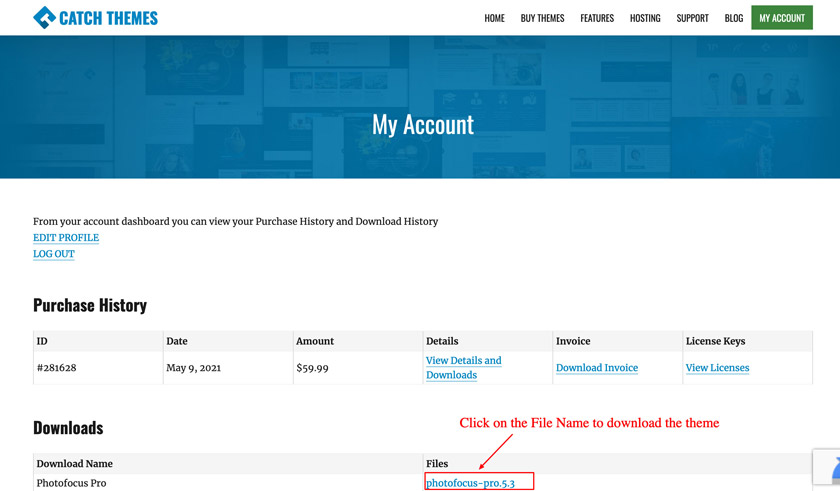
Credit: catchthemes.com
Accessing Your WordPress Dashboard
Open your browser. Type your website’s URL. Add “/wp-admin” at the end. Press enter. Enter your username. Enter your password. Click the “Log In” button. You will see the dashboard. Now you can manage your site.
Look at the left side menu. Find “Appearance”. Click on it. A new page will open. You will see theme options. You can add, delete, or change themes here. This is where themes live. Easy, right?
Uploading The Theme
Start by logging into your WordPress dashboard. Find the “Appearance” section on the left. Click on it. Then select “Themes”. Look for the “Add New” button at the top. Click it. You will see an “Upload Theme” button. Click on this button. A new page will open.
Click on “Choose File”. A file window will open. Find your downloaded theme file. It should be in .zip format. Select it. Then click “Open”. Now, click the “Install Now” button. WordPress will upload and install the theme. Wait for the success message. Once done, click “Activate” to use the theme. Your new theme is now live!

Credit: wpmarmite.com
Activating The Theme
Click on “Appearance” and then “Themes” in your dashboard. Find the theme you downloaded. Hover over it and click “Activate”. This sets your theme live.
Previewing The Theme
You can check how the theme looks before activating. Hover over the theme and click “Live Preview”. Make sure everything looks good. If not, you can make changes or choose another theme.
Customizing The Theme
Many themes offer different options to customize them. You can change colors, fonts, and layouts. Explore every option to make your site unique. Some themes have a settings panel. Others use WordPress’s built-in tools. Always save your changes. You don’t want to lose your work. Make sure to preview changes before going live. This helps you see how your site will look.
The WordPress Customizer is a handy tool. It lets you see changes in real-time. Access it from the WordPress dashboard. Look for the “Customize” option under the “Appearance” menu. You can adjust many things here. Change the site title, background, and even menus. Each change is visible instantly. This makes it easy to get the perfect look. Remember to click “Publish” to save your changes.
Troubleshooting Common Issues
Installing a downloaded WordPress theme involves accessing your WordPress dashboard. Navigate to Appearance, then click on Themes. Select the Upload Theme option, choose your downloaded file, and hit Install Now. Once uploaded, activate the theme to make it live on your site.
Dealing With Error Messages
Sometimes, you might see error messages when installing a theme. These messages can be confusing. First, check if the theme is compatible with your WordPress version. Make sure you have downloaded the complete theme file. It should be in a .zip format. If the file is not zipped, it won’t work. Also, ensure your WordPress site has enough memory limit to handle the theme. You can increase this limit in the wp-config.php file. Carefully follow the instructions provided by the theme developers.
Contacting Theme Support
If problems persist, consider contacting theme support. Theme developers often provide support for their products. Look for a support section on the developer’s website. You can find helpful information there. Sometimes, you may need to submit a support ticket. Include details about the problem. Provide screenshots if needed. This helps the support team understand the issue better. They will guide you step by step to fix the problem.

Credit: www.namecheap.com
Frequently Asked Questions
How To Install A Downloaded Theme In WordPress?
To install a downloaded theme in WordPress, go to your dashboard. Click “Appearance,” then “Themes. ” Select “Add New” and “Upload Theme. ” Choose your downloaded theme file and click “Install Now. ” Finally, activate the theme to use it.
How Do I Apply A Downloaded Theme?
Go to your website’s dashboard. Navigate to Appearance > Themes. Click “Add New” and then “Upload Theme. ” Choose the downloaded theme file from your computer and click “Install Now. ” After installation, click “Activate” to apply the theme to your website.
How Do I Install WordPress After Downloading?
Download WordPress from wordpress. org. Extract files and upload to your server. Create a MySQL database. Run the installation script by accessing your domain. Follow on-screen instructions to complete setup.
How Do I Import A Theme To WordPress?
To import a theme to WordPress, navigate to “Appearance” and click “Themes. ” Select “Add New,” then “Upload Theme. ” Choose your theme’s zip file, click “Install Now,” and activate it. Ensure the theme is compatible with your WordPress version for smooth functionality and optimal performance.
Conclusion
Installing a WordPress theme is straightforward. First, download your theme file. Then, log into your WordPress dashboard. Go to Appearance, then Themes. Click “Add New” and then “Upload Theme. ” Choose your downloaded file. Hit “Install” and wait for the process to finish.
Activate the theme once installed. Enjoy your new website look! This process is simple and quick. You can change themes anytime to refresh your site. Keep exploring different themes. Find the one that suits your style best. Happy website building!


