
Are you ready to give your website a fresh look by installing a WordPress theme on a subdomain? Whether you’re setting up a blog, launching a new product, or just experimenting with design, choosing the right theme can make all the difference.
But here’s the catch: getting it right on a subdomain might seem a bit tricky at first. Don’t worry! You’re about to discover a simple, step-by-step guide that will make the process as smooth as possible. You’ll learn everything you need to know to install a WordPress theme on a subdomain, ensuring your site not only looks great but functions seamlessly.
Stick around, and you’ll be transforming your digital space in no time.
Setting Up The Subdomain
Log into your cPanel. Find the Subdomains section. Click on it. Enter a name for your subdomain. Choose a domain from the list. Click Create. Your subdomain is now ready. Make sure to take note of the new URL.
DNS helps connect your subdomain to the internet. Go to your DNS settings. Find the A Record section. Add a new record for your subdomain. Use the same IP address as your main domain. Save the changes. It might take some time to update.
Installing WordPress On The Subdomain
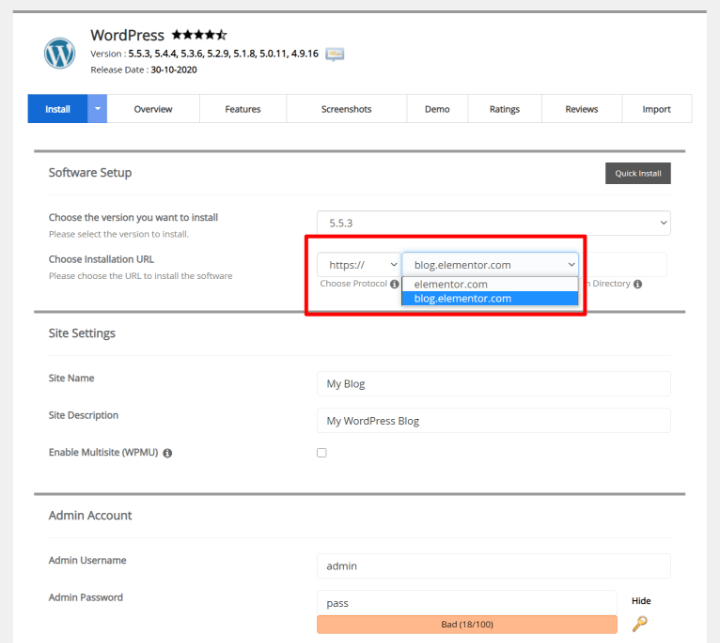
Many hosting providers offer one-click installers for WordPress. This makes installation easy. First, log in to your hosting account. Look for the one-click installer tool. It might be named Softaculous, QuickInstall, or Fantastico. Choose WordPress from the list. Select your subdomain in the installation settings. Click to start the installation. Wait a few minutes, and WordPress will be ready. It’s that simple!
Manual installation needs a few steps. First, download WordPress from the official site. Next, log in to your hosting account. Go to the file manager. Upload the WordPress files to your subdomain folder. After uploading, create a database. Use the hosting control panel for this. Note down the database name and password. Now, open your browser. Go to your subdomain URL. Follow the on-screen instructions. Enter the database details. WordPress will install on your subdomain.
Choosing The Right Theme
Selecting a theme is important for your website. Think about the website’s purpose. A blog needs a simple design. An online store needs more features. Check the theme’s ratings. Good themes have high ratings. Look for regular updates. This means the theme is well maintained.
Ensure theme compatibility. Your version of WordPress should support the theme. Consider the theme’s speed. Fast themes make sites load quickly. This helps keep visitors happy. Look for responsive designs. These work well on phones and tablets.
Some popular themes include Astra, known for its speed. OceanWP is great for many types of sites. Neve is another option, easy to customize. Hestia offers a clean look, ideal for businesses. GeneratePress is lightweight and flexible.
Credit: wpengine.com
Uploading The Theme
Installing a WordPress theme on a subdomain involves uploading the theme files via the WordPress dashboard. Navigate to “Appearance” and select “Themes,” then click “Add New. ” Choose the theme file from your computer and proceed with the installation.
Using WordPress Dashboard
Begin by logging into your WordPress dashboard. Find and click on Appearance. Look for the Themes option. Click Add New to start uploading. You will see an Upload Theme button. Click it. Select the theme file from your computer. Press Install Now. Wait for the theme to upload. Once done, activate it. Your new theme is ready.
Ftp Upload Method
First, access your site using an FTP client like FileZilla. Navigate to the wp-content/themes directory. Upload the theme folder here. Ensure the folder is complete. Log into your WordPress dashboard. Go to Appearance and click Themes. You will see your uploaded theme. Activate it. Now your site has a new look.
Activating The Theme
To activate a WordPress theme, you need to access the WordPress dashboard. Find the Appearance section. Click on it. Select Themes. A list of installed themes will appear. Choose your desired theme. Click Activate to set it live.
After activation, the theme changes the look of your site. You might need to customize settings. Check the theme options. Make sure everything fits your style. This step is important. It helps your site stand out.
Previewing a theme is easy. Go to the Themes section in your dashboard. Hover over a theme thumbnail. Click Live Preview. This shows how your site will look. You can see colors, fonts, and layout. Decide if it matches your vision. If you like it, proceed with activation.
Previewing helps avoid surprises. You see the changes before they go live. This is helpful. It ensures your site looks good and works well.
Customizing The Theme
The Theme Customizer lets you change how your site looks. It’s easy to use. Open it from your WordPress dashboard. You can change the site title. Change the colors too. Try different fonts. See changes live before saving. This helps make your site unique.
Plugins add features to your site. Go to the Plugins section in the dashboard. Click on Add New. Search for the plugin you need. Click Install, then Activate. Plugins like Yoast SEO help with search engines. Others like WooCommerce are for online stores. Choose wisely to keep your site fast.
Troubleshooting Common Issues
Installing a WordPress theme on a subdomain often faces challenges. Common issues include theme compatibility, incorrect folder paths, and server configuration errors. Check your subdomain settings and ensure theme files are correctly uploaded.
Resolving Installation Errors
Errors can happen during installation. First, check your internet connection. Slow or broken connections can cause failures. Next, verify your file permissions. Incorrect permissions can block the installation. Check if you have the right theme version. Some themes need specific WordPress versions. Update WordPress if needed. Delete any corrupted files and try again. Finally, clear your browser cache. This can solve some display issues.
Compatibility Problems
Compatibility is crucial for themes. Make sure your theme works with your WordPress version. Old versions can cause issues. Check your plugins. Some plugins may conflict with your theme. Disable them one by one to find the problem. Ensure your PHP version is up to date. Old PHP versions can break themes. Verify your hosting settings. Sometimes settings prevent themes from working. Contact your host for help.
Credit: elementor.com
Credit: www.youtube.com
Frequently Asked Questions
How Do I Set Up A Subdomain For WordPress?
To set up a subdomain, go to your hosting account. Navigate to the domains section and select “Subdomains. ” Enter your desired subdomain and link it to your WordPress directory. Once done, install WordPress on the new subdomain to start using it.
Why Install A WordPress Theme On A Subdomain?
Installing a theme on a subdomain helps keep your main site separate. It allows for testing themes without affecting the main site. This is ideal for staging environments, new projects, or multilingual sites. Subdomains provide a sandbox for development without disrupting the user experience.
Can I Use Any WordPress Theme On Subdomains?
Yes, you can use any WordPress theme on subdomains. Subdomains function independently from your main domain. This allows for complete theme customization and testing. Ensure that your selected theme is compatible with your WordPress version.
How Do I Upload A Theme To A Subdomain?
To upload a theme, access your WordPress dashboard on the subdomain. Navigate to “Appearance” and click “Themes. ” Select “Add New” and upload your theme’s ZIP file. Activate the theme once it’s successfully uploaded. This process is similar to uploading a theme on the main domain.
Conclusion
Installing a WordPress theme on a subdomain is straightforward. First, create your subdomain. Then, log in to your WordPress dashboard. Navigate to the “Appearance” tab. Click “Themes” and choose “Add New. ” Select your desired theme. Click “Install” and “Activate” to apply it.
Your subdomain now has a unique look. Always keep your themes updated. This ensures smooth performance. Customization options are vast. Explore and tweak settings to match your style. Enjoy building your subdomain site. With these steps, you’re ready to create.
Dive into your WordPress journey today!


