

Are you ready to give your website a fresh new look? Installing a WordPress theme is the key to transforming your site’s appearance and making it truly yours.
Whether you want a sleek design, better functionality, or a more professional feel, choosing and installing the right theme is your first step. In this guide, you’ll learn exactly how to install a WordPress theme quickly and easily—no technical skills needed.
By the end, you’ll have a beautiful, fully customized website that stands out and captures your visitors’ attention. Let’s dive in and start building the website you’ve been imagining!

Credit: www.shoutmeloud.com
Choosing A Theme
Choosing the right WordPress theme is a key step before installation. The theme sets your website’s look and feel. It also affects performance and user experience. Picking a theme that fits your needs saves time and effort later. Consider your budget, website goals, and technical needs. Think about how the theme supports your content and design preferences.
Free Vs Premium Themes
Free themes are easy to find and use. They often have fewer features and limited support. Premium themes cost money but offer more options. They include better design, updates, and customer support. Choose free themes for simple sites or testing ideas. Pick premium themes for professional sites needing more features.
Checking Theme Compatibility
Ensure your theme works with your WordPress version. Check if it supports popular plugins you plan to use. Review if it is mobile-friendly and loads quickly. Compatibility reduces errors and improves user experience. Always read theme reviews and update history before choosing.
Considering Website Goals
Think about your website’s main purpose. Is it a blog, store, portfolio, or business site? Select a theme that fits your content type and style. Some themes focus on visuals, others on speed or SEO. Align your theme choice with your website goals for best results.
Credit: www.namecheap.com
Installing From WordPress Directory
Installing a WordPress theme from the official directory is simple and fast. It lets you add new designs without extra files or downloads. The WordPress directory holds thousands of free themes. These themes are tested and safe for your site. You can find one that fits your style and needs easily.
Use your WordPress dashboard to access and install themes directly. This method keeps your site secure and up-to-date. It also shows theme details and ratings to help your choice. Follow the steps below to install a theme from the WordPress directory.
Navigating To Theme Section
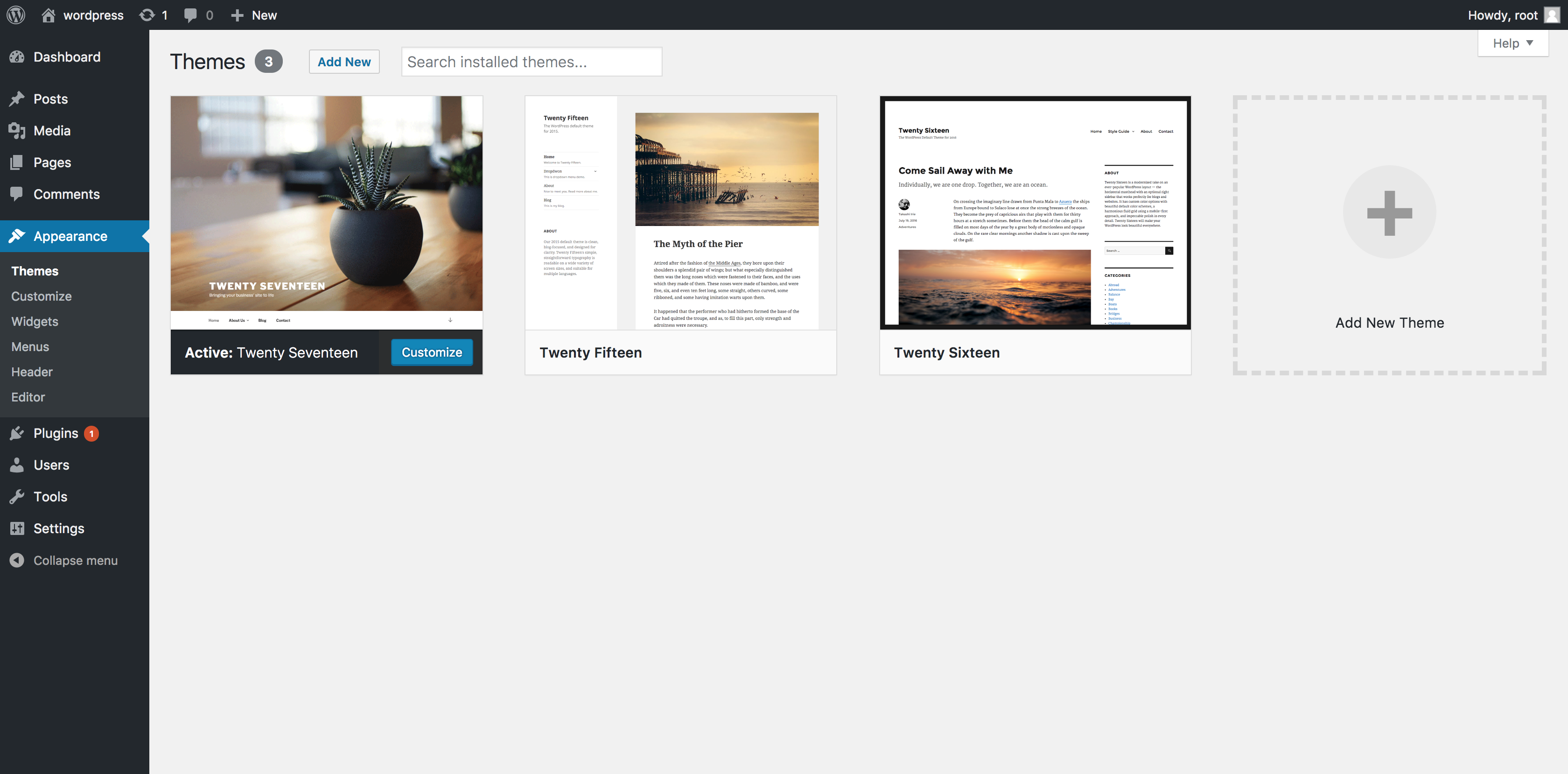
Start by logging into your WordPress dashboard. On the left menu, find and click “Appearance.” Then select “Themes.” This section shows all themes currently on your site. To add a new theme, click the “Add New” button at the top.
Searching For Themes
Use the search bar to type keywords related to your desired theme. You can also filter by features, layout, or popularity. This helps narrow down your options quickly. Preview themes by clicking on their image to see a live demo.
Installing And Activating
Once you find a theme you like, hover over it and click “Install.” WordPress downloads and installs the theme automatically. After installation, the “Activate” button will appear. Click it to make the theme live on your website. Your site will update immediately with the new design.
Uploading A Theme Manually
Uploading a WordPress theme manually is a simple way to use custom or premium themes. It involves downloading the theme file to your computer and then uploading it to your WordPress site. This method lets you install themes not available in the WordPress directory. Follow the steps below to upload your theme correctly.
Downloading Theme Zip File
First, get the theme zip file from a trusted source. Usually, premium themes come as a zip package. Save this file on your computer where you can easily find it. Do not unzip the file. WordPress requires the zip format for uploading.
Uploading Via Dashboard
Log in to your WordPress admin dashboard. Go to Appearance > Themes and click Add New. Choose the Upload Theme button at the top. Click Choose File and select the zip file you downloaded. Press Install Now to start the upload process.
Activating The Uploaded Theme
After installation, WordPress shows a success message. Click Activate to apply the new theme to your site. Your website now uses the uploaded theme. Check your site to ensure the theme looks correct and works well.
Using Ftp To Install Themes
Using FTP to install WordPress themes gives you more control and flexibility. It helps when the dashboard upload method fails or the theme file is too large. FTP allows direct file transfer from your computer to the server. This method suits users comfortable with basic web hosting tools.
Connecting To Server
First, open your FTP client like FileZilla or Cyberduck. Enter your host address, username, and password. These details come from your web hosting provider. Click “Connect” to access your website files. Look for the “wp-content” folder inside the root directory.
Uploading Theme Folder
Download the theme folder on your computer. Do not upload a zipped file. Extract the theme folder if needed. Drag and drop the folder into “wp-content/themes”. Wait for the upload to finish. The folder name should match the theme’s name exactly.
Activating Theme In Dashboard
Log into your WordPress dashboard. Go to Appearance > Themes. Find the uploaded theme in the list. Hover over the theme and click “Activate”. Your new theme is now live on your website. Check your site to confirm the change.
Customizing Your Theme
Customizing your WordPress theme lets you make your site truly yours. It allows you to change how your site looks and feels. This step is simple and does not need coding skills. You can adjust settings right from your dashboard. Personal touches make your website stand out and reflect your brand or style.
Explore options to change colors, fonts, and layout. Add menus and widgets to improve navigation and functionality. Small changes can have a big impact on user experience and site appeal.
Accessing Theme Customizer
Start by logging into your WordPress dashboard. Go to Appearance and select Customize. This opens the Theme Customizer panel. You will see options that vary by theme. Use this tool to change your site’s appearance live. Preview your edits before saving them.
Adjusting Layout And Colors
Inside the customizer, find settings for layout and colors. Choose different layouts like full-width or boxed. Pick colors for backgrounds, text, and links. Colors help set your site’s mood and brand image. Adjust font styles and sizes for better readability. Changes show instantly in the preview window.
Adding Widgets And Menus
Widgets add extra features to your site’s sidebars or footers. Common widgets include search bars, recent posts, and calendars. Add or remove widgets easily in the customizer. Menus help visitors find pages quickly. Create new menus or edit existing ones here. Assign menus to locations like header or footer.

Credit: wpmarmite.com
Troubleshooting Installation Issues
Troubleshooting installation issues is a key step when adding a new WordPress theme. Sometimes, errors or conflicts can stop the theme from installing properly. Knowing how to identify and fix these problems saves time and keeps your site running smoothly.
This section covers common errors, checking theme requirements, and restoring your previous theme if needed. These tips help you handle most installation problems with confidence.
Common Errors And Fixes
One frequent error is the theme file being too large. Many hosts limit the upload size. Try increasing the limit in your php.ini or upload the theme via FTP.
Another issue is a broken or incomplete theme file. Make sure the .zip file is fully downloaded and not corrupted. Re-download from the source if needed.
Permissions problems can also block installation. Check that your WordPress folders have the right write permissions, usually 755 for folders and 644 for files.
Checking Theme Requirements
The theme may require a specific WordPress version or certain plugins. Check the theme documentation carefully before installing.
Verify your server meets PHP and MySQL version requirements. Outdated software can cause errors or poor performance.
Some themes need extra settings in your hosting environment. Review any special instructions provided by the theme developer.
Restoring Previous Theme
If the new theme fails, you might want to revert to your old one. Login to your WordPress dashboard and go to Appearance > Themes.
Activate the previous theme to restore your site’s look and functionality quickly. This prevents downtime and user confusion.
Backup your site regularly. This ensures you can recover your content and settings if problems occur during theme changes.
Best Practices After Installation
After installing a WordPress theme, following best practices is key. This keeps your site secure, fast, and user-friendly. Proper care also ensures your website looks great on all devices. Pay attention to updates, backups, and testing for the best results.
Updating Themes Regularly
Keep your theme up to date to fix bugs and security issues. Developers release updates to improve performance and add features. Regular updates prevent conflicts with plugins and WordPress itself. Set a schedule to check for updates at least once a month.
Backing Up Your Site
Create backups before making any changes to your theme or site. Backups save your data in case something goes wrong. Use reliable backup plugins or your hosting provider’s tools. Store backups in multiple locations like cloud storage and your computer.
Testing Responsiveness
Check how your theme looks on different devices and screen sizes. Test on phones, tablets, and desktops to ensure content fits well. A responsive site improves user experience and search engine ranking. Use browser tools or online services to preview your site on many devices.
Frequently Asked Questions
How Do I Install A Theme In WordPress?
Log in to your WordPress dashboard. Go to Appearance > Themes > Add New. Search or upload a theme. zip file. Click Install, then Activate to apply it.
How Do I Import A WordPress Theme Into WordPress?
Log in to your WordPress dashboard. Go to Appearance > Themes > Add New. Upload your theme’s. zip file or choose from the directory. Click Install, then Activate to apply the theme.
How Do I Apply A Downloaded Theme?
Log in to your WordPress dashboard. Go to Appearance > Themes > Add New. Upload your theme’s. zip file or select one from the directory. Click Install, then Activate to apply the theme to your site.
How Do I Install A WordPress Theme For Free?
Log in to your WordPress dashboard. Go to Appearance > Themes > Add New. Search, install, and activate a free theme. Alternatively, upload a theme’s. zip file under Upload Theme, then install and activate it.
Conclusion
Installing a WordPress theme is simple and quick. Choose a theme from the directory or upload your own. Activate the theme to change your website’s look instantly. Always check how your site appears after activation. Updating themes regularly keeps your site secure and fresh.
Enjoy customizing your WordPress site with ease and confidence.


