
Are you ready to give your WordPress site a stunning new look on A2 Hosting? Installing a theme can transform your website’s appearance and make it more engaging for your visitors.
But if you’re feeling a bit overwhelmed, don’t worry! You’re not alone, and you’re about to discover just how simple it can be. In this guide, we’ll walk you through the straightforward steps to install a theme on your WordPress site hosted on A2 Hosting.
Imagine your website as your digital storefront. A captivating theme not only enhances aesthetics but also boosts user experience, keeping your audience engaged and eager to explore. Whether you’re launching a personal blog, a business site, or an online portfolio, the right theme can make all the difference. You’ll learn how to choose a theme that aligns with your vision and how to install it effortlessly, even if you’re a complete beginner. Stay with us as we unravel the secrets to a seamless theme installation process. By the end of this article, you’ll be equipped with the knowledge and confidence to give your WordPress site the makeover it deserves, ensuring it stands out in the digital crowd. Let’s dive in and get your site looking fantastic!
Choosing The Right Theme
First, decide what your website is about. Is it for a blog, a store, or maybe a portfolio? Knowing this helps in picking the right theme. Themes are like clothes for your site. They change how your site looks and feels. Your theme should match your site’s goal.
Look at different themes. Some are free, others are paid. Check the features. Do they offer what you need? Some themes have special tools. Others are simple. Think about your needs. Find themes that fit those needs.
Make sure the theme works with your WordPress version. Some themes don’t work with older versions. Check if it works well with plugins you use. Themes must be responsive. They should look good on phones and computers.
Preparing Your WordPress Site
Before installing a new theme, always backup your website. This keeps your data safe. Use tools like UpdraftPlus or BackWPup. They are simple and effective. A backup gives you peace of mind.
Next, update WordPress core and plugins. Go to your dashboard. Check for updates. Updating ensures your site runs smoothly. It also fixes bugs and improves security.
Keeping your site up-to-date is important. It helps maintain site health. Always check for updates regularly.
Accessing A2 Hosting Control Panel
First, you need to visit the A2 Hosting website. Enter your username and password in the login form. Make sure your details are correct. Click the login button to access your account.
Once logged in, find the cPanel link on the dashboard. Click it to open the cPanel. You will see many options here. Look for the WordPress tool. This tool helps manage your site. Click it to continue.
Credit: www.websiteplanet.com
Installing A Theme Via WordPress Dashboard
Enter your admin username and password. Access the dashboard area. Click on the login button. See your WordPress site.
Look for the Appearance menu on the left side. Click on it. Find the Themes option. Open the page.
Click on Add New. Choose Upload Theme. Select your theme file. Click on Install Now. After installation, click Activate. Your theme is ready.
Installing A Theme Via Ftp
First, use an FTP client like FileZilla. Enter your FTP details. You need the hostname, username, and password. These details come from your A2 Hosting account. Click connect. Wait for the connection to succeed.
On the left side, find your theme files on your computer. On the right side, find the WordPress themes folder. This folder is inside wp-content/themes. Drag your theme files from left to right. Wait until all files upload.
Go to your WordPress dashboard. Click on Appearance and then Themes. Find your new theme. Click Activate. Your theme is now live. Check your website to see the changes.
Credit: www.isitwp.com
Customizing Your Theme
Easily install a theme on WordPress with A2 Hosting by accessing your dashboard. Select ‘Appearance’ and click ‘Themes’ to explore options. Upload or choose a theme from the library to personalize your site effortlessly.
Access Theme Customizer
Find the Customize button under your WordPress dashboard. Click it to access the theme customizer. Here, you can make changes to your theme. Look for options like colors, fonts, and layout. Each change you make will show immediately. This helps you see how it looks.
Modify Theme Settings
Open the Settings panel in the customizer. Change the site title or tagline if needed. Adjust the homepage settings. Choose a static page or latest posts. Explore other settings available here. This lets you tailor your site to your liking.
Add Custom Css
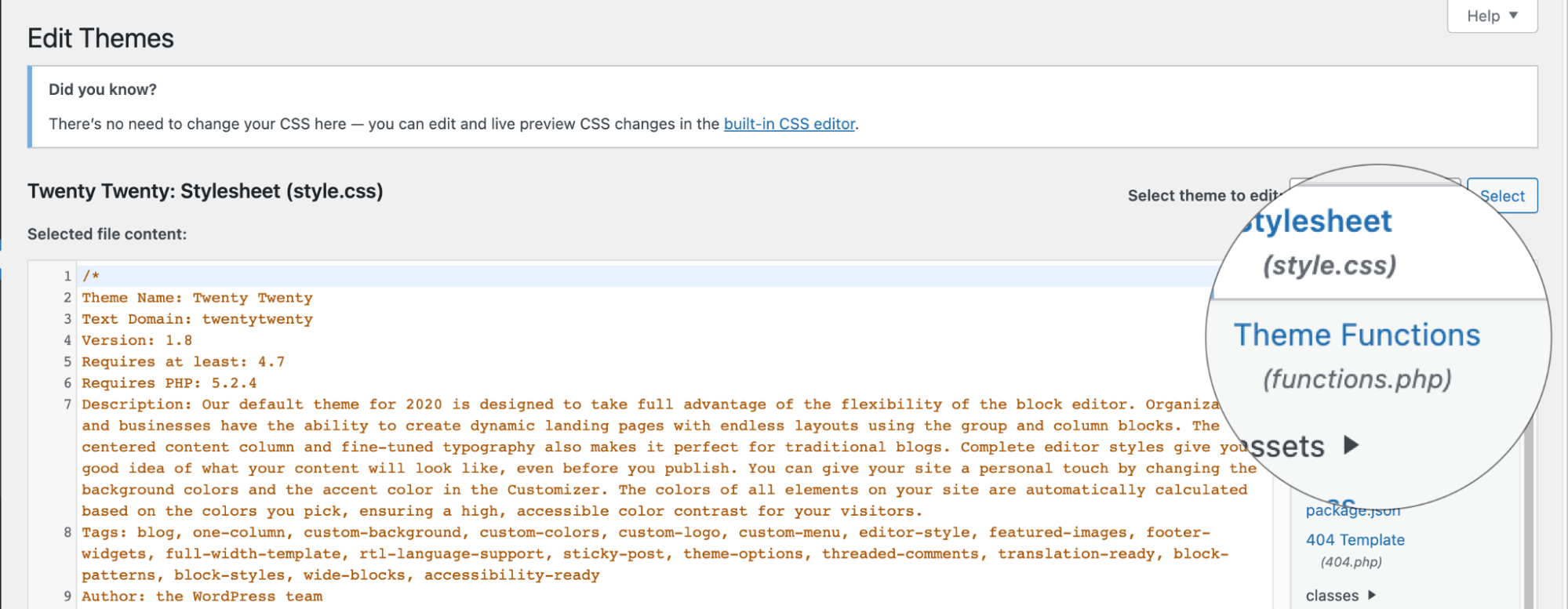
Locate the Additional CSS section in the customizer. Type your custom CSS code in the box. This changes the look of your site. Use CSS to adjust colors, margins, and more. Be careful with changes. Check how it looks before saving.
Testing Your Theme
Checking your theme is a must. First, check for responsiveness. Open your website on different devices. It should look good on phones, tablets, and computers. If it doesn’t, you might lose visitors.
Next, test browser compatibility. Your site should work on all browsers. Try Chrome, Firefox, Safari, and Edge. Some themes might not work well on all browsers.
Finally, ensure functionality. Click every button and link. Make sure everything works right. Check forms and contact pages. Your site should be easy to use. If something is broken, users might leave. Fix issues before launching your site.
Credit: www.a2hosting.com
Troubleshooting Common Issues
Installing a theme on WordPress with A2 Hosting can present challenges. Ensure your theme is compatible with WordPress and updated. Check your internet connection, and try re-uploading if installation fails.
Resolve Installation Errors
Installation errors can be frustrating. Check your theme file. It should be a .zip format. Ensure the file size is not too large. Try uploading again. Use the WordPress dashboard for this. Sometimes, a slow internet causes problems. Restart your router. This helps often. If errors continue, check your PHP version. It must be compatible. Update it, if needed. These steps usually fix issues.
Fix Display Problems
Display problems happen sometimes. Clear your browser cache. This refreshes the view. Check your theme settings. Adjust them as needed. Plugins can cause conflicts. Disable them one by one. See if the problem stops. Update your WordPress version. An old version may cause issues. These methods help improve the display. Often, the problem is minor.
Seek Support From Theme Developer
Need more help? Contact the theme developer. They know their product well. Most developers offer support forums. Visit these for answers. Send them an email. Explain your issue clearly. Provide screenshots if possible. Developers can guide you. They solve complex problems. Always use their resources. They are there to help.
Maintaining Your Theme
Installing a WordPress theme on A2 Hosting is simple. Access the WordPress dashboard, navigate to ‘Appearance,’ and select ‘Themes. ‘ Click ‘Add New,’ choose your theme, and install it. Customize settings to fit your style and ensure a seamless website appearance.
Regularly Update Theme
Keeping your WordPress theme updated is crucial. Updates fix bugs and improve performance. You can find updates in your WordPress dashboard. Always check for new updates weekly. This ensures your site stays safe and fast.
Monitor For Security Vulnerabilities
Security is vital for your website. Themes can have security holes. Regular checks can help find these issues. Use plugins to scan your theme. They alert you to any problems. Fix them quickly to protect your site.
Backup Theme Settings
Backing up your theme settings is important. It keeps your customizations safe. Use backup plugins to save settings. Do this before making big changes. This way, you can restore your settings if needed. Backups give peace of mind.
Frequently Asked Questions
How Do I Choose A WordPress Theme?
Start by identifying your website’s purpose and audience. Browse the WordPress theme directory or A2 Hosting’s recommendations for themes that align with your needs. Consider design, functionality, and reviews. Ensure the theme is responsive and compatible with plugins. Test its demo version before installation to ensure it meets your expectations.
Can I Install Themes On A2 Hosting Easily?
Yes, A2 Hosting simplifies theme installation. Access your WordPress dashboard, navigate to ‘Appearance,’ and select ‘Themes. ‘ Choose ‘Add New’ and search for your preferred theme. Once you find it, click ‘Install’ and then ‘Activate. ‘ A2 Hosting’s efficient platform ensures smooth installation and optimal performance of your theme.
Are Free WordPress Themes Reliable?
Free themes can be reliable if sourced from reputable providers. The official WordPress theme directory offers secure options. Check user reviews and ratings for insights into theme performance and support. Always update themes regularly to ensure security and compatibility with the latest WordPress version and plugins.
How Do I Customize A WordPress Theme?
Use WordPress’s Customizer tool to modify your theme. Navigate to ‘Appearance’ and select ‘Customize. ‘ Here, you can change fonts, colors, layout, and widgets. For advanced customization, consider using child themes or CSS. Ensure your changes enhance user experience and align with your site’s goals.
Conclusion
Installing a WordPress theme on A2 Hosting is straightforward. First, select a theme that fits your needs. Then, access your WordPress dashboard and navigate to “Appearance” and “Themes. ” Click “Add New” and upload your chosen theme. Activate it to make it live on your site.
Remember to check compatibility with your plugins. This ensures everything runs smoothly. Regular updates keep your site secure and fast. Explore customization options to fit your brand. With these steps, your WordPress site will look great and function well. Enjoy your new theme and improved website appearance!


