
Are you ready to transform your WordPress site into something truly eye-catching? Installing a new WordPress theme is one of the simplest ways to give your website a fresh look and feel.
Whether you’re launching a new blog, revamping your business website, or just looking to experiment with different styles, switching themes can breathe new life into your online presence. But the process can seem a bit daunting if you’ve never done it before.
Don’t worry—this guide is designed to make it easy for you. We’ll walk you through each step, ensuring you can confidently install your new theme without any hiccups. Plus, by the end of this article, you’ll discover how choosing the right theme can enhance your site’s functionality and improve user engagement. Let’s dive in and get your website looking its best!
Choosing The Right Theme
Many people wonder: Free or Premium themes? Free themes are good for beginners. They cost nothing. Often, they have basic features. But, premium themes offer more. More features. Better support. They come with updates. Premium themes can be expensive. Consider your budget. Think about your needs. Free themes are easy to find. Many websites offer them.
Features matter. Look for responsive design. This means the theme works on phones and tablets. Check if it’s SEO-friendly. This helps your site rank well. Many themes offer custom options. Change colors, fonts, and layouts. Some themes have built-in plugins. They add special functions. Always check the reviews. Read what others say. This helps in choosing the best theme.

Credit: www.namecheap.com
Preparing For Installation
Always create a backup before changing themes. It protects your data. Use a reliable plugin. Save your files safely. Backups are your safety net. They protect you from errors. Problems can happen anytime. Be prepared.
Ensure the theme works with your WordPress version. Check the theme requirements. Visit the theme’s website. Look for compatibility information. Some themes need specific plugins. Make sure you have them. Avoid themes with poor reviews. Good reviews mean fewer problems. Your site will run smoothly.
Installing Via WordPress Dashboard
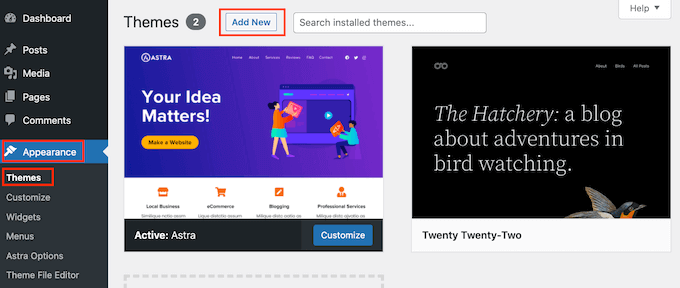
Find the WordPress Dashboard on your website. Click on Appearance in the menu. Then, choose Themes. You’ll see many theme options. Explore the Theme Directory for free themes. Use the search bar for specific themes.
Have a theme zip file ready? Click on Add New in the themes section. Choose Upload Theme on the next screen. Click Choose File. Select your theme zip file. Click Install Now. Wait for the theme to upload.
Find your new theme in the Installed Themes area. Click Activate to use it. Your site will now show the new design. Check your site to see the changes. Your theme is active and ready.
Installing Via Ftp
Installing a WordPress theme via FTP involves transferring theme files from your computer to your website. Connect to your server using an FTP client, navigate to the WordPress themes directory, and upload the theme folder. Once uploaded, activate the theme from the WordPress dashboard.
Downloading The Theme Files
Start by finding a WordPress theme you like. Visit the theme’s website. Click the download button. Save the theme files to your computer. Usually, they come in a ZIP format. Remember where you save them.
Connecting To Your Server
Open your FTP client. Enter your server details. You need host name, username, and password. Connect to your server. You see your website files. Look for wp-content folder. Inside it, find the themes folder.
Uploading Theme Files
Extract the theme files from the ZIP. Locate the theme folder. Drag and drop the theme folder into the themes directory on your server. Wait for the upload to finish. Check your WordPress dashboard. Go to Appearance and then Themes. Your new theme should appear. Activate the theme by clicking Activate.
Customizing Your Theme
Using the WordPress Customizer helps you change your site’s look. Click on “Customize” in your admin panel. You’ll find different options to tweak. Change colors, fonts, and layouts with ease. The preview shows changes instantly. You can try different styles without worry. Just click “Publish” to save.
Adding Widgets and Menus is simple. Go to “Appearance” and select “Widgets.” Drag and drop items to your sidebar. You can add search bars, recent posts, or calendars. In the “Menus” section, organize your links. Make sure your visitors can find pages easily.
Adjusting Theme Settings fine-tunes your site. Check your theme options under “Appearance.” You might change your header image or background. Look for any special features your theme offers. Some themes offer slider images or custom post types. Explore these settings to make your site unique.
Credit: themelooks.com
Troubleshooting Common Issues
Installing a new WordPress theme can sometimes be tricky. Common issues include file upload errors and theme compatibility problems. Ensure your WordPress version is up-to-date to avoid these issues.
Fixing Broken Layouts
Broken layouts can be frustrating. First, check your theme settings. Make sure you have the right settings. Sometimes, a simple change can fix it. Next, clear your browser cache. Old data can cause problems. If the layout is still broken, try disabling plugins. Plugins can affect the theme. Turn them off one by one. This helps find the problem. Keep your theme updated. Updates fix bugs and improve features.
Resolving Plugin Conflicts
Plugin conflicts can break your site. Deactivate all plugins first. Then, activate them one at a time. This helps find the conflicting plugin. Once found, look for updates. Plugin updates often fix problems. If no update is available, search for alternatives. Sometimes, using a different plugin helps. Remember, only keep necessary plugins. Too many can slow down your site.
Keeping Your Theme Updated
Themes need updates. Updates fix bugs and add features. Keeping themes updated is important. It helps keep your site safe. New features can also improve your site. Always check for updates in your WordPress dashboard. Click on the “Updates” option. You will see if your theme needs updates. Update your theme regularly.
Understanding Theme Updates
Theme updates are like new versions of a book. They have new chapters. Old chapters may change or improve. Developers work hard on these updates. They make sure your theme works well. Installing updates is easy. Just click the update button. Let WordPress do the rest.
Using Child Themes For Modifications
A child theme is a copy of your main theme. It lets you make changes. The main theme stays safe. Child themes are great for adding custom styles. They help keep your changes when you update the main theme. Use a child theme to keep your work safe.

Credit: www.shoutmeloud.com
Frequently Asked Questions
How Do I Choose A WordPress Theme?
Choosing a WordPress theme involves considering design, functionality, and responsiveness. Ensure it aligns with your brand and is mobile-friendly. Read reviews and check for regular updates. A good theme enhances user experience and supports your website goals.
Can I Install Themes For Free?
Yes, WordPress offers free themes in its repository. These themes are easy to install directly from your dashboard. However, free themes may have limited features compared to premium ones. Always ensure the theme is updated and supported by developers.
How Do I Upload A Theme Manually?
To upload a theme manually, go to your WordPress dashboard. Click on “Appearance” > “Themes” > “Add New” > “Upload Theme. ” Choose your downloaded theme file in. zip format and click “Install Now. ” Finally, activate the theme to apply it to your site.
What Is A Child Theme?
A child theme is a sub-theme that inherits functionality from its parent theme. It allows you to make customizations without altering the original theme files. This method ensures your changes are preserved during updates, maintaining your site’s design and functionality.
Conclusion
Installing a new WordPress theme can feel daunting at first. But with clear steps, it’s manageable for anyone. Start by choosing a theme that fits your needs. Download and upload it using the WordPress dashboard. Activate the theme and adjust settings to your preference.
Customize the design to match your brand or style. Keep your website updated for the best performance. Practice makes perfect, so don’t hesitate to explore more options. Enjoy your newly designed website and keep learning as you grow.


