
Are you ready to give your WordPress website a fresh new look, but worried about losing all your hard work in the process? You’re not alone.
Many WordPress users face this fear when considering a theme change. The good news is, with the right approach, you can seamlessly install a new theme without sacrificing your valuable content. Imagine the relief of unveiling a stunning new design without the hassle of starting from scratch.
In this guide, you’ll discover simple, step-by-step instructions to ensure a smooth transition. So, let’s dive in and take the stress out of upgrading your site’s appearance, while keeping all your precious content intact. Your website deserves a makeover, and you deserve peace of mind.
Credit: www.wpzoom.com
Choosing The Right Theme
Good themes have many positive reviews. Read what users say. This helps you know if the theme is easy to use. Check the theme’s update history. Regular updates mean better security and features.
Themes must work with your favorite plugins. Check the theme details. Some themes mention compatible plugins. Using the same theme as your plugins avoids problems. This keeps your site running smoothly.
Responsive themes look good on all devices. Many people use phones to browse. A responsive theme adjusts to screen size. This makes your site user-friendly. Test the theme demo on different devices. See how it looks.
Backing Up Your Website
Backing up your website keeps your content safe. Use a full site backup to save everything. This includes posts, pages, and settings. You can do this manually or use a tool. Many hosting services offer backup options. Check if yours does. It’s a good idea to make backups often. This protects your hard work.
The database holds your website’s data. This includes user information and comments. Making a database backup is important. Use phpMyAdmin to export your database. Save it as a file on your computer. This way, you can restore it if needed. Always keep copies in safe places.
Backup plugins simplify the process. They save time and effort. Popular ones include UpdraftPlus and BackupBuddy. These plugins automate backups. You can schedule them to run regularly. Choose a plugin that suits your needs. Ensure it’s compatible with your version of WordPress. Review settings to customize your backup plan.
Testing The New Theme
Make a copy of your site. This is called a staging environment. A staging site is like a playground for your website. It helps you test changes before going live. Your main site stays safe. Find plugins like WP Staging or Duplicator to help. They are easy to use. Install the plugin and follow steps. Now you can test without fear. Your content will be safe.
Explore the new theme’s features. See what it offers. Look at the layout and design. Check if it suits your needs. Make sure the theme is responsive. This means it looks good on phones and tablets too. Test buttons and menus. Do they work well? Make sure everything is easy to use. Your visitors will thank you.
Check how fast your site loads. Use tools like Google PageSpeed Insights. Faster sites make visitors happy. Slow sites lose visitors. See if the new theme slows things down. If it does, consider optimizing images and reducing plugins. Always aim for a fast and smooth experience. Keep your audience engaged and content secure.
Installing The Theme
First, open your browser. Type your website URL. Then add “/wp-admin” at the end. Press enter. You will see the login page. Enter your username and password. This takes you to the WordPress Dashboard. Here, you can manage your site.
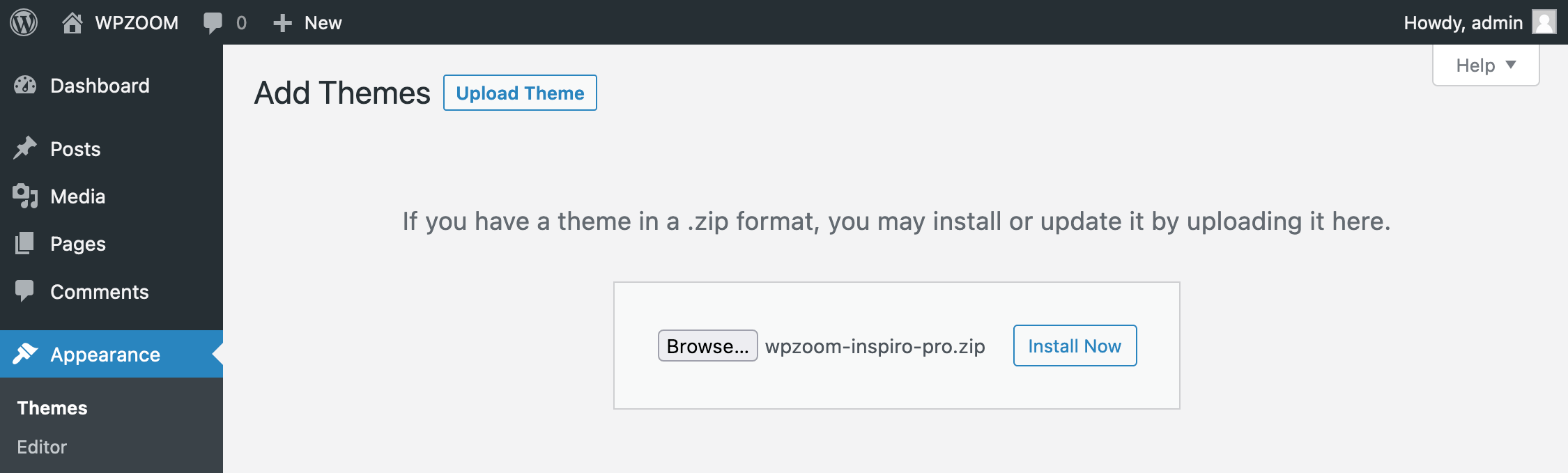
In the dashboard, find Appearance on the left. Click it. Then click Themes. Now, click Add New. You can search for themes here. Click Upload Theme if you have a zip file. Choose your file. Click Install Now.
After uploading, you must activate your theme. Go back to Appearance and then Themes. Find your new theme. Click Activate. Your new theme is now live. Check your site to see the changes.
Customizing The Theme
Access the theme customizer through your WordPress dashboard. This tool helps you make changes. Explore options for color, fonts, and more. Save changes to see them live. It’s easy to switch settings. No coding needed. Just click and adjust.
Choose a layout that fits your style. Modify the design with simple clicks. Look for layout options in the customizer. Change the header or footer. Adjust the sidebar’s position. Preview changes before saving. Make your site look unique.
Widgets enhance functionality. Add or remove them with ease. Navigate to the widgets section. Drag and drop to rearrange. Menus help visitors find content. Edit menus in the customizer. Rearrange items by dragging. Keep navigation simple.
Credit: www.wpzoom.com
Preserving Content Integrity
Reviewing pages and posts is important before changing themes. Look through each page. Make sure all are in order. Check for any missing content. Ensure every post is saved. This keeps your site safe. It helps avoid losing important information.
Next, start checking media files. Open the media library. See if images and videos are there. Confirm every file is still present. Make sure they show correctly. This step keeps your site looking nice.
Lastly, updating permalinks is needed. Go to the settings menu. Choose permalinks. Update them as needed. This helps links work properly. It also improves site navigation. Everyone can find what they need easily.
Testing And Launch
Installing a new WordPress theme safely involves careful preparation. First, back up your site to prevent data loss. Then, use a staging environment to test the theme, ensuring all content remains intact.
Final Review
Check the site for errors. Look at all pages. Images should load fast. Text must be clear. Links must work. Ensure content looks good in the new theme. Double-check settings and plugins.
Speed And Performance Check
Use tools like Google PageSpeed. Aim for a fast load time. Fast sites keep visitors happy. Check for heavy images. Try to optimize them. Fast sites rank better in search engines.
Going Live
Back up the site first. Make sure you have saved everything. Tell visitors about the change. Post on social media. Launch the new theme. Keep checking the site. Fix any issues quickly. Celebrate your new look!
Credit: kinsta.com
Frequently Asked Questions
How To Backup WordPress Before Installing A New Theme?
Before installing a new theme, backup your WordPress site. Use plugins like UpdraftPlus or BackupBuddy for easy backups. Ensure you save both the database and files. This precaution protects your content from potential loss or errors during theme installation.
Will Installing A New Theme Delete My Content?
No, installing a new WordPress theme won’t delete your content. Themes primarily affect the design and layout. Your posts, pages, and media remain intact. However, always back up your site before making significant changes to avoid unexpected issues.
Can I Preview A WordPress Theme Before Activating It?
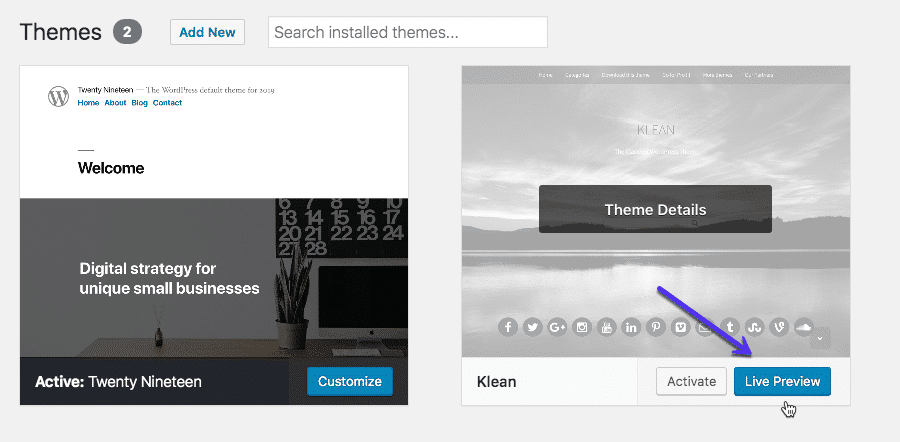
Yes, WordPress allows you to preview themes before activation. Go to Appearance > Themes, and click ‘Live Preview’. This feature lets you see how your content looks with the new theme. It ensures you make an informed decision without affecting your live site.
How Do I Choose A Responsive WordPress Theme?
To choose a responsive WordPress theme, look for themes labeled “responsive” or “mobile-friendly”. Check demo versions on various devices. Responsive themes automatically adjust to different screen sizes, enhancing user experience across desktops, tablets, and smartphones.
Conclusion
Installing a new WordPress theme doesn’t mean losing your content. Follow these steps carefully. Backup your site to protect data. Choose a theme that matches your needs. Test it on a staging site first. Check for plugin compatibility. Update your widgets and menus.
Review your site to ensure everything looks right. Keep your audience in mind. Maintain readability and user-friendly navigation. Regular updates enhance site functionality and security. The right theme supports your content and boosts user engagement. Stay informed and make thoughtful decisions for your WordPress site.
Always prioritize your content’s safety.


