
Are you looking to refresh the look and feel of your WordPress site without losing your existing content? Installing a new theme can breathe new life into your website, making it more engaging and visually appealing.
Whether you’re seeking a modern design, improved functionality, or simply a change of pace, updating your theme is a straightforward process that can deliver big results. Imagine the impact of a fresh, stylish theme on your visitors; it can help you stand out, reduce bounce rates, and keep your audience coming back for more.
You don’t need to be a tech guru to make this happen—just a few simple steps, and you’re on your way to transforming your site’s appearance. In this guide, I’ll walk you through the process of installing a new theme on your existing WordPress site. By the end, you’ll know exactly how to implement a stunning new look that aligns perfectly with your brand. Let’s dive in and give your website the makeover it deserves!
Choosing The Right Theme
Find out what you want from your theme. Do you need a simple design? Or do you want more features? Write down your must-have elements. This list helps you find the perfect theme. Some themes suit blogs, others fit online shops. Match your needs to the theme’s strengths. Check if the theme is easy to use. Look for responsive designs. They work well on phones and tablets. Speed matters too. A fast theme keeps visitors happy.
Search for themes in the WordPress directory. There are many free and paid choices. Read reviews to know what others say. Good reviews mean the theme is reliable. Try demos to see how themes look. Check if they match your style. Popular themes often have good support. Choose themes that update regularly. Updates keep your site safe and fresh.
Preparing Your WordPress Site
Backing up is very important. It keeps your data safe. Use plugins like UpdraftPlus or BackWPup. They make backup easy. Save your backup on a cloud or a hard drive. Check your backup files. Make sure they work well. This keeps your site secure.
Check if the theme works with your WordPress version. Some themes need updates. Read the theme details. See if it fits your needs. Test on a staging site first. This helps find issues. Make sure plugins are also compatible. This avoids errors.
Installing The New Theme
First, log in to your WordPress dashboard. Find the menu on the left. Click on “Appearance”. Then choose “Themes”. You will see a button that says “Add New”. Click it. You can now search for themes. Use the search bar at the top. Find a theme you like. Click “Install” to add it. Once installed, click “Activate” to use it.
Download your desired theme as a .zip file on your computer. Go to the WordPress dashboard. Click on “Appearance”, then “Themes”. Press the “Add New” button. Now, click “Upload Theme”. Choose the .zip file from your computer. Click “Install Now”. Wait a few seconds. Finally, click “Activate” to use your theme.

Credit: meta.discourse.org
Customizing The Theme
Installing a new theme on an existing WordPress site is straightforward. Navigate to the “Appearance” tab in the dashboard, click “Themes,” and select “Add New. ” Browse or search for themes, then click “Install” to apply your chosen design. Customize further through the “Customize” option for a unique look.
Adjusting Theme Settings
Change the theme settings to make your site look better. First, find the customization menu. This menu helps change colors and fonts. Pick colors that match your style. Fonts should be easy to read. You can also change the layout. Try different options. See what fits your site best.
Adding Custom Css
Want your site to be unique? Add custom CSS. It changes how things look. Find the CSS box in the customization menu. Type your code there. Make text bigger or change colors. Always check your changes. Make sure they look good on all screens. Don’t forget to save your work.
Testing The New Theme
Installing a new theme on WordPress can refresh your site’s look. Access your dashboard, navigate to Appearance, then Themes. Upload the desired theme, activate it, and customize as needed for a fresh design.
Checking For Responsiveness
A good theme works on all devices. Check your website on a phone and a tablet. Does it look good? Can you read everything easily? Images should fit well on the screen. Links need to be easy to click. This is called responsiveness. It is very important. It makes sure everyone can enjoy your site.
Ensuring Plugin Compatibility
Plugins help your website work better. But not all themes like every plugin. Check if your favorite plugins still work. Do they show up correctly? Try using each one. Make sure they do not break your site. It is crucial that your theme and plugins get along. This keeps your website running smoothly.
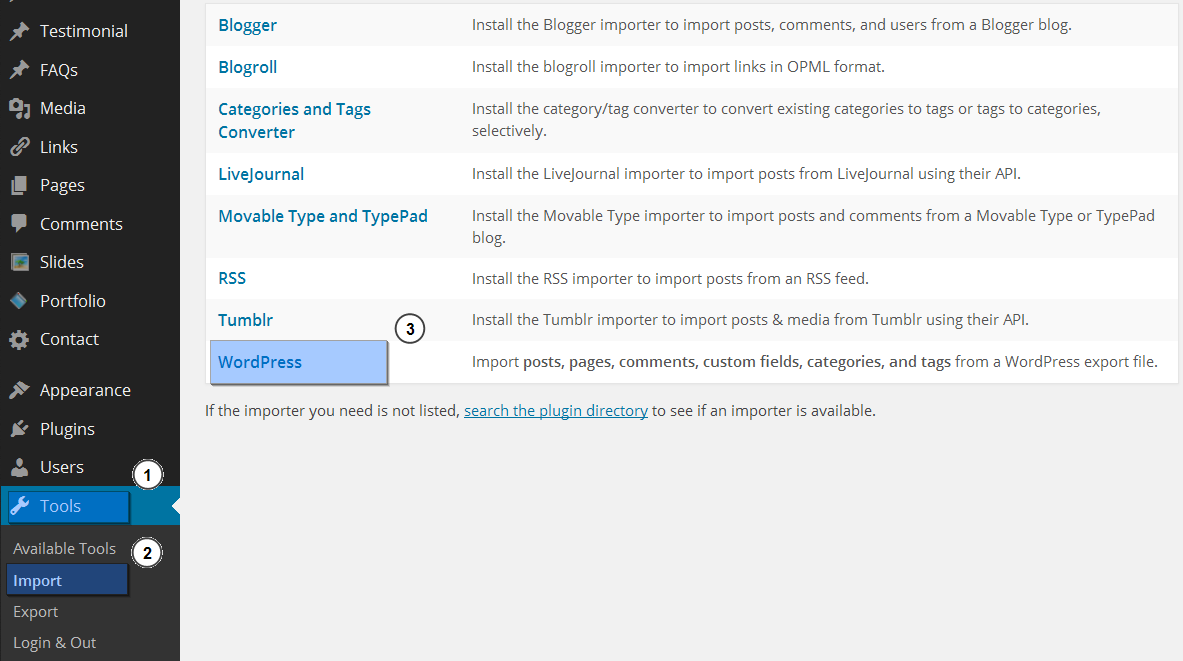
Credit: www.templatemonster.com
Troubleshooting Common Issues
Installing a new theme on WordPress can cause issues like compatibility conflicts or missing files. Ensure your WordPress version is updated to avoid these problems. Check theme documentation for specific installation steps to ensure a smooth setup.
Fixing Display Errors
Sometimes themes don’t display correctly. This can be due to coding errors or incompatible elements. First, check your theme settings. Ensure everything is set up right. Clear your browser cache. This can solve many display problems. If the issue remains, try a different browser. Some themes work better in certain browsers.
Still having issues? Disable any custom scripts. They might cause conflicts. Finally, consult the theme’s support documentation. They often have fixes for common display problems.
Resolving Plugin Conflicts
Plugins can clash with themes. This leads to unexpected behavior. Deactivate all your plugins first. Then, activate them one by one. Find the plugin that causes the issue. Once identified, check for plugin updates. Developers fix conflicts in updates. If updating doesn’t help, look for alternative plugins. Some plugins offer similar functions without causing issues.
Consider contacting the plugin developer. They might offer a solution. Always back up your site before making changes. This ensures your data is safe.
Maintaining Your Theme
Keep your theme up to date. This is very important. Updates fix bugs and improve security. Always check for new updates in your dashboard. Updates can also add new features. This keeps your site modern and safe.
Watch how your site performs. Slow sites lose visitors. Use tools to check speed. Ensure your theme is not causing delays. Sometimes, a theme update can slow things. If that happens, you may need to contact support. Fast sites keep users happy and coming back.
Credit: localwp.com
Frequently Asked Questions
How Can I Install A WordPress Theme?
To install a WordPress theme, navigate to your dashboard. Click on “Appearance” then “Themes. ” Choose “Add New” to browse themes. Select a theme and click “Install. ” After installation, activate the theme to use it. Ensure compatibility with your WordPress version.
Can I Switch Themes Without Losing Content?
Yes, you can switch themes without losing content. WordPress separates themes from content. When you change a theme, your posts, pages, and media remain intact. However, some customizations may need adjustments. Always back up your site before switching themes for safety.
Are All WordPress Themes Free To Install?
Not all WordPress themes are free. The WordPress repository offers many free themes. Premium themes provide advanced features and support. You can purchase them from marketplaces like ThemeForest. Evaluate your needs and budget before choosing between free and premium themes.
How Do I Customize My New Theme?
To customize your theme, go to your WordPress dashboard. Click on “Appearance,” then “Customize. ” Use the built-in editor to modify layouts, colors, and fonts. Some themes offer additional customization options. Check the theme documentation for specific guidelines and features.
Conclusion
Installing a new WordPress theme is straightforward. Follow the steps carefully. Start by backing up your site. This protects your data. Next, choose a theme that suits your needs. Download and activate it in your dashboard. Customize to your liking.
Check everything works well. Themes can change your site’s look. Make sure it remains user-friendly. Remember, regular updates keep your site secure. Now, your website has a fresh appearance. Enjoy your new design! Keep exploring other WordPress features. Grow your skills with practice.
Your website can stand out with the right theme.


