
Are you looking to give your WordPress site a fresh new look? Installing a new theme could be just the change you need.
It’s a simple way to transform your website’s appearance and functionality in just a few clicks. But with countless options available, it can be overwhelming to know where to start. Imagine the excitement of seeing your site come alive with a design that perfectly matches your vision.
In this guide, you’ll discover how easy it is to install a new theme in WordPress. We’ll walk you through the process step-by-step, ensuring you feel confident and in control every step of the way. Ready to bring your website to life? Let’s dive in and see how you can make a powerful impression with a new theme.
Choosing The Right Theme
First, think about what your website needs. Do you want a blog or a store? Maybe a portfolio? Make a list of features you want. Write down colors and layouts you like. This helps you choose the best theme.
Explore places where themes are sold. Popular spots are WordPress.org and ThemeForest. Browse many themes. Look at their ratings and reviews. See what others say. Find themes that match your needs. Some are free, others cost money.
Check features of each theme. Does it have a responsive design? Is it easy to change colors? Can you add a logo? Check if it works well on phones and tablets. Read the description carefully. Make sure it has what you need.
Preparing For Installation
Always create a backup before making changes. It keeps your data safe. Use a plugin like UpdraftPlus for this task. It’s simple and effective. You can also save files to your computer. This step is crucial if things go wrong.
Ensure the theme is compatible with your WordPress version. Check the theme’s details page for this info. Look for compatibility with your plugins too. A theme may not work well with some plugins. This can cause issues on your site. Reading user reviews can help decide if the theme is right.
Installing A Theme Via WordPress Dashboard
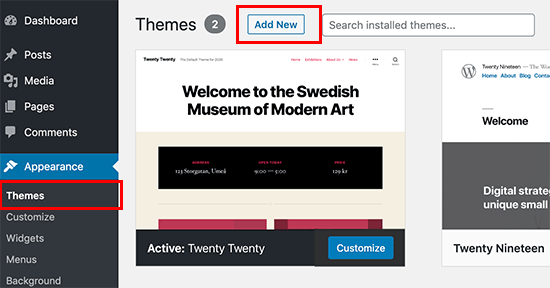
Access the WordPress dashboard to install a new theme effortlessly. Navigate to “Appearance” and click “Themes. ” Search for your desired theme, then simply click “Install” and activate it to transform your site’s look instantly.
Navigating To Appearance
First, find the WordPress dashboard. Look on the left-hand side. Click on Appearance. This opens the theme section. Here, you can manage themes. It’s simple and quick.
Searching For Themes
In the theme section, click on Add New. A search box appears. Type in the theme name. Scroll through the options. Many themes have ratings and descriptions. Choose one you like. Preview it first. This helps you see how it looks.
Activating The Theme
Once you’ve chosen, click Install. Wait for the installation to finish. Then click Activate. Your site now has a new look. Check your website. Make sure everything works. Adjust settings if needed.

Credit: www.elegantthemes.com
Installing A Theme Via Upload
First, find a theme you like. Visit the theme’s website. Look for the download option. Click to save the file. Make sure it is in a .zip format. This file is important. You need it for uploading.
Open your WordPress dashboard. Go to Appearance. Click on Themes. Find the Upload Theme button. Click it. Select the downloaded .zip file. Click Install Now. Wait a moment. The theme will upload. It’s fast and simple.
After uploading, look for the Activate button. Click it. Your new theme is now active. Check your website. See the changes. Enjoy your new look. Themes make websites fun.
Customizing Your New Theme
The WordPress Customizer helps you change your theme’s look. Find it in your dashboard. Click on Appearance and then Customize. You can change colors, fonts, and more. Try different options. See changes live. It’s easy and fun.
Many themes have special settings. Look for a menu called Theme Options. You can change the layout here. Choose between different styles. Make your site unique. Always save changes after adjusting.
Widgets add extra features to your site. Find them under Appearance. Drag and drop to add them. Menus help users find pages. Create them under Appearance too. Add important links. Keep it simple for easy navigation.
Credit: thimpress.com
Testing Your New Theme
Check your site functionality after installing a new theme. Visit each page and test all links. Ensure all buttons work as expected. Look at forms and see if they submit correctly. Make sure your content appears properly on every page.
Ensure the design is responsive on all devices. Use a computer, tablet, and phone. The layout must adapt to different screen sizes. Look for cut-off text or images. Fix any issues you find.
Verify browser compatibility for a smooth experience. Open your site in Chrome, Firefox, and Safari. Make sure everything looks the same. Check if any elements are missing or broken. Correct errors to keep your site user-friendly.
Troubleshooting Common Issues
Installing a new theme in WordPress may cause errors like broken layouts or missing features. Check theme compatibility and update WordPress to fix these issues. Activate the theme to see changes and adjust settings as needed.
Resolving Installation Errors
Installation errors can be frustrating. Check your theme’s compatibility with WordPress. Ensure you have the latest version. Sometimes themes require specific plugins. Install them for smooth functioning. If the error persists, contact the theme developer. They often provide support for installation issues. Re-download the theme if needed. File corruption during download can lead to errors.
Fixing Display Problems
Display problems might occur due to browser issues. Clear your browser cache regularly. This often solves minor display glitches. Check theme settings in WordPress. Adjust them to match your site needs. Responsive themes sometimes need extra settings. Ensure your theme supports mobile viewing. This avoids layout problems on phones.
Seeking Support
Theme developers usually offer support forums. These are great for getting help. Search for your issue before posting. Someone might have already solved it. If not, post your question clearly. Include details like WordPress version and theme name. Patience helps when waiting for responses. Community members often assist with common problems.

Credit: www.greengeeks.com
Frequently Asked Questions
How Can I Upload A Theme In WordPress?
To upload a theme, go to your WordPress dashboard. Click on ‘Appearance,’ then ‘Themes,’ and select ‘Add New. ‘ Choose ‘Upload Theme’ and select the theme file from your computer. Click ‘Install Now,’ then activate the theme. Ensure the theme is compatible with your WordPress version.
Where Can I Find Free WordPress Themes?
Free WordPress themes are available in the WordPress theme directory. Access it through your dashboard by clicking ‘Appearance,’ then ‘Themes,’ and ‘Add New. ‘ Browse or search for themes using filters. Ensure the theme is well-reviewed and regularly updated for security and compatibility.
What Should I Check Before Activating A Theme?
Before activating, check theme compatibility with your WordPress version. Review its responsiveness on different devices. Ensure it is SEO-friendly and supports necessary plugins. Read user reviews for insights into theme performance and issues. Check for regular updates and support availability from the developer.
Can I Customize My WordPress Theme Easily?
Yes, most themes offer customization options. Access them through ‘Appearance’ and ‘Customize’ in the dashboard. You can change colors, fonts, and layouts. Some themes include page builders for easy customization. Ensure your theme supports customizations without needing coding skills for user-friendly changes.
Conclusion
Changing your WordPress theme can refresh your site’s look. It’s simple. Just follow the steps outlined above. Choose a theme that fits your brand. Always back up your site first. This prevents data loss. Check theme compatibility with your plugins.
A new theme can enhance user experience. It keeps your content engaging. Regular updates ensure security and functionality. Explore different themes to find the best fit. Enjoy customizing your site. With practice, it becomes easier. Keep your site vibrant and appealing.
Your audience will appreciate the improved design. Happy theming!


