
Are you ready to give your website a fresh, unique look? Installing a custom WordPress theme on Domain.com might be just what you need.
Imagine having a site that perfectly reflects your brand or personal style, standing out from the crowd with its distinct design. The process may seem daunting at first, but with the right guidance, it’s a breeze. In this guide, you’ll discover step-by-step instructions that make theme installation straightforward and hassle-free.
By the end, you’ll not only have a stunning website but also the confidence to tweak and personalize it to your heart’s content. Dive in, and let’s transform your online presence together!
Choosing The Right Theme
Identify your needs before picking a theme. Think about the website’s purpose. Do you need a blog, shop, or portfolio? Knowing this helps. It narrows down your choices.
Research popular themes in your category. Some themes are well-loved for a reason. They are often well-designed and easy to use. Check ratings and reviews. They give you insights from other users.
Check compatibility with your version of WordPress. Not all themes work with all versions. It’s important to check this first. Also, ensure it works on mobile. Many people visit websites using phones. A mobile-friendly theme is crucial.
Preparing For Installation
Backup your site before any changes. This protects your work. Use a reliable plugin for this. Many plugins are free. Save your backup in a safe place. It might be helpful later.
Creating a child theme is smart. It keeps your changes safe. Parent themes can update often. These updates can erase your work. Child themes store your edits separately. This makes updates easy.
Before starting, gather necessary files. You need theme files. You also need plugins. Check for documentation. This can guide you. Place files in one folder. Keep them organized. This helps during the installation.
Uploading The Theme
Installing a custom WordPress theme on Domain. com involves straightforward steps. Begin by accessing your WordPress dashboard and navigate to the “Appearance” section. Select “Themes,” then click “Add New” to upload your chosen theme file.
Accessing Domain.com Dashboard
First, go to your Domain.com account. Log in with your details. Find the dashboard. Look for the WordPress section. Click on it. You will see options to manage your site.
Using Ftp For Upload
Download an FTP client. FileZilla is a good choice. Connect to your server. Use your login details. Find the themes folder in WordPress. Upload your theme here. Wait for the upload to finish.
Uploading Via WordPress Admin
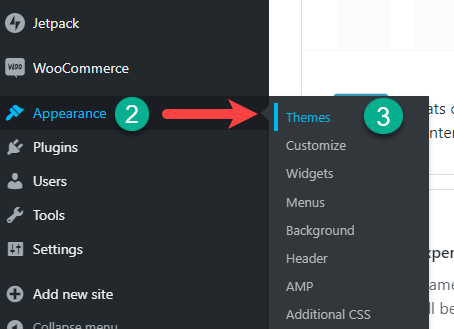
Go to your WordPress admin area. Click on Appearance. Then click on Themes. Select the Add New button. Click Upload Theme. Choose your theme file. Press Install Now. Wait for the installation. Then activate your theme.
Credit: www.domain.com
Activating The Theme
Start by logging into your WordPress dashboard. Look on the left-side menu. Click on “Appearance”. A drop-down will show. Find and click “Themes”. This will take you to the Themes section. Here, you will see all your available themes.
In the Themes section, find the theme you want. Hover over it. You will see an “Activate” button. Click on it. Your theme is now active. Enjoy your new look.
After activating, visit your site. Check if everything looks good. If you see any problems, return to the Themes section. Try activating another theme. Ensure there are no compatibility issues. Your website should look as expected.
Customizing The Theme
Easily install a custom WordPress theme on Domain. com by accessing your WordPress dashboard. Navigate to ‘Appearance’ and select ‘Themes’, then click ‘Add New’ to upload and activate your theme. Enjoy a personalized look for your website.
Exploring Theme Options
Every custom WordPress theme offers unique options. These options help you tailor your website’s look. You can find these settings in the WordPress dashboard. Look for the “Customize” section. Here, you can change colors, fonts, and headers. Explore each setting. Discover what fits best for your site. This step makes your website unique.
Adjusting Layout And Design
Layout changes can transform your site. Choose between different layouts like grid or list. Design elements include margins, spacing, and padding. Adjust them to enhance your site’s appearance. You can add images and text blocks. Make sure they align well. This ensures a clean look. Test the design on different devices. This helps in maintaining consistency.
Adding Widgets And Plugins
Widgets and plugins expand your site’s functionality. Widgets can add search bars, calendars, and menus. Plugins introduce features like contact forms and SEO tools. Choose the right widgets for your site. Ensure plugins are compatible with your theme. Some plugins may slow your site down. Select wisely and check reviews before installing.
Testing Your Site
Installing a custom WordPress theme on Domain. com enhances your site’s look. Begin by accessing your WordPress dashboard. Navigate to ‘Appearance,’ then ‘Themes,’ and click ‘Add New. ‘ Upload your theme file, activate it, and customize settings for a unique design.
Check Responsiveness
Ensure the site looks good on all devices. Test on phones, tablets, and computers. Resize the browser window to see how the site changes. Users should find it easy to read and use. Buttons and links must be easy to click.
Verify Functionality
Test all links and buttons. Make sure they work right. Fill out forms to see if they submit. Check the shopping cart if you have one. Make sure it adds and removes items. Look for any broken images. Replace or fix them.
Ensuring Speed And Performance
Use tools to check site speed. Google PageSpeed Insights is one option. Slow sites frustrate users. Make images smaller to load faster. Limit the number of plugins. Too many can slow the site. Test the site on different internet speeds.
Maintaining Your Theme
Keep your theme updated. This will fix bugs and improve features. Themes often get new updates. Find them on the theme page. Updates make your site safe. They also help it run better. Check for updates often. Set reminders to update monthly.
Watch for problems with the theme. Look for errors in how it works. Find broken links or missing images. Fix them quickly. Check your site every week. This keeps everything smooth. Use tools to find issues fast. Keep notes of any problem you see.
Always backup your site. This saves your work. Use plugins for easy backups. Security is very important. Protect your site from hackers. Change passwords often. Use strong passwords. Install security plugins for more safety. Keep your data safe and secure.

Credit: www.domain.com
Credit: www.domain.com
Frequently Asked Questions
How Do I Upload A Custom WordPress Theme?
To upload a custom WordPress theme, go to your WordPress dashboard. Navigate to “Appearance” and click “Themes. ” Select “Add New” and then “Upload Theme. ” Choose your theme file, click “Install Now,” and activate it. Ensure your theme is compatible with WordPress and well-coded for optimal performance.
Can I Install Themes From My WordPress Dashboard?
Yes, you can install themes directly from your WordPress dashboard. Go to “Appearance” and select “Themes. ” Click on “Add New” to browse available themes. You can search for free themes from the WordPress repository or upload a custom theme.
Always ensure compatibility and security before installing.
What File Format Should My Theme Be In?
Your WordPress theme should be in a. zip file format. This format is necessary for uploading and installing the theme through your WordPress dashboard. Ensure that the. zip file contains all necessary theme files, including style. css and functions. php, for proper functionality and appearance.
How Can I Preview A Theme Before Activation?
To preview a theme before activation, go to “Appearance” and click “Themes. ” Hover over the theme you want and click “Live Preview. ” This feature allows you to see how the theme looks with your content before committing. Ensure it aligns with your site’s branding and functionality needs.
Conclusion
Installing a custom WordPress theme is easier than it seems. Follow the steps to ensure a smooth setup on Domain. Com. First, choose a theme that fits your needs. Then, download and upload it via the WordPress dashboard. Activate the theme, and customize it to match your style.
Remember, a well-chosen theme can enhance your website’s look and feel. Always test your site on different devices for compatibility. With patience and practice, you’ll create a professional-looking website. Enjoy your new WordPress theme and the unique touch it brings to your site!


